
In October, macOS Ventura became available, the new operating system for the Mac. Read here which great new functions you can use.
Edited by Rob Coenraads
Ventura is the Spanish word for “happiness,” and Apple wants macOS Ventura to make you happy. So if you’re going to update your Mac from macOS Monterey to macOS Ventura (in hopefully less than four hours), you’ll welcome a ton of new features to your computer. The most notable? A new window manager that makes it much easier to keep track of all your open apps. But there are also a lot of small improvements that we think secretly steal the show, as you can read here.
 |
 |
Availability Starting in October, you can update your Mac to the These are all Macs running macOS Ventura MacBook (2017 and newer) MacBook Air (2018 and newer) MacBook Pro (2017 and newer) Mac mini (2018 and newer) iMac (2017 and newer) Mac Pro (2017 and newer) Mac Pro (2019 and newer) MacStudio (2022 |
|
|
Member Benefit |

Mail
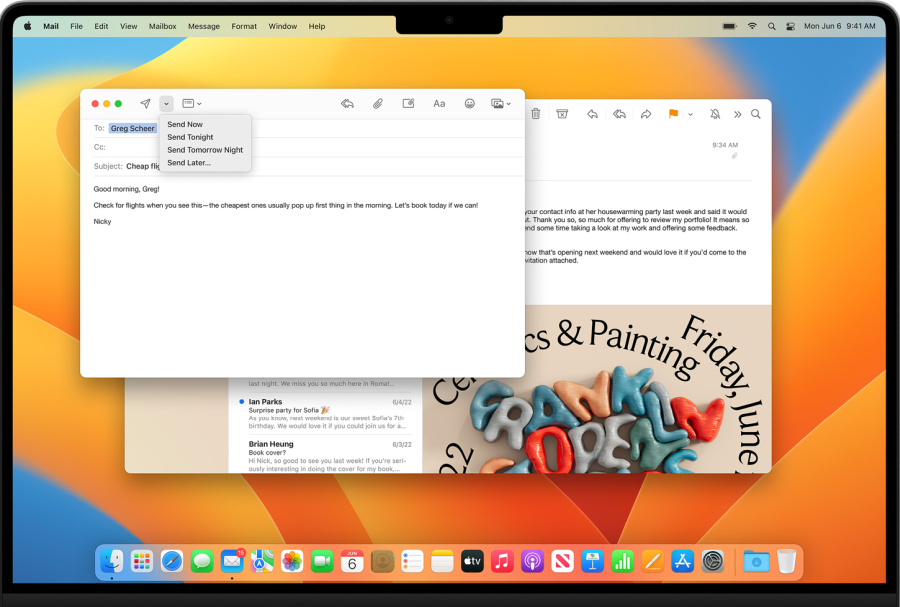
For the first time in years, macOS’s Mail app has received attention again – just as it did in iOS. In Ventura Mail has the option to withdraw a sent mail. This option appears a few seconds after you click Send have pressed. If at the last minute you remember that you forgot an attachment, didn’t cc someone, or made another mistake, you can click the Undo sendbutton and retrieve the message. Or much more: prevent it from being sent at all.
To avoid even more embarrassing mistakes, Mail now also pays attention to things like mentioning an attachment in the text, without actually adding that attachment. If Mail notices this, it will warn you before you send the message. There is also a kind of scheduling assistant. This allows you to send an email at a later date or time. This is a great feature that many other email apps have been offering for a while, so it’s good to see Apple catching up.
Finally, Mail in Ventura includes a much-improved search feature. Recent searches are saved, suggestions and results are more accurate, and items such as documents or links from emails surface faster in the search interface. We’ve often been annoyed by Mail’s search feature in the past, so this is a welcome change.
 To inform
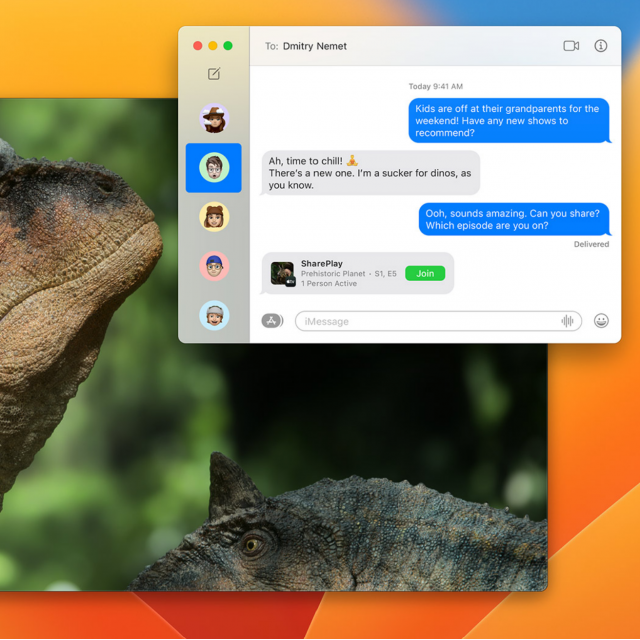
With Messages in macOS Ventura (and iOS 16), you can now edit or delete iMessages after you send them. Unlike the similar feature in Mail, Messages always actually send a message. 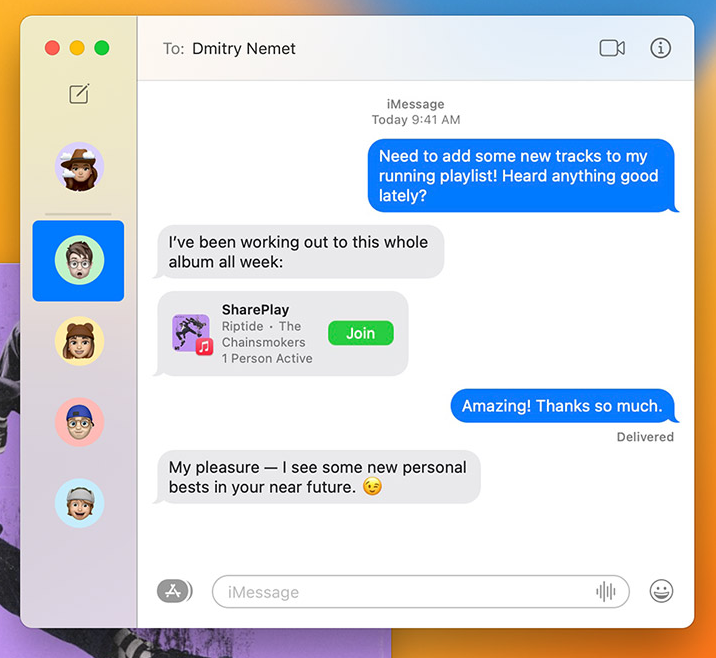 So you really delete or edit a message on the recipient’s device. Apple can do this because it has complete control over the iMessages and the protocol behind them, which of course is not the case with email.
We already find deleting and editing messages very practical, but our favorite new feature of Messages is the ability to mark conversations as unread. This will finally put an end to the fact that we forget to 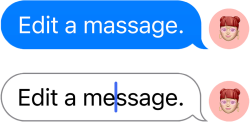 reply, because the blue ‘unread message’ dot is missing after we opened the conversation. Of course, it remains to be seen whether these new features can overcome our biggest gripe with Messages, which is that all our friends are on WhatsApp after all.
 spotlight
Spotlight, the macOS search tool, has been given a major overhaul in Ventura, with expanded functionality and a redesign for your searches. Images can now be found directly from Spotlight photos, To inform, Notes, Finder or from the internet. This even works with texts found within the images (via Live text). Did you take a photo of a document? From now on you can also find the texts in it via Spotlight.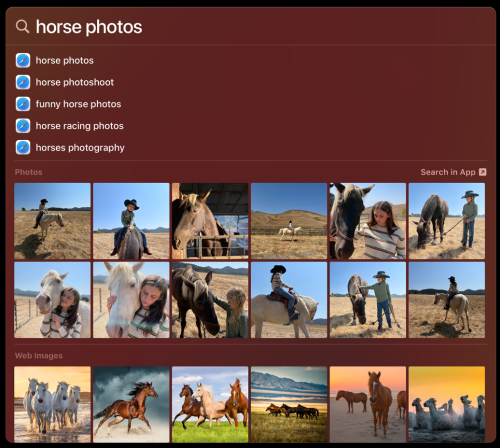
The new design also brings expanded previews of photos, music, movies, files and more. Also new is support for Quick view. Press the space bar when you hover over an item to enter it Quick view to watch. Finally, Spotlight now includes quick actions such as setting timers, switching focus modes, and executing commands.
 Safari
Apple’s Safari browser now receives support for the so-called ‘passkeys’ technique, which you have already read about in PC-Active 326. This makes it possible to log in to websites without passwords. The passkeys remain on your own device and are never stored on a server, making it nearly impossible for hackers to intercept login credentials. Websites, apps and services still need to be updated to support this “passwordless” form of sign-in, so it will be some time before we can completely ban passwords from our lives. That said, the feature sounds great, and will be available on non-Apple devices by scanning a QR code with your iPhone. Of course, passkeys are also available on your iPhone with iOS 16.
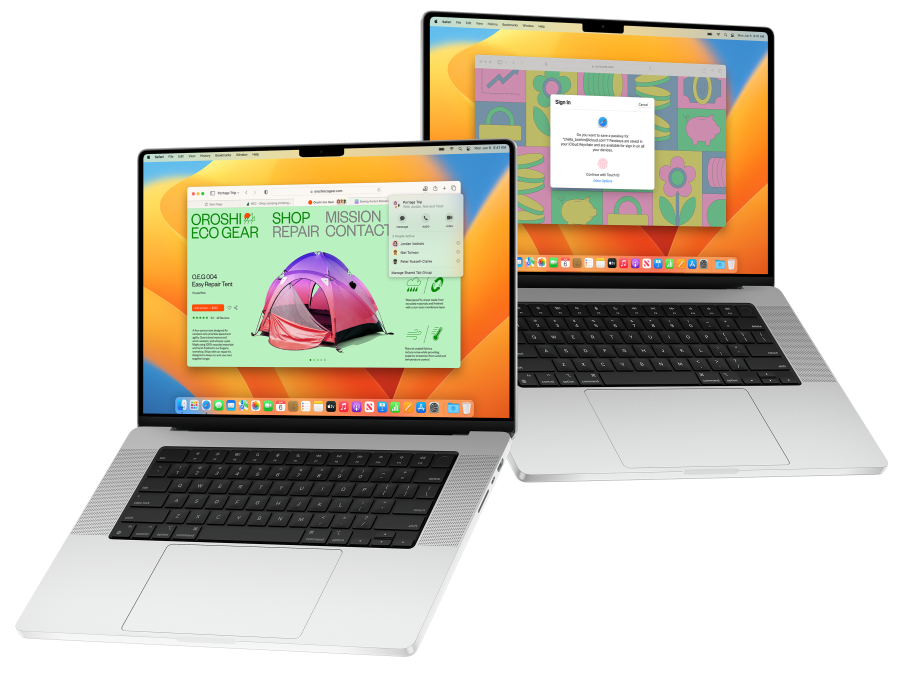 Ventura also introduces Shared Tab Groups, which lets you collaborate with friends, family, or colleagues right from Safari. The feature syncs open tabs to everyone’s device, and participants can see which tabs others are viewing at any time. You even pair this with FaceTime to see and chat with each other while browsing or working in your shared tabs.
 photos
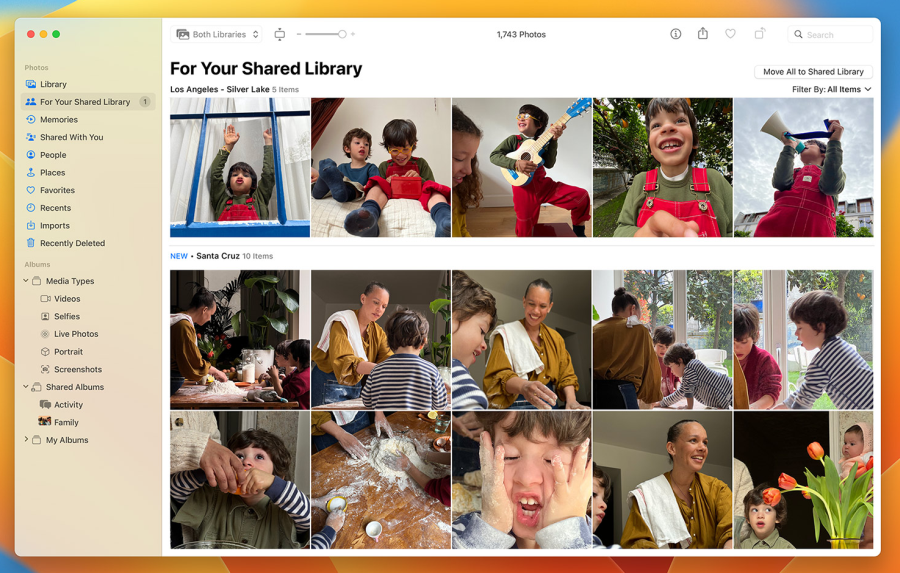
A new shared iCloud Photo Library brings support for sharing your library with up to five other people, and you don’t even have to Share with family necessary. You can easily choose which photos are shared using search filters. In this way, only photos from a certain date end up in the shared library, or you ensure that only photos with specific people (via facial recognition) are saved. Of course it is also very easy to exclude photos that you never want to share.
Once photos are in the shared library, edits and other changes to the photos are synced to all users on all devices. Also, Photos in Ventura now locks your albums by default Hidden and Recently deleted. You can unlock it with Touch ID or use your Mac’s password.
|
Another feature of Continuity Camera: DeskView. This option uses the ultra wide angle lens in your iPhone. It films so wide that it also covers your desk when you use the iPhone as a webcam for the Mac. Useful software tricks make it look like you have a top-down camera floating above your desk. This is extremely useful for people who explain things and need to show something in detail.
|
 Continuity Cam
 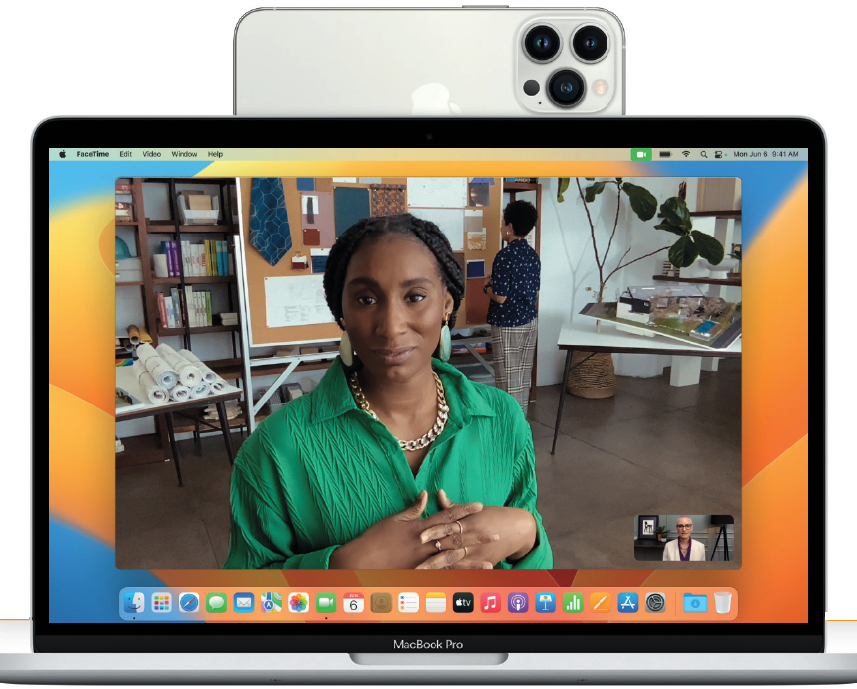 Continuity Camera is a nice solution to the problem that the built-in cameras on most Macs and the Studio Display are not the best quality. It also gives a nice option for Mac users with an external screen without a camera. Hopefully, this feature doesn’t imply that Apple isn’t putting more effort into quality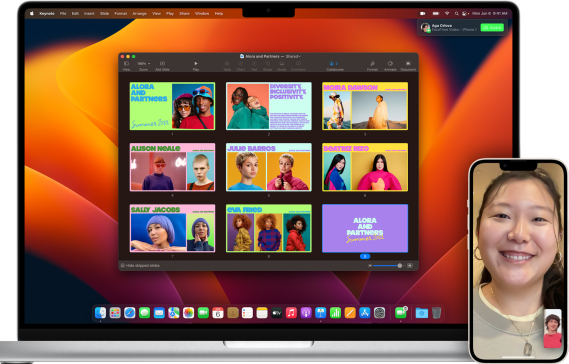
|
 FaceTime
  Internship Manager
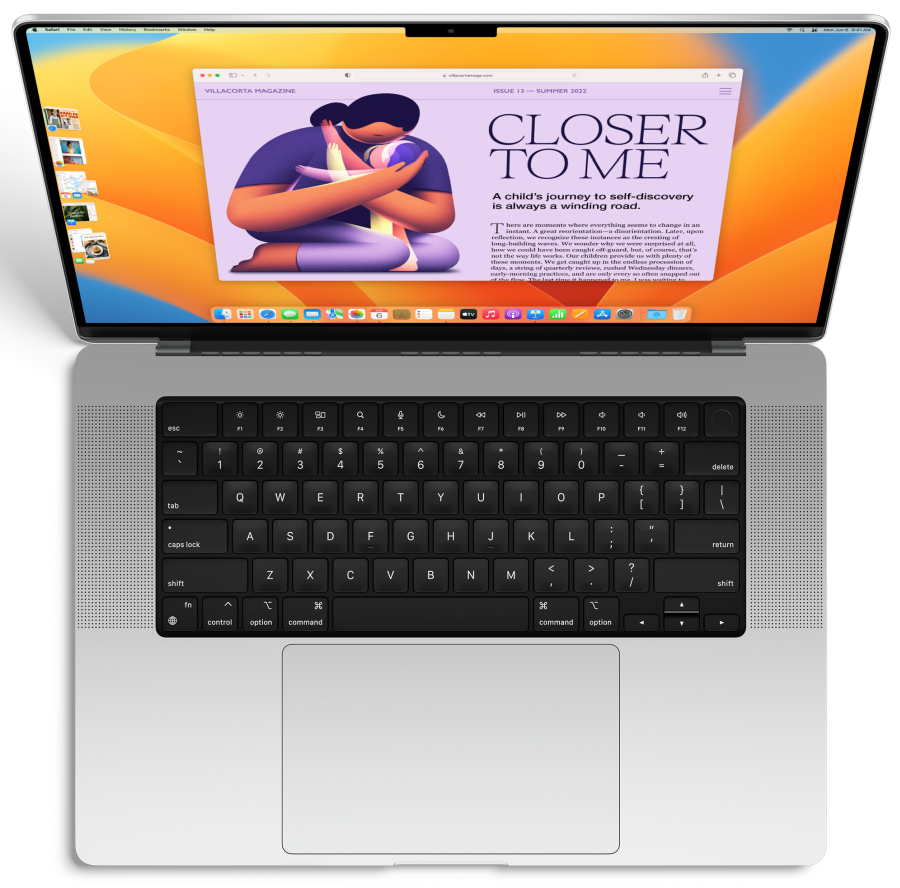
Stage Manager is a brand new mode to manage your windows in macOS Ventura. You activate it from the Control panel, and then groups your apps and windows into a special view. A column of groups of windows runs along the left side, while the rest of your screen shows the currently selected group. You can arrange and resize the foreground windows as you like, and easily switch the chosen group at any time. It takes some getting used to at first, but we soon see the benefits. Apple hopes Stage Manager makes it easier to switch between different activities, without the clutter of overlapping windows.
Stage Manager is also coming to iPadOS, where it is even more revolutionary. At the very least, Stage Manager on macOS will make moving to and from iPadOS much more enjoyable.
|
System settings |
And much more
|