
In Whatsapp, sometimes you have messages that you want to keep private and secure. That’s why Whatsapp has the Chat Lock feature, which protects your most private conversations with an extra layer of security. Read here how to enable it.
The most popular messaging app Whatsapp regularly comes with new features, such as the ability to edit a sent message and the navigation bar at the bottom for Android. Whatsapp also has a (new) way to keep your chat messages private and secure: Chat Lock. In the coming months, Whatsapp will add more options for Chat Lock, including locking for assistive devices and creating custom passwords for your chats so you can use a unique password that’s not the same as the one you use for your phone.
Chat lock
With the function Chat lock you can protect your most private conversations with an extra layer of security. When you lock a chat, it’s taken out of your inbox and placed in its own folder that can only be accessed with your device’s PIN or biometrics, such as a fingerprint or FaceID (facial recognition). The content of that chat is also automatically hidden in notifications.
Handy use
Whatsapp thinks this feature is good for people who sometimes need to share their phone with a family member or for those times when someone else is holding your phone right when an extra special chat comes in. You can lock a chat by tapping the name of a group or one-on-one chat and selecting the lock option. To view these chats, slowly pull down your inbox and enter your phone password or your biometrics.
Enable chat lock
You can disable or enable chat locking in the chat info of each chat you want to lock. If you haven’t already set up device authentication such as a phone passcode, fingerprint, or Face ID, you’ll need to set it up before you can lock a chat.
Use chat lock
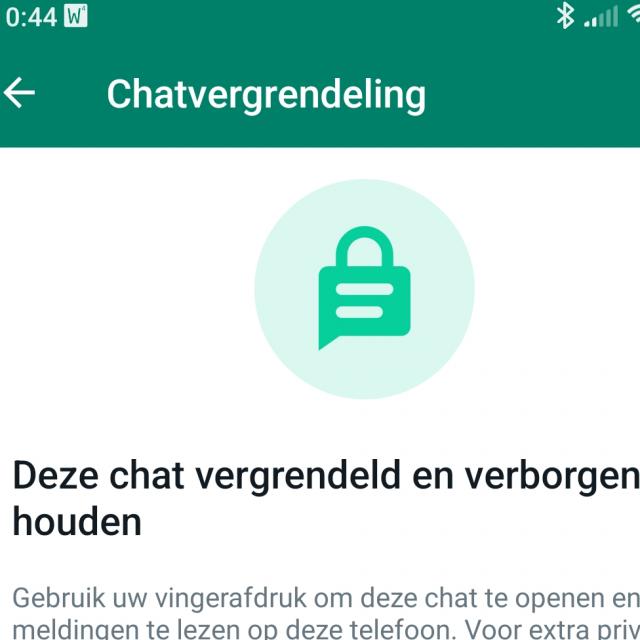
In Whatsapp, go to the person or group app for which you Chat lock want to enable. Tap the bar with the name of the person or group at the top, and a new window with more information about that person or group will appear. Then scroll down to you Chat lock see and tap it. In the new window Chat lock at the bottom you will see the option to lock the chat with device verification (access code for your phone, fingerprint or Face ID), in the example below with a fingerprint (article continues below the image):
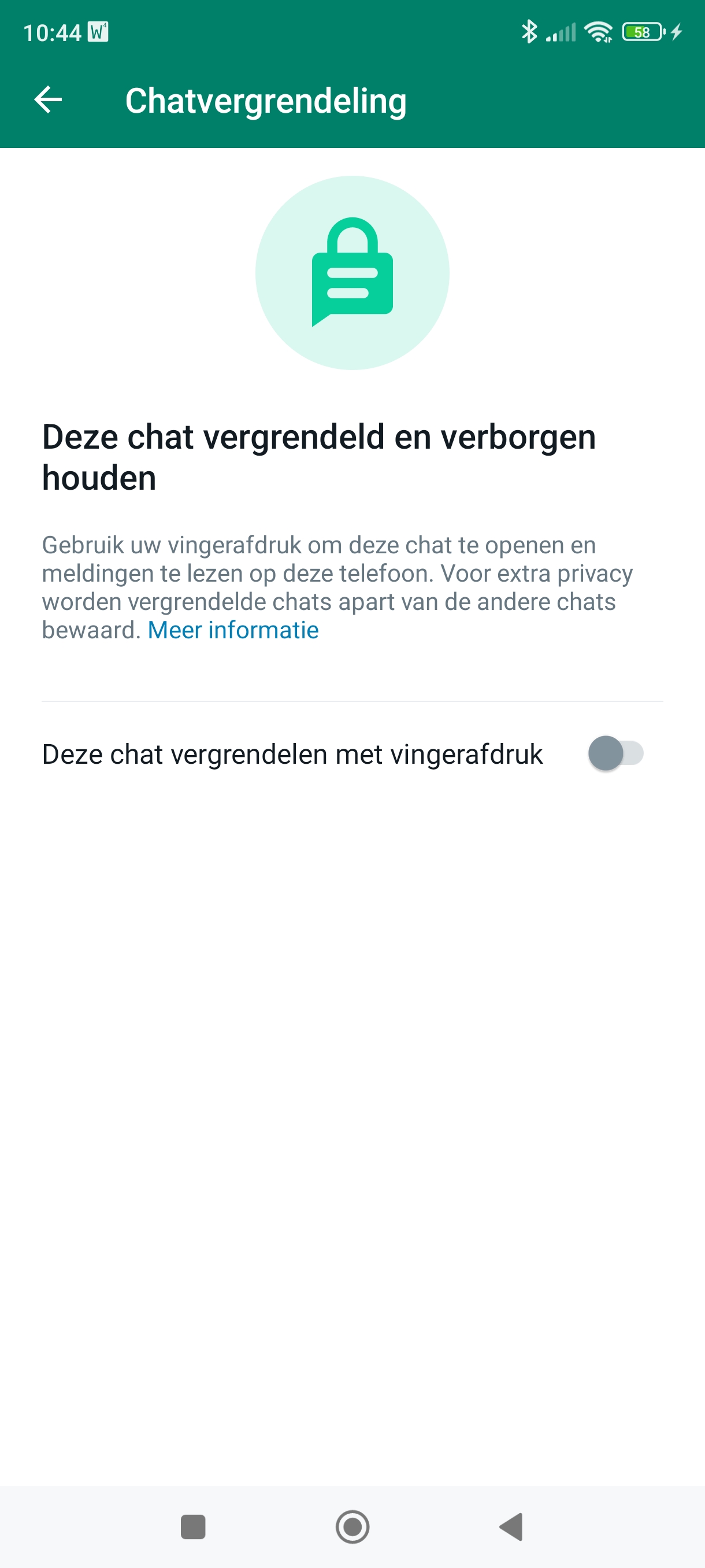
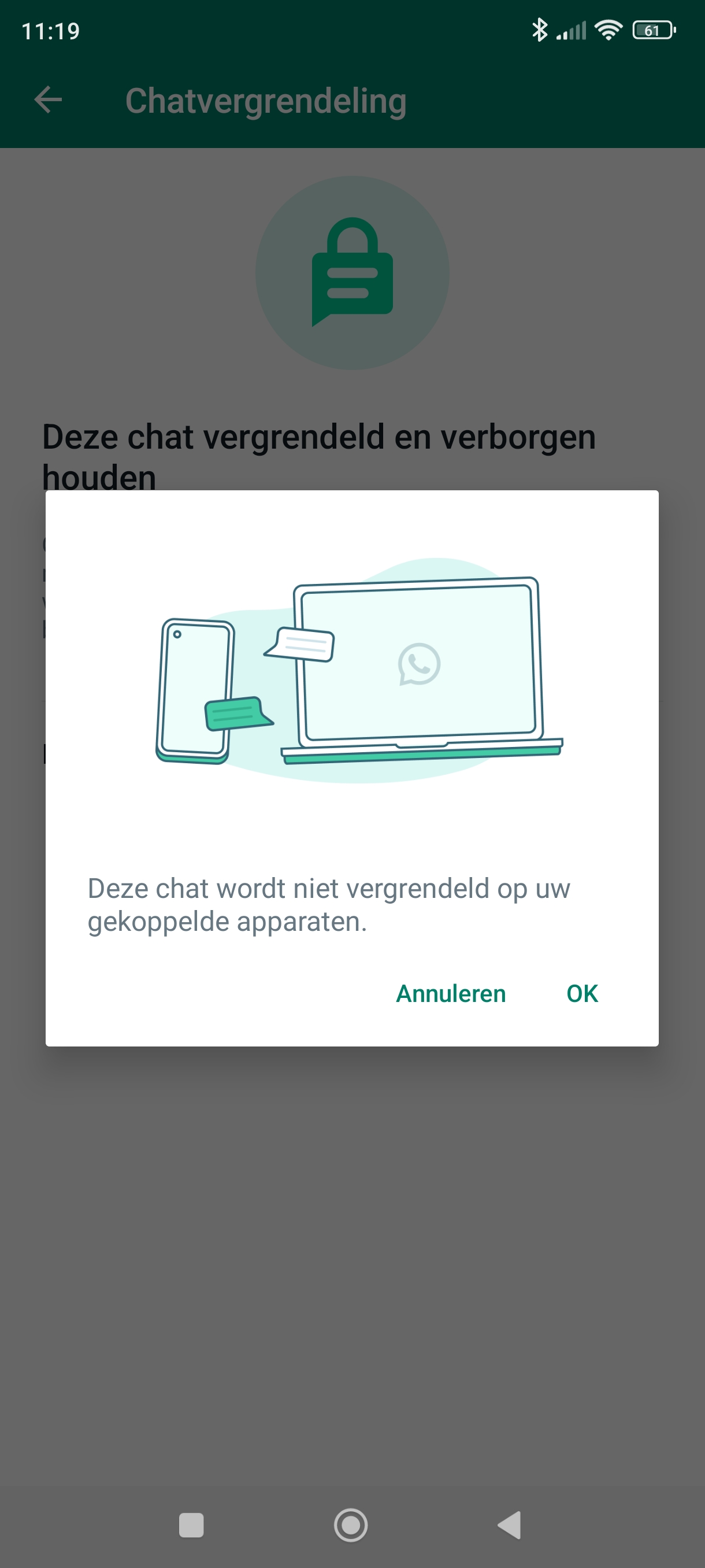
Slide the head to the right, after which you will (in this case) receive this message (article continues below the image):
and then you’ll be prompted to set your finger pressure (if you haven’t already).
Tap on To look at to the chat in the folder Locked chats to see.
View your locked chats
You can view your locked chats in the folder Locked chats. Go slightly below the tab Chats standing and swipe down after which you will see the (until just hidden) folder Locked chats sees (article continues below the image):
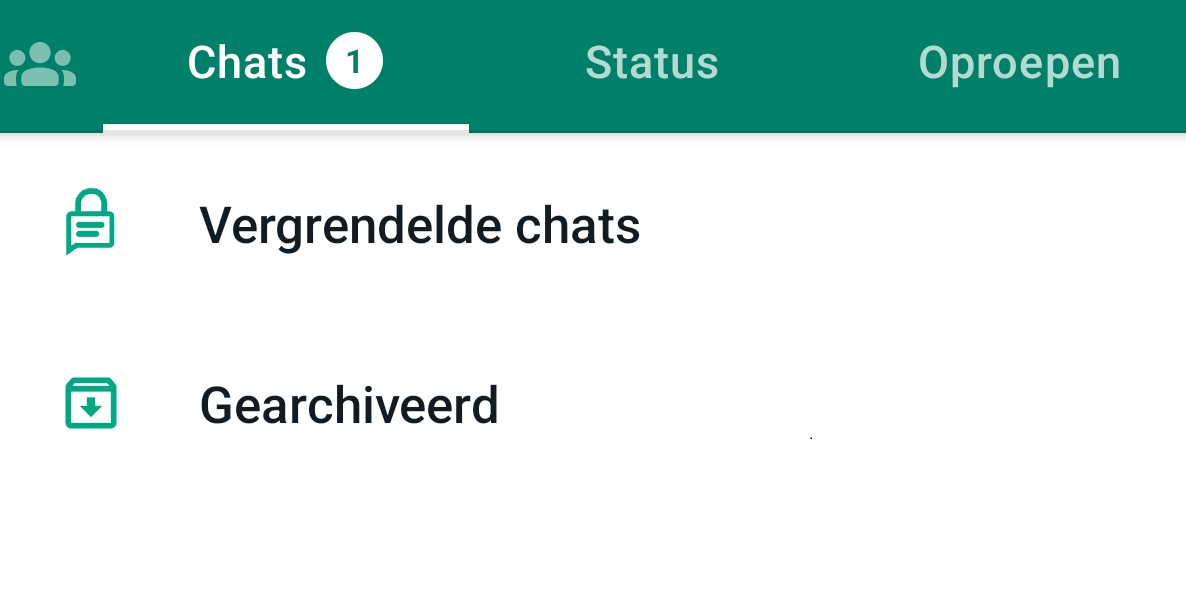
Unlock now via your PIN code or your fingerprint, for example, to continue. Tap the chat to view or send a message.
Disable chat lock
Of course you can also turn Chat Lock off again. Tap on Locked chats (if you see this folder under the chat, otherwise swipe it down a bit), tap it and unlock it via your PIN code, for example). Tap the person or group chat you’ve locked, tap its name and go to Chat lock. Slide the button in the bar to the left, so that you disable this function and confirm this via your PIN code, fingerprint or Face ID.
Learn more about Chat Lock
* When chats are locked, notification content and contact are hidden. You will see the notification WhatsApp: 1 new message instead.
* To keep media private, you need to turn off chat lock to save the media to your phone’s gallery.
* Group chats and muted chats can also be locked.
* Calls are not locked. A call from a locked (group) chat will be displayed.
* If you enable chat locking on your phone, only chats on that phone will be locked. If you have other devices linked to WhatsApp, such as a desktop computer, chats on those linked devices will not be locked.
* If you use backup and restore for WhatsApp, your locked chats will remain locked if you restore WhatsApp to a new phone. To open your locked chats, you must first have device authentication (fingerprint or Face ID) set up.
* If you enable chat locking, the person you’re chatting with won’t know you’ve locked the chat.
* If you want to lock an archived chat, you must first unarchive it and then lock it.