
With the Color Picker Utility you can find almost any color shown on your screen
Dennis Gandasoebrata
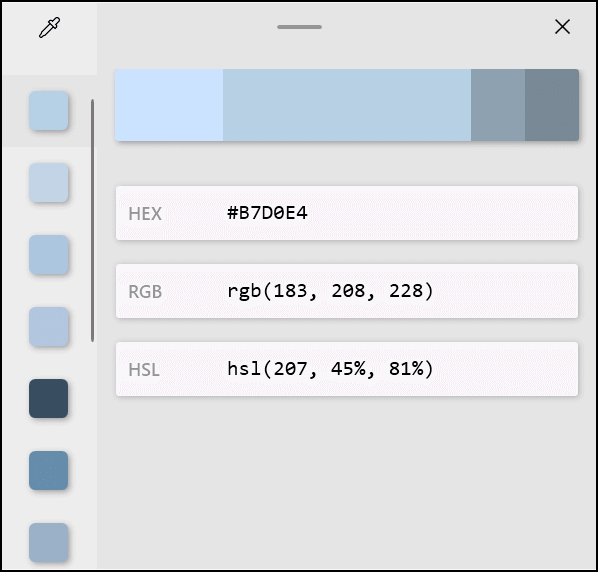
Microsoft’s PowerToys, which we have paid attention to before, also have a few useful tools that are useful for working comfortably with a screen. A good example of this is the Color Picker Utility. This allows you to find out almost any color shown on your screen. For example, if you are working on an image and want to use a specific color that you saw in a program or on a website, you can use the Color Picker to discover the color value and copy it to the clipboard.
You decide which format is used (for example the HEX format). The operation is simple: you hover the mouse over a part and click on it with the left mouse button. The value is copied. In addition, Color Picker can display the name of a color. Another interesting part of the PowerToys is Screen Ruler. This allows you to quickly measure the number of pixels. Useful if, for example, you want to see the size of a program window or image. You can indicate whether you want to measure horizontally, vertically or both. Screen Ruler works – just like the Color Picker – based on a hotkey that you can set yourself.

Power Toys: Color Picker and Screen Ruler
(https://learn.microsoft.com/en-us/windows/powertoys)

Price: free
System requirements: Windows 10, Windows 11
Language:Dutch, English