Microsoft regularly provides Outlook with new updates and functions. For example, new functions for Outlook have recently come out that has to make Outlook more clearer.
Quinten Jochems
Outlook regularly gets a good update of new functions that can help you use Outlook even better. In the article below you can read about 4 new functions. Earlier, Pcactive.nl had an article about many unused functions in Outlook with tips to clean up the Outlook inbox.
What kind of new functions and how do I use them?
Outlook has recently received four new functions that are mainly focused on the organization of your Outlook. This way you can now organize folders on the left side of your screen as desired.
Organize folders
Folders are file locations with subject names on the left side of your Outlook screen, such as the mailbox in, sent items and deleted items. You can also move all other folders by moving the folder that you want to move via a pressed left mouse button to another place.
(Text continues under the image)

Pin folders
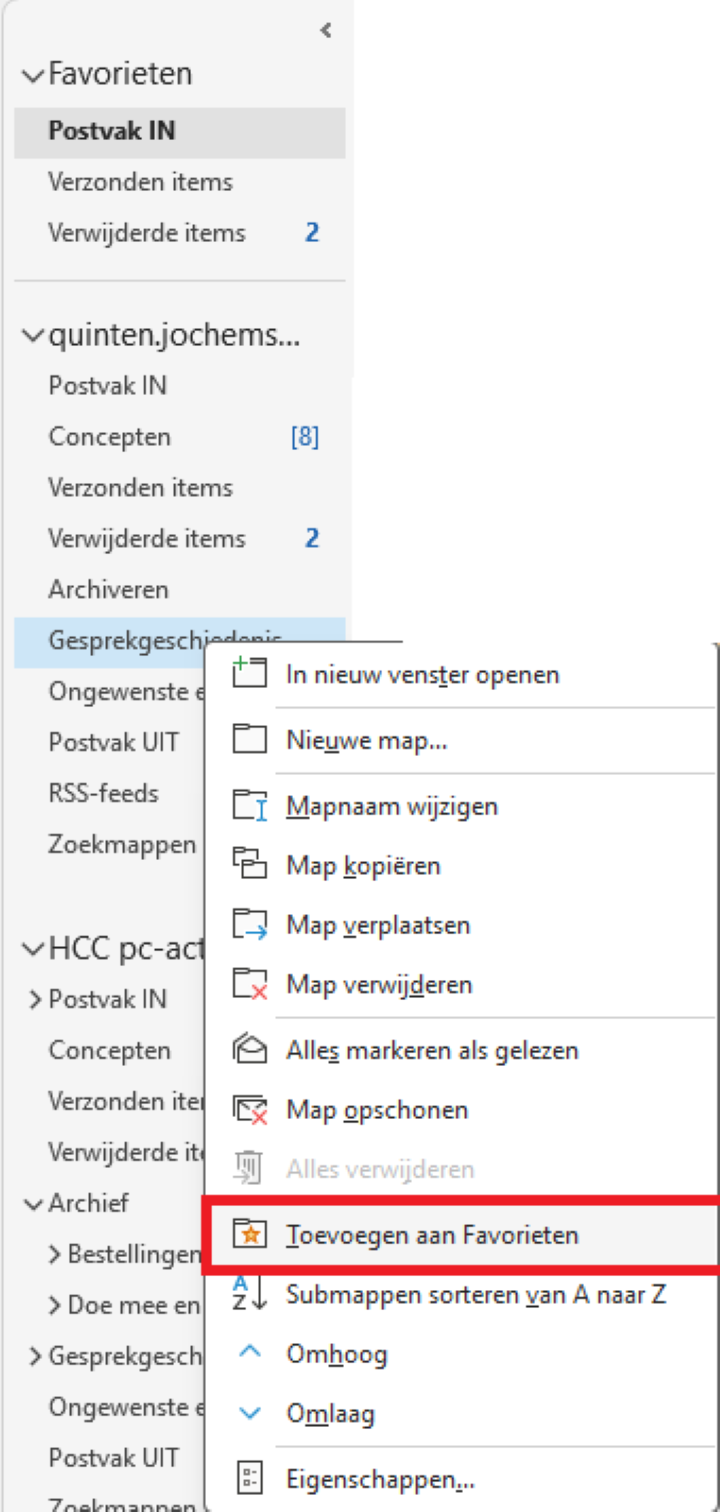
You can now also pay your most used folders on the top of the left screen where your folders are. You can do this by choosing the folder and then pressing the right mouse button and then searching approximately in the middle of the new window for adding to favorites. Press to put it with your favorites and then it is then in the top left. You can also remove them by following the same process, but then pressing removal from favorites.
(Text continues under the image)
Give a color
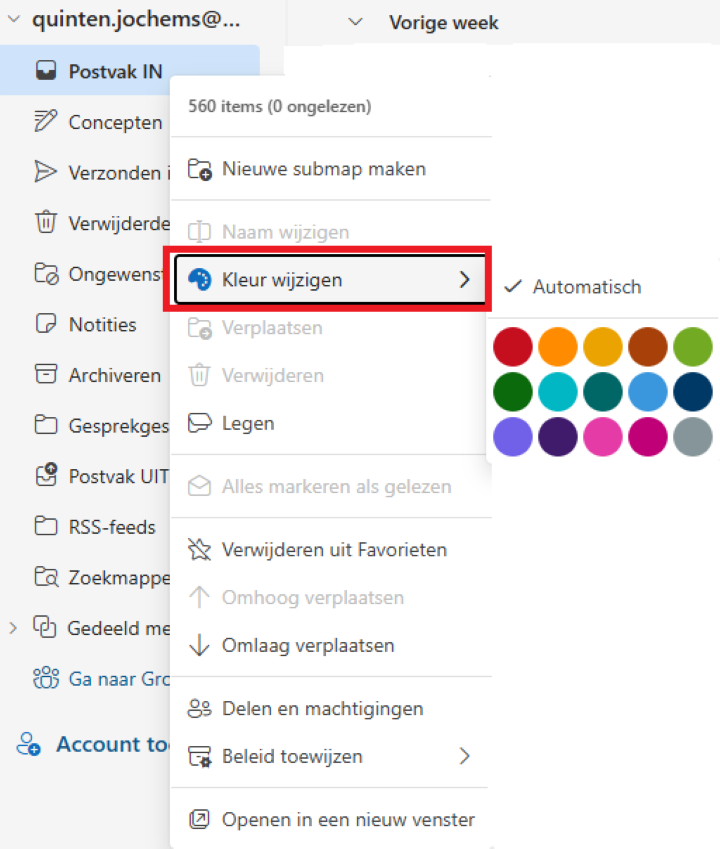
Now you can also change the colors of the different folders to your wishes in the new Outlook version; This function is unfortunately not available on the old Outlook version. To change your folders of color, just like the last step with your mouse, you will float over a folder and then press your right mouse button on the folder. That opens a new window that almost changes color at the top: if you select it with your mouse, you get the choice to choose from 15 different colors. If you choose automatically, the folder remains the standard color.
(Text continues under the image)
Remove invitations automatically after answering
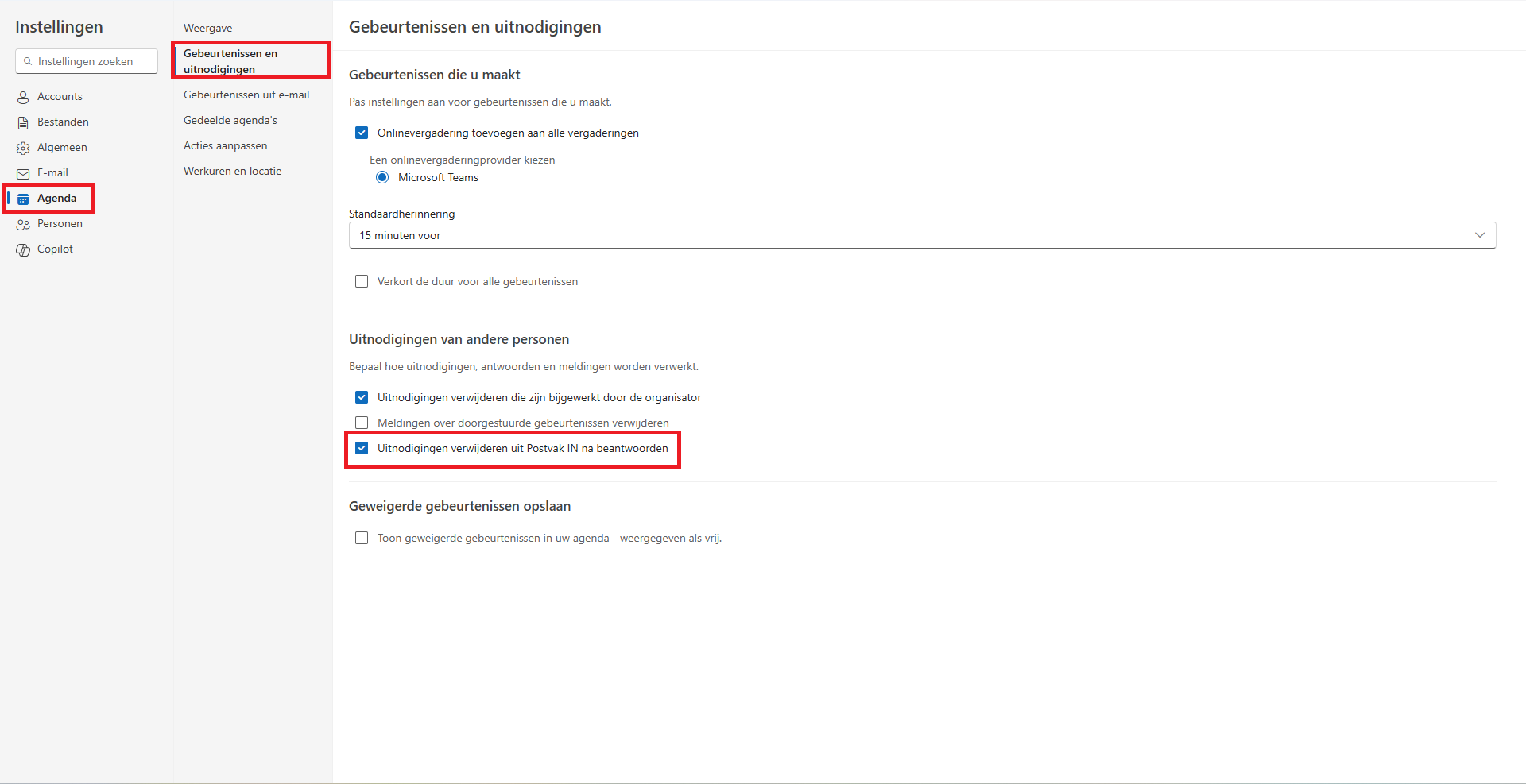
A new setting has been added to the new version of Outlook where you can automatically remove invitations from your mailbox if you have answered them. To switch on this setting, click on the gear at the top right. First check the new window that is open and agenda on the left side of your screen. Then look at the newly opened window with the second option Events and invitations and press them. Then check the invitations of other people in the last option. There Remove invitations from the mailbox in after answer. If there is not yet a check mark, click on the box next to this option to turn it on.