
You may have already seen the ‘Refresh in background’ option on your iPhone or iPad. Background Application Refresh is a feature that allows apps to automatically retrieve and update new information, even if they are not actively open at the time.
This ensures that apps are always up to date as soon as you open them and, for example, you immediately see new emails, news articles or weather updates without having to wait. Refreshing apps in the background is an automated process and can be limited. We explain how it works.
Refresh apps in the background
Apps that support background refresh use special protocols (APIs) in iOS and iPadOS to check for updates in the background. They are not fully active, but may download small amounts of data periodically to keep the content up to date.
For example, a mail app can retrieve new messages, a weather app can update the temperature, and a navigation app can continue to track your location to stay up to date. These updates can take place over WiFi or mobile data, depending on your settings.

Not for all apps
It is good to realize that refreshing in the background is only possible when the application is placed in standby mode and not completely closed. This means that the app is still active in the background in the app chooser, but is in sleep mode. These apps can be automatically updated at a minimum in the background. Do you close an app completely? Then these are not refreshed in the background.
Manage background refresh
The ‘Background Refresh’ feature can be enabled or disabled per app, so you can determine exactly which apps are allowed to receive updates and which are not. To do this, follow the steps below on your iPhone or iPad.
- Open Settings
- Navigate to ‘General’
- Tap ‘Background Refresh’

Disable the apps that you want to block from background app updating. Here you can also choose whether apps can only retrieve updates via WiFi or also via mobile data.
Besides, you can do it Also disable background updating completely for all apps. You do this by tapping the ‘Refresh in background’ option at the top of the list and choosing ‘Off’.
Limit the number of apps
It is a good idea to perform the above steps regularly to check the background refresh. It is smart to limit the number of apps. The fewer apps, the longer the battery life of your iPhone or iPad will last. Issues such as data consumption and privacy can also play a role in this.
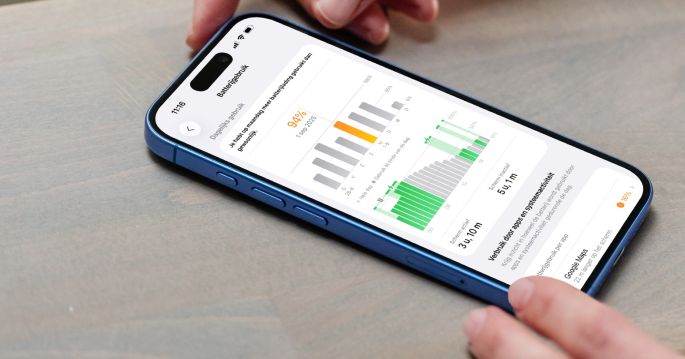
- Battery consumption: Constantly refreshing apps consumes power because the devices connect to the internet. Apps that frequently refresh in the background can shorten the battery life of your iPhone or iPad. It is therefore smart to only allow essential apps to use this feature.
- Data usage: If apps are also allowed to refresh via mobile data, this may lead to additional data costs. Use the setting to limit refresh to Wi-Fi only if desired to save data usage.
- Privacy: Some apps can unknowingly send location data or other data to external parties via background refresh, which can have privacy implications. It is therefore advisable to disable the function for apps that you trust less.
Update applications in background
Refreshing apps in the background is a useful option on the iPhone and iPad, which allows apps to retrieve and update data even without being actively open, if you allow it. By customizing this feature for each app and network connection, you stay in control of your device’s performance and the cost of your usage.
This feature improves the user experience by making apps faster and up to date, but it is essential to use it responsibly to minimize negative effects on battery life, data consumption and privacy.