
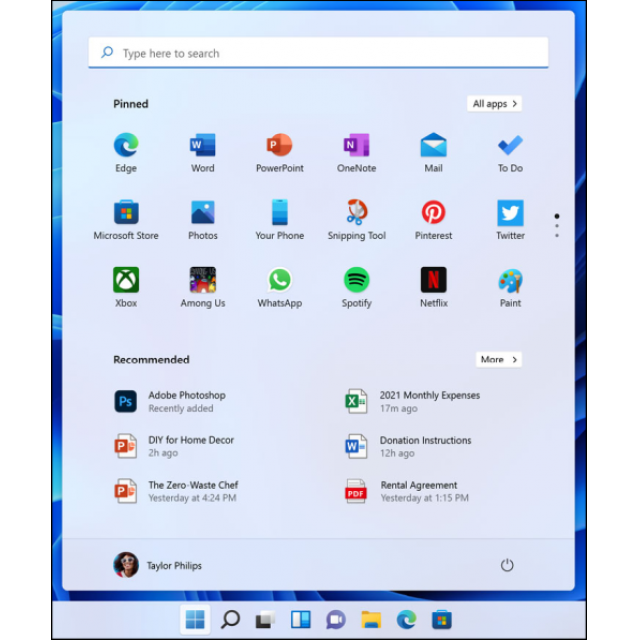
Windows 11 is available. Whether you make the switch is of course up to you. In any case, we help you quickly with the latest background information and tips. Read below what you can expect in our Windows 11 step-by-step plan.
 |
|
|
Windows 11 is a free upgrade for Windows 10 |
Dennis Gandasoebrata
When/for whom will Windows 11 be available?
Windows 11 will be available October 5. The new Windows version is available as a free upgrade for Windows 10 users, provided the computer meets the minimum system requirements. Not every computer is offered the upgrade right away via Windows Update. Microsoft has indicated that it will roll out Windows 11 in a phased manner. When you get the upgrade, among other things, has to do with your computer. If there are known problems with certain parts of the computer, the software maker can choose not to offer the upgrade yet. Microsoft indicates that by mid-2022 everyone will have been offered the upgrade for free.
What does this mean for my Windows 10 computer?
Do you not feel the need to make the switch to Windows 11 or do you prefer to postpone the upgrade? That’s no problem. As soon as you are offered Windows 11 as an upgrade, you can simply decline it. Windows 10 will remain fully supported until October 14, 2025. Only after this date no more (security) updates will be released and it is advisable to look at the successor or an alternative operating system.
How do I know if Windows 11 is for me?
Windows 11 makes the necessary demands on the computer. An overview of these requirements can be found in the article ‘Computer suitable for Windows 11?’ (page 50). There are several ways to find out if your computer can handle the switch to Windows 11. You can read about this in detail in ‘Switch to Windows 11 without surprises’ (page 56).
How do I optimally prepare for a possible switch?
Is the computer suitable for the switch? Then make the necessary preparations so that you can upgrade without any problems. In “Easy Switch to Windows 11” (page 52), we’re going to dust off our programs, clean up files, and secure our precious data before actually starting the installation. The installation of Windows 11 consists of several stages. In ‘Installing Windows 11’ (page 60), we’ve outlined all the steps for you, so you know exactly what to expect.
How do I get started with Windows 11?
Once installed, it is important that you immediately find your way in the new environment. In “What’s new in Windows 11?” (page 64) you will learn about the new features of Windows 11 and what has changed compared to Windows 10. You don’t have to settle for the standard operation and environment of the new operating system. In ‘Move Windows 11 to your liking’ (page 68) you will discover how to adapt Windows 11 to your needs and optimize its operation.