

On pcactive.nl you will find a question every day that is answered by John Vanderaart. This time he tells you how you can get a bigger picture of yourself in a Teams meeting.
I work from home a lot and I use Microsoft Teams to communicate with my colleagues who also work from home. That in itself goes well. Only I would like to zoom in with my webcam. I would like to be a bit bigger in the image of my colleagues. Is that possible?
patrick g.
Microsoft Teams connects directly to the available webcam(s). If you have multiple webcams connected to your computer, you can choose which of those webcams you want to use with Microsoft Teams (or Zoom, or something else) at that time. Furthermore, within Microsoft Teams you can go to Settings and Devices to go. In the properties of microphone, among other things, scroll all the way down, where you click on the task Open camera settings click (see image below). A dialog box will appear from which you can select the tab Camera Control Need. With the option in that place Zoom in/out and much more… In the meantime, you can also check whether the webcam used by Microsoft Teams has its own tools; see the website of the manufacturer of your brand and type of webcam. Such proprietary tools work with the webcam before (!) Microsoft Teams does. As a result, even more nice options for zooming and improving the image that the webcam ‘picks up’.
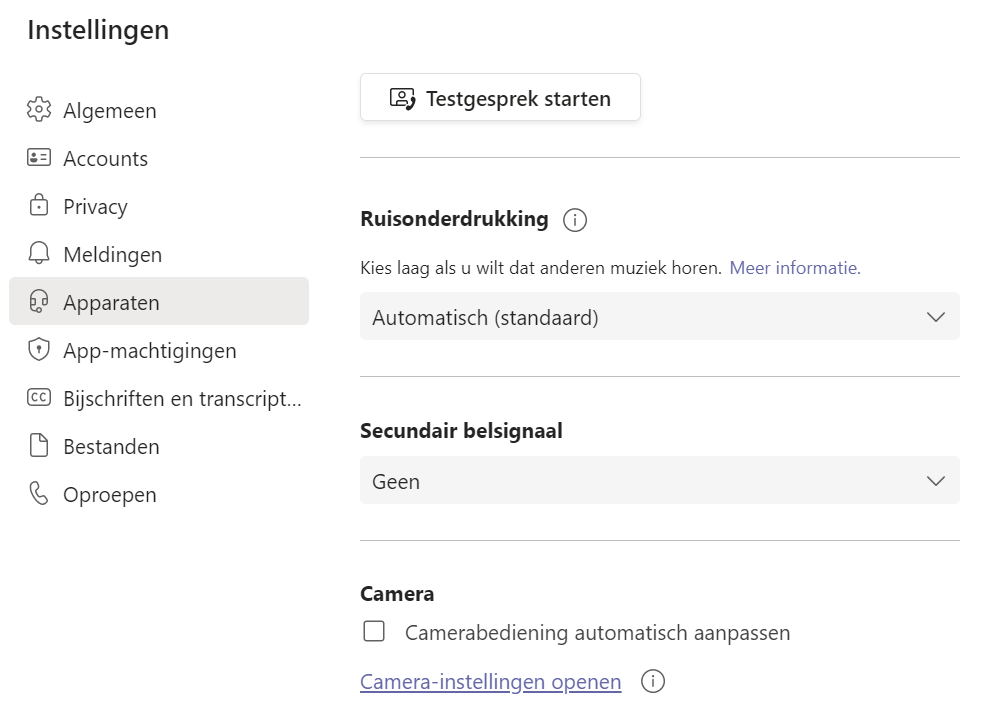
It takes some searching within Microsoft Teams, but the webcam settings can indeed be manipulated