
Taking screenshots is one of the most common tasks, both in the workplace and in our daily life. That’s why many screenshot tools exist in the market offering multiple ways to take screenshots. However, if you notice it or not, most of the screenshot software available nowadays tends to be either too complicated to use or too limited in scope to serve multiple purposes simultaneously.
If you have been looking for a handy and powerful enough screenshot tool just like me, Gemoo Snap is the one you should meet. Gemoo Snap is an easy-to-use screenshot tool that can meet almost all my needs. It provides a range of features to make screenshots beautify social pictures, take scrolling screen images, create clear image feedback, extract text from images and PDFs, take instant captures during playing games, and more. Plus, it also allows you to save your screenshots to the cloud for easy access and storage. There is nothing else can I ask for the free snipping tool.

Gemoo Snap is an amazing tool for people who need to take screenshots regularly, it can help you to complete your screen capture tasks quickly and effectively. Whether you need to take a screenshot of your desktop or capture a specific window, this tool can do it all for you.
This article will provide you with all the information you need to know about this software, including how it can save you time and help you get your work done faster. You’ll learn how the software works, the benefits it offers, and what makes it stand out from the crowd.
What is Gemoo Snap?
Gemoo Snap is a free and powerful sniping tool that fits almost all use cases with the following 10 essential snipping features.
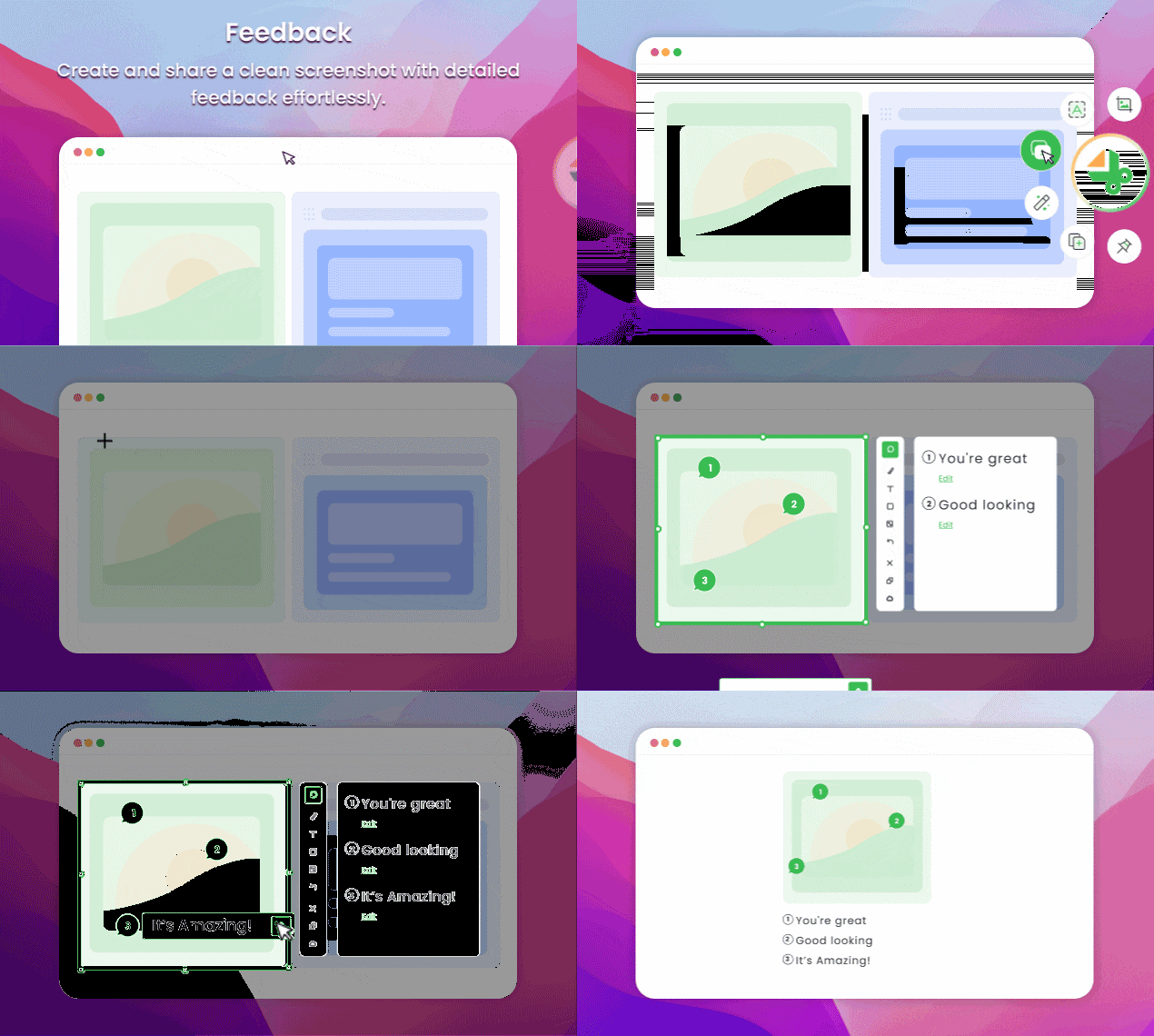
#1. Screenshot Feedback
Use Mosaic to blur sensitive information, add context with texts, lines, or shapes, and add context with images.
#2. Screenshot & Beautify
It allows you to add backgrounds and round corners, or draw shapes to your images easily.

#3. Quick Screenshot
Take a screenshot instantly and upload it to the cloud with shareable links.
#4. Clipboard Screenshot
Paste and go: capture and annotate what you want to share, it will be automatically copied to the clipboard.
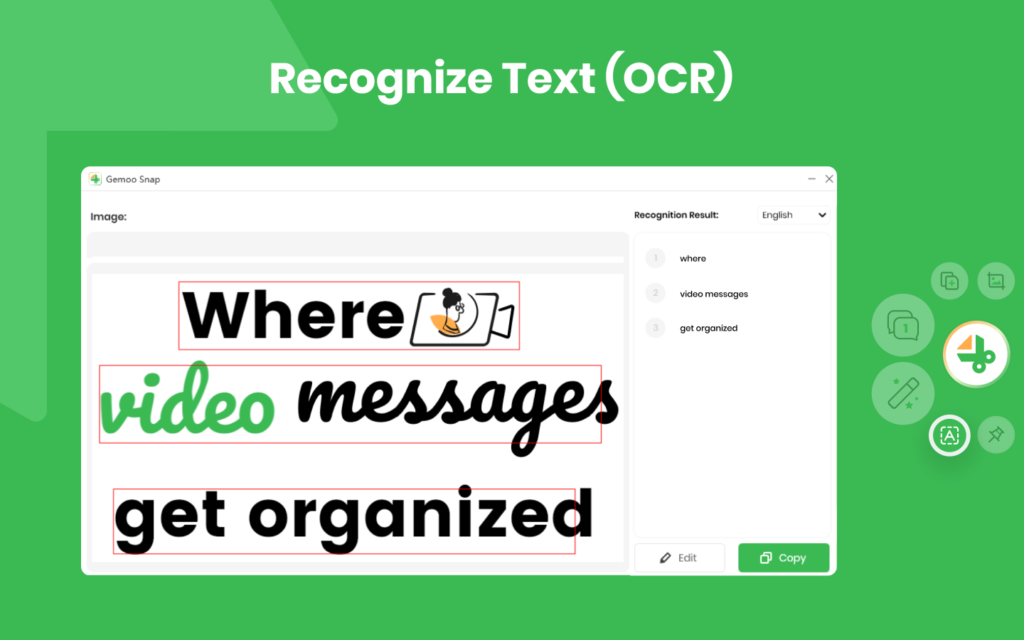
#5. Recognize Text (OCR)
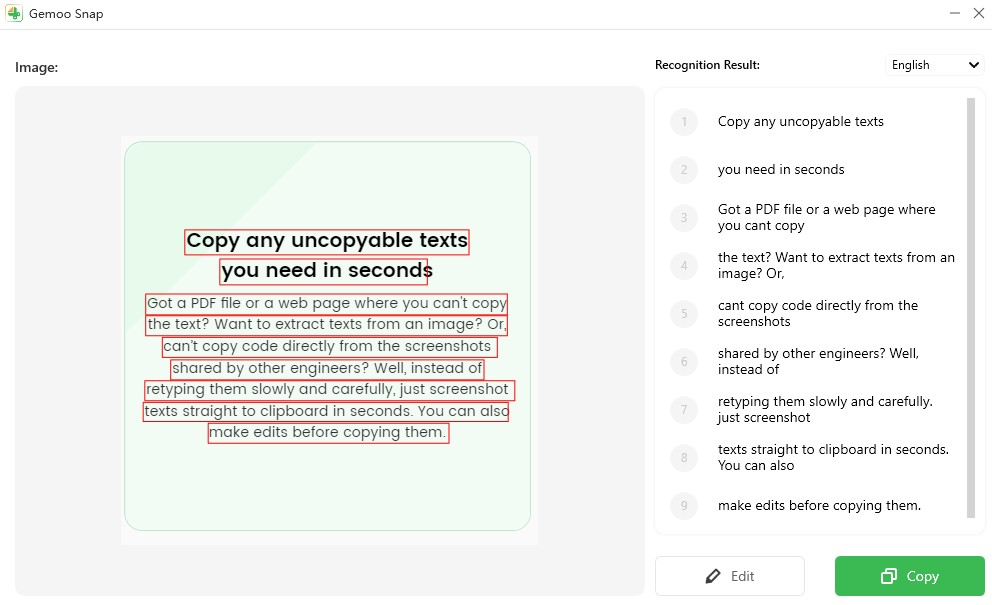
Grab text from the image you need, then copy or edit it directly, saving you from retyping it manually.
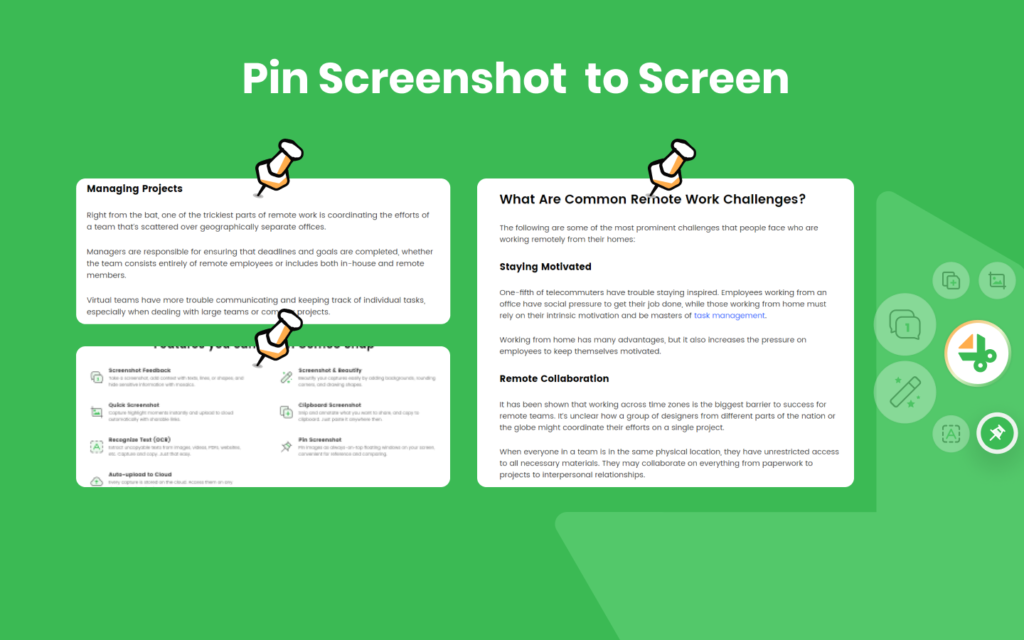
#6. Pin Screenshot
For easy reference and comparison, pin images on your screen as floating windows that are always at the top.
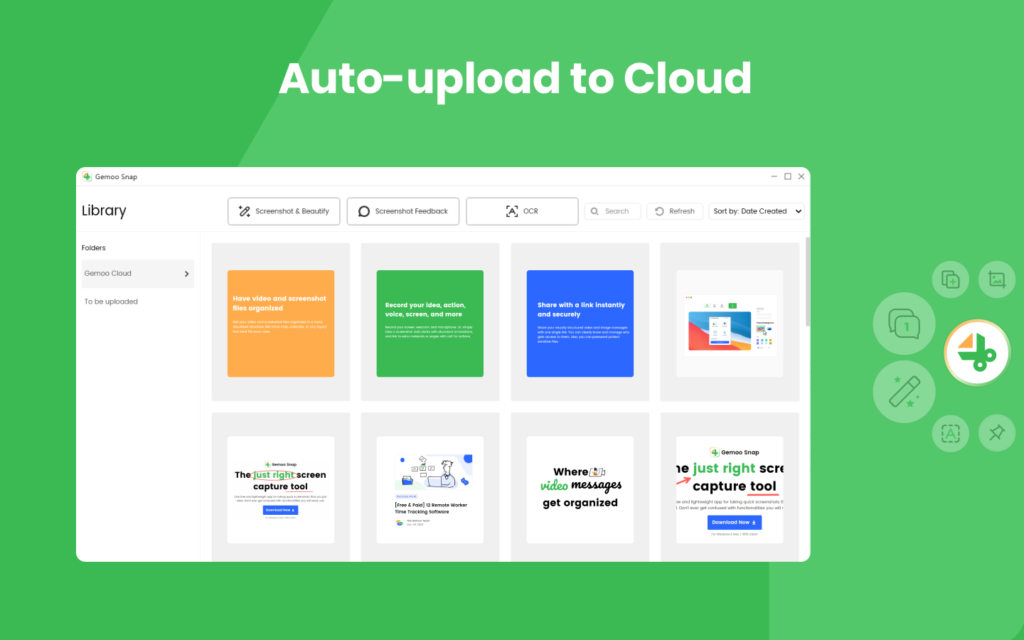
#7. Auto-upload to Cloud
Automatically upload and save your captures to Gemoo Cloud. Save your time to find, open, and edit captures conveniently as you switch between devices.
#8. Scrolling Capture
Available for both full-screen and specific-area scrolling screenshots.
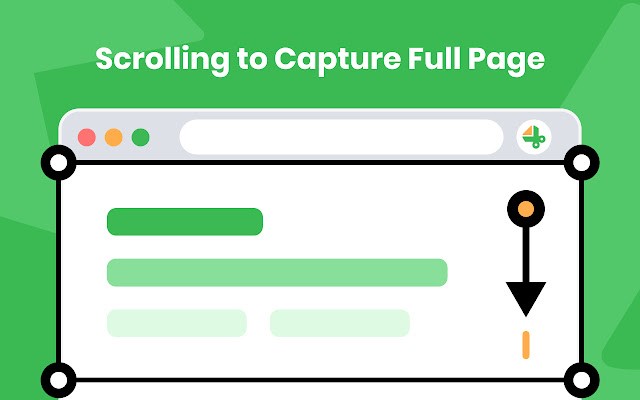
#9. Webpage Screenshot
Take a screenshot of an entire webpage with just a single click. It is possible to capture the visible part of a webpage, a selected area, or any other element you want.
#10. Organize Screenshots
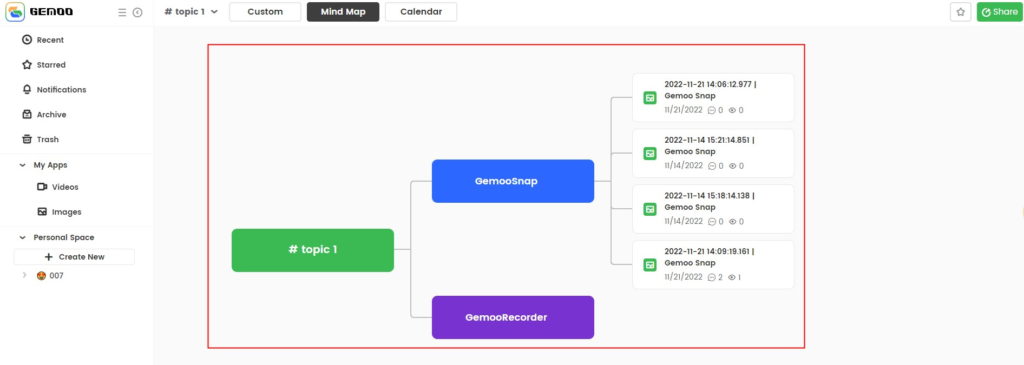
With the Gemoo Snap, you can organize all your screen captures in one place. Group them into Cards, and display them in the mindmap, calendar, and slide views.
You can use it to capture images and upload them directly to the free 100 GB cloud storage offered by Gemoo. It is available for Windows PC, macOS, web app, as well as a Chrome extension.
What Can You Do With Gemoo Snap?
#1. Communicate More Efficiently Over Annotated Images
Taking screenshots of an assignment, report, or feedback is a great way to quickly and effectively provide constructive criticism. By taking a screenshot, you can more easily highlight what areas need improvement and make notes on your suggestions. Once you have taken the screenshot and made your notes, you can then post or share the image in whatever manner you choose. For example, you could post the screenshot on a discussion board, email it to the relevant person or team, or share it via social media.
The feedback feature gives you the power to be as specific as you like when identifying areas that need improvement, without the fear of text obstructing the screenshot. This way, you can quickly and easily get your point across in the most effective manner possible.
#2. Create Screenshot-Based Guides
Gemoo Snap makes creating nice-looking guides a breeze. Every step can be captured and its important details can be highlighted by the built-in magnifier tool.
To provide more context, you can draw shapes and texts. Personalize your guide further by applying a unified background to each screenshot. Additionally, you can arrange screenshots in a mind map, or provide step-by-step instructions on how to complete a task and share it with others securely via just one link.
#3. Turn Screenshots Into Beautiful Blog Post Images
Capture images quickly to add interest to your blog posts, and store them on the cloud for easy access. For an even easier experience, add annotations to offer more information, use mosaics to protect sensitive data, and apply a stylish background to make your screenshots look polished and professional in just a few clicks.
#4. Make Engaging Graphics For Marketing With Zero Skill
Using annotations, highlight the value of your product on a screenshot. You can easily add backgrounds, round corners, etc., without learning Photoshop. It can be used for advertising campaigns, email marketing, social media, or anywhere your customers might be.
#5. Capture Highlights Instantly Without Interruption
Snap awesome pictures or game highlights from a video without interrupting your workflow. Your cloud library will be updated automatically and instantly as soon as you take a screenshot. If you would like to share it with friends later, you can do so. You can also create a highlight collection using relevant captures and share it via a link.
#6. Collect Materials For Inspiration Anytime, Anywhere
Come across a great design? Find an excellent survey. Act swiftly to acquire it by taking captures and all of your screenshots collections will be safely stored on the cloud. You can access and manage your collections from any device with ease through the Gemoo web.
#7. Pin Images on The Screen For Convenient Reference
Gemoo Snap allows you to capture anything and pin it as a floating window. Just pin as many reference materials as you require, whether you’re writing a paper, painting, coding, or performing any other type of work. Stop moving between windows constantly.
#8. Copy Texts You Need From Any Images in Seconds
Do you ever struggle to copy text from PDF documents or web pages? Are you looking for a way to access screenshots shared by other engineers quickly so you can copy the code without having to do any retyping? Gemoo Snap is the perfect solution for you! It lets you grab text from any image you need, and then you can copy or edit it directly, saving you time and effort.
How does Gemoo Snap Works?
- Go to the Gemoo Snap website. Click on Free Download to download and install the application.
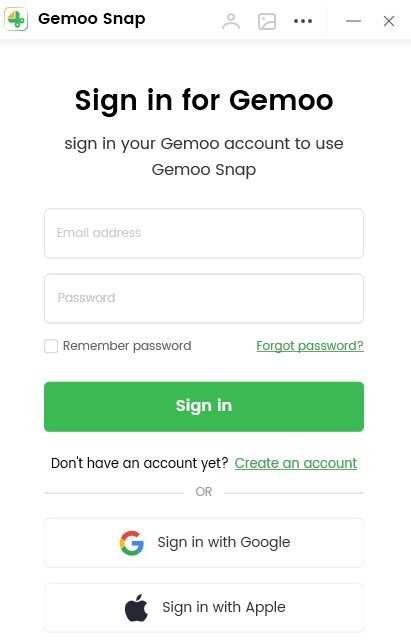
- Open Gemoo Snap. You can choose to sign in with Google or Apple account, or just create your own account, which is very flexible.
- After signing in, you will see the user interface with circular icons appearing around the logo. Moreover, the icons can be hidden and will show up by hovering over the Gemoo Snap logo. This is what I have never seen in other snipping tools. Hovering your mouse over each icon, you can also see the default shortcut key associated with each feature.

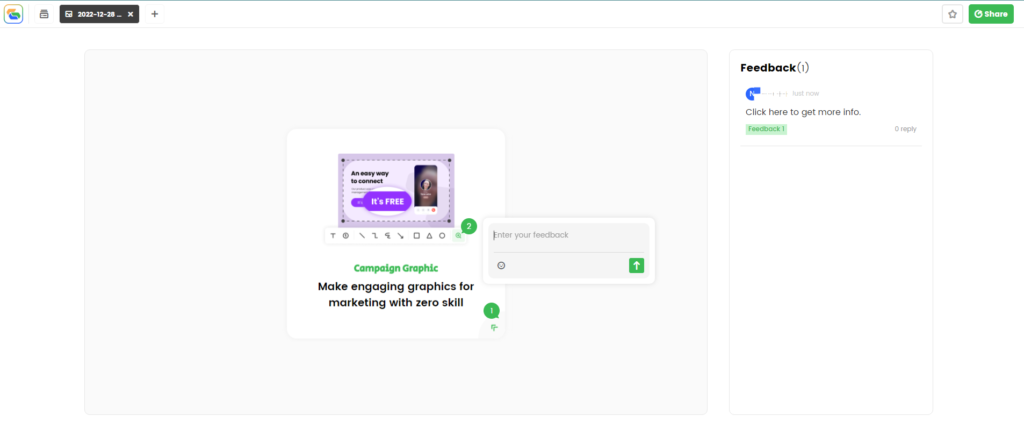
- Screenshot & Feedback. Apart from annotating, adding shapes or text, blur parts using the Mosaic tool, etc, this is where you and anyone with permission can leave feedback for any specific elements of your shared screenshots. Don’t worry about text overlapping, it innovatively shows only sequence bubbles in the image, and displays full-text feedback next to it.
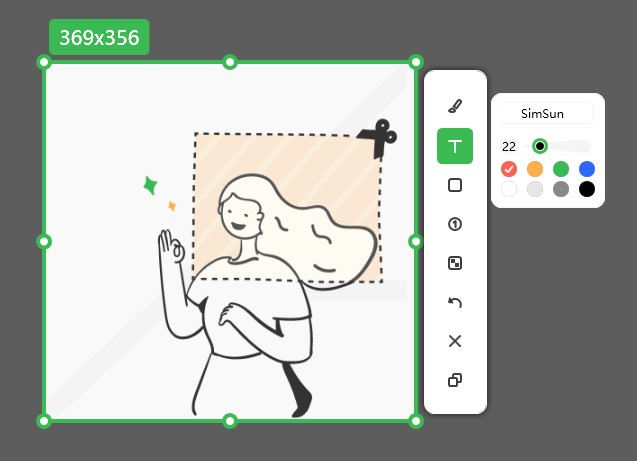
- Choose “Clipboard Screenshot ”, you will see a vertical toolbar next to your capture. Before you save the screenshot to the clipboard, you can edit and annotate it using the tools from the toolbar, such as Brush Text, Shape, and Number. It also allows you to select the color of any of these tools when you click on them. You can then copy the screen capture with all the editing and annotations to the clipboard by clicking on the last icon in the toolbar.
- If you wanna grab text from the image, just click the ‘ A ‘ icon in the application interface or use Ctrl + Shift + W. The OCR process will automatically pop up and display the results on the right. You can modify the text by clicking the ‘ Edit ‘ button and then copy it to the clipboard by clicking the ‘ Copy ‘ button. Your capture (used for OCR) will be automatically saved to the clipboard when you close the OCR page.
- With the shortcut of Ctrl + Shift + G, you can capture a screenshot and beautify it. It allows you to change the background image or color. Furthermore, you can also rotate and crop your capture, or use a built-in magnifier tool to display the specific area you want to highlight. Screenshot & Beautify is a perfect fit for blog and social media image creation, which is quick and easy.
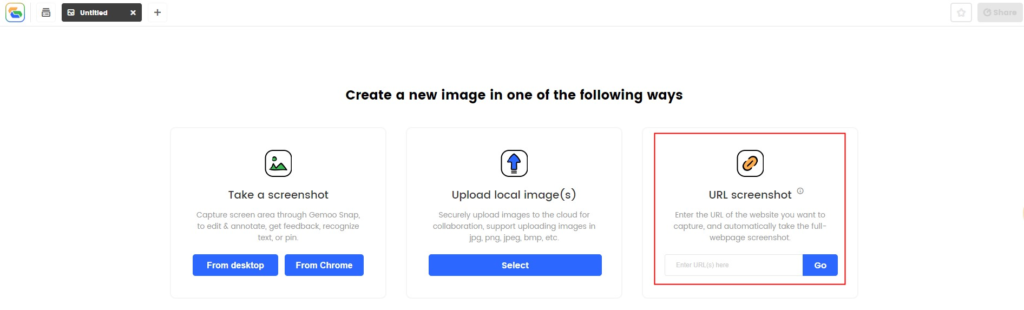
- Click “ Webpage Screenshots ”, it will bring you to the Gemoo web to create full-page screenshots. Pasting the URL of the webpage you’d like to capture, it will generate a full-page screenshot automatically.9. Go to the gemoo.com link to see the screenshots you’ve taken in each of the above steps. Under “ My Apps ”, click “ Images ” to see all the screenshots you have saved to your Gemoo cloud. Your images can be shared privately or publicly, and you can even password-protect them.
- You are allowed to manage all your screenshot in the cloud: Keep all your screenshots organized, and display them in the mind map or calendar view, to make your content more structured and well-planned.
Bonus:
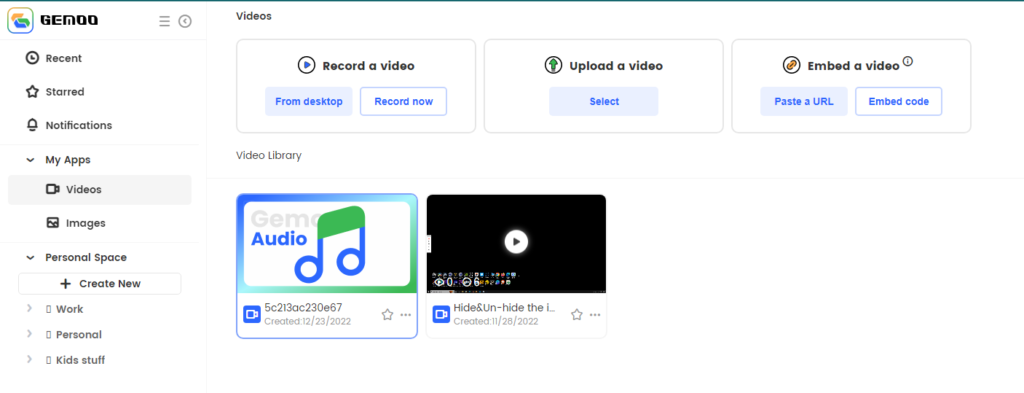
The Gemoo web app provides an even more convenient solution for taking screenshots and recording your screen – no extra software installation is required. Just log into the Gemoo web app and you will have access to the screenshot and screen recording tools, eliminating the need for additional software and keeping your desktop clutter-free.
Conclusion
Overall, Gemoo Snaps is a great snipping tool for general use. The app allows users to quickly and efficiently spread ideas and thought to their team or client. With it, you can take a simple screenshot and transform it into a stunning image for a blog post or professional guide in no time. What I like most is It allows you to capture an entire screen or a specific region while you scroll, and you can stop whenever you need. Additionally, you can use the rich annotation features to quickly edit the screenshot, add more beauty to it and give clear feedback. All in all, Gemoo Snap is a free and lightweight app that offers much more than just taking screenshots.