
In the article ‘Your own PDFs!’ read how to create your own PDF documents. But it happens that you receive a PDF yourself to which you want to add a signature or text, for example. This can be done with free tools.
Show Van Dale
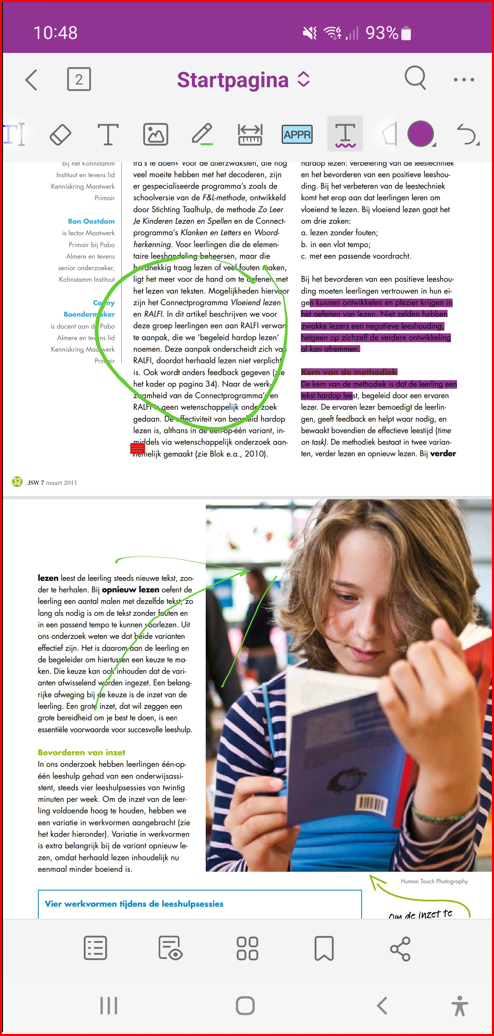
There are various programs that allow you to thoroughly edit PDF documents, but that is not the focus of this article – such applications are usually not free either. We would like a tool with which we can adjust such documents in various ways. Think of placing a signature, highlighting or underlining text, adding a (text) frame or notes and so on. We focus here on a Windows environment, but in the two text boxes you can go for online services and for mobile apps.
In Windows you can in fact continue with a PDF reader, a program that allows you to open and view PDF documents. This is good news, because you actually need such a tool anyway. For example, you can modify PDFs with the well-known, free app Adobe Acrobat Reader (https://get.adobe.com/reader), and this also applies to the lesser-known Foxit PDF Reader. We find the latter just a bit more pleasant and extensive, so this app gets our full attention here.
Online
|
to install
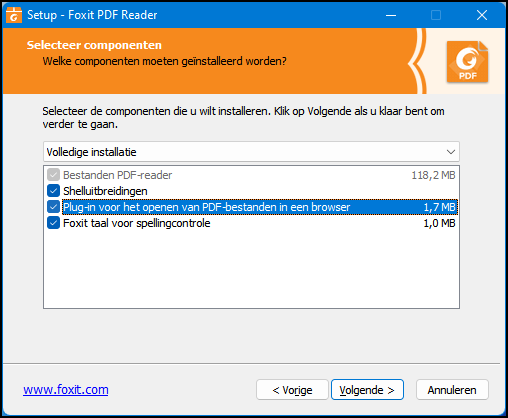
You can find the Foxit PDF Reader desktop application at www.foxit.com/pdf-reader. Click here Download nowselect your operating system (we go for the Windows edition, but Mac and Linux are also available) and the language (including Dutch), and click Free Download. Double click on the downloaded exe file to start the installation. Press Next one (3x) and preferably choose Full installation. This ensures that the app is also accessible from the Explorer (Shell extensions), that it allows you to open PDFs from your browser and that it installs spell check. Remove the check mark next to an item if you prefer not to install it.
 |
|
Don’t rush through the installation |
After your confirmation with Next one another six options pop up, including for automatically placing shortcuts. If you don’t want this to be your default app for opening PDFs, uncheck the box Set Foxit PDF Reader as default PDF program. For privacy reasons, you may also want to uncheck the box Help improve the user experience. You decide whether you View PDF files in browsers selected late. Press again Next one and preferably leave the check mark Enable safe reading mode. This ensures that PDF documents cannot do nasty things without being asked, such as running scripts or opening external files. Confirm with Next one and select if necessary Free 14-day trial of Foxit PDF Editor do not install. Finish with Next one and with to install.
 |
|
Foxit PDF Reader has various tools on board for an optimal reading experience |
Explore
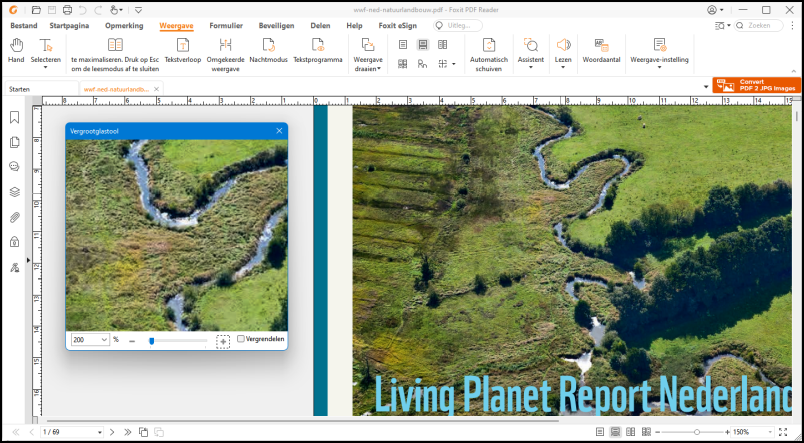
When you have started Foxit PDF Reader, open the menu Fileafter which you click Computer / To leaf through can click to download a PDF document. Or you drag one or more PDF files to the program window. Each PDF document then ends up on a separate tab. A bar appears to the left of the reading pane with options for viewing and managing bookmarks, page thumbnails, comments, attachments, and security permissions, among others.
In the menu Display you will find additional options to further optimize your reading experience, such as Night mode, Magnifying glass, Rotate view, Read and so forth.
Own text
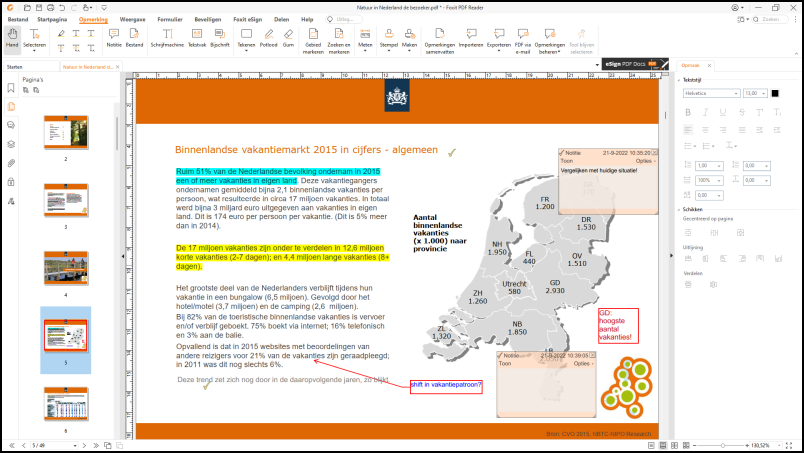
We are mainly interested in the annotation tool here and you will find this mainly in the menu Remark. In addition to classic ingredients such as various text manipulations and drawing tools for arrows, lines, free forms and various geometric figures, you will also find various extra tools here. We briefly introduce the most interesting ones to you.
 With a few mouse clicks you can play a Flash game from an impressive collection
To add digital sticky notes, select Note. As with most tools, a pane appears on the right where you can adjust various properties. In this case, this includes the Note style (a sticky note, question mark, check mark, and so on), the Line color and the Transparency. Once you start typing text, you can adjust the font, text size and color, spacing, and so on.
You can also add your own text in other ways. That late Caption allows you to type text into a box, choosing not only the location of the box, but also where you want the arrow to point from within the text box. If such an arrow is not necessary, just choose Text box. The option Typewriter allows you to add lines of text to the existing text. If you want this to happen as inconspicuously as possible, it is best to choose the same font. To find out which fonts the document contains, click the lock icon on the far left and click Authorization details where you got the part Fonts opens.
Mobile
|
Stamps and signatures
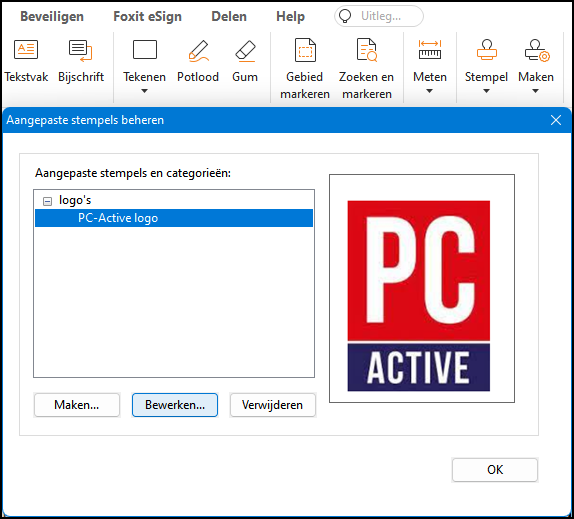
In the menu Remark you will also find the button Stamp which gives you access to about 20 predefined stamps, such as Refused, Received, Confidential and so forth. If you don’t find this to your liking, then press the button To make and choose Create custom stamp. You now only have to refer to a (possibly self-designed) PDF document with a suitable image for the stamp. After you a Category and a Name completed, your own copy will appear neatly Stamp. You can still edit or delete it via To make / Stamps to manage.
Handy is the option Create custom dynamic stamp. Bee Stamp text you can then set all kinds of variables, such as date and time and author name. Choose you here Custom values when stamp is addedyou will be asked what text you want in the stamp as soon as you place it in the document.
-
Add your own (dynamic) stamps and signatures to a PDF
To place a signature, you have to go to the menu To secure are, where you Fill in and sign / Fill in and sign selects. Then you press the button +. You now have several options to create or retrieve a signature: Typing, To draw, Import, Slices and Online (to download). Once you with OK confirmed, the signature will appear in the list, after which you only have to select it and drag it to the desired position and/or scale it. You can also add multiple signatures this way.