
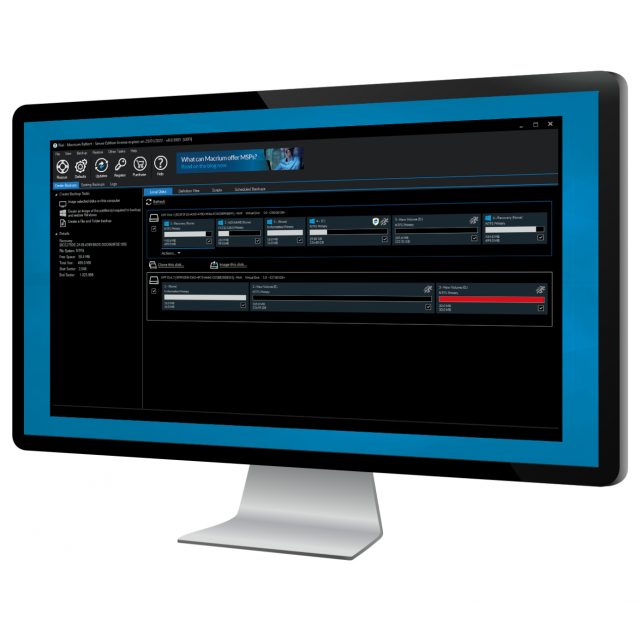
If you need advanced tools to better organize your hard disk, you will easily run into limitations with the built-in functionality of Windows. With Macrium Reflect you have access to more extensive management functions.
By: Dennis Gandasubrata
You can create an image of the disk or a partition with the software relatively easily. The image contains an exact snapshot of the disk as soon as you create it. In case of problems, you can restore the image and restore the situation. The screen contains a number of main tabs that allow you to back up the disk, manage existing backups, and view the backup activity logs. Each tab contains a number of sub-tabs. Here you will find, for example, details of the disk and various options for the backup. This way you can clone the disk or create an image. A useful feature of the software is the support for incremental backups, where only the difference from a previous backup is saved in order to achieve a complete backup. This saves time, especially with large disk volumes. In addition, you can create schedules so that backups run automatically and at set times.
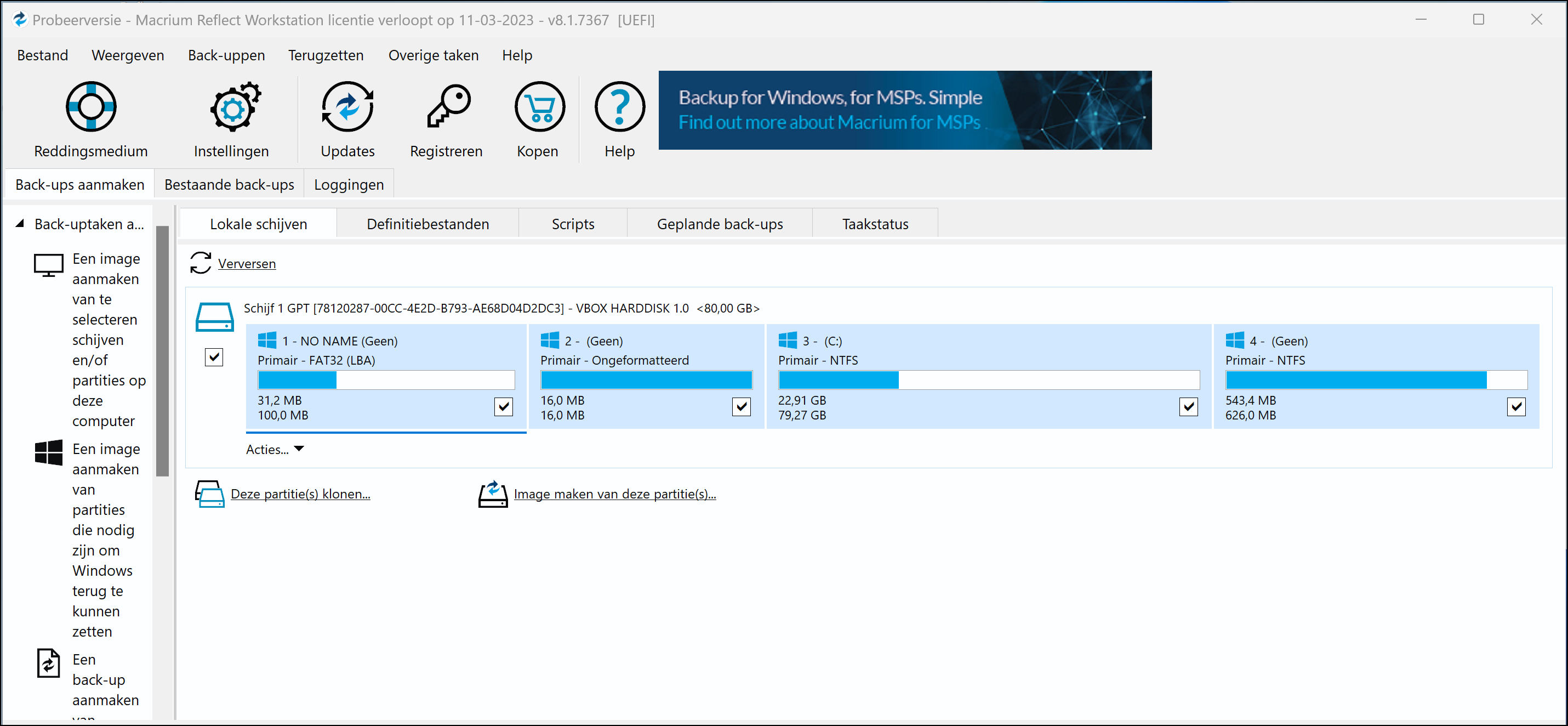
We also find the possibility to set a ‘rescue medium’. You create a bootable disk and you have the choice to place a boot menu on it. In case of emergency (for example, if Windows no longer starts), you can boot the computer with the rescue media and use the boot menu to solve problems. If that is not a solution, you can perform a clean Windows installation with the medium.
Product: Macrium Reflectwww.macrium.com/reflectfree

Platform: Windows
Pros:
* Clear structure
* Explanation of the individual functions
* Incremental backups
Negatives:
* Cumbersome installation procedure