
Save photos from the PC to Google Photos and take advantage of the possibilities of the online photo program. View, organize, edit, present and share photos with Google Photos.
Upload photos in two ways
Store photos and videos on your computer in Google Photos. Use Photos as a place to save images when your computer fills up, or for an online backup. Once stored in Google’s cloud, the images can be viewed from any device with an internet connection.
Uploading images to Google Photos can be done from a computer in two ways: manually and automatically (via a special program). We discuss both options in this article.
Free Google Account
A Google account is required to use Google Photos. Google offers 15 GB of free storage with an account. Both Google Photos, Google Drive and Gmail use it. It’s quite a bit of space, but if you store a lot of photos, videos, and documents online, the available storage space can become full. If necessary, expand the storage space with a subscription. (This was different before June 1, 2021. Back then you could store unlimited photos in Google Photos for free, but the company has stopped doing that. What was saved before that time is preserved.)
Read in the article ‘Create a Google account’ how to create such a free account.
Save in better quality or more?
In Google Photos, you have to choose whether you want to save a copy of the images in the original quality or in what Google calls “high quality”. ‘Higher quality’ reduces the images to take up less storage space. Photos are reduced to 16 megapixels. According to Google, you can print that in good quality up to about 60 by 40 centimeters. Heavy video files are downscaled to high-definition 1080p.
Manually upload photos in Google Photos
Upload one or more photos manually from the PC to Google Photos like this:
- Open a browser and surf to photos.google.com
- click on Go to Google Photos.
- Enter your email address and click Next one.
- Enter your password and click login.
- Google Photos opens. In the middle of the window are possibly photos if you have already linked them to your account. Click at the top of the window upload to save photos.
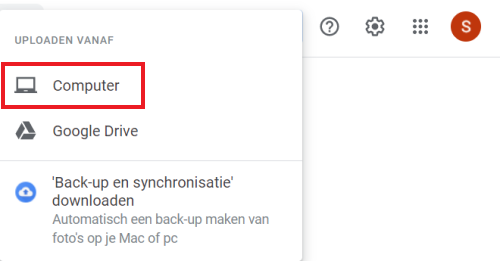
- In the drop-down window click on Computer.
- The Explorer (Windows) or Finder (Mac) appears. Navigate to a photo and click on it. Do you want to upload multiple photos? Then hold down the Ctrl or Cmnd key while clicking and click on a number of photos.
- click on To open.
- Are you using Photos for the first time? Then choose in which quality you want to save the photo(s): High Quality or Original (see paragraph above for explanation).
- In the corner of the window you will be asked whether you want to save the photos in an album. Don’t you want that? Then click on the cross. Do you want that? Then click on Add to album > New album, type the album name and click the arrow on the left.
The photo or photos will appear in the overview and possibly also in an album.
If you want to know more about the possibilities of Google Photos, the article ‘Working online with Google Photos’ will help.
Automatically backup photos from computer
With the help of the so-called Desktop uploader, you ensure that photos are automatically saved in Photos. You then download a program that automatically backs up certain albums on the computer. That program is called ‘Backup and Sync’.
How to download and install this program can be found in the software article ‘Installing Google Backup and Sync’ (for Windows) or ‘Installing Google Backup and Sync (Mac)’.
Google Photos on tablet and smartphone
Once uploaded, you can always find the photos and videos via photos.google.com or via the Google Photos app on tablet or mobile. Do you use your tablet or smartphone a lot to take photos? You can also easily back up these with the Photos app.