

Every week there is a new Question of the Week on hcc.nl, which is also published in the HCC newsletter. There are interesting questions and of course answers that we certainly don’t want to withhold from you.
Marco Mekenkamp
Every Tuesday a new Question of the Week appears on hcc.nl that is also included in the weekly HCC newsletter that is sent on Wednesdays. This includes many questions that are interesting and useful for everyone. Perhaps not everyone knows that and that is why you will find a nice example of such a (modified) Question of the Week here. If you would like to read such a Question every week from now on, subscribe to the HCC newsletter via hcc.nl/nieuwsbrief, fill in your details, then check HCC!newsletter and then click Send. Below you will find the Question of the Week of July 11, the other Questions can be found via the tab Knowledge and then choose Question of the week.
 |
|
|
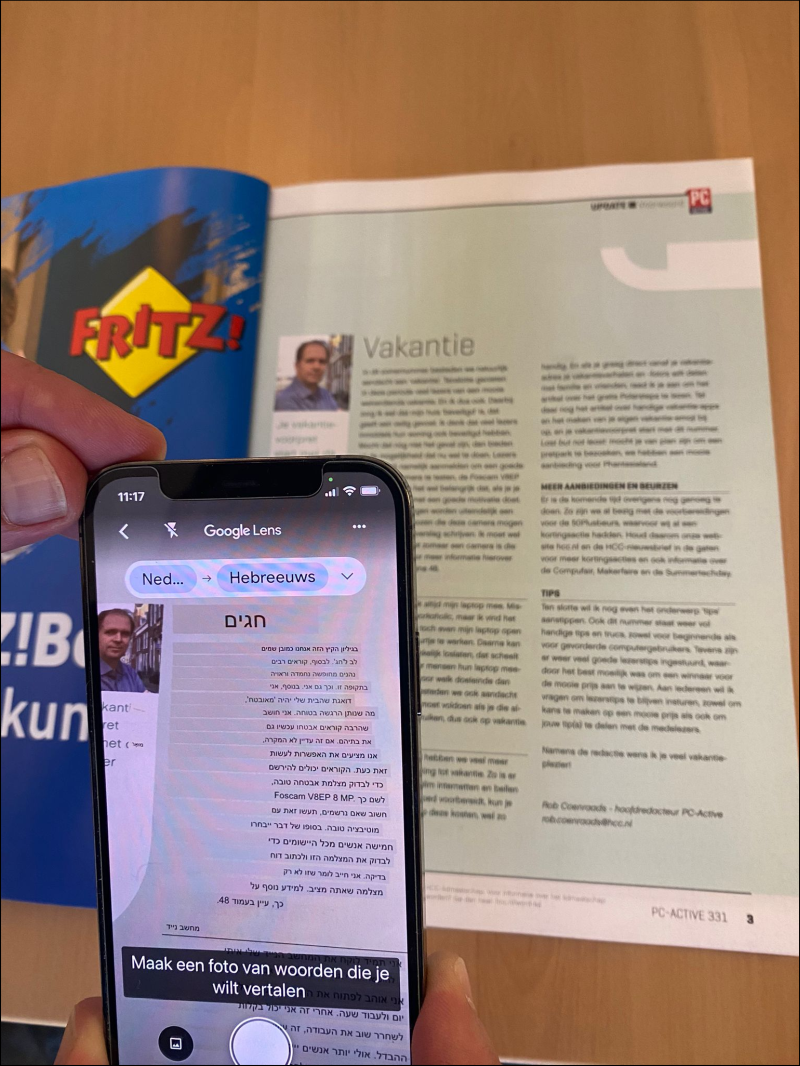
Translate the foreword from PC-Active 320 |
I’m going on holiday soon  France. I don’t speak the language well, so I have to regularly look up what texts mean. I then type that into a translation app. But for a menu, for example, this is very cumbersome. Couldn’t that be easier?
Fien de M.
We used to go on holiday armed with the ‘What & How’ language guide. But times are changing and since digitalization many options have been added, such as translation apps. You enter the text and desired language and you get the translation. However, if you have a chunk of text (for example a 
menu in a restaurant), retyping is not really practical. The solution is the camera translator. You then only have to hover over the text with your mobile phone and the translation will appear over those texts in the other language. We’ll take Google Translate as an example and let you know how it works on both a phone with Android and an iPhone with the iOS operating system.
Download the Google Translate app and open it. Choose the language of the text on the left side of the screen and which language you want to translate it to on the right side of the screen. Then click on the camera icon in the app. Point your camera at the text and press the circle. The text is now translated on your screen. If you want to pause the translating camera, press the circle on the screen.
Tip
Internet connection is generally required for use. However, it is also possible to download a language so that you can also use it offline. Bee translation of you will find a list of all kinds of languages. To the right of the language is an icon with an arrow pointing down and a line underneath it. When you press this, you download the language. You can then translate without needing an internet connection. Please note: internet is required to download the language, so do this at home before you go on holiday.