

In today’s world of computers, where speed and performance are key, every user seeks to get the best performance from their device. One way to increase performance is to configure the XMP memory profile in the BIOS.
XMP (Extreme Memory Profile) is a technology developed by Intel to simplify the process of overclocking RAM memory. This feature allows users to configure their RAM memory to operate at faster speeds than the standard specifications, improving overall system performance. First of all, it is important to understand what XMP is. Then you may rush to your computer to enable it in it’s BIOS.
Understanding XMP
RAM memories have a number of predefined settings, called JEDEC profiles, that determine their speed and latency. However, many high-performance RAMs are designed to run at faster speeds than these default specifications most of us still use without ever even checking. XMP is an extension of these JEDEC profiles that allows users to easily access and enable the higher performance settings without the need for complex manual adjustments.
Benefits of XMP
Enabling XMP can result in improved system performance, especially in applications and games that benefit from higher memory bandwidth. This includes multitasking, high-end gaming, video rendering, and image processing.
Enabling XMP in the BIOS
Enabling the XMP memory profile in the BIOS (UEFI) can significantly improve the performance of your computer. This is especially important for gamers and users working with large amounts of data. However, keep in mind that setting the XMP profile may cause system instability if the memory does not support the preset parameters. For this reason it is recommended to verify the compatibility of the memory and motherboard before setting the XMP profile.
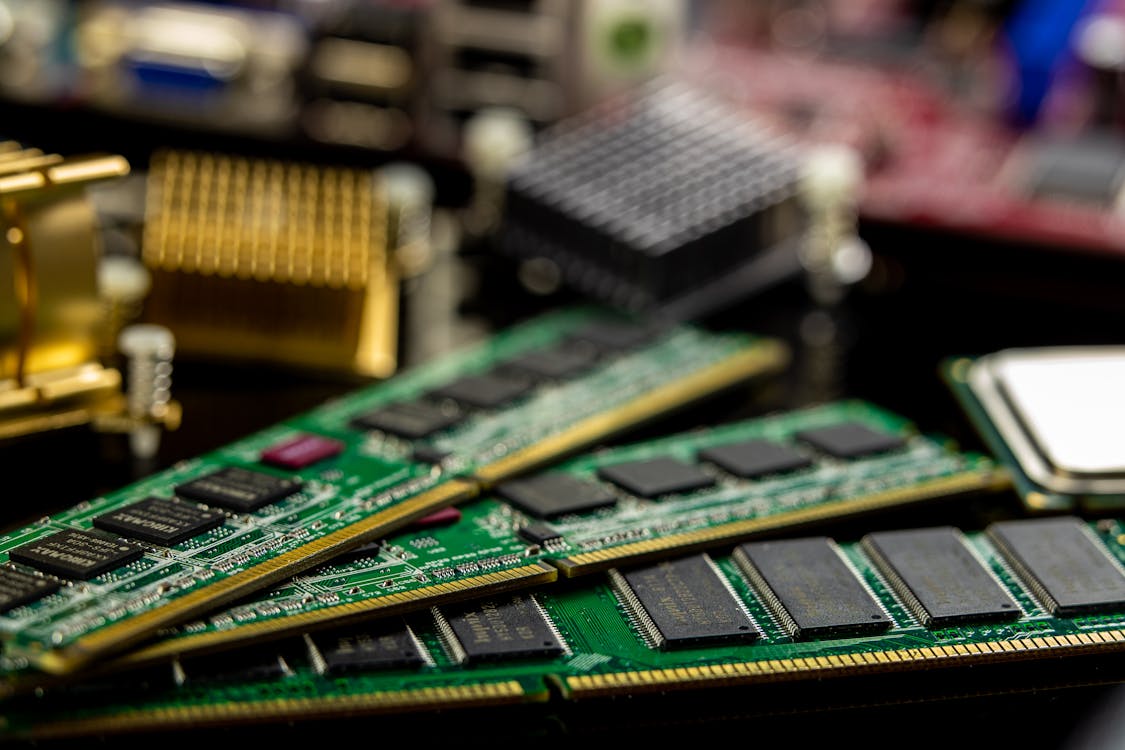
That said, to enable XMP, follow the steps below. Note that the process may vary depending on the make and model of your motherboard, but the general steps are similar in most cases.
- Step 1: Boot into BIOS (UEFI)
Before you start, you need to boot into the BIOS. To do this, press the key indicated on the screen when starting the computer. That would be, most likely, Del, F2, F10, or F12. If you do not know which key is needed to enter the BIOS, please refer to your motherboard manual.
- Step 2: Activate XMP profile
- 2.1 – After the BIOS interface comes up, you need to find the tab responsible for components’ overclocking. On ASUS motherboards, for example, these functions can be found in the “Extreme Tweaker” section. But the name can be “OC Tweaker”, “Advanced Memory Settings” or something similar to that.
- 2.2 – Look for an option called “XMP” or “Extreme Memory Profile”. This may be listed as “DRAM Configuration”, “Memory Profile” or “AI Overclock Tuner” in some BIOSes. When you finally find it, turn it on.
- Step 3: Saving your settings
Once you have enabled the XMP profile, don’t forget to save the settings. To do this, press the F10 key or find the “Save & Exit” option. After you save these new settings, your computer will reboot.
- Step 4: Check saved settings
After restarting your computer, check the RAM settings. You can use the CPU-Z program to do this. Open this program and go to the “Memory” tab. If the XMP profile is enabled you will see its settings.
XMP is a useful tool for optimizing RAM performance, especially on high-performance systems. By following the steps above, you can easily enable XMP in the BIOS and enjoy the benefits of increased memory bandwidth and speed.
In addition it is worth noting that XMP memory profile tuning is not the only way to improve performance. There are many other factors that affect performance, such as installing an SSD drive, optimizing the operating system and software, and properly cooling components.
Conclusion
Of course, setting the XMP memory profile in the BIOS (UEFI) is one way to improve computer performance. However, before doing that, don’t forget to make sure that the memory and the motherboard are compatible. There are other factors that may affect performance, but this one should never be overlooked.
We all are interested in understanding more about our computers and improving their performance, but most ways of achieving that imply some challenges. The key is to make informed decisions to maximize your PC’s performance without compromising system stability. In case you’re not sure about your skills in the area, feel free to turn to professionals. If you need help with your device, the team at Good Zone is on hand to provide the much needed support and due guidance. Having your computer run at its maximum potential is the key to both joyful gaming experience and productive work. With all the demanding games and applications of this day, don’t hesitate to contact professionals whenever you need expert advice, repair, or technical assistance with maintenance.