It seems as if my smartphone always falls out immediately when I don’t tap it for a while. Is there a way to adjust the screen sleep time or time-out before my screen jumps on black? And can I even switch it off completely? Carla K.
Souhayla Badwy
Do you want to be able to look at your phone screen for longer before it will drop again? Or do you want to get a little extra battery life from your smartphone by making the screen jump on black even faster? In this workshop you can read how you can easily adjust your time-out screen or automatic lock to an Android phone and on an iPhone. You can choose a duration that is most convenient for you or even choose to no longer have the screen locked automatically, so that you always decide to lock it yourself by pressing the on-out button.
Android
Step 1 Open Settings
To adjust the time out period for your screen on an Android phone, go to Institutions By wiping down from the top of your screen and tapping the gear (top right). Depending on the Android version on your phone and the brand of your smartphone you go to or Display or Screen or Screen and display. Here you will find all kinds of different image settings, including the one we are looking for here.
(Text continues under the image)

Step 2 Find the option for time-out screen
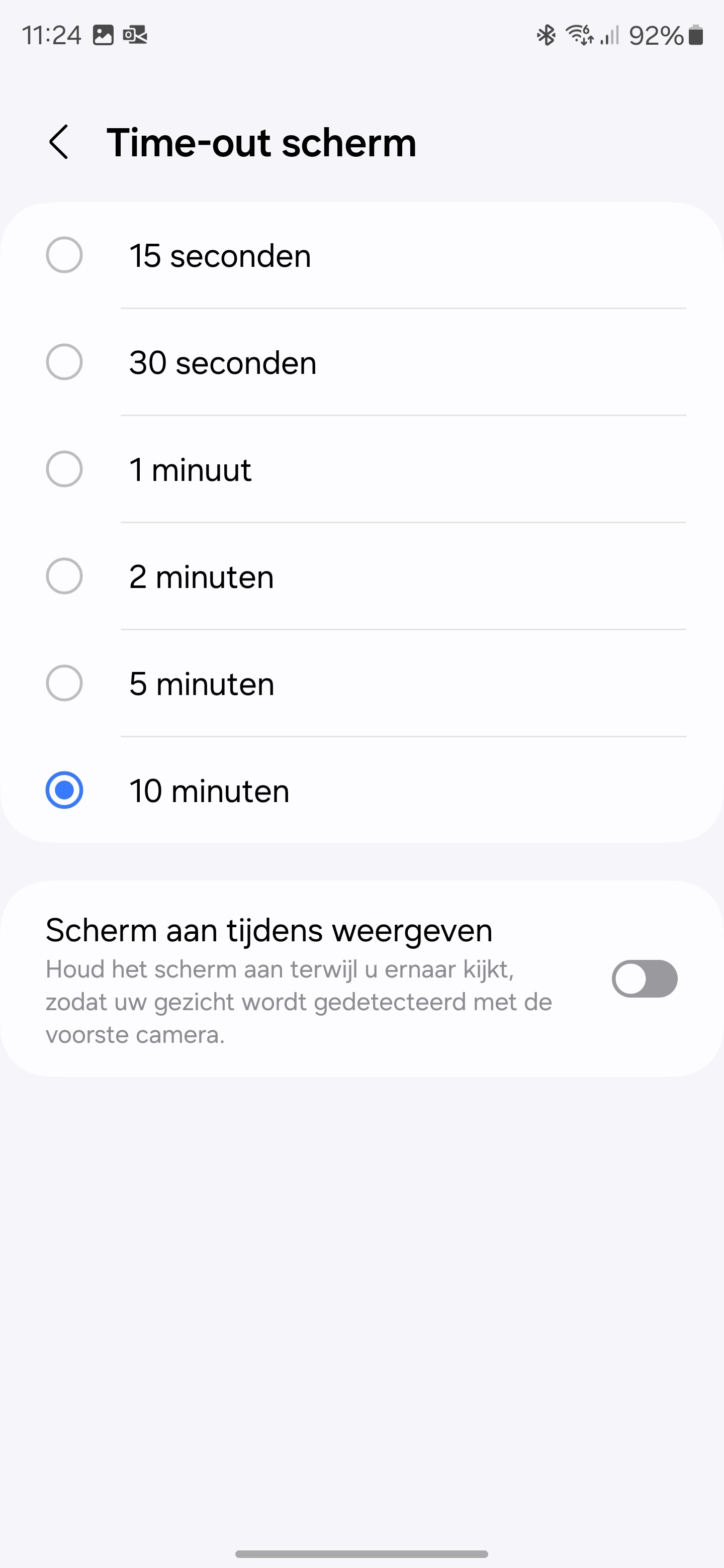
There is also option between all settings in this category Time-out or Switch offwhich probably also stated a duration. Tap this option and you will see a menu with the different time that you can choose from. The options are 15 seconds, 30 seconds, 1 minute, 2 minutes, 5 minutes and 10 minutes. On our Android smartphone (Samsung Galaxy S24 Ultra with Android 14 and One onion 6.1) you will therefore not get a chance to never let the screen go out automatically. What you can switch on (at least on some Android devices), is an option to keep the screen as long as the device can see that you are still actively looking at the screen. Select the desired duration and you are ready.
(Text continues under the image)
iOS
Step 1 Open Settings and Screen and Brightness
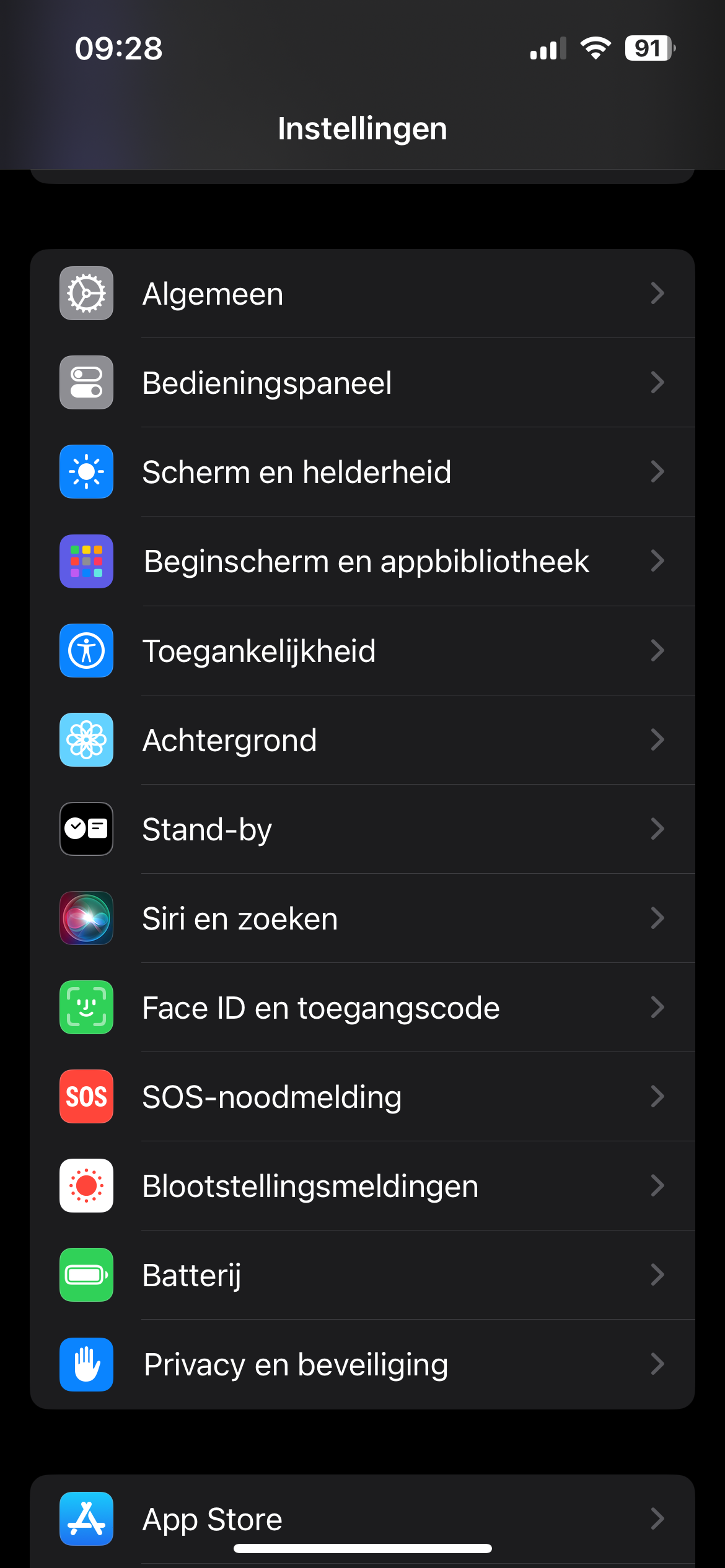
Also on an iPhone you of course first have to navigate to the settings to adjust the time-out of your screen after inactivity. The right category is called here Institutions not Displaybut Screen and brightness. So look for this in the list and tap it.
(Text continues under the image)
Step 2 Find the option for automatic lock
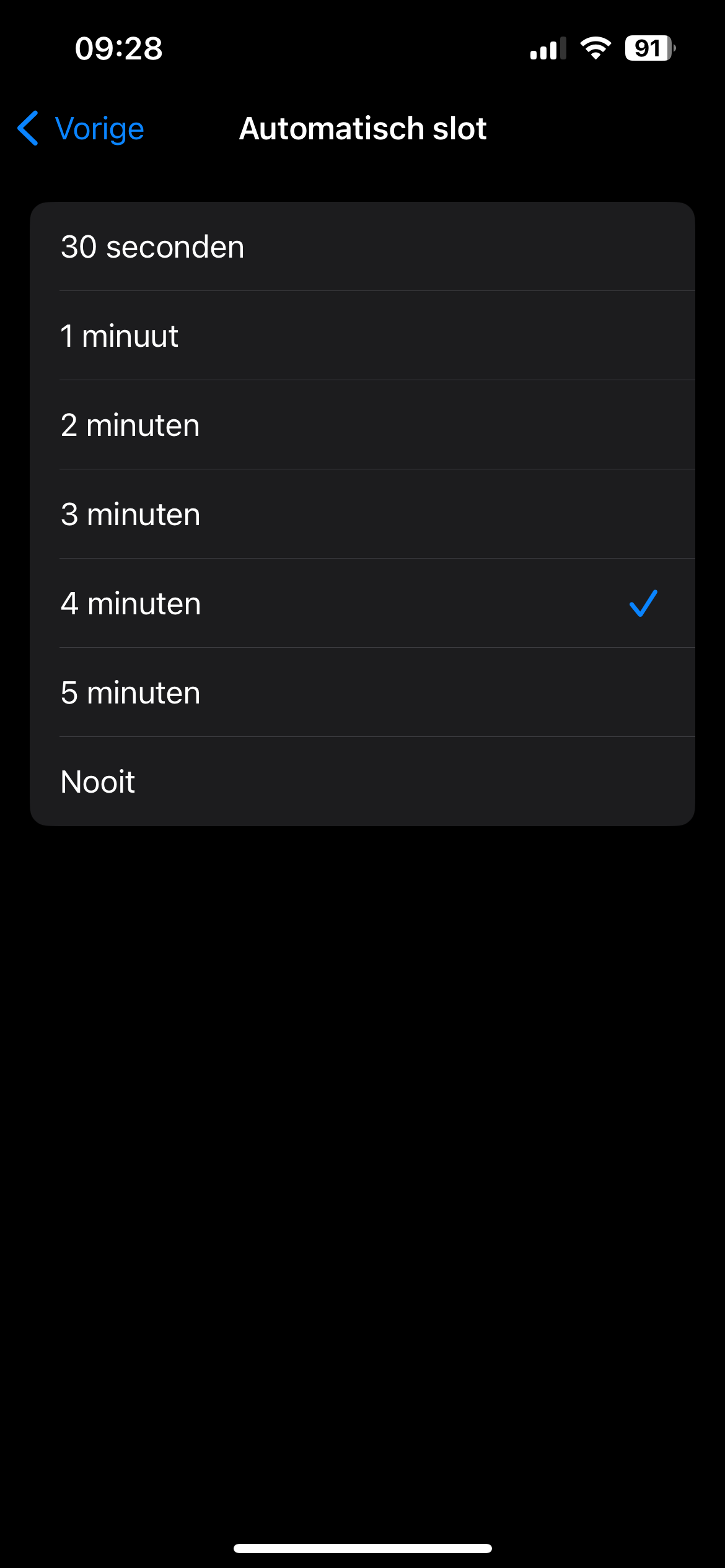
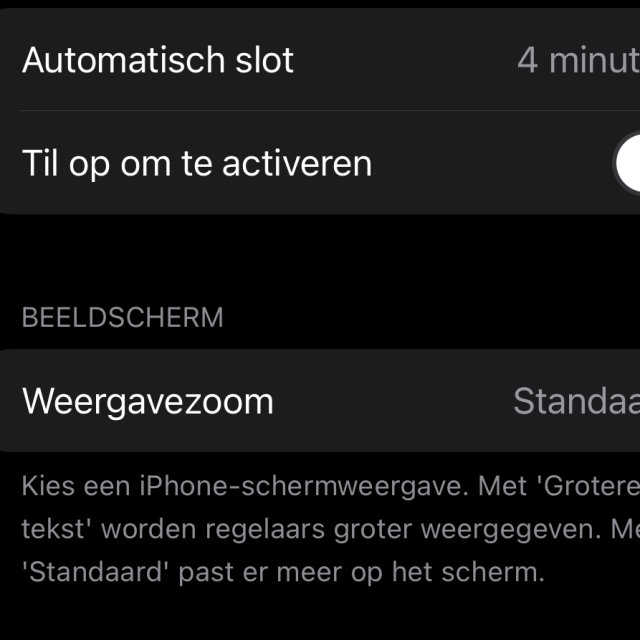
In the submenu of Screen and brightness is the option Automatic lock. That is the iOS version of the time-out screen in Android. If you choose this option, you can also adjust your screen time on your iPhone. Here you can choose between 30 seconds, 1 minute, 2 minutes, 3 minutes, 4 minutes, 5 minutes or never. You can choose to never automatically lock the display, but there is no long -term option of 10 minutes like with Android. For your own safety, it might not be a good idea to constantly on the automatic lock Never to leave, but it can certainly be useful temporarily.