
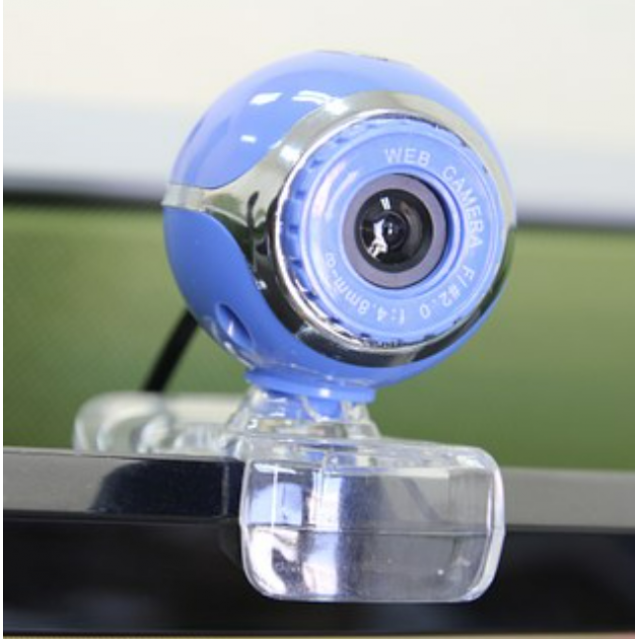
More and more people are using meeting software such as Zoom, Teams or Jitsi to make video calls. This is perfectly possible with a laptop or tablet with a built-in camera and microphone. But what if you have a desktop PC? Then you just use your smartphone. Read here how.
Rob van Geel
Almost everyone now owns a smartphone. But its screen is rather small and then video calling with the whole family is no fun. However, you can also use the smartphone as a webcam! There are several programs or apps available to make this happen. And there is a free solution: DroidCam. Although the name suggests that it is exclusively intended for Android smartphones such as Samsung and Motorola, it is also available for iOS, the operating system of the iPhone. DroidCam connects your smartphone’s camera and microphone to your computer via a network connection. You also need the corresponding software for this.
|
This article appeared |
ON A WINDOWS 10 (OR 7/8) COMPUTER
Use the following link to download the driver for your computer to work with DroidCam: dev47apps.com/droidcam/windows. Click on the blue area with Download Windows Client in it. You can now start the downloaded program in the browser. Otherwise you will find it in the folder Downloads. Allow the program to make changes to the system (= install).
FOR SMARTPHONES
Go to the Google Play Store (for Android) or the App Store (for iPhone), search and download DroidCam.
GETTING STARTED WITH DROIDCAM
Start the DroidCam app on your smartphone. Give permission to use the microphone and camera. Then you will see this screen:
 |
On the computer, click in the search field next to the Start menu and type: ‘DroidCam’.
In the window that now appears, click on the WiFi button (button 1 of 3). Bee Device IP enter exactly what can be seen on your smartphone, including the points. Each time you start the program, these numbers, the IP address, may differ. Make sure to check the Video and audio stand on. End with Start. The connection is now established. Now place your smartphone in such a way that your face is clearly visible. DroidCam automatically chooses the camera on the back of your smartphone, because it is usually better than the selfie camera on the front.
We use the Zoom video calling program as an example. To be able to use the program, you still have to register the ‘webcam’ and then you can get started. Make sure you have downloaded and installed Zoom on your computer at zoom.us/download. Start the program and click on the gear icon in the top right corner for the Institutions.
click on Video and make sure you Camera chose DroidCam.
The next time you use the smartphone as a webcam, all you need to do is launch the DroidCam app on your smartphone and then on the computer. It may happen that you Device IP re-enter on your PC (often the last three digits change). Then click Start. After that you can join the family gathering. 
You will often receive a Zoom invitation by email. Make sure your smartphone/webcam is started in advance and then click on the link in the email with the invitation.
Tip: DroidCam requires quite a bit of power. Hang your smartphone on the charger during webcam use.