
 The cloud service iCloud Drive is useful for storing files online. Manage and edit the files from iCloud Drive on the iPad or iPhone as well.
iCloud Drive
iCloud Drive is part of iCloud. iCloud Drive allows people to access, edit, and store all kinds of files. The files are stored online. This will update them on any device with iCloud Drive if there is an internet connection.
Supplies
iCloud users need an internet connection and a free Apple ID. iCloud is aimed at users of a Mac, iPhone and/or iPad. People can iCloud Drive for iPad/iPhone use in the Files app. In principle, the apps are standard on the device.
login
To work with iCloud Drive, the user must first sign in with the Apple ID:
- Tap on Institutions.
- If your name is at the top, you are logged in.
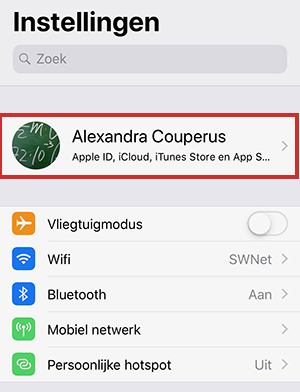
- If not, but do you have an Apple ID? Then tap Log in to your iPhone/iPad.
- Tap on E-mail and type the email address.
- Tap on Next one.
- Enter the corresponding password and tap Next one.
- If you have additional Apple devices or have provided a phone number, a verification code will be sent to them. Enter this code.
- If there is a passcode set for the iPad/iPhone, enter it now.
Turn on iCloud Drive
The user also has to turn on the various parts of iCloud on the iPad/iPhone. To make sure iCloud Drive is on:
- Tap on Institutions.
- Tap your username.
- Tap on iCloud.
- Swipe from the bottom up on the screen to ‘iCloud Drive’.
- Make sure the slider behind ‘iCloud Drive’ is green. Isn’t this the case? Then tap it.
View file
In the cloud service iCloud Drive, the user can store and view all kinds of files. Open a file like this:
- Tap the app Files.
- Tap at the bottom Browse or To leaf through.
- Under ‘Locations’, tap iCloud Drive.
- Tap the folder containing the file.
- Tap the desired file.
- Tap on Ready or on the top left arrow with the text Files to return to the folder.
Edit document
Editing a text document or spreadsheet works like this:
- If necessary, tap a folder first.
- Tap a document.
- The document opens in the associated program. Tap top right Change and start typing. Don’t see this button? Then you can start typing right away.
- Tap on Documents when you are done.
- Tap at the top left Files to return to that app again.
If a document was created in a program that is not on the iPad/iPhone, you cannot edit the document. So use the same program on the different devices to edit documents. If you create text documents in Pages on the Mac, edit the document with the Pages app on the smartphone or tablet. If you create the text documents in Word, you should also use the corresponding Word app on your mobile device.
upload file
The user cannot create documents in iCloud Drive on the iPad/iPhone. There are other apps, such as Pages and Numbers, for that. If you create a document in another app, you can then open and edit it again via the Files app.
Create folder
Folders are useful for organizing files. Create a new folder like this:
- Tap a folder icon with plus sign
 . Is the icon not on the screen? Then long tap on the screen > New map.
 - Type the name of the folder and tap Ready.
Move file
Here’s how to move files from iCloud Drive to another folder in iCloud Drive:
- If necessary, tap a folder to display the desired file.
- At the top right, tap Select. On iOS 14/iPadOS 14, first tap the three-dot circle icon.
- Tap the file you want to move.
- Tap the folder icon at the bottom. Or tap the word move.
.png "Move file to a folder")
- If necessary, first tap iCloud Drive and then on the folder where the file should be.
- At the top right, tap move.
The file is now in the selected folder.
Delete file
Delete files you don’t want to keep from iCloud Drive. This frees up space for other files.
- If necessary, first tap the folder containing the file you want to delete.
- At the top right, tap Select. On iOS 14/iPadOS 14, first tap the three-dot circle icon.
- Tap the file you want to delete.
- Tap the trash can icon at the bottom
 . Or tap the word Delete.
The file has been deleted everywhere. The deleted file will remain in the ‘Recently Deleted’ folder for 30 days.
Recover Deleted File
Do you still want to keep a deleted file? Put it back like this:
- Tap the app Files.
- Tap at the bottom Browse or To leaf through.
- Under ‘Locations’, tap Recently deleted. Don’t you see that? Then first tap at the top left Locations.
- At the top right, tap Select. On iOS 14/iPadOS 14, first tap the three-dot circle icon.
- Tap the file you want to restore.
- Tap at the bottom put back.
The file is back in iCloud Drive.