
It is good to regularly scan your computer for the presence of malware. That is digital scum like programs that monitor your internet behavior. A good anti-malware program is Malwarebytes.
What is Malwarebytes?
Malwarebytes is a program that scans the Windows computer for malware and can remove any malware found. It works fine in addition to the regular virus scanner. The program is well known and is free to use. The steps in this article are based on Windows 10 and the free version of Malwarebytes, not the paid premium version.
You can download and install the program from the ‘Malwarebytes Anti-Malware’ article.
Launch Malwarebytes
- Click on the Startbutton > Malwarebytes.
- In the ‘User Account Control’ window, do you get the question whether Malwarebytes is allowed to make changes to your computer? Then click on Yes.
Overview
The program starts and opens with the Dashboard. Here you can click on ‘Detection History’, ‘Scanner’ and ‘Active Protection’. Basically you only need the ‘Scan’ tab.
If you have not used the program for some time, you may receive a message when opening that the database is out of date. Then click on Edit now. The program is being updated. You will be notified when the database has been updated. click on OK to proceed to.
Sometimes you get a message that the program itself is too old and needs to be updated. This is necessary for the correct operation of the program. If you are unable to update the program by following the steps that appear on your screen, please reinstall the program via the ‘Malwarebytes Anti-Malware’ article.
Scan for malware
To start a scan:
- Click on the blue button Scan for a quick scan. Scans memory objects, archives, registry, and startup items for malicious files. Scanning these parts can be done in a few minutes.
- It is also possible to thoroughly screen all programs and files on the computer. To do this, you must first change a setting. Please note: such a scan can take several hours.
- Click somewhere in the white area that says ‘Scanner’.
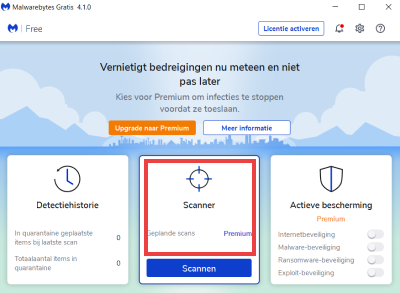
- In the next screen, click under the blue ‘Scan’ button Advanced scanners.
- Under ‘Custom scan’, click Set scan.
Set up custom scan
- You will see a window with the available storage drives. A checkmark in front of the disk indicates that that disk will be scanned soon. Click the box in front of the disk name to check or uncheck it. We scan the C drive on which Windows is installed. If, after scanning the C drive, you still have the idea that you are suffering from malware, you can still check the other drives.
- Check ‘Scan for rootkits’ on the left.
- click on Scan.
.png "thorough virus scan malwarebytes")
The checked disk or disks will be scanned. That can take quite some time. This depends on the number of MB or GB on the disk. If that is a lot, then in some cases it takes hours. For example, start the scan in the evening and leave the computer on overnight. The next morning you will see the result.
Results
- You will receive a notification when the scan is complete. Malwarebytes shows a summary of the scan.
- click on View report for the details.
- Were no threats found? Then click on Ready.
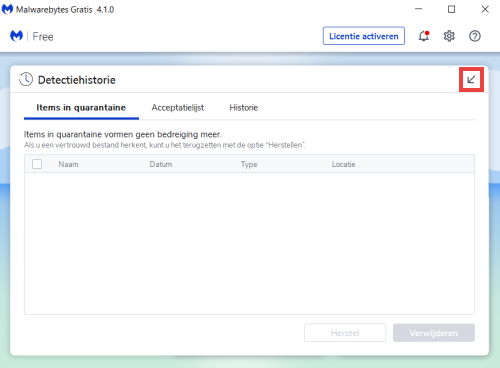
- If malware is found, it is automatically quarantined. You can view and delete this under ‘Detection history’.
- To do this, first click on the slanting arrow at the top right.
.png "malwarebytes threat remove")
- click on Detection History.
To delete or not?
- A list of found malware is displayed. That could be anything from spy programs to tracking cookies.
- Look carefully at what exactly you want to delete. Sometimes programs cannot function properly if you delete files from them. If that happens, you will need to reinstall the affected program. Do you find the choice difficult? Then ask for advice from PCHulp.
- Click on the blocks for the items you want to remove. A blue check mark will appear in front of it.
- click on remove > Yes.
- Click on Allow change if the program asks for it.
- A text file has been opened that you can close via the cross in the top right.
If you have removed malware that has been found, but you still have an (external) hard drive with a backup of your computer, then also scan this (external) hard drive to prevent the malware from still being on it.
Mark file as safe
Is Malwarebytes blocking a program or file that you know is safe? Then you can mark this as safe.
- Click in the dashboard on Detection History.
- Click on the tab Acceptance List.
- click on Add.
- click on Accept a folder or file. The other options are only accessible to paying users.
- click on Select a folder or Select a file, and navigate to the file you want to mark as safe.
- click on Ready.
- Click on the arrow at the top right to go back to the dashboard. Or click the cross to close Malwarebytes.
How often should I scan?
We recommend performing a full scan for malware every month and a quick scan every week. Would you like to know more about malware and other scum? Read the articles in the theme Security at SeniorWeb.