Cloudflare unveils a mobile application to easily change your DNS and browse the Web faster.
On April 1, Cloudflare unveiled its free DNS service to the general public. With an easy-to-remember address, 1.1.1.1, the company promised users faster and more privacy-friendly browsing. The use of this DNS server on his computer requires manually modifying the configuration of his connection.
Similarly on mobile, especially on iPhone and iPad where the user must, in principle, make these changes manually by accessing the connection settings of the device.
To simplify the configuration of its DNS server on mobile, Cloudflare has just launched 1.1.1.1: Faster Internet, an application that automates configuration and allows you to activate on the fly the use of your DNS to browse the Internet faster. Here’s how to use it.
1. Download 1.1.1.1: Faster Internet
Download the 1.1.1.1: Faster Internet application on your smartphone. Available on iOS and Android, the application is free and takes care of automating the configuration of your DNS server by installing a VPN profile on your device. So you can enable/disable the use of Cloudflare’s DNS as you see fit, with a single tap.
- Download 1.1.1.1: Faster Internet for Android (Free)
- Download 1.1.1.1: Faster Internet for iPhone (Free)
2. Install the VPN profile
Open the app and skip the first displayed intro screen by tapping next. Then press the Install a VPN profile button, then confirm by pressing OK or Allow. Finalize the app setup by tapping Finish.
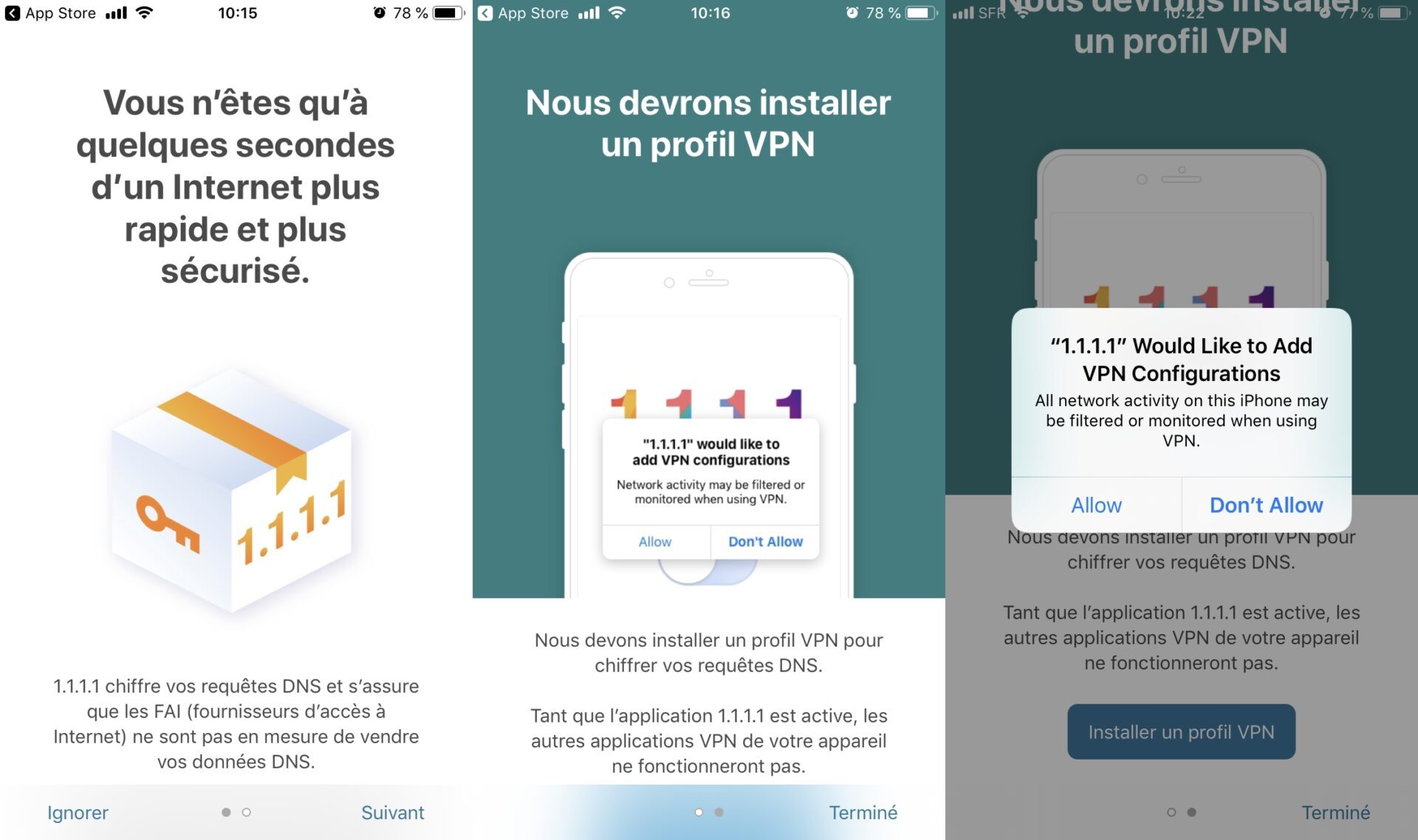
Note that if you are already using a VPN connection on your device, you will not be able to use 1.1.1.1: Faster Internet simultaneously. You will have to choose one or the other.
3. Enable use of DNS
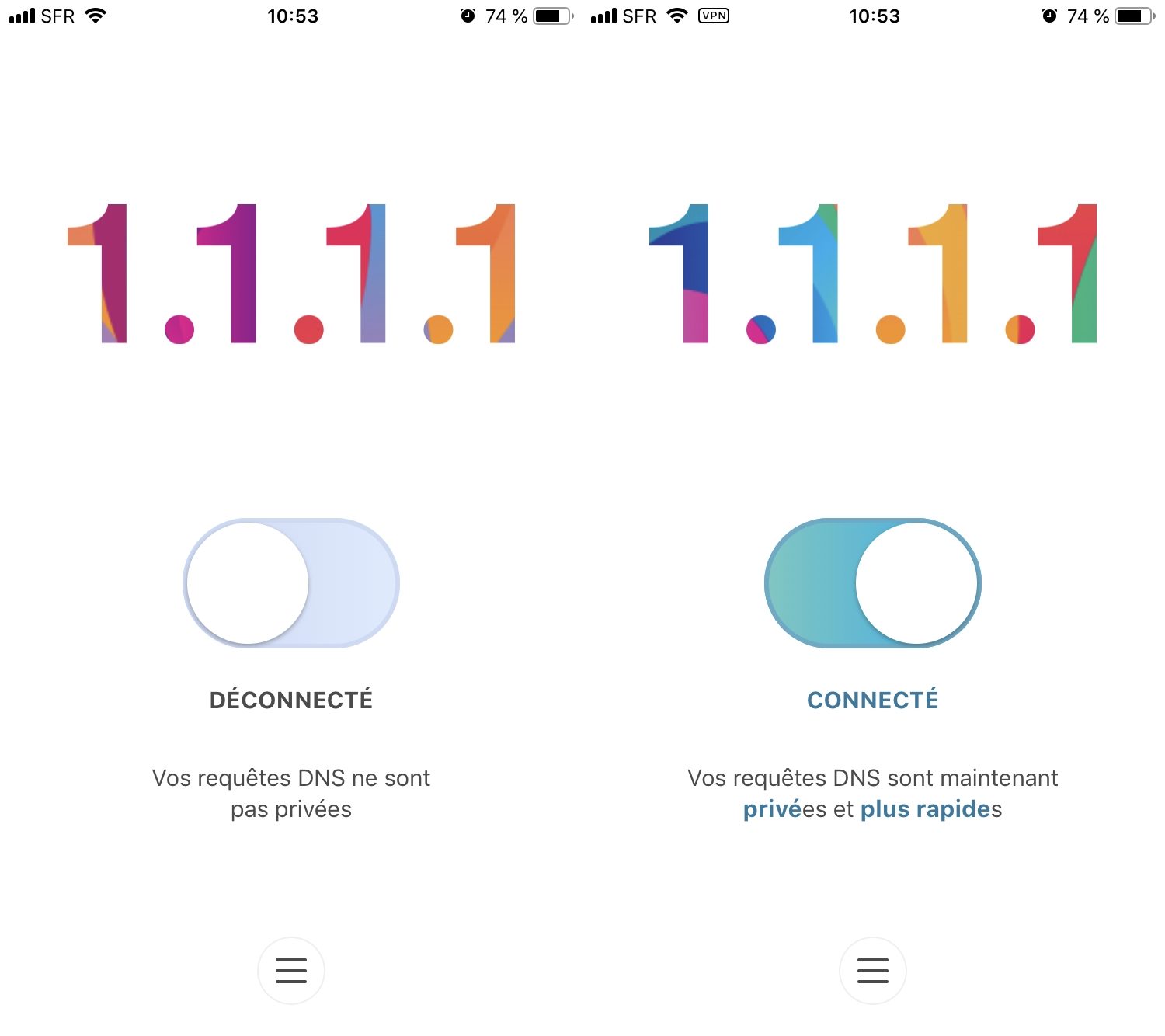
Once the VPN profile is installed on your smartphone, activate the use of Cloudflare’s DNS by pressing the button provided for this purpose.
4. Change encryption settings
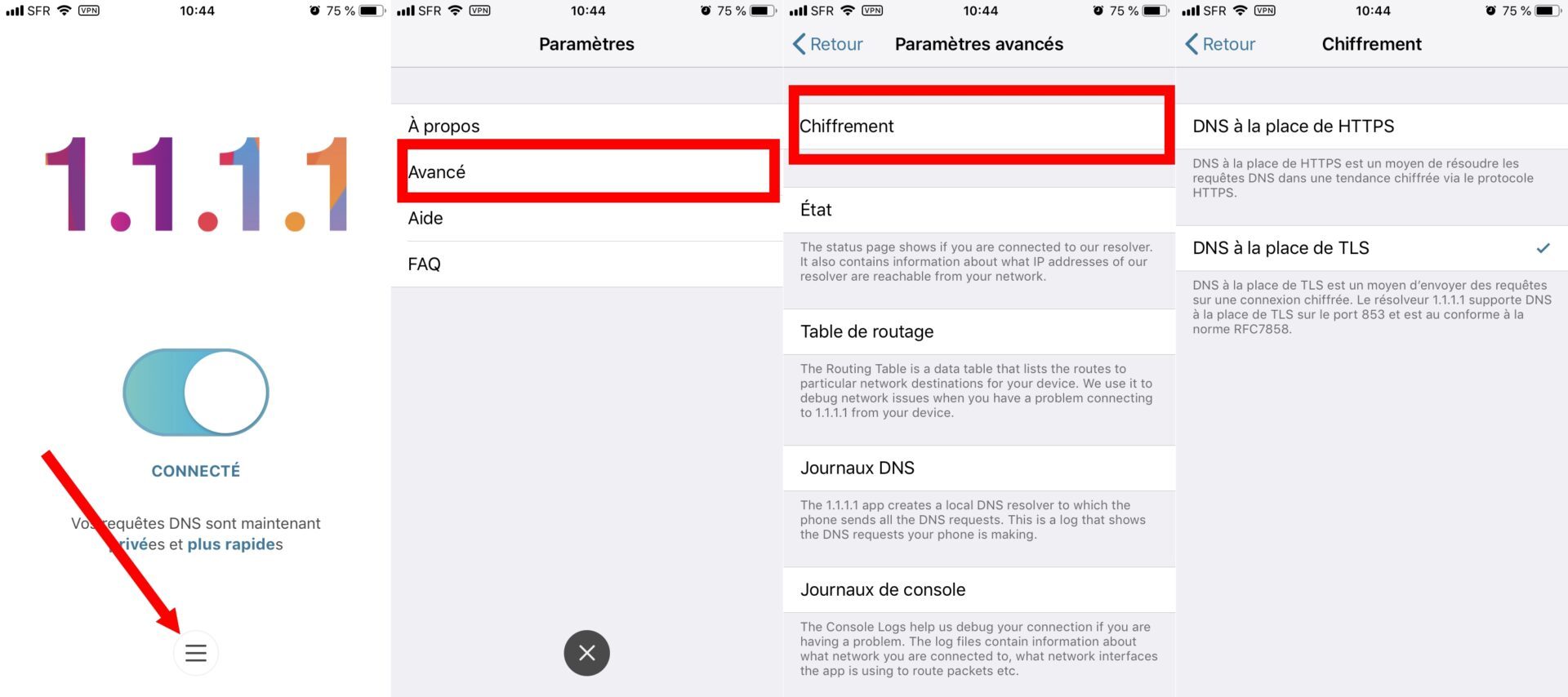
1.1.1.1: Faster Internet provides the ability to enhance security by automatically encrypting your DNS queries. Natively, the application uses HTTPS encryption (DNS over HTTPS), but it is possible to opt for TLS encryption (DNS over TLS).
To do this, press the menu displayed at the bottom of the main screen of the application, then in the Advanced menu, enter the Encryption submenu. Then select the type of encryption to use.