

Secure instant messaging advised by Edward Snowden and Elon Musk is the ideal candidate to replace WhatsApp. Here’s everything you need to know to get started with Signal.
Have you finally taken the plunge and decided to abandon WhatsApp in favor of a more secure alternative? While change can be scary, especially after years of using the same messaging app daily, switching to Signal shouldn’t upset your habits too much.
The secure instant messaging application, recommended by Edward Snowden and acclaimed by Elon Musk, offers more or less the same functionalities, with a fairly similar organization. Here’s everything you need to know to get started with Signal secure messaging.
1. Download Signal
If you haven’t already, start by downloading the Signal app. Available on all platforms, this messaging secures your exchanges from end to end using an encryption system that guarantees the protection of your personal data and therefore your privacy.
Download Signal for Android (Free)
Download Signal for iPhone (Free)
Download Signal for Windows (Free)
Download Signal for macOS (Free)
Download Signal for Linux (Free)
2. Join Signal
Launch the app on your device, skip the splash screens, and allow notifications to be enabled. Signal should then ask you to enter your phone number, which will act as an identifier to connect to the application.
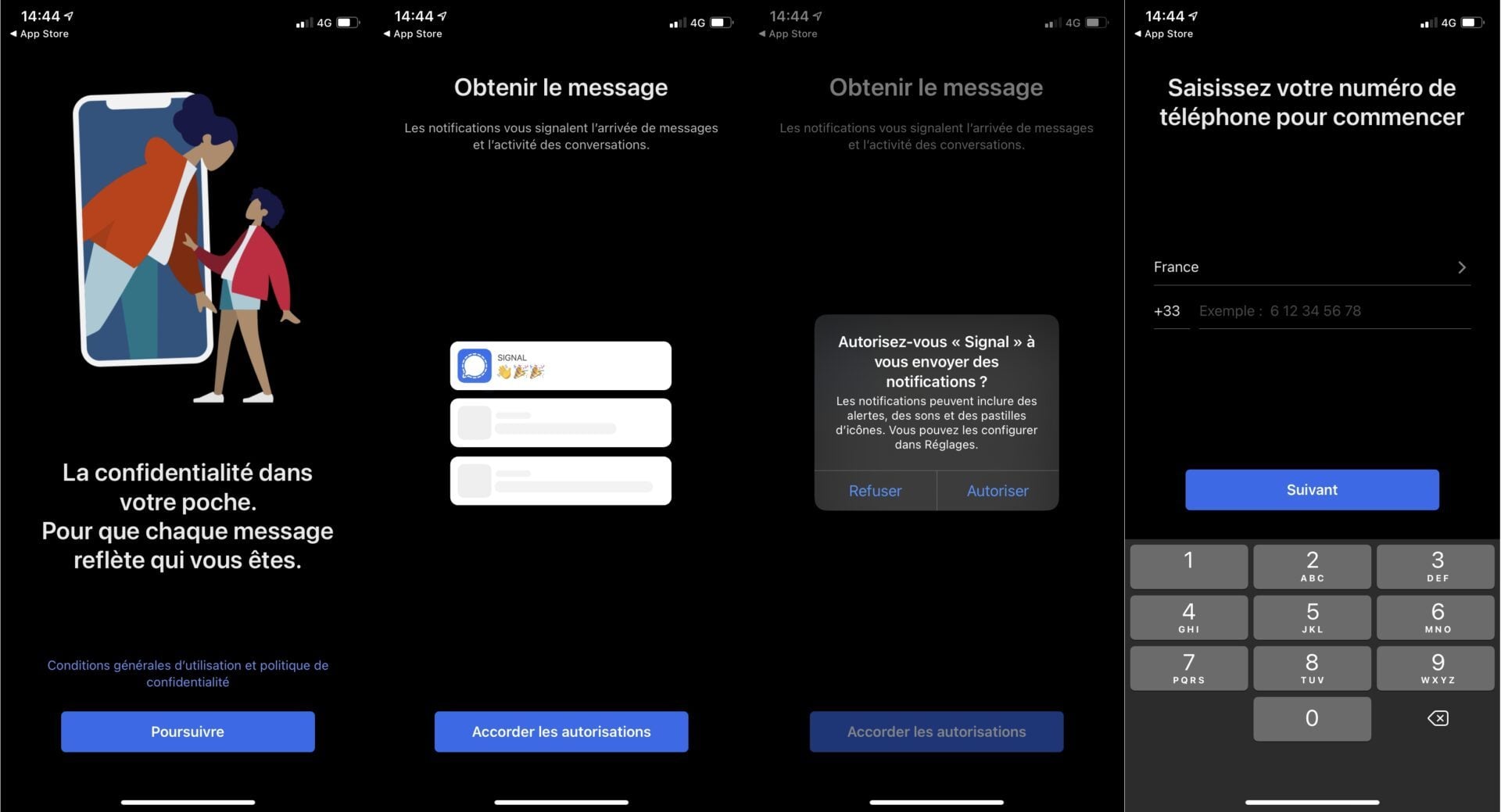
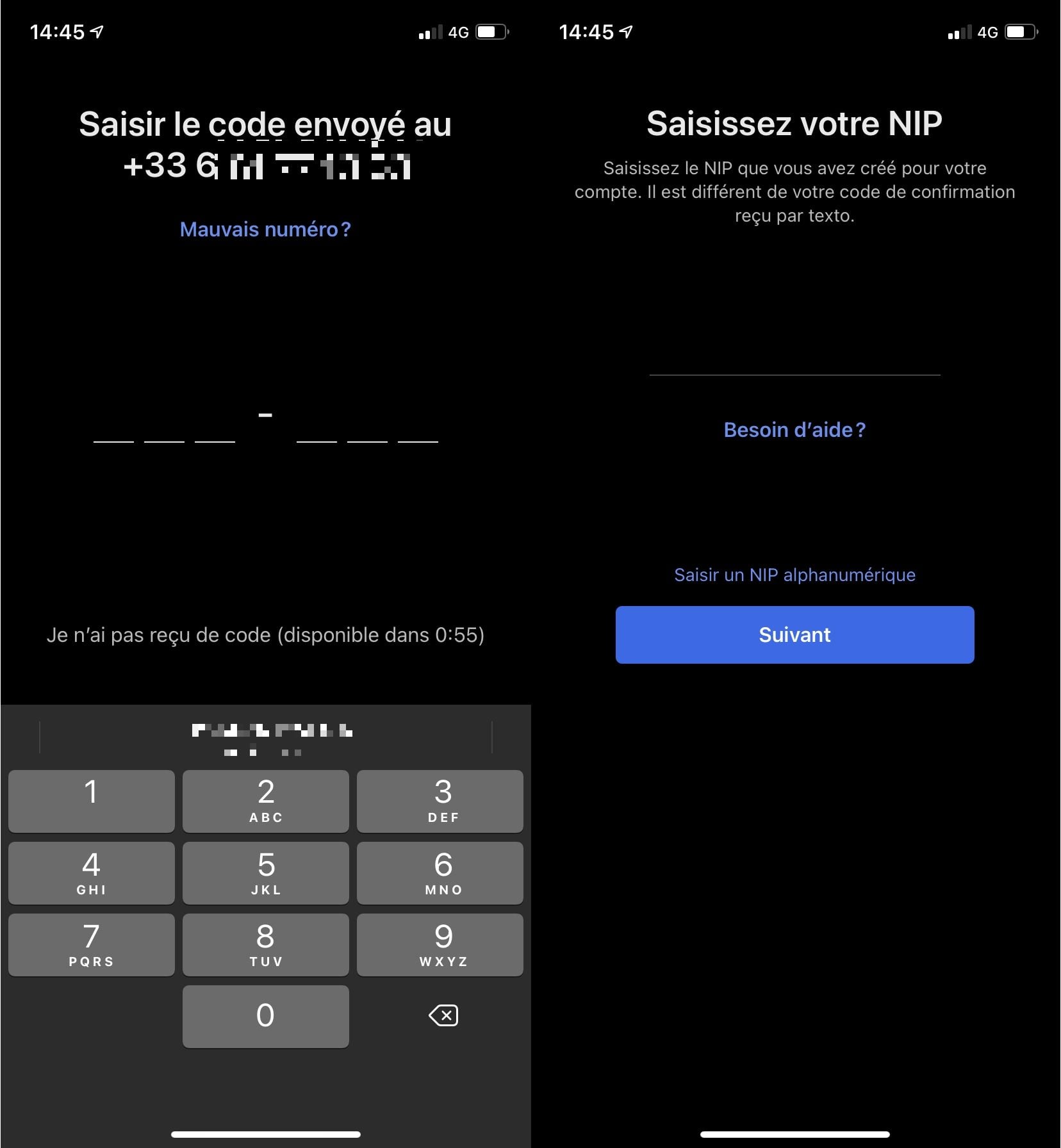
Once this step has been completed, you should receive by SMS a validation code to enter in Signal in order to validate your registration.
The application will then ask you to enter your “NIP”, or “Person Identification Number”, understand, a PIN code aimed at securing access to certain elements of the application.
3. Send a message
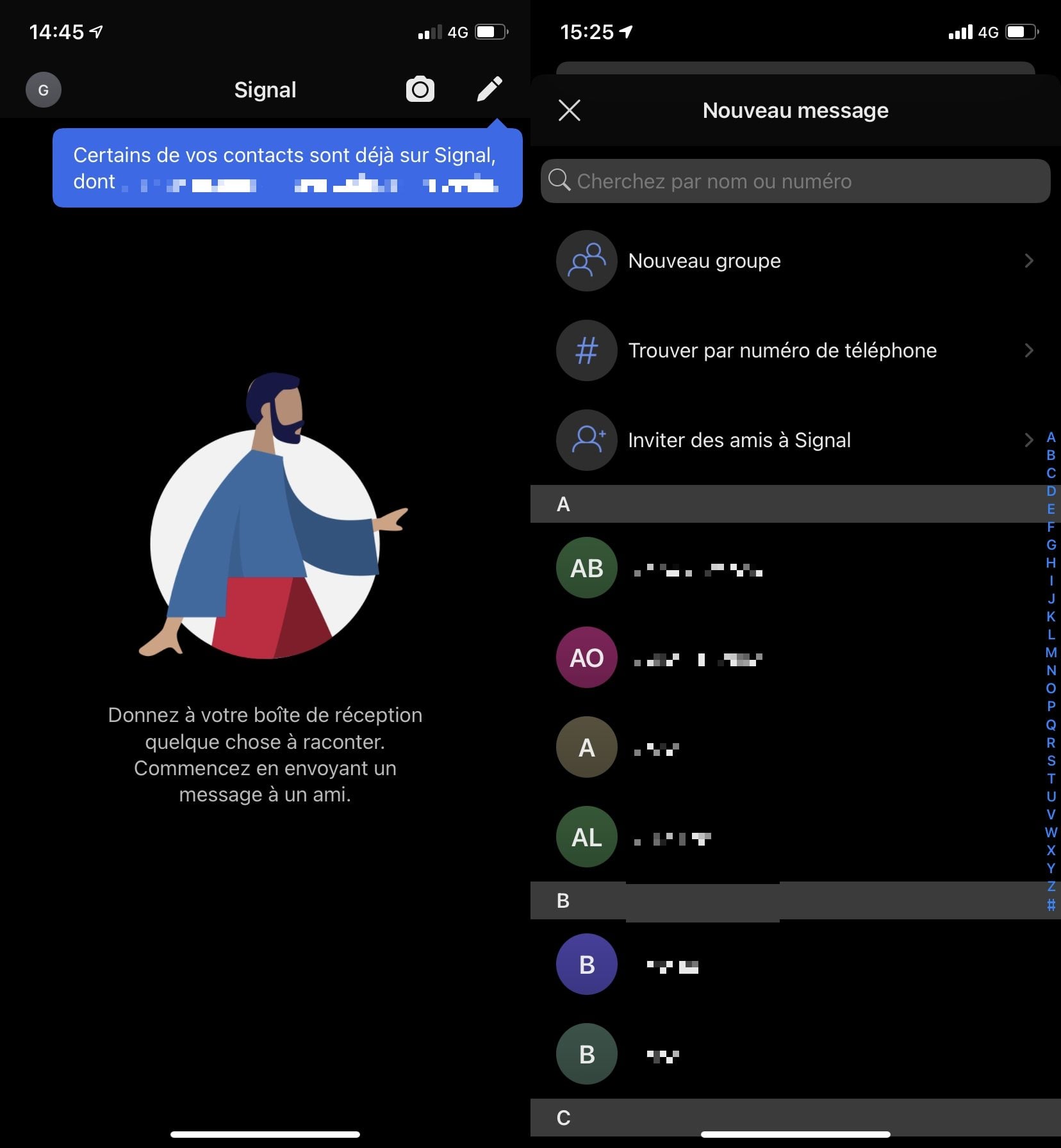
When you arrive at the main page, Signal should let you know if any contacts in your address book have already installed the app. To send a message, just tap the pencil icon and then select a contact from the list of contacts detected as Signal users. You can also choose to create a New group in case you want to create a group conversation.
4. Explore the tools of a conversation
As on WhatsApp, the application displays checkmarks by default when your correspondents receive your messages, but also when they read it. There are also a number of features similar to what exists on WhatsApp on Signal.
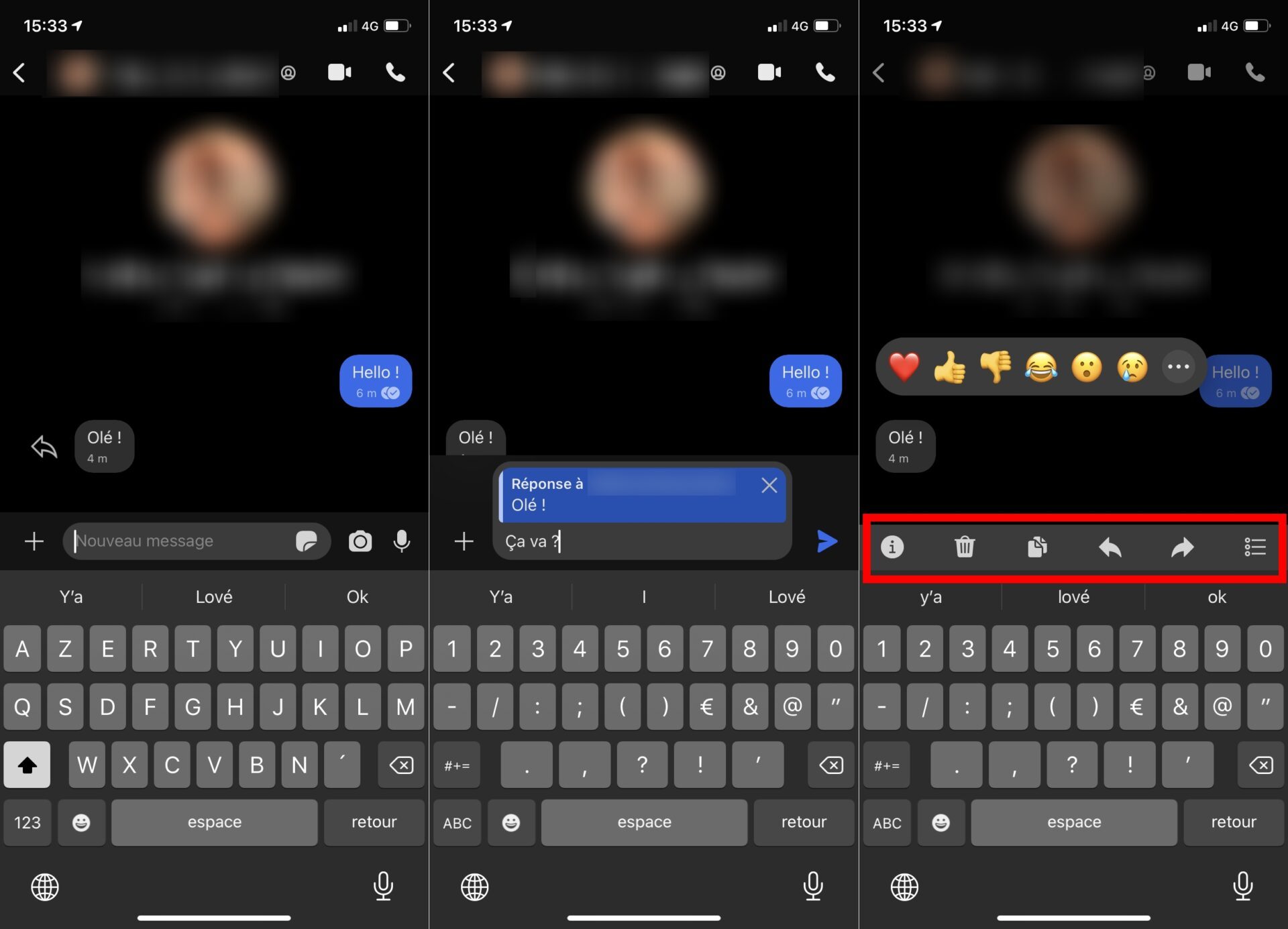
You will be able to reply to a particular message by dragging the bubble of a message towards the center of the screen, which will have the effect of quoting it in the reply field. It is also possible to display reactions in emojis to messages sent or received.
In addition, when you select a message within a conversation, a toolbar is displayed above the keyboard to allow you to display detailed information (date and time of sending and reception for example) , delete a message, copy it to the clipboard, quote the message in reply, forward it, and finally carry out a multiple selection of the messages of a conversation with a view to deleting them.
For the rest, the user will only have to deal with the known since it will be possible for him to share photos, videos and other files with his correspondents, to illustrate the discussion using stickers or GIFs, send voice messages, or initiate an audio or video call from a conversation.
Note that if you film content from the application in order to share it with a third party, Signal includes an editing tool to automatically blur the faces present in the image.
5. Customize chat preferences
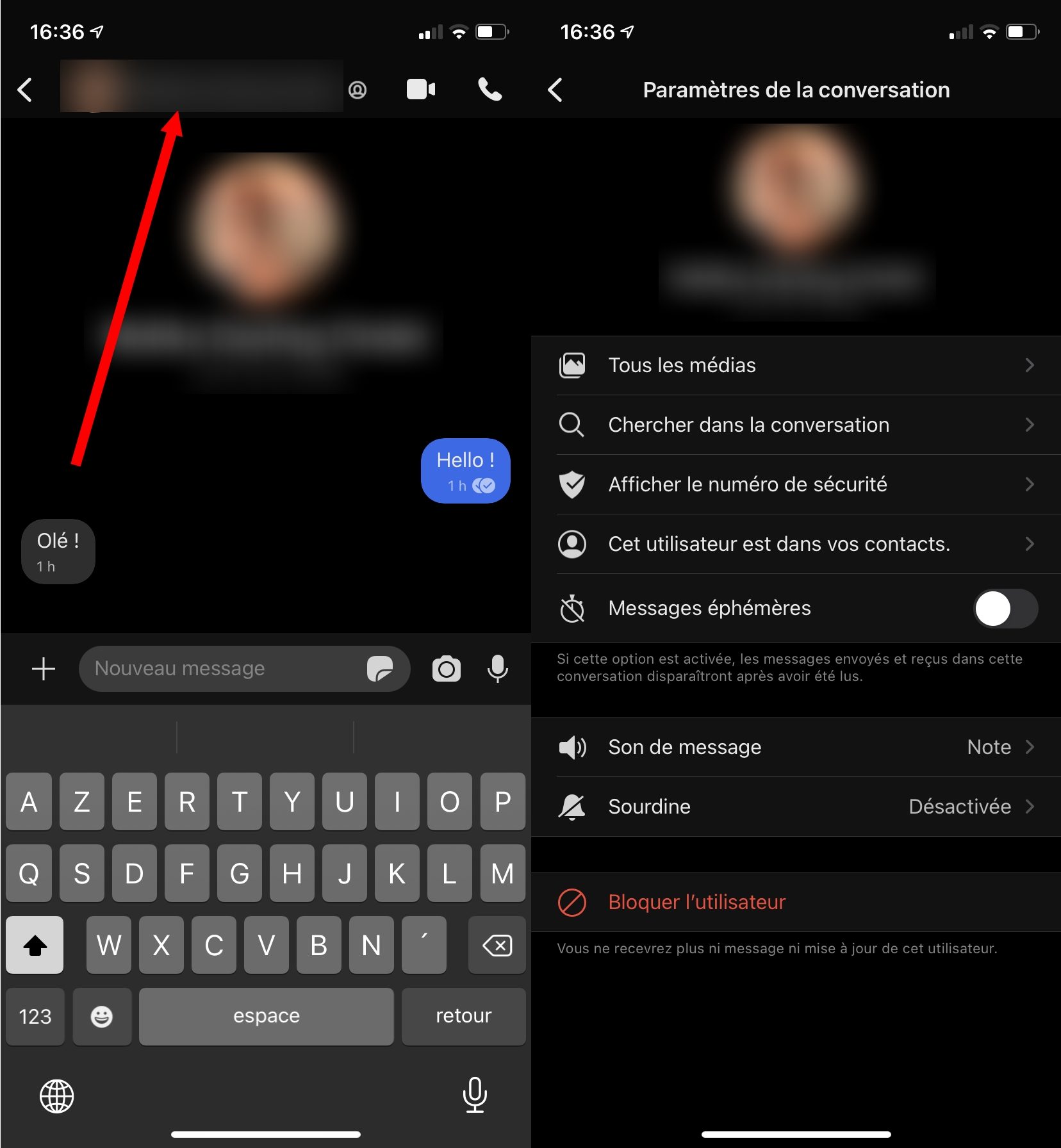
To customize preferences for a chat, simply tap the name of the chat in a group chat or the recipient’s name in a one-to-one chat.
You will access the conversation options and will be able to explore All the media exchanged with your correspondent, launch a search in the conversation, activate ephemeral messages, manage notifications, etc.
6. Customize app preferences
A number of Signal settings will need to be customized depending on your preferences. To do this, from the application’s main page, tap on your avatar.
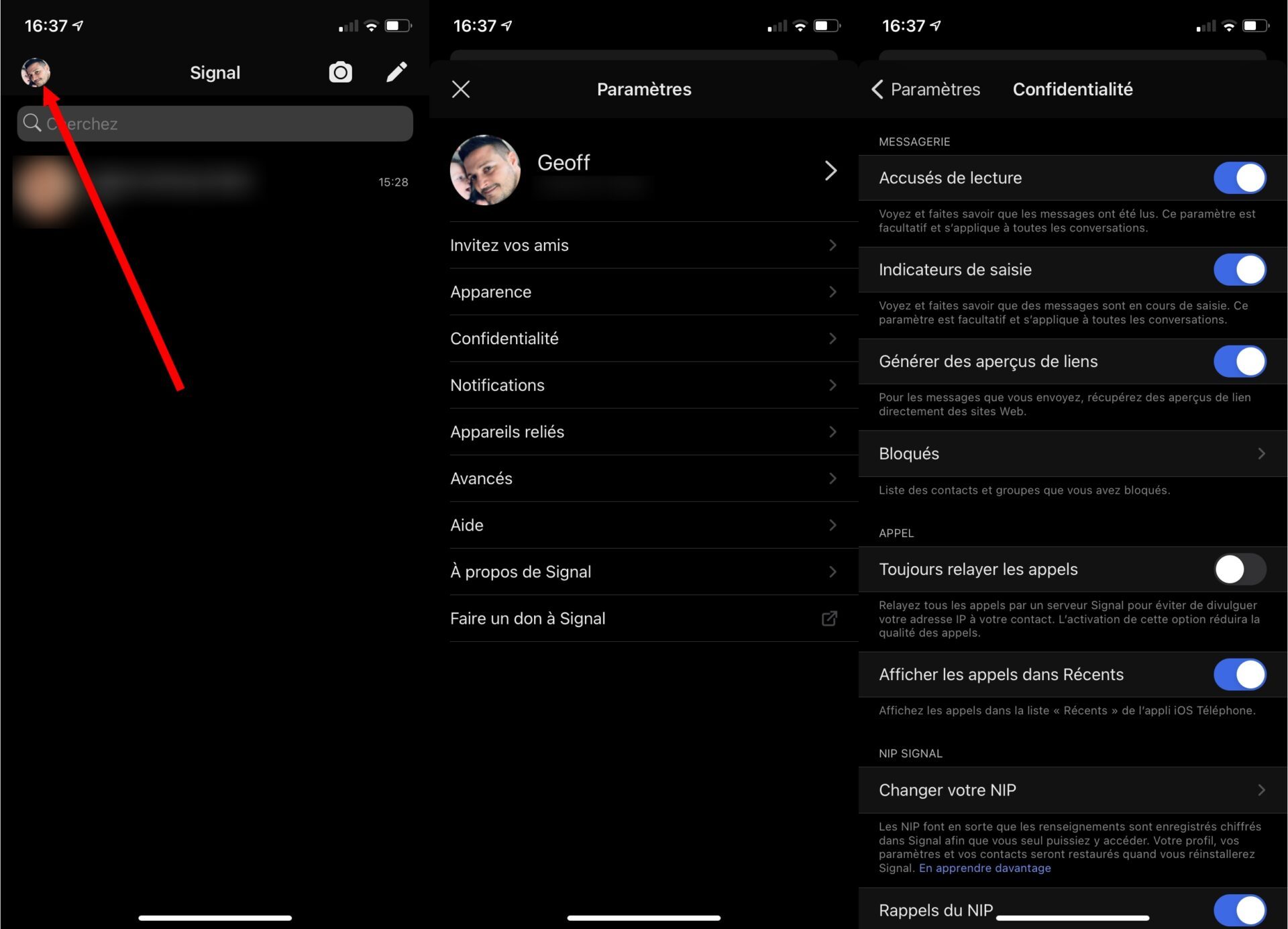
You will be able to modify the Appearance of the application, to choose to use a light theme or a dark theme, but above all to manage the confidentiality settings, in particular to deactivate the read receipts or the input indicator which shows your correspondent when typing text.