
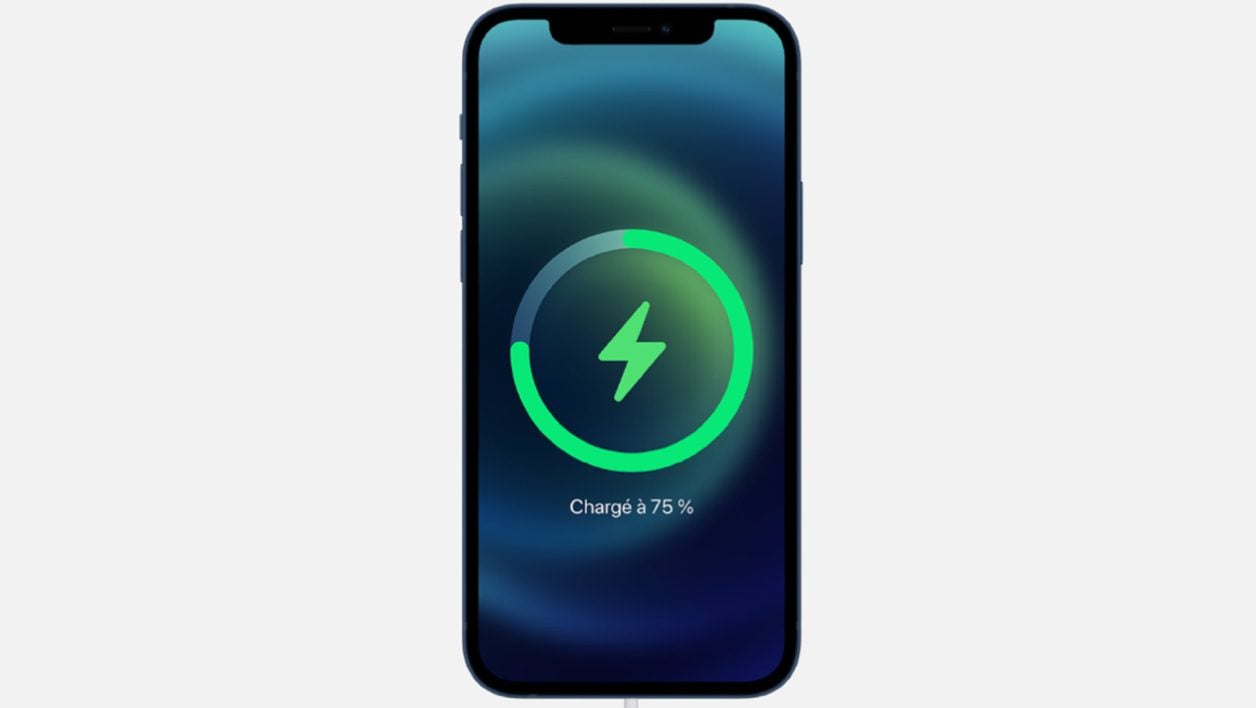
Create a small script to ask Siri to tell you out loud when your iPhone battery is fully charged.
If you’ve got into the habit of leaving your iPhone plugged in until it’s fully charged, maybe you’d like to find a way to be notified when the battery reaches 100%, especially if you charge your device before you go. to sleep.
iOS does not officially offer any option to do so, but it is possible to create a small script yourself to trigger Siri to notify you when the charge is complete. And it is by using Shortcuts, Apple’s automation application, that you can perform this operation. Here’s how.
Also see video:
1. Download Shortcuts
If you haven’t already, download the Shortcuts app on your iPhone. Free, it allows you to easily create automation scripts to launch actions or perform sometimes complex tasks, for you.
Download Shortcuts for iPhone (Free)
2. Create an automation script
Open the Shortcuts app, go to Automation and press the Create custom automation button. to create a new automation.
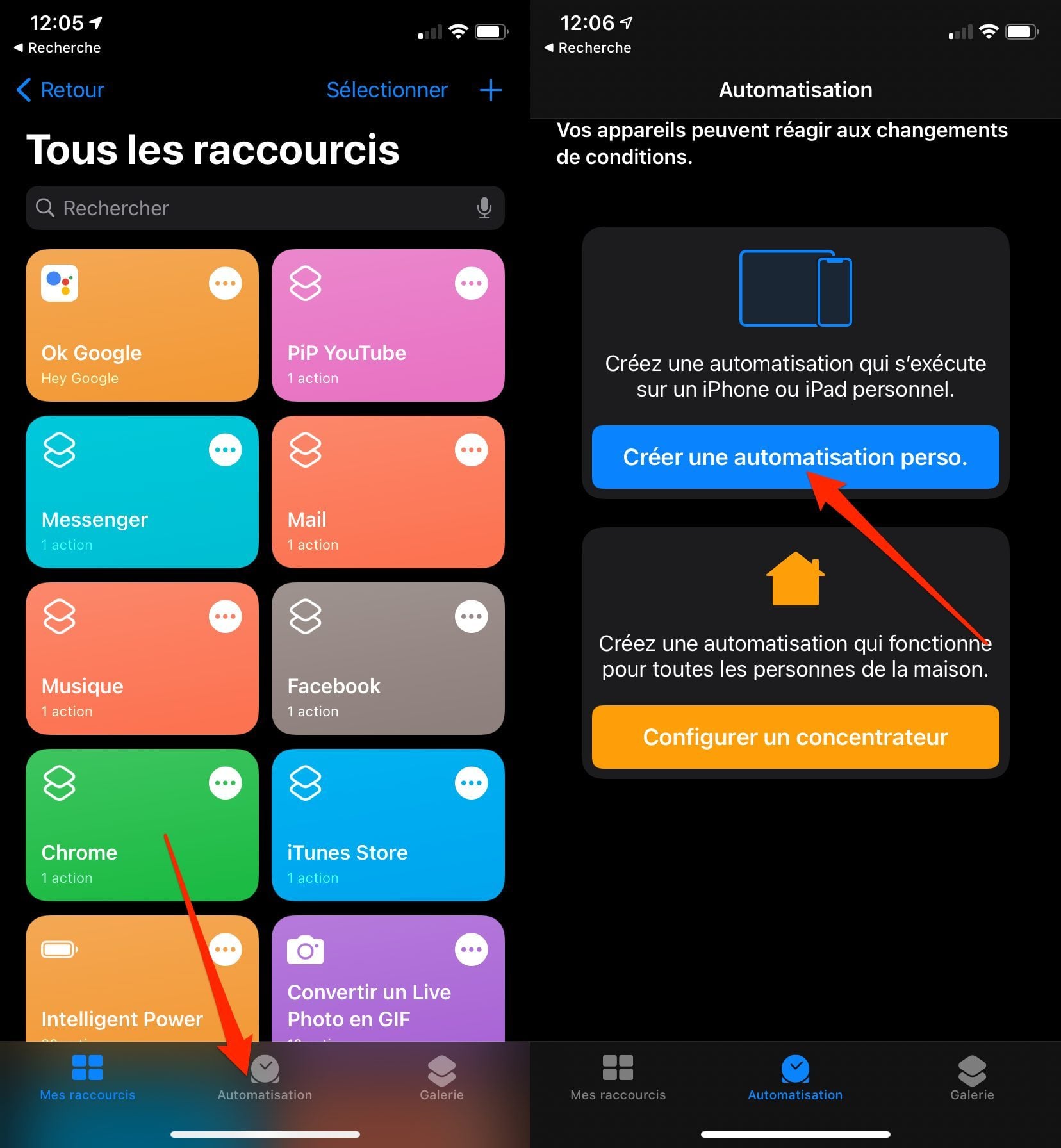
Scroll through all the options, and select Battery level. Move the Battery slider to 100%, keep the Equals 100% setting selected, and press Next.
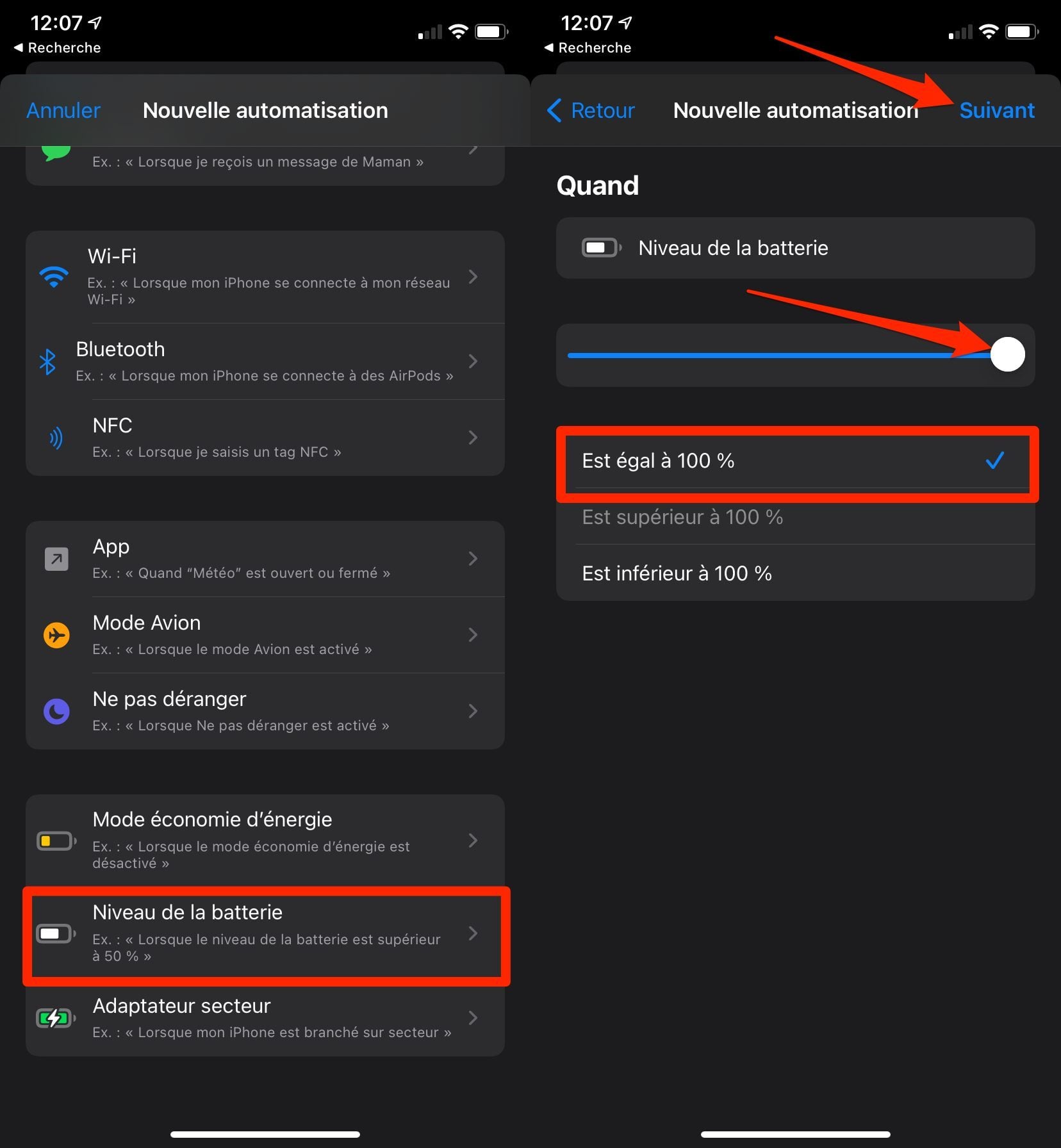
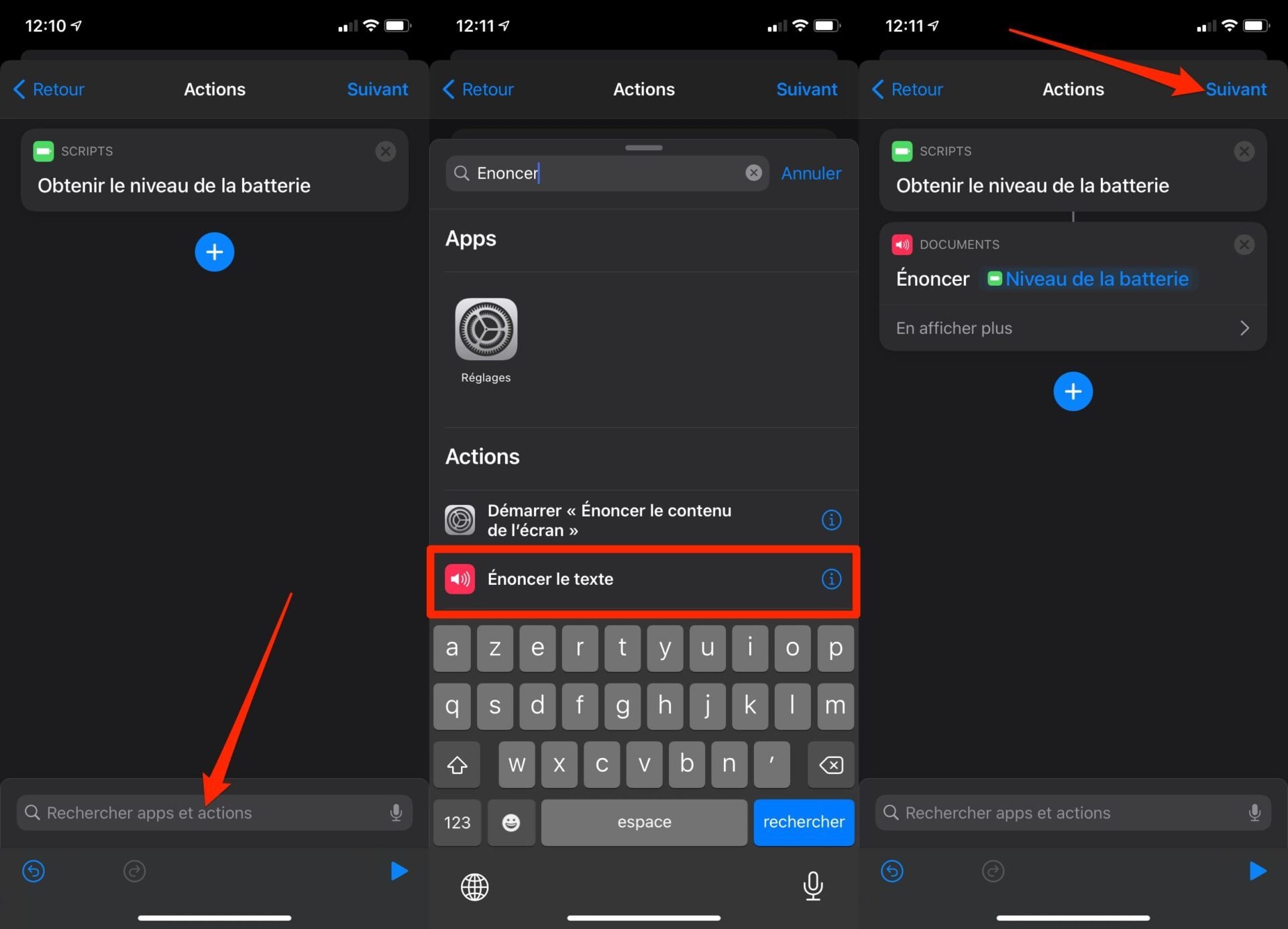
In the Search apps and actions field, find the Get battery level action and select it.
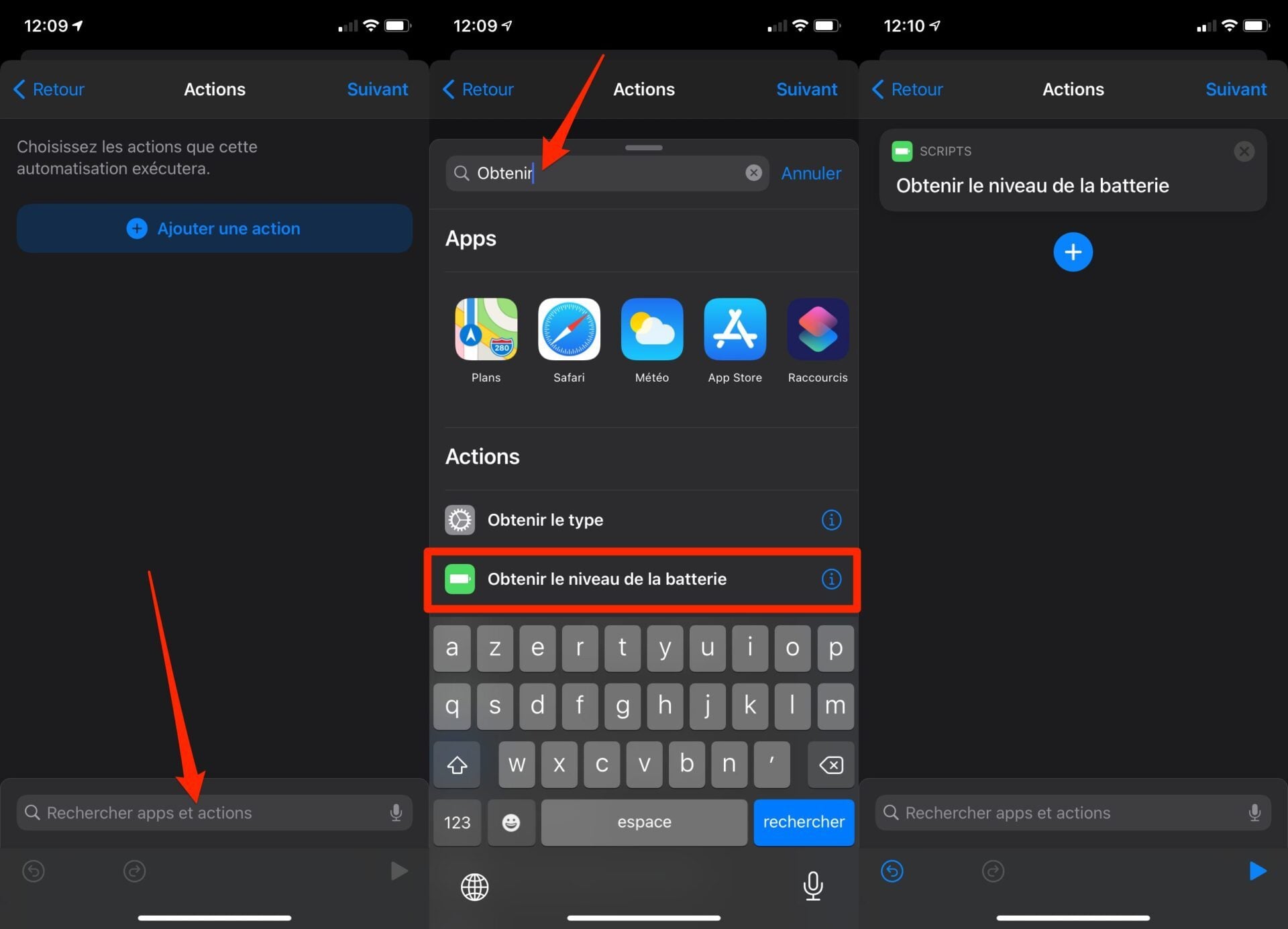
Still in the search field, find the Speak text action, select it and press Next.
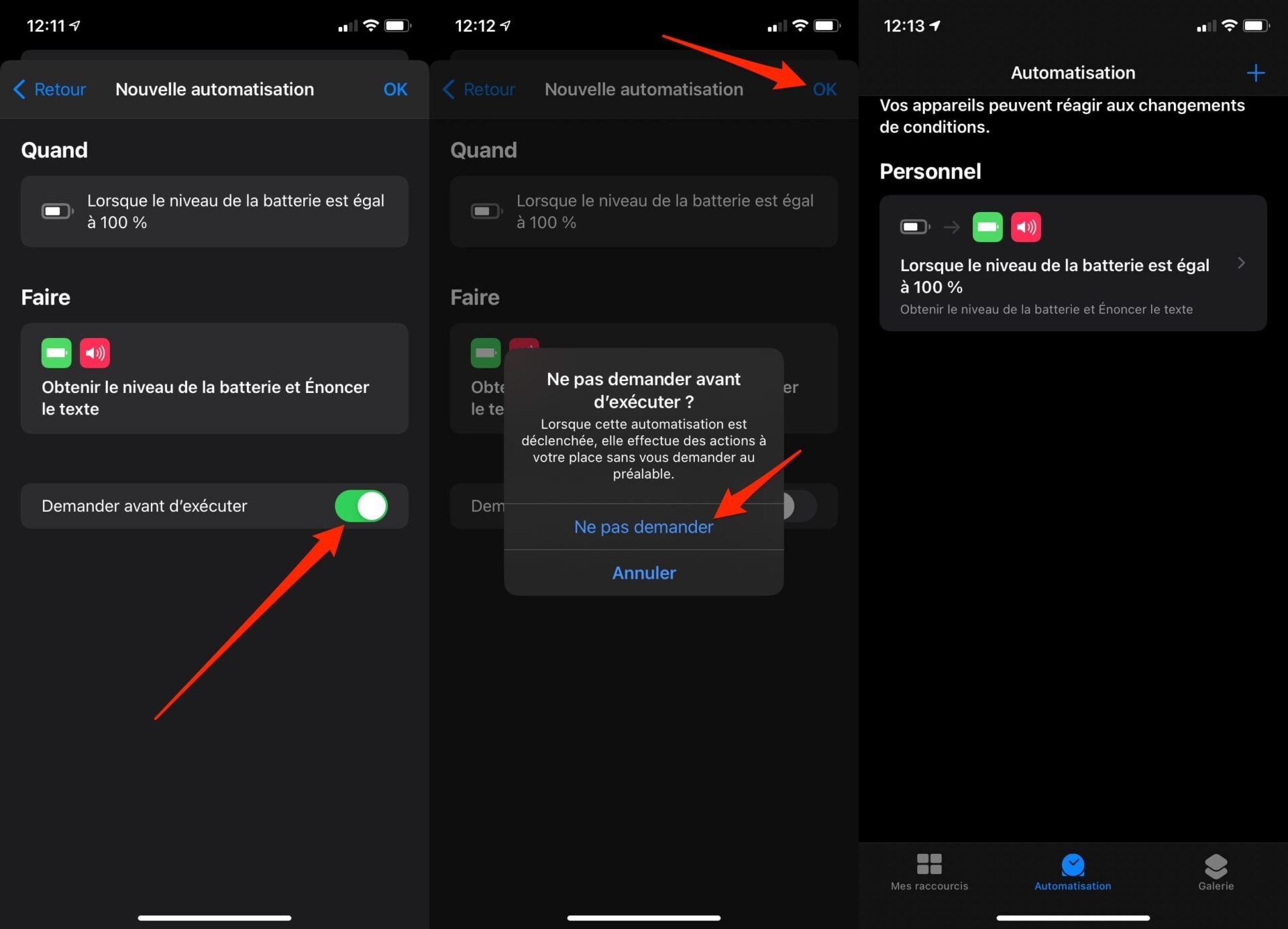
Then uncheck the Ask before running option and confirm by tapping Don’t ask. End your script by pressing OK. Your automation script is now ready.
3. Charge your iPhone
Put your iPhone to charge and wait. As soon as the battery is fully charged, i.e. 100%, Apple’s voice assistant will trigger and say the number 100 aloud to let you know that the charge is complete.