

Add some color to your chats by changing the wallpaper displayed in each of your conversations in Signal Secure Messaging.
With the announcement in January of the implementation of new conditions in WhatsApp, users of Facebook-owned messaging have fled en masse to alternative solutions. Among them, Signal, a free and secure messaging system by default with end-to-end encryption, offers many functions very similar to what exists on WhatsApp. In a recent update, the app introduced the ability to customize the background displayed within conversations. Find out how to add some color to your chats by customizing their wallpaper.
Download Signal for Android (apk) (Free)
Download Signal for iPhone (Free)
1. Enter the options of a conversation
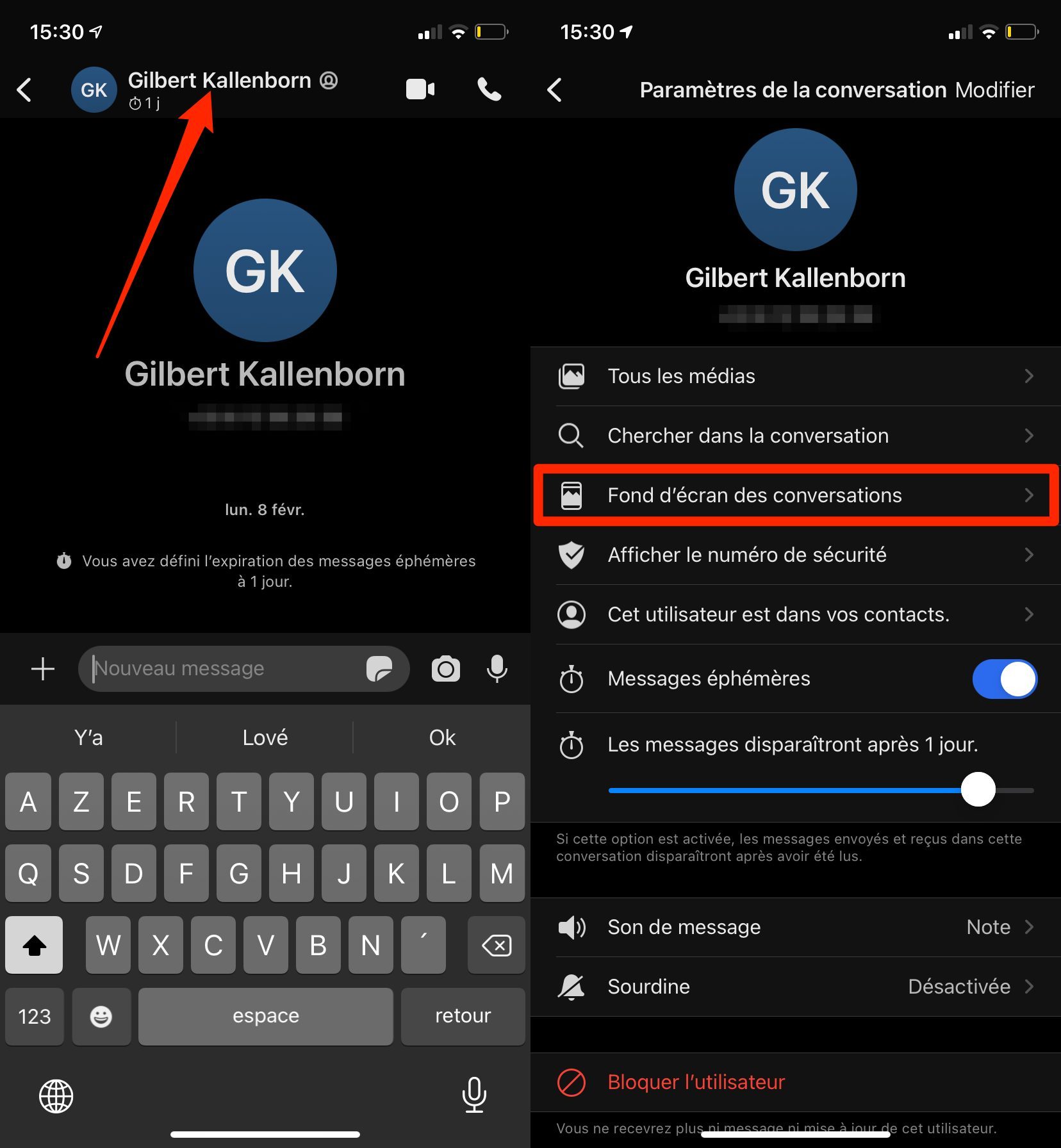
To customize the background of a conversation, enter one of them and press the name of the correspondent or group. In the chat options that appear, tap Chat wallpaper.
2. Customize the wallpaper
In the wallpaper customization window, tap Set wallpaper. You will be able to choose one of the solid colors predefined by Signal, or Choose from the Photos of your device.
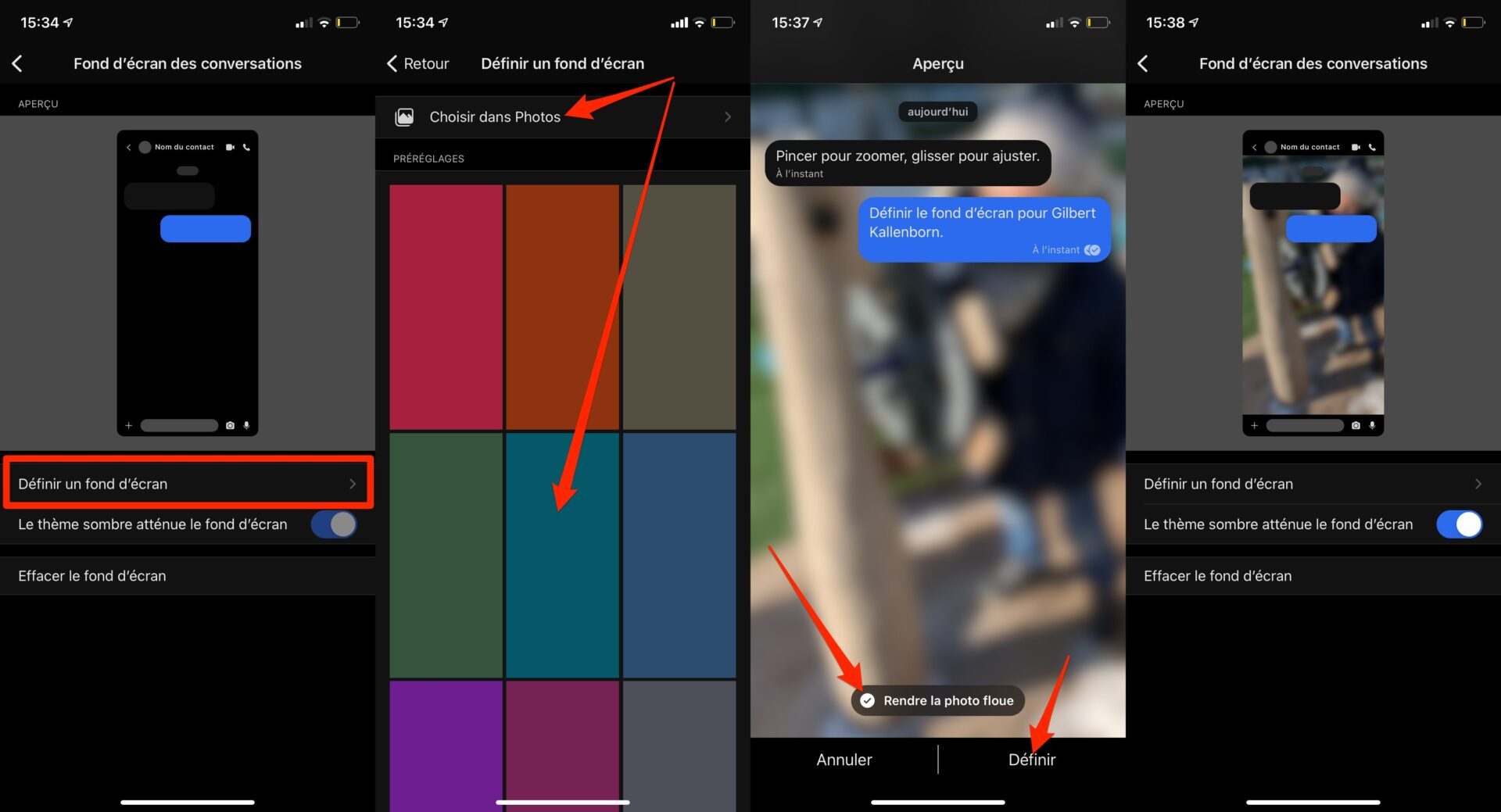
If you opt for a photo, you can, if you wish, Blur the photo. Once you have determined your choice, tap Set to apply the new wallpaper to the conversation.
You will have to repeat the manipulation to individually personalize each of your conversations in Signal.
3. Customize wallpaper for all chats
While it is possible to individually customize the wallpaper for each conversation, Signal also allows you to configure a specific background that will be applied to all your conversations.
To do this, from the main page, tap on your avatar to access the application settings and enter the Appearance menu. Then tap on Chats wallpaper and then tap on Set wallpaper to select a solid color or Choose from your smartphone photos.
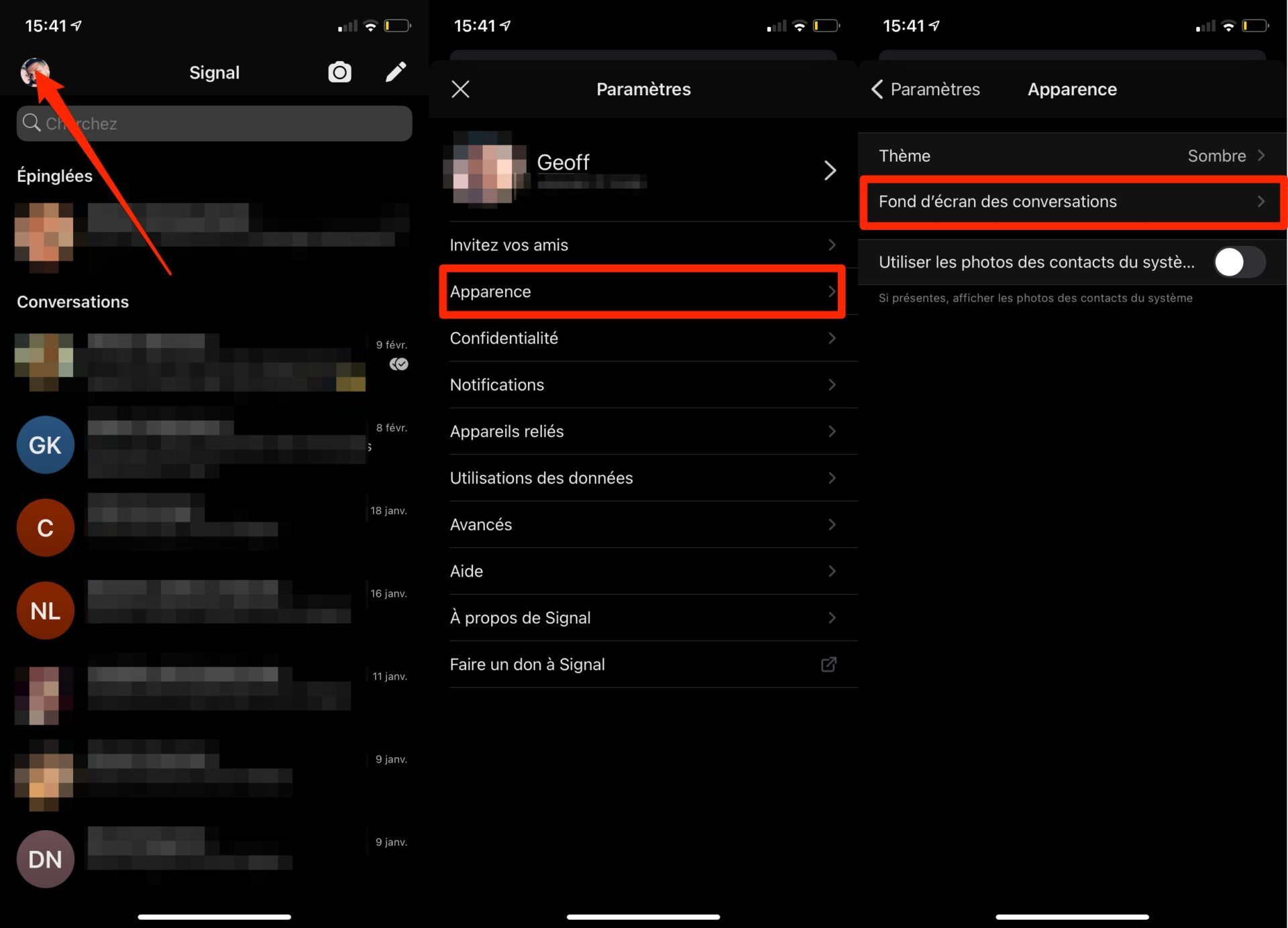
It is also from the Conversations Wallpaper menu that you can Reset all the wallpapers that you have configured in the application.