
Configure a new Microsoft Edge or Google Chrome shortcut on the Windows desktop to automatically open a guest mode browsing window.
If you happen to share your computer with a third party to let them surf the web, you may be looking for a solution so that their browsing data does not pollute your profile and does not remain stored on your machine.
For this, Google Chrome and Microsoft Edge offer Guest mode, which takes care of deleting all browsing activity from your PC once the browser is closed. To activate it, however, you must open the browser and click on your profile picture to finally access this famous “Guest” mode.
However, it is possible to open Chrome or Edge directly on a window in Guest mode by creating a specific shortcut on the Windows desktop. The manipulation works for these two browsers. There she is.
Also see video:
1. Create a new shortcut
Click on the Windows Start menu, then right-click on the Google Chrome or Microsoft Edge icon. Go to the More menu and click Open File Location.

The window that opens displays all the shortcuts present in the Windows Start menu. Right-click on the Chrome (or Edge) launch shortcut, point to Send to, and choose Desktop (create new shortcut).

2. Enter the properties of the shortcut
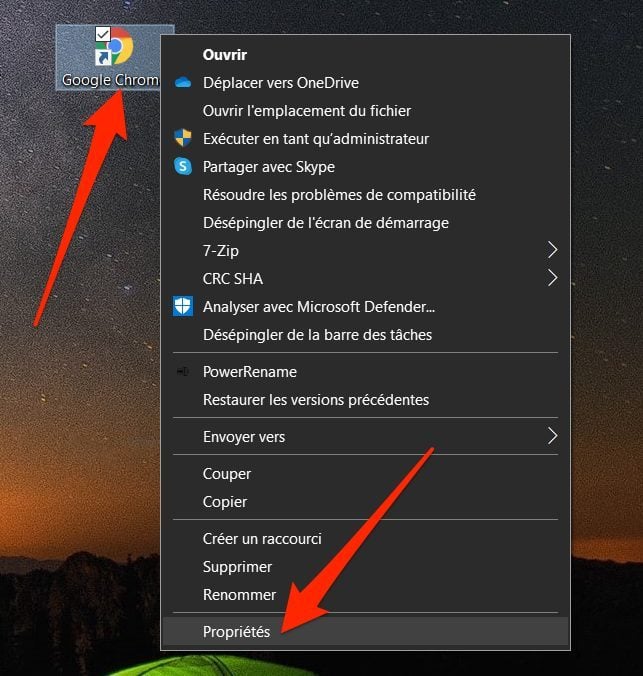
Now right-click on the new shortcut displayed on the Windows desktop and enter Properties.
3. Modify the target
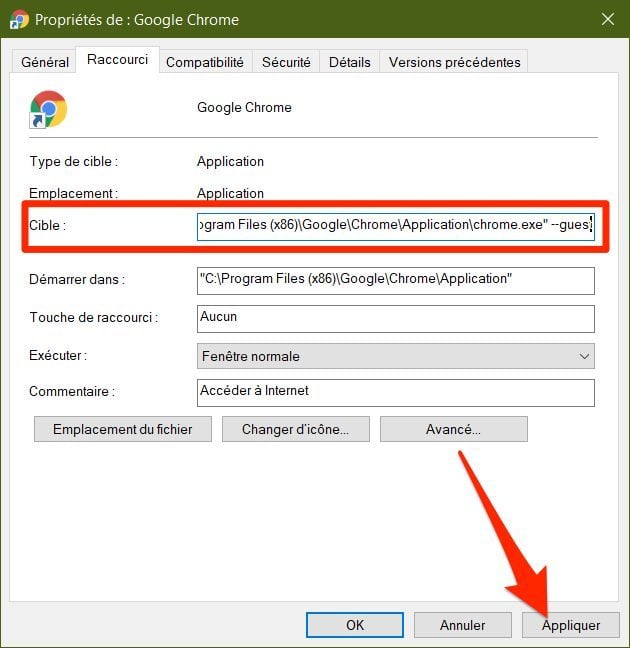
In the window that appears, place the mouse cursor at the end of the Target line, add a space, and specify the –guest parameter. Click Apply to commit your changes.
4. Customize the shortcut name
If you already have a Chrome or Edge shortcut on your desktop, it’s a good idea to customize the name of this new “Guest” shortcut to avoid making mistakes.
To do this, in the Shortcut properties window, go to the General tab, delete the Google Chrome name displayed in the text field at the top of the window and customize the name of your shortcut, by naming it for example “Chrome Guest”.
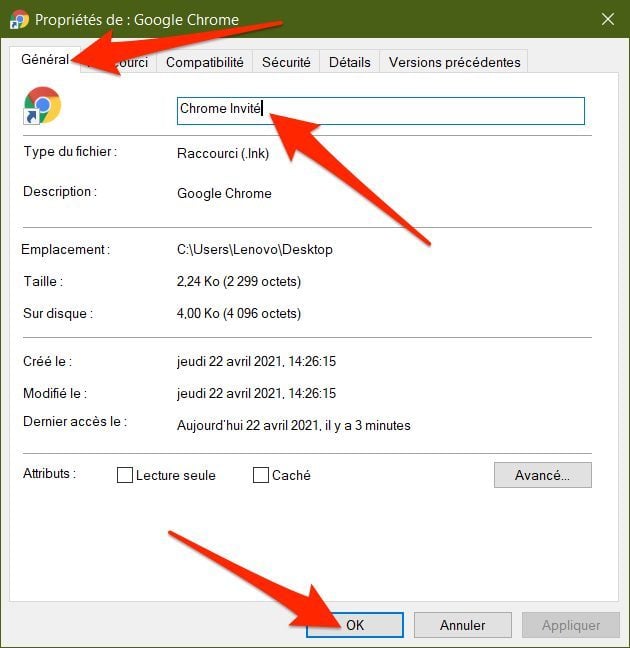
Then click the OK button to save your changes.
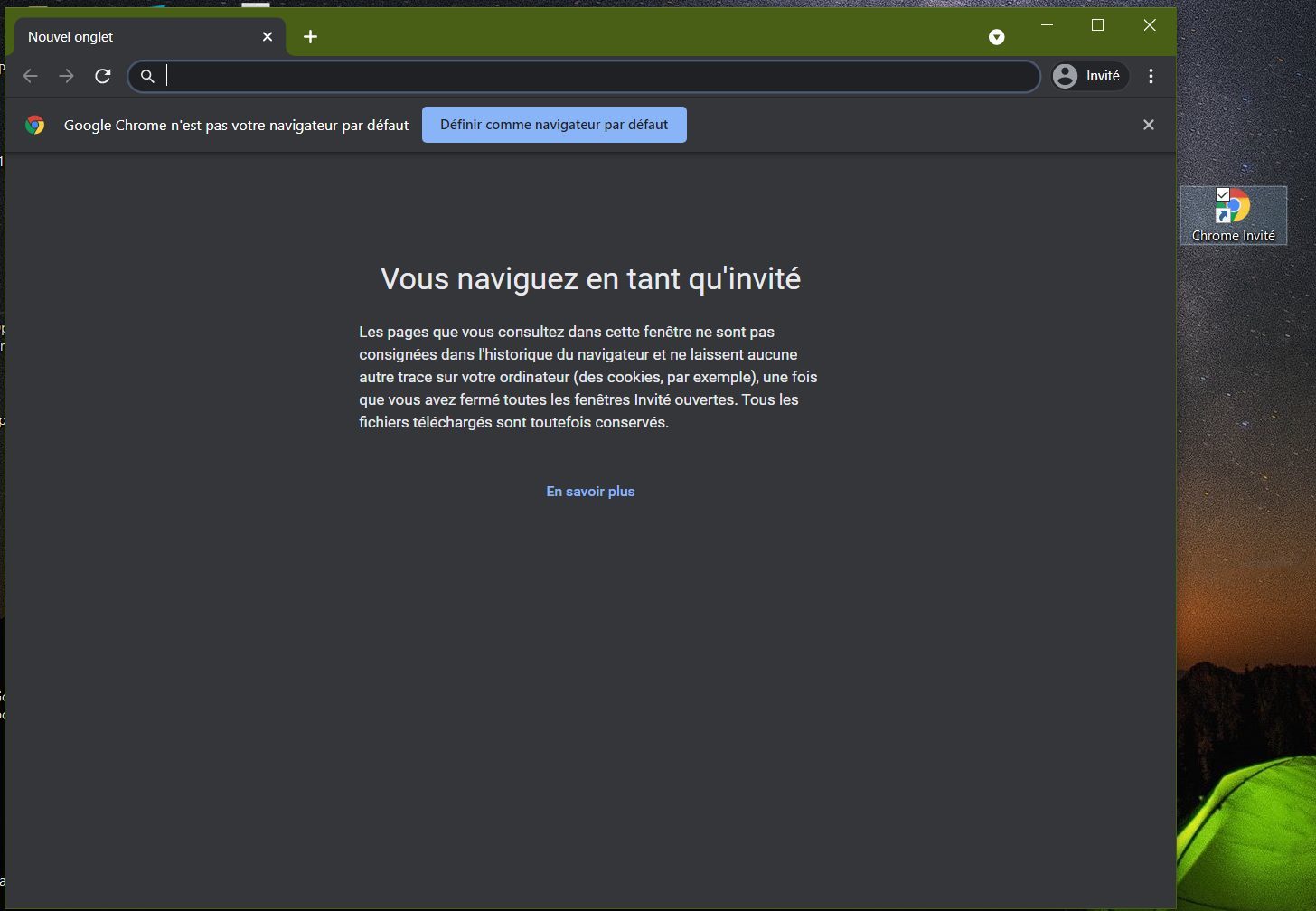
Now, when a third party wants to use your PC to browse the Internet, using Chrome or Edge, all they have to do is click on the “Guest” shortcut you created and the browser will automatically open in this mode.