

© Microsoft
In Windows 11, Microsoft’s email client is unable to display the most recent messages in the search engine.
Microsoft seems to be having a hard time with Outlook in Windows 11. For the second time in a few months, the search engine integrated into the email client is the victim of a very annoying bug: it is unable to display the most recent messages. .
Aware of this new damage, Microsoft is looking for the cause. The concern would affect all offline POP, IMAP and Exchange accounts. It would obviously be due to the fact that the search engine integrated into Outlook relies on Windows Search (the local search engine of Windows 11), to index the e-mails of the messaging client. Microsoft 365 and Exchange online accounts are spared from the problem.
While waiting for a corrective update to be published, the Redmond company has published a temporary solution on its support pages. She suggests disabling search in Windows to force Outlook to use its built-in search engine. However, this solution is not without risk since it involves modifying a key in the operating system registry.
Here’s how to disable the Windows Desktop Search service for Outlook.
1. Open Registry Editor
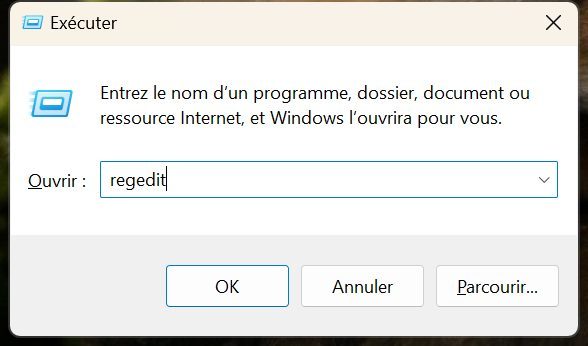
Use the Windows + R keyboard shortcut to display the Run window, then type Regedit and confirm by clicking OK.
2. Look for the key
In the search field at the top of the window, copy-paste HKEY_LOCAL_MACHINESOFTWAREPoliciesMicrosoftWindows and validate by pressing the Enter key on the keyboard.

3. Create a new key
In the left column, right-click on the Windows directory, then in New, choose Key.
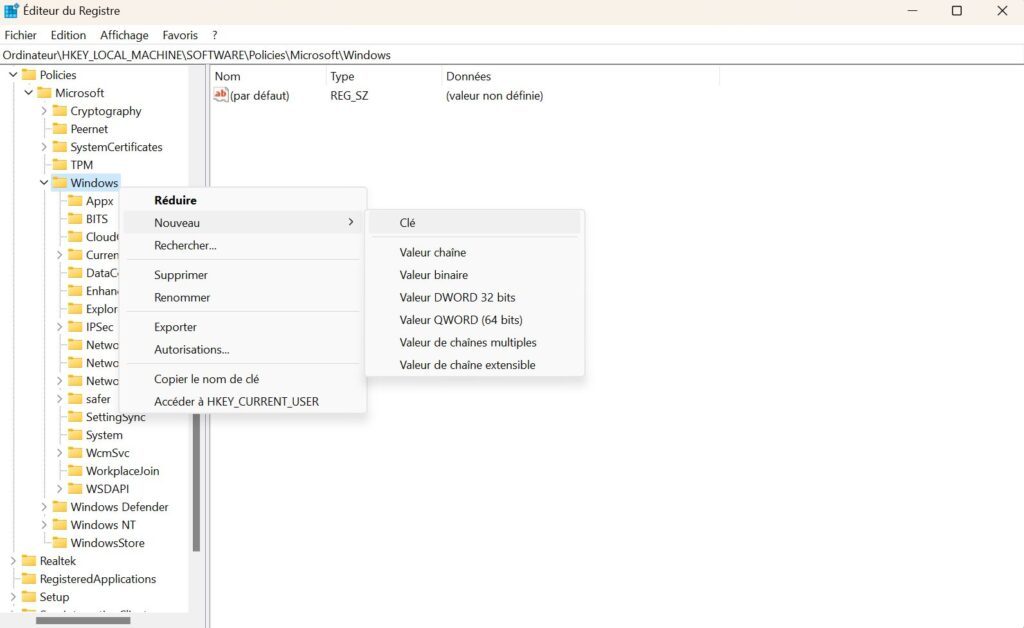
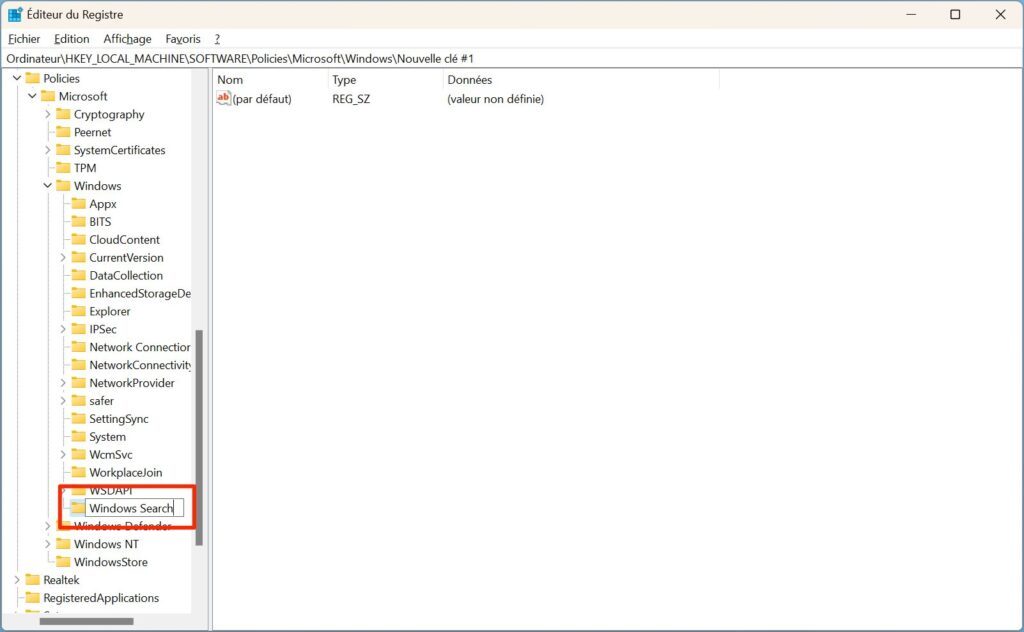
Then name your Windows Search key to create a Windows Search subdirectory.
4. Edit the key
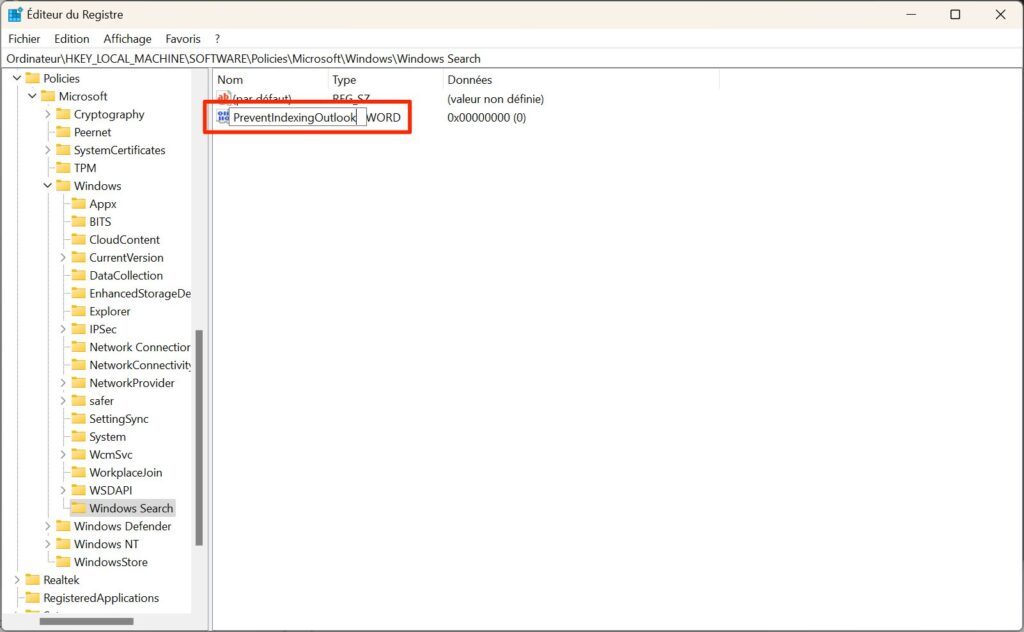
Right-click on the Windows Search directory you just created, then in New, select DWORD Value.
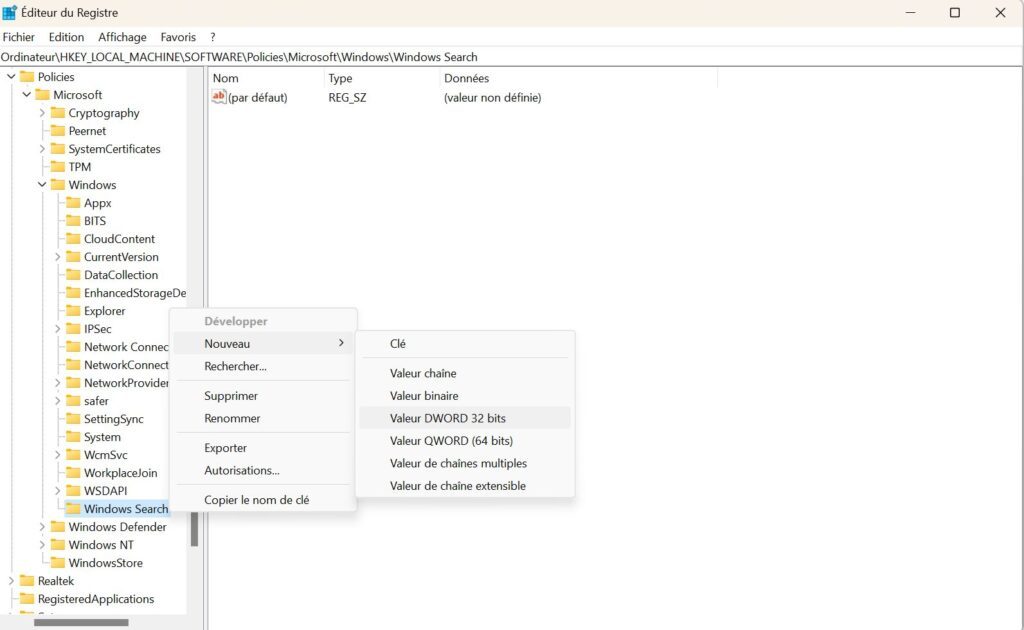
Name this value PreventIndexingOutlook and validate by pressing the Enter key on the keyboard.
5. Change the value
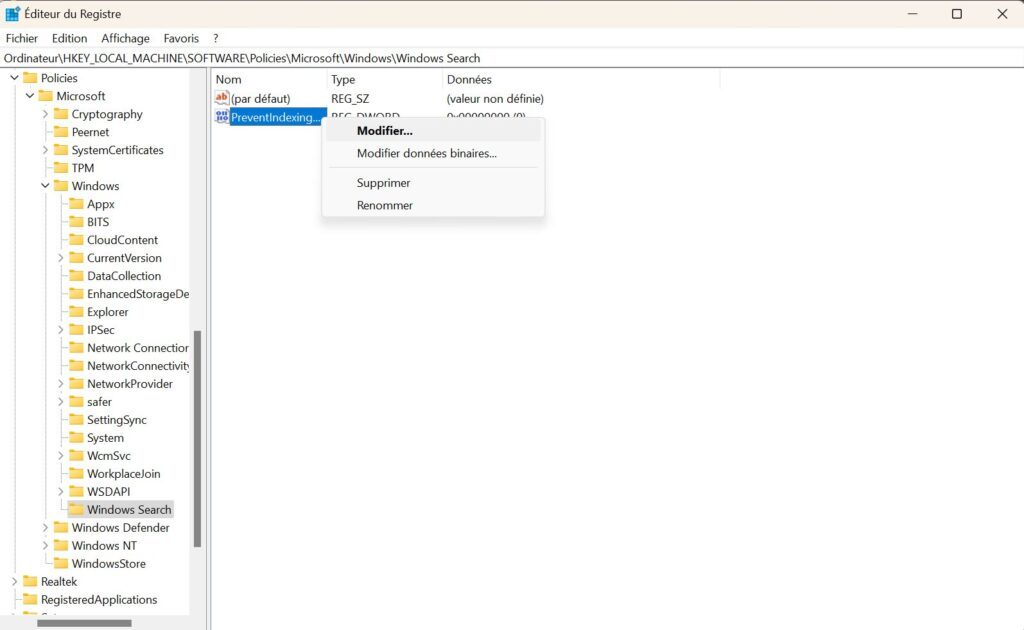
Now right-click on the PreventIndexingOutlook value you just created to Modify it.
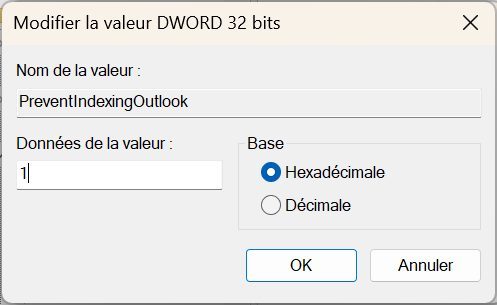
In the Edit DWORD Value dialog box that opens, type 1 in the Value data field and click OK.
You can now close Windows Registry Editor and restart Outlook Mail. The mail client should now use its own search engine and display the most recent messages when you run a query.
Microsoft