
©Google
Get the most out of Google Chrome by adopting and mastering these ten little-known features.
Think you know everything about Google Chrome? You were probably wrong. Google’s web browser, as complete as it is efficient, hides many secrets. It offers a myriad of features that are often overlooked, and which are most of the time untapped. However, the vast majority of these functions are within the reach of any user. We have selected ten of them for you. When they are mastered, they will allow you to save precious time on a daily basis.
1. Open multiple sites when opening Chrome
You probably use Chrome on a daily basis, so chances are you’re always visiting the same websites when you start it. Rather than having to click through your bookmarks, or open them one by one, you can set Chrome to automatically open any page you want.
To do this, click on the main menu of Chrome and go to the Settings of the browser. In the left column, select On startup, then on the main page, choose the last option, Open a specific page or set of pages.
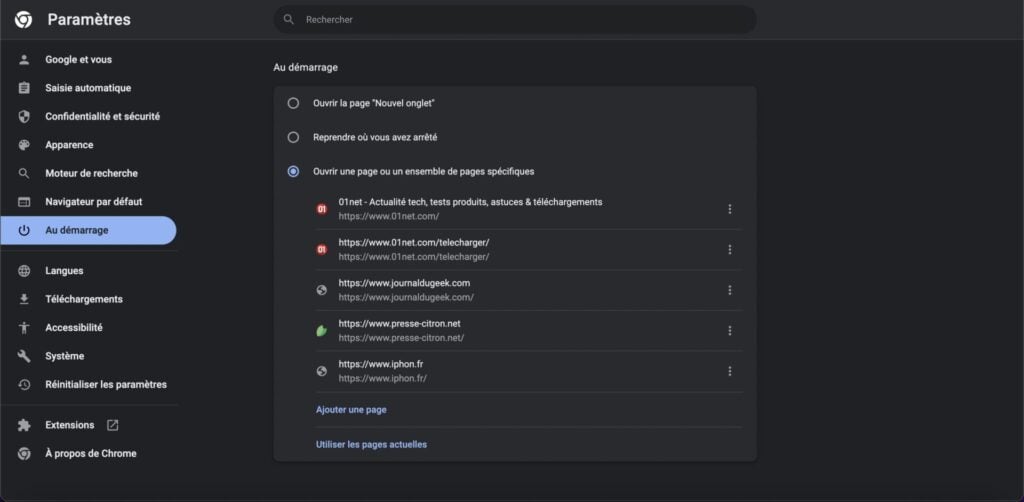
If all the sites you usually visit are already open, click Use Current Pages. Otherwise, click on Add a page and fill in the URL to open when Chrome starts and validate by clicking on Add. Repeat the operation as many times as necessary for each of the sites to launch when the browser starts.
2. Perform Actions Quickly Using Commands
You may not know it, but Google Chrome is able to perform certain operations quickly by entering specific commands in the address bar (also called omnibox). You will find the complete list of possible actions on the support page dedicated from Chrome.
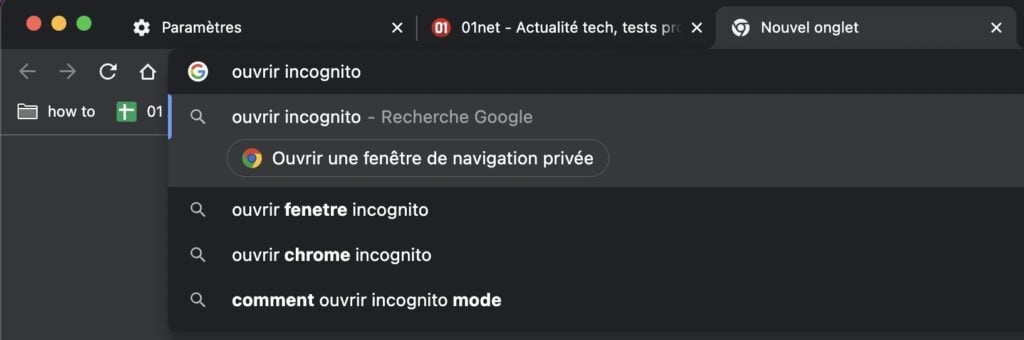
When Chrome recognizes the action that you submit to it, the title of the action accompanied by an icon is automatically displayed in the result suggestions.
3. Reopen a tab you closed by mistake
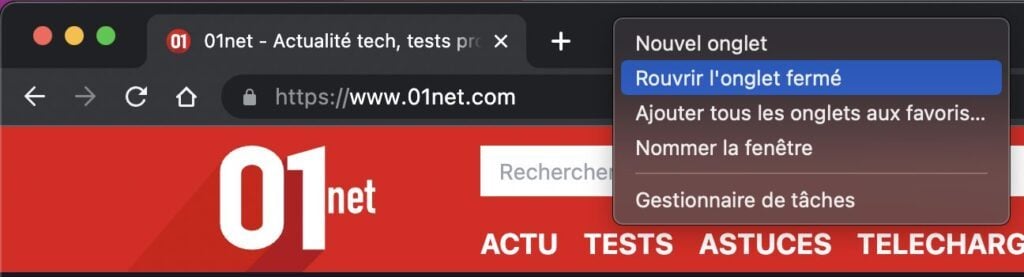
Did you just close a tab by mistake? Do not panic. You can reopen the closed tab quickly by right-clicking on the tab bar. You can also use the keyboard shortcut Ctrl+Shift+T on Windows or cmd+Shift+T on macOS.
4. Run a query from the right-click context menu
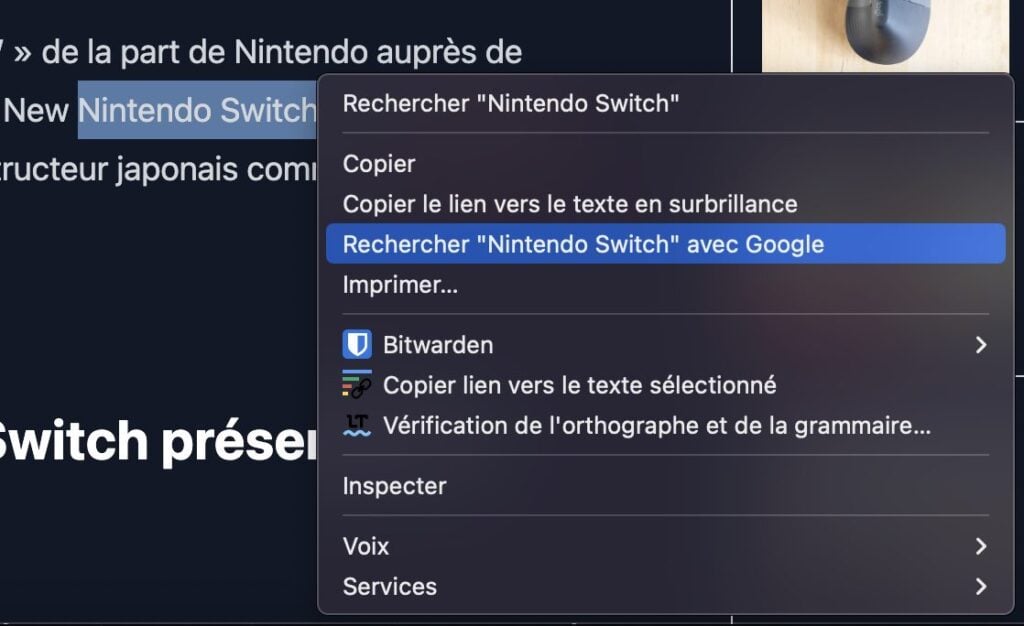
An element particularly caught your attention in a page and you would like to know more? Select the text, right click on it and choose to Search it with Google. A new tab should then open and automatically launch the query in the Google search engine.
5. Search directly in Google Lens
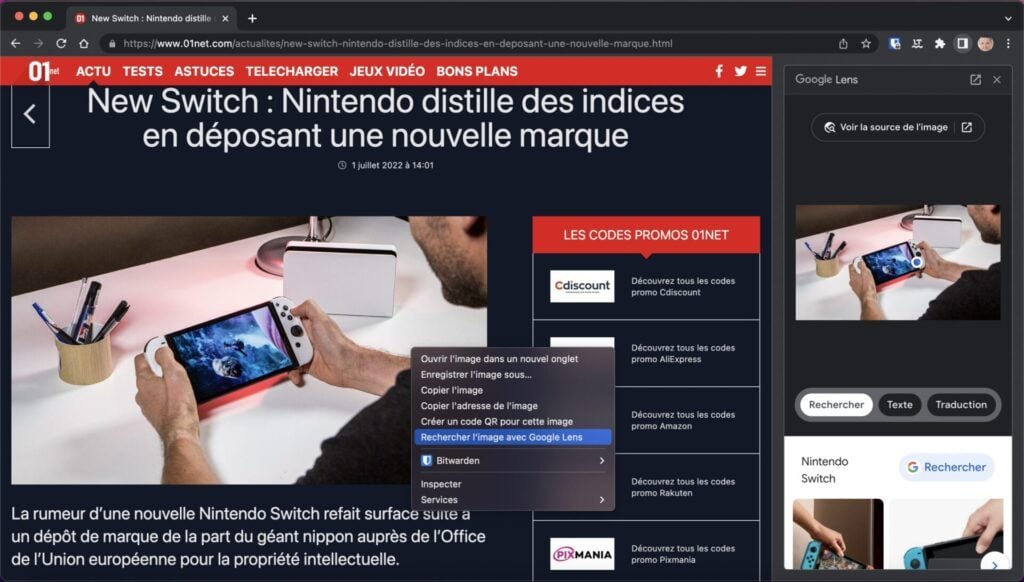
For the past few weeks, Google Chrome has been integrating the Google Lens visual search module. Thanks to it, you can quickly launch a request on an image without having to leave the page you are on.
To do this, right click on an image and choose to Search the image with Google Lens. The result of your query should then open directly in a column grafted to the right of the browser.
7. Enable Reader Mode
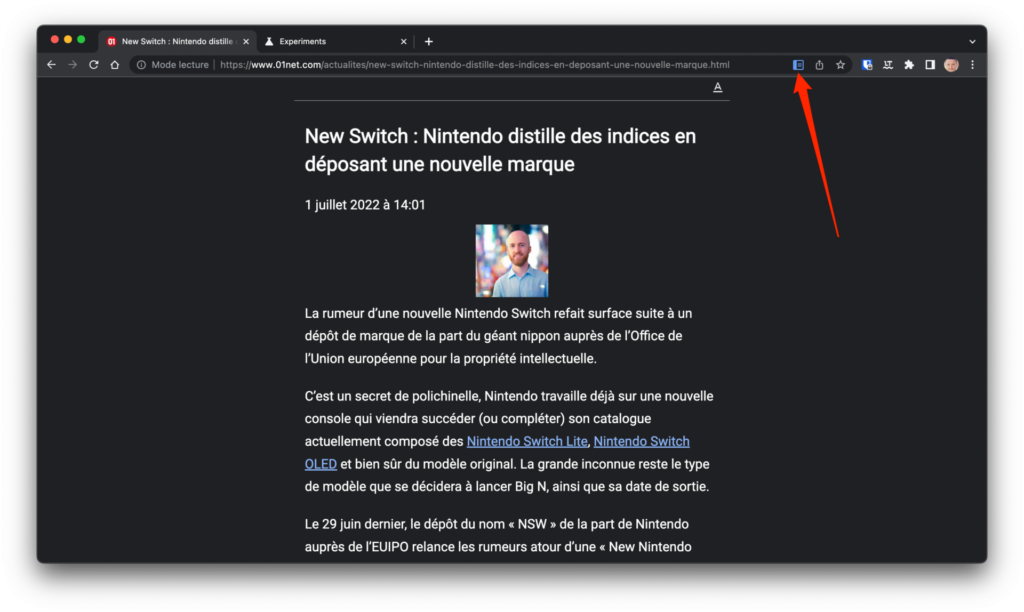
If reader mode is natively accessible in Safari or Firefox, this is not the case in Chrome. However, this system that allows you to reformat the content of a web page to allow you to read it without distraction, is very present in Chrome. However, it must be activated manually.
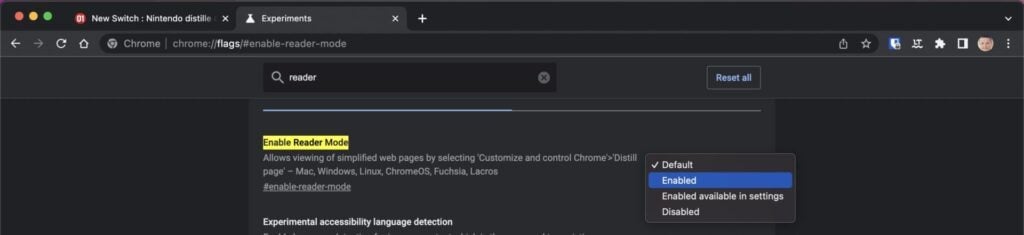
To do this, go to chrome://flags/#enable-reader-mode, then at the Enable Reader Mode line, click the Default drop-down menu and change the value to Enabled. Then click the button for Relaunch to restart Chrome.
A new book icon should appear in the address bar when you visit a website displaying text content. Click it to activate it and completely reformat the content of the page.
7. Stream content to your TV
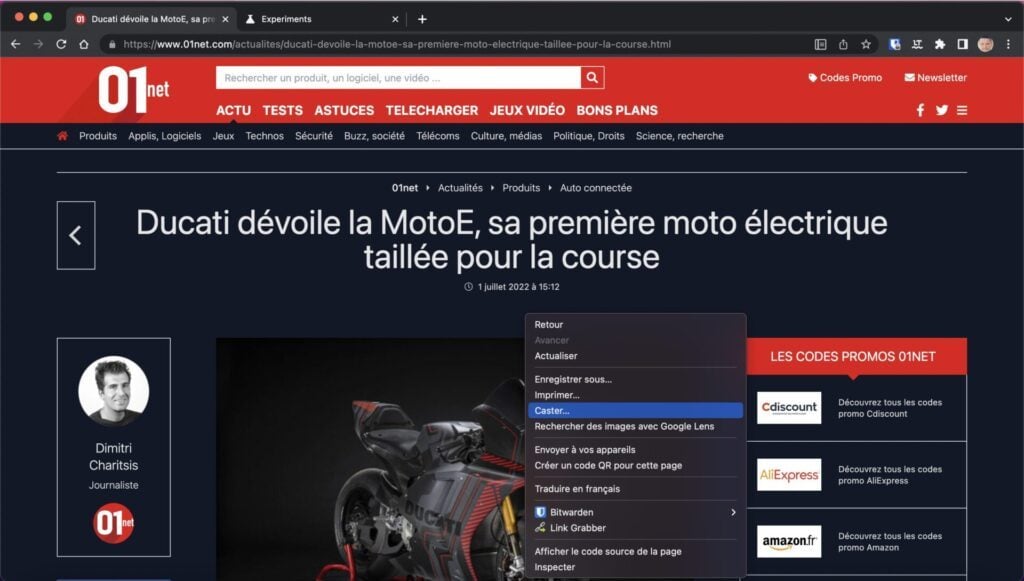
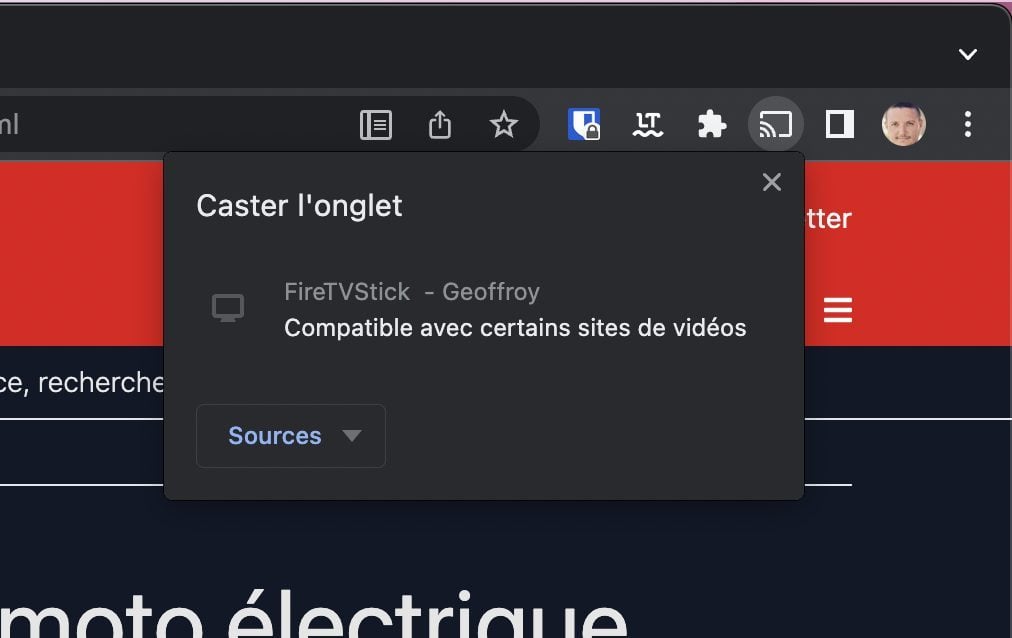
If you have a connected TV, Chromecast, or other Cast-enabled device from Google, you can stream Chrome content directly to your TV. To cast content from Chrome to your TV, right-click on the page and select the Cast option.
The icon of the Caster function, from Google, should then be added at the top right, in the Chrome toolbar. You will then only have to select your Cast compatible receiver to stream the content from Chrome to your TV.
8. Control music from thumbnail player
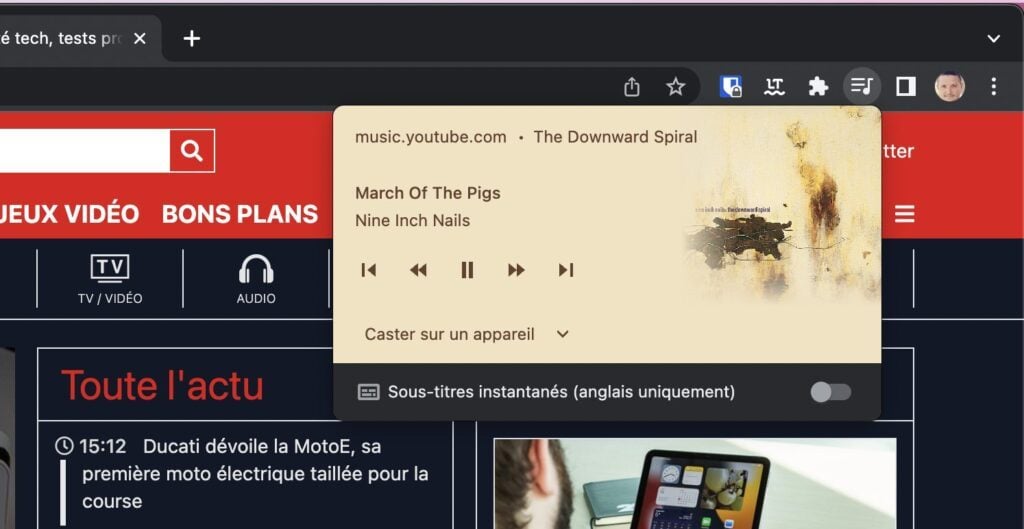
The advantage of streaming music in Google Chrome is that you can more easily control its playback. When media is playing, click the music note icon at the top right of the browser to bring up the thumbnail player.
9. Turn Chrome into a calculator
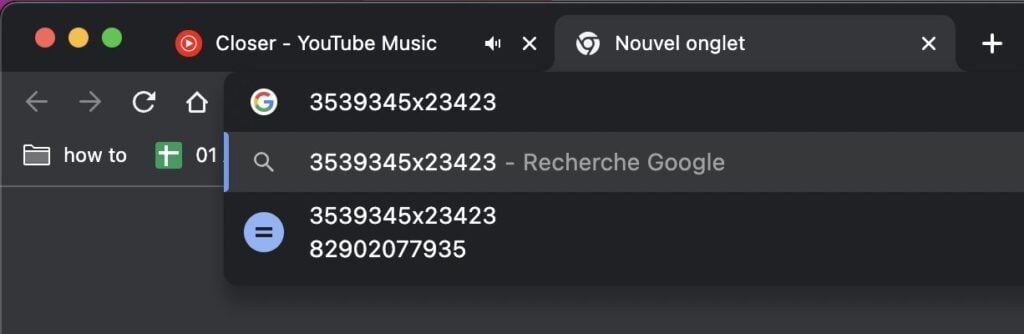
You do not need to open your calculator to calculate the result of an operation. Type your addition, subtraction, multiplication, or division directly into Chrome’s address bar. The result should appear automatically
10. Restart Chrome Quickly
Are you having a problem with Chrome? You can restart it quickly with a simple command. Type chrome://restart and press Enter to validate.
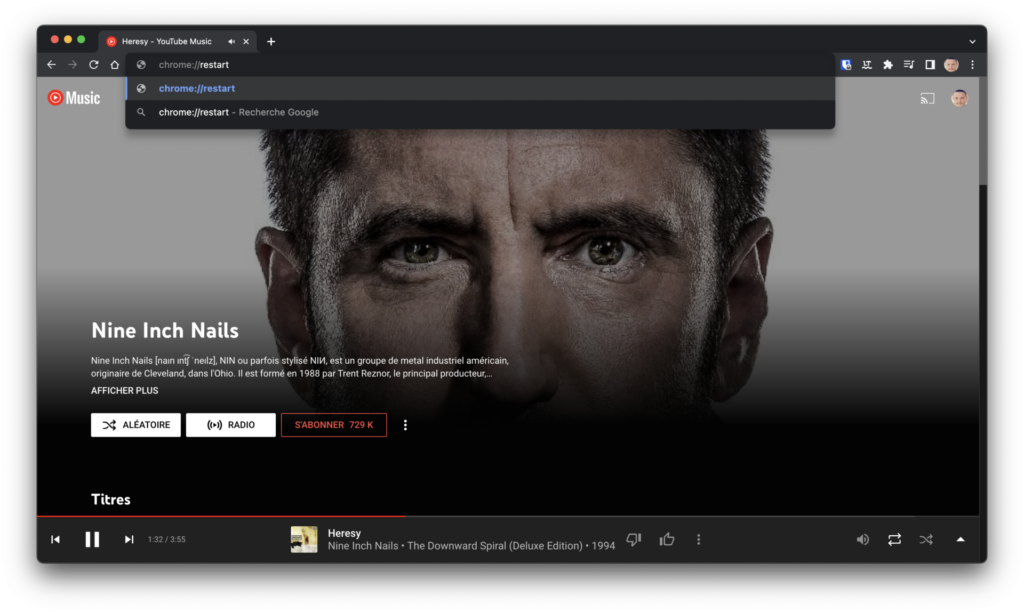
Chrome should ask you to leave sites where a task is in progress before automatically restarting and reopening all tabs where you left off.