
© 01net.com
Google’s password manager has a new option to add a shortcut to your keychain access to your smartphone’s home screen. Here’s how.
If you’re using an Android smartphone, chances are you’re using Google’s password manager by default. The utility, integrated into the operating system, is also synchronized with your Google account. It is also thanks to this that you can easily access all your usernames and passwords on your Android devices as well as on Google Chrome, as soon as they are connected to your Google account.
Unfortunately, on Android, the password manager was not easily accessible until now. You have to go to several menus and sub-menus to consult it. You find it in the Settings of the Google Chrome browser, online on the Google account page (https://myaccount.google.com/security?hl=fr), as well as in the Android Security Settings menu. Visibly aware that its password manager was not so easy to access, Google has rolled out an update that should greatly simplify things.
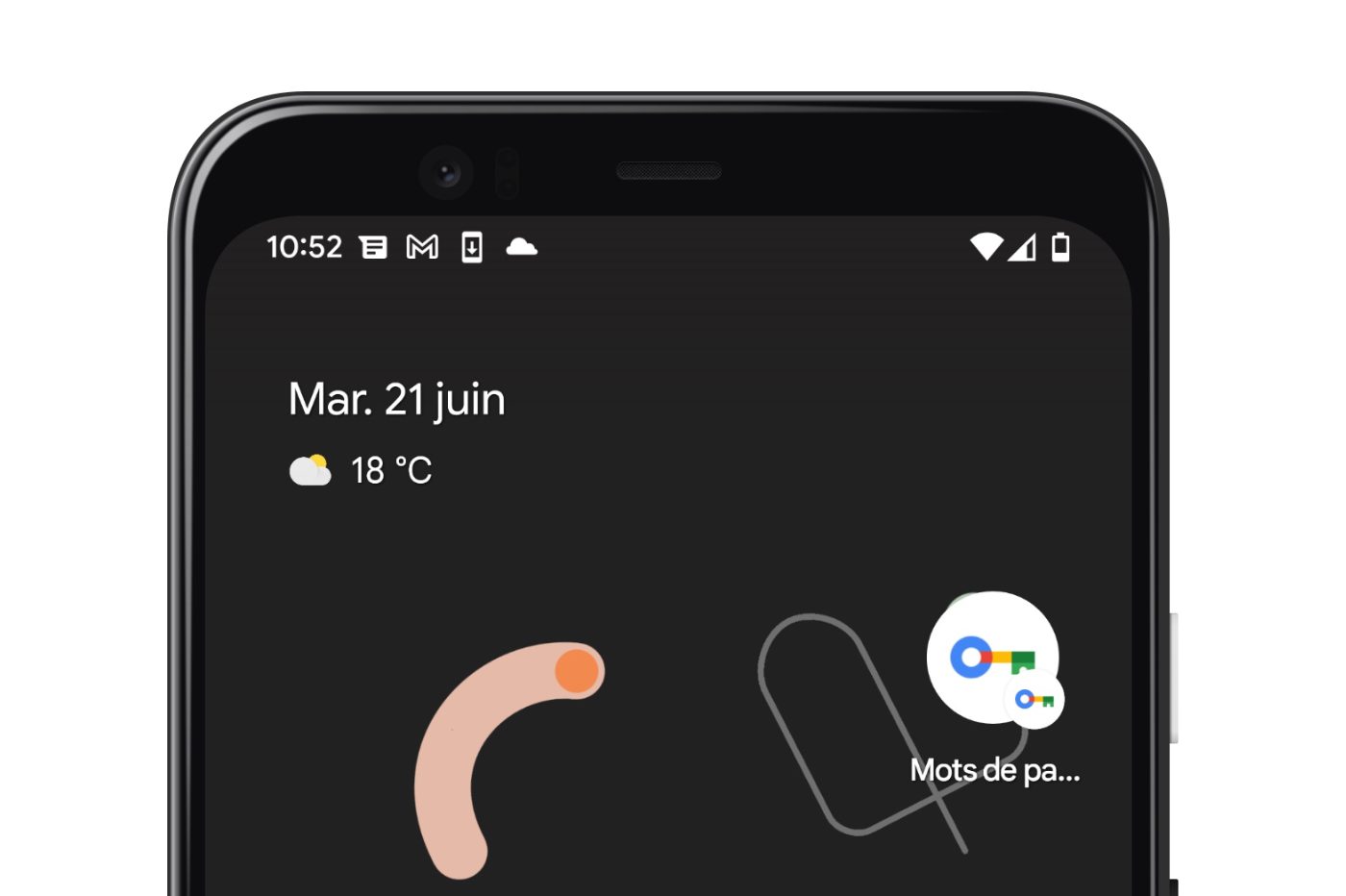
You can now access Google’s password manager directly from your smartphone’s home screen. The latest update to Google Play Services introduces a new option that allows you to pin a shortcut to your keychain directly from your smartphone’s home screen. Here’s how to activate it.
1. Update Google Play Services
If you haven’t already, open the Play Store and go to the Manage Apps menu on the device to update Google Play Services. You can also go directly to the relevant page to manually start the update.
2. Go to Security Settings
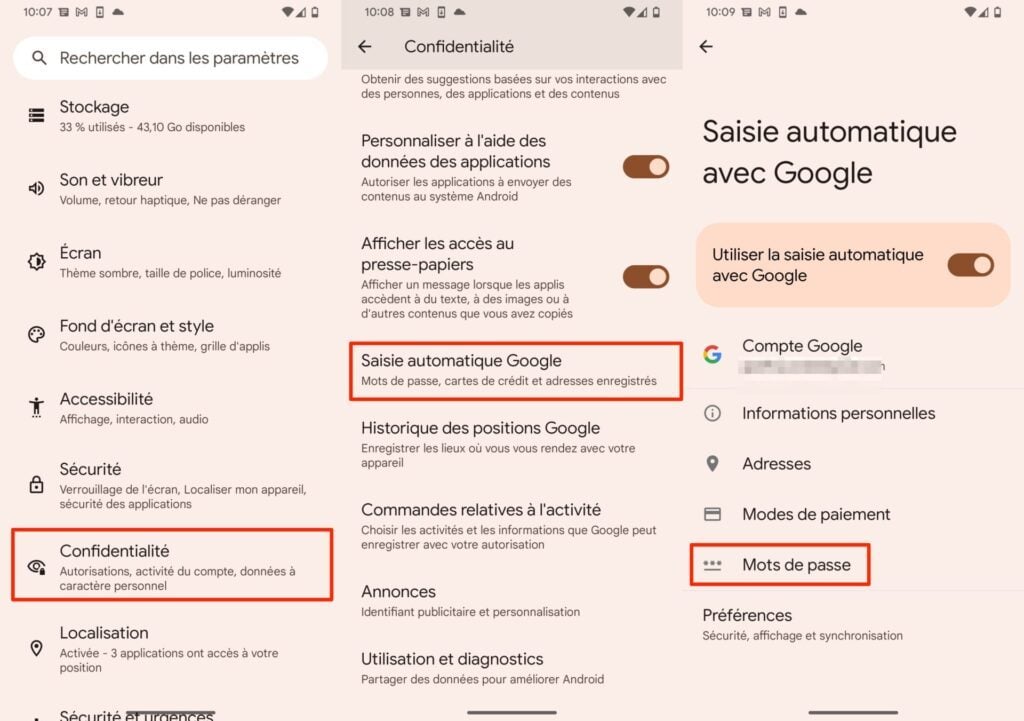
On your smartphone, open Android Settings and enter the Privacy menu. Then go to the Google Autofill section and go to the Passwords menu.
3. Add a shortcut
You should land on the dedicated Google Password Manager page. Then tap the cogwheel icon at the top right of the screen to access Password manager settings.
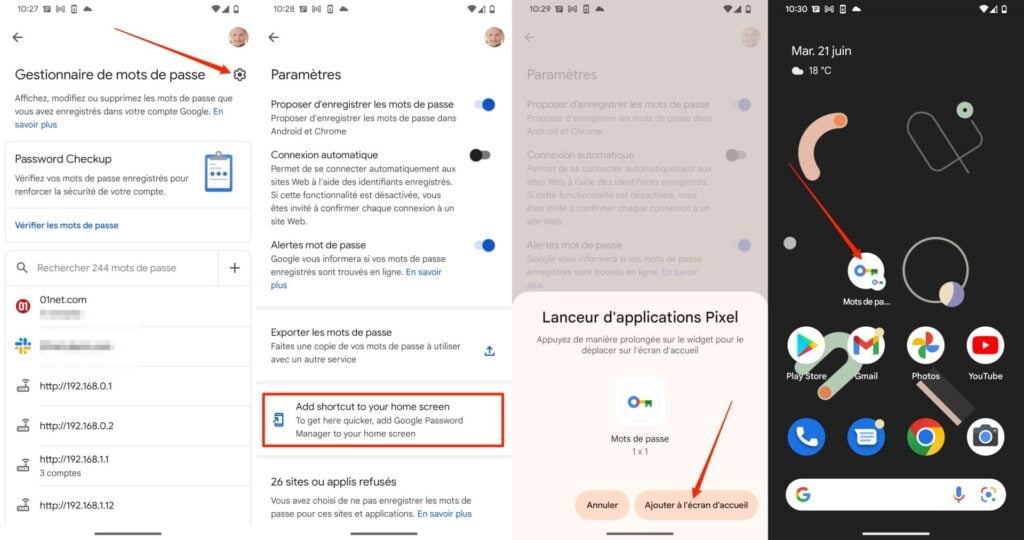
Finally select the Add shortcut to your home screen option, then in the pop-up that unfolds, choose Add to home screen. A new Passwords icon should now be on your smartphone screen. You now just have to tap on it to go directly to your keychain access.
9to5Google