
A while back, Microsoft released the Windows 11 22H2 Update. However, this caused all kinds of problems for many. Then our advice was not to install this update. Has that advice changed and what should you do if you have to downgrade?
Gert Stok, Martin Bekelaar and Rob Coenraads
The Windows 11 22H2 update is the first major update to Windows 11 since this operating system was launched in 2021. We always advise you to wait a while before installing such major Microsoft updates bugs/ teething problems that then with a patch (plaster) are dissolved. And that was also true this time, because there were all kinds of problems around the update of Windows 11 22H2. So our advice then was not to install the Windows 11 22H2 Update, as we reported here. For example, users who performed the upgrade encountered various errors: programs that no longer want to start, hardware that refuses service and updates that hang. As a result, Microsoft even stopped offering the upgrade via Windows Update for some time.
Update
In the meantime, some patches on the wrong KBs (Updates) have been released and practically all problems have been solved. Our advice still remains that you defer this upgrade until further notice, until it meets Update and Security offered. This is the safest way, because the machine has been checked for possible problems beforehand. Only install updates that are offered automatically, so no (optional) updates that have to be started manually.
If you can’t wait, a new iso download is now also available: Win11_22H2_Dutch_x64v1.iso Via the Media Creationtool, you can now also download a modified/improved version. Even then, it is very wise to make a full backup of the system partition first. And again: wait patiently until the offer for the upgrade appears.
Downgrade
Do you belong to the group that has already performed the upgrade? If you haven’t encountered any problems at all and you still don’t have any problems, then you don’t have to do anything. However, have you encountered any problems and are the problems persisting? Then go back to the previous version Windows 11 21H2. You do this by clicking on the icon Settings, which is the gear that appears in the image when you click on the Windows window at the bottom left. Then you choose Windows Update > Advanced Options > Recovery > Downgrade > Back. (text continues below the image)
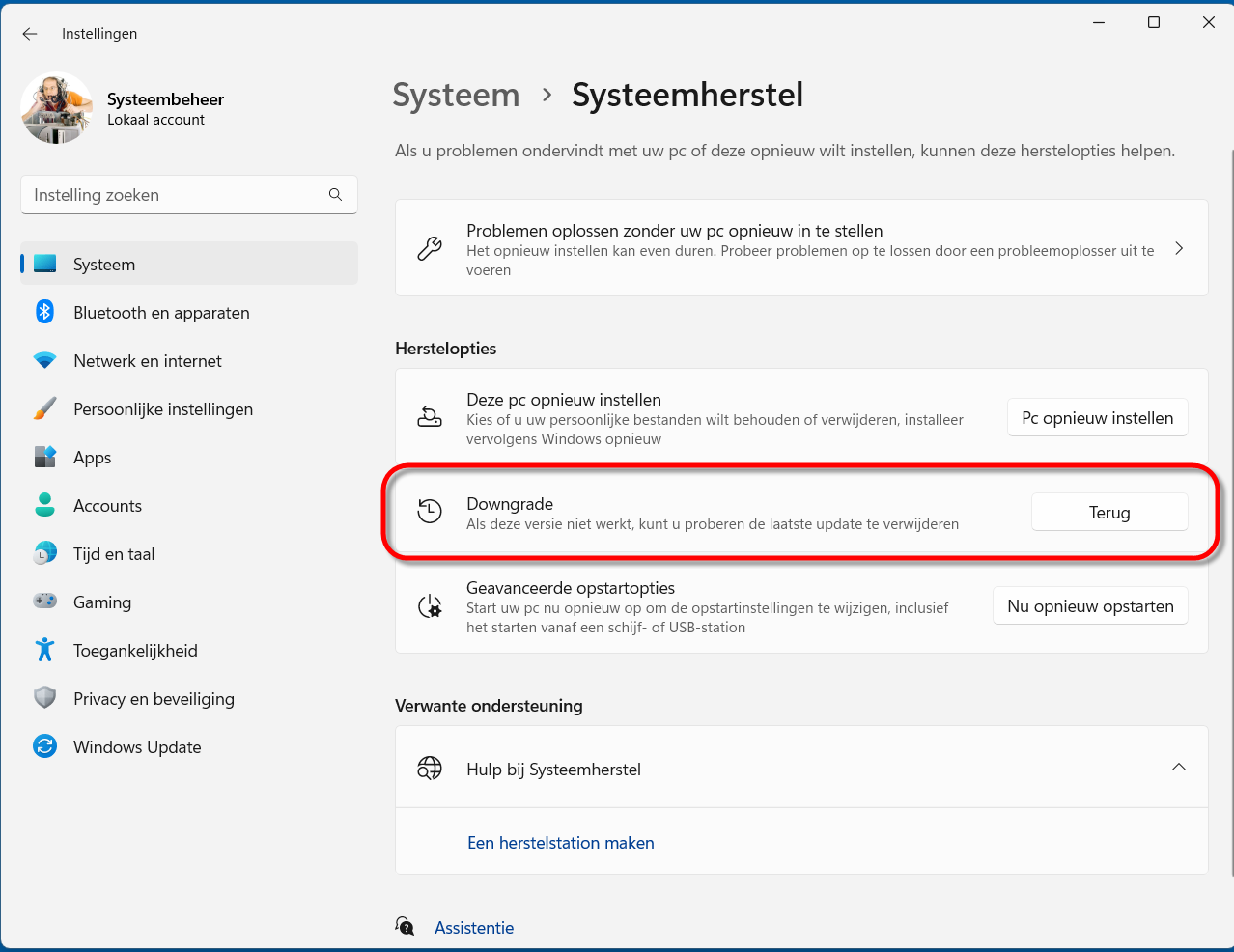
Above is the corresponding screenshot. Please note: this option can only be performed within 10 days. After 10 days, the option to go back expires. After that time, reverting to the previous version is only possible through an in-place installation of Windows 11 21H2. Do you know how that works? Fine! If not, get help at one of our HCC meetings.