
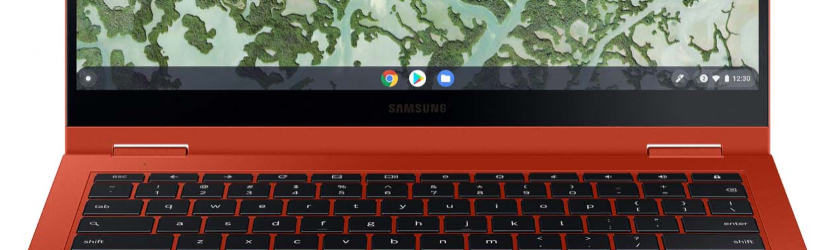
 A Chromebook is a laptop with software from Google. What can users do with it and what are the pros and cons?
What is a Chromebook?
A Chromebook is a laptop that does not work with Windows or macOS, but with the ChromeOS operating system. This was made by Google. The system works with apps and online applications such as Gmail and Google Drive. A Chromebook mainly has online programs. Users therefore work a lot via the internet.
Chromebooks just have a keyboard and screen, and people can connect a mouse to them. But they are not meant to connect to all kinds of different devices. A CD or DVD player is usually not included. Chromebooks are therefore lightweight and start up quickly. The battery lasts a long time and they get automatic updates (see below).
Easy in use
A Chromebook is easy to use. When the device boots up for the first time, no complicated settings appear. After choosing the desired language, the device asks for the password of the WiFi network. Then users just need to enter their Google account username and password. The Chromebook now allows access to personal data. Think of a mailbox at Gmail and saved files at Google Drive.
Google Chromebook programs
Chromebooks are based on a different principle than Windows laptops or MacBooks. On those devices, people use programs that reside on the hard drive. You can’t do that with Chromebooks; the computer runs on programs from the Chrome Web Store. That is an online store with all kinds of apps. Some models can also handle apps from the Play Store, known for Android. For example, those who like to use Word and Excel can install the online versions on a Chromebook. Documents are therefore not stored on the hard disk, but on a personal storage space on the internet (in the cloud). Chromebooks look best when they’re connected to the Internet. If you don’t have an internet connection at home, it’s better to choose a different type of computer.
Memory of Chromebooks
Chromebooks have a fairly small hard drive, often around 64 GB. They also don’t require a large drive as all the storage is on the internet. With a Chromebook, the user gets 100 GB of online storage space for files and documents, for example. The files are automatically backed up and people can access their files from any online device via the internet. They never get lost that way.
No additional security required
Chromebooks don’t need a separate virus scanner; the online files are automatically protected by Google. The computer itself is also hardly at risk, because the individual apps are not very susceptible to viruses and hackers. It is of course still important to pay close attention yourself, and not to open e-mails from strangers or open potentially infected files via e-mail. If you only use the official apps from the Google Web Store or the Play Store, you are assured of well-functioning apps.
Models and versions
The system on Chromebooks is from Google, but the company doesn’t make computers itself. Chromebooks therefore come from all kinds of brands, from HP to Lenovo and from Aver to ASUS. The cheapest model starts around 200 euros, and the most expensive costs no less than 900 euros. It is one that can do everything: with a touch screen, foldable and can also be used as a tablet. on Google’s site is an overview of models.
The screens are compact, between 11.6 inches to 15.6 inches in diameter, which is convenient for taking the computer with you. But those who like to see a large screen in front of them may find it too small. Chromebooks are modest on the inside, too. Because they mainly use applications on the Internet, a lot of memory or a powerful processor is not necessary. They are mainly designed in such a way that the applications work quickly and smoothly and that the battery can easily last eight to ten hours.
The light weight of a Chromebook is a plus. Models of 1.5 kilos are no exception. They also start up very quickly, within ten to fifteen seconds they are ready for use.
How long do Chromebooks get updates?
Chromebooks get regular updates. These are important because they provide a safe and stable working environment. Unfortunately, every model of Chromebook has an end date for updates. After that period, there will be no more updates. All Chromebooks get 6.5 years of updates. This applies from the moment the model comes on the market. If you buy an older model, you will not be offered the updates for the full 6.5 years.
on dGoogle’s website lists all brands of Chromebooks, with the existing models. For each model you will find the ‘Expiration date of automatic updates’ there. After that date, that model will no longer receive updates. Handy to check if you want to buy a Chromebook.
If you already have a Chromebook, you can see until when your computer will receive updates:
- Launch the Chromebook.
- Tap the time at the bottom right.
- Tap on Institutions.
- Tap on About Chrome OS.
- Tap the advanced settings.
- Go to the update schedule section.
- There you will find the end date of your Chromebook’s updates.
No action is required to get updates. They are automatically downloaded and installed.
When a Chromebook?
A Chromebook is an interesting option for people who mainly perform light computing tasks. Think of surfing the internet, e-mailing, internet banking, online shopping, watching videos and typing texts. A Chromebook can also handle simple photo corrections just fine, provided (amateur) photographers install the right app for this. Finally, this lap computer is ideal for mobile use, for example on vacation. Their light weight makes them easy to carry.
Chromebook Disadvantages
For heavy computing tasks such as video editing, a Chromebook does not have enough computing power. In addition, you cannot lose Windows software and files on the device. Those who like to play games can visit the digital stores for games apps. Large games that come on a DVD, or through an application like Steam, cannot be run on the Chromebook.
Would you rather not give personal data to Google, such as documents, photos and videos? Then a regular laptop with a lot of storage space is a better choice. You can then store all files locally and you are not dependent on online Google services. In addition, you can also use installed software on a Windows laptop or MacBook without an active Internet connection.