The latest version of the Google Chrome browser introduces a dark mode, activated by default only on macOS. Here’s how to force its activation on Windows.
Google Chrome 73 is available. Google’s web browser is getting a long-awaited update that introduces several features.
The picture-in-picture mode allowing you to watch videos in a remote window while continuing to browse is thus appearing, while the browser now supports the physical keys of the keyboard allowing you to manage the playback and pause of videos and of musics.
Finally, a dark mode is appearing, but is only activated by default on macOS. Here’s how to force its activation on Windows.
1. Update Chrome
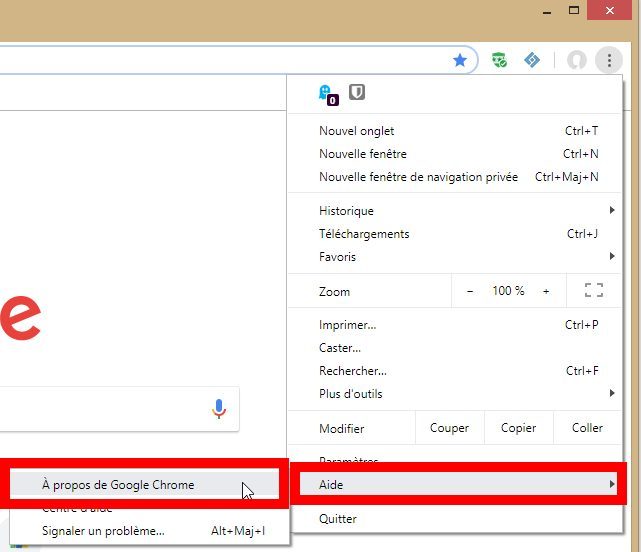
Start by updating Google Chrome. To do this, deploy the main menu, then in Help, click on About Google Chrome.
The browser should automatically check for the latest update before asking you to relaunch it.
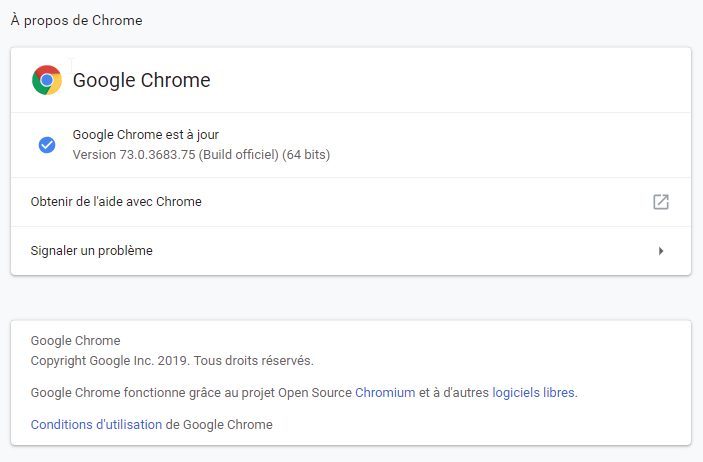
However, if you were unable to proceed with the automatic update, you can always redownload Google Chrome to force the installation of the latest version.
Download Google Chrome for Windows (Free)
2. Go to properties
Right-click on the Chrome shortcut from your desktop or taskbar and click Properties.

3. Modify the target
Go to the Target field, place the cursor at the end of the line, make a space, and add the following statement:
–force-dark-mode
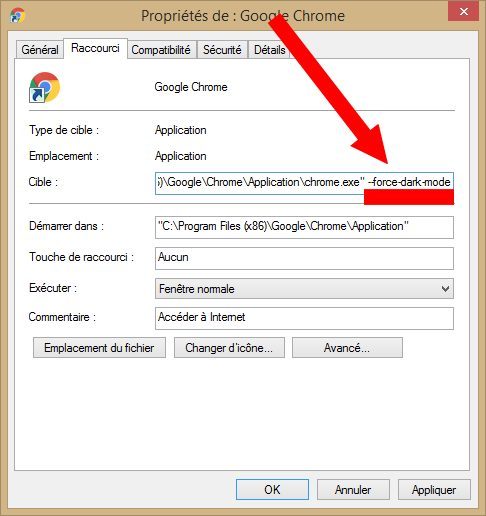
Validate by clicking on Apply, then on OK. Relaunch Google Chrome. You should now be able to take advantage of dark mode in the browser.