
Windows 10 is packed with useful tools whose existence you may not know at all. In this article we list a number of these hidden Windows 10 features for you. We bet it will help you?
Win + X menu
Are you not a fan of the tiled start menu? You can bring the old-fashioned text menu back up by right-clicking on the Windows icon in the bottom left corner. This menu also opens with the key combination Win + X. That is why this is also called the Win + X menu. In this menu you are faster at a number of locations than in the standard menu. Tip: With the small, free tool Win + X Menu Editor you can further customize the slimmed-down start menu with the shortcuts and control panels that you want.
Kaomoji
Since the Windows 10 update in May 2019, you can add a kaomoji in an e-mail message or in a text with one mouse click. Kaomoji are text-based emoticons that have come here from Japan. It is a technique for making faces with text, symbols and punctuation. Press on the Windows key + Dot and an extensive menu will appear to add emoji. They are divided into different themes. In the second tab you bring out the set of kaomoji. The third tab contains symbols.

Pause updates
Performing updates is important. If only because they make the system safer. But sometimes those unceasing pop-ups come at a bad time. Or maybe you would rather wait a while. You can download and install the updates later if you prefer. Go through Settings to Update and secure. There you will find the button Interrupt updates for 7 days. You can repeat this five times to postpone an update for a maximum of 35 days. Those who have Windows 10 Pro, Enterprise or Education can go under the Advanced options postpone the updates longer, up to a maximum of 365 days.
Game mode
With the Windows key + G open the game mode. With this, the system reserves more system resources for a game. At the same time, notifications are disabled. The so-called Xbox Game Bar appears as an overlay with different panels that you can drag.
In the Settings adjust your account details, among other things. You can also specify your preferences here, for example to configure shortcuts. In the panel Audio choose the perfect sound and change the sound level of the game, chat and background apps. Bee Recording allows you to make game clips and screen recordings. In the panel Performance you follow the use of fps and the memory and processor load.

Cut and note
The successor to the clipping program with which you used to make screen shots is now called Cut and note. You can find the program in the start menu. With the button New indicate whether you want a screenshot of the entire screen, a window, a rectangular selection or a freehand selection. You can make notes and markings on the print screen if desired.
You simply bring this newcomer to the screen with the key combination Win + Shift + S. This makes the screen darker and changes your cursor to a selection cross. The image that you then cut is saved in the clipboard. You can save the cutout as a file on the hard disk.
Clipboard and synchronization
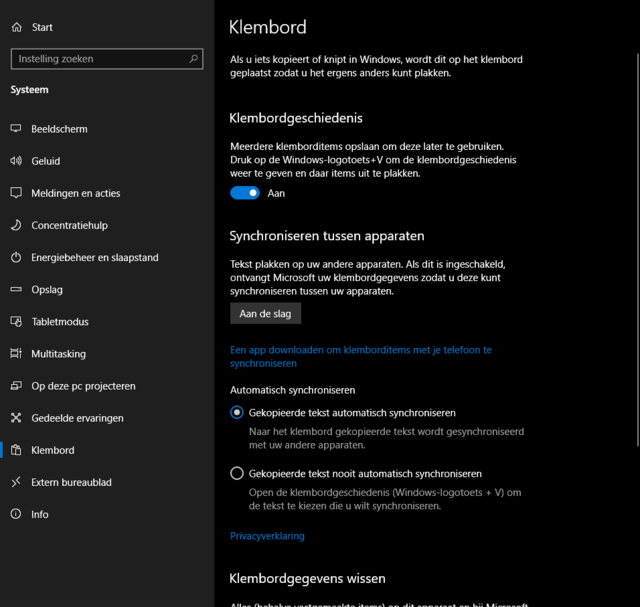
Through Settings / System / Clipboard you come to the innovations that the clipboard has undergone. Here you can optionally put the option Clipboard history so that Windows creates a list of items that you have cut or copied. These may not exceed 4 MB.
To view the contents of the clipboard history, use the key combination Windows + V. You can save items that you do not want to lose when you restart Windows Attach via the three dots behind each item.
The function is also included in the Clipboard settings Synchronize between devices. With this, Windows synchronizes your clipboard history via the cloud with all your PCs with which you are logged into the same Microsoft account.
Light dark
The dark mode has been available for a while for the start menu, a number of apps and items such as the taskbar. Now you can also see the darkest side of Windows Explorer. Go to Settings, Personal settings, Colors and switch from Light to Dark. Since the update in May 2019, you can now also opt for an extra light theme at the institutions. Do you want the previous standard of Windows 10, with a dark taskbar and light apps? Then choose the option Adjusted.
Then set the standard Windows mode and the standard app mode to Dark. In this window you can also indicate whether all title bars and window borders should have a certain color.
3D Viewer
The Mixed Reality Viewer is dead, long live the 3D Viewer! With this new tool you can now also view 3D projects that are made with Paint 3D or that come from the Microsoft library. The universal menu bar can be operated with the mouse, pen or finger. You can change the lighting angles, intensity, colors infinitely. It is possible to play and pause animations to browse frames. You switch on the Mixed Reality functionality with a switch. From then on you can switch on the device camera and place the virtual objects in the real world.

Share in the immediate area
Just like with Apple, with Windows 10 you can directly exchange files with other devices. First check if everything is set up correctly via Settings / System. Select in the left column Shared experiences. See if the function Share with devices is on and select under it I can share or receive the option Everyone in the neighborhood. Then you go to the Action Center on the computer from which you want to share. You can open the Action Center by clicking on the text balloon in the task bar on the right. Check function Share in the immediate area is enabled. Do the same on the PC with which you share.
If everything is set up, on both sides, the tricky work is done. Now all you have to do is select the file in Windows Explorer. Use the button Parts and then click on the name of the device that receives it. The person who receives the file receives a notification and can choose between Save and open or Save. You can share images from the photo app in the same way.
Concentration aid
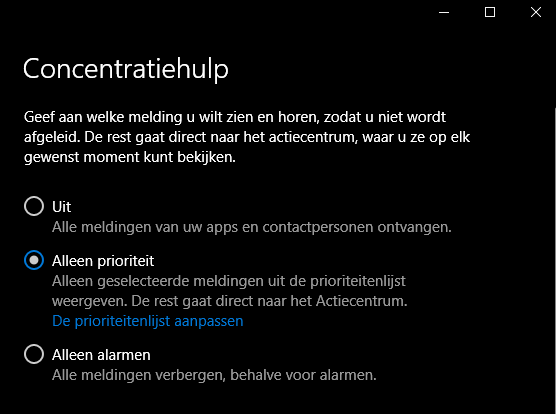
Are you tired of being distracted by all kinds of reports, beeps and pop-ups? The Do not disturb button is on a smartphone. You also have a similar function in Windows 10. However, do not expect the Concentration Assistant function to also mute chat and other external communication messages. Concentration help focuses exclusively on the Windows messaging service.
Go through Settings to System and click in the left column Concentration aid. By default it is off. You can turn it on here, but then you have to choose from two options. You do, for example, pass on the messages from people in your priority list. You can adjust that list on the spot. In addition, there are several apps that you can prioritize, such as Sharing in the immediate area.
With the second option you let the calendar alarms come through. With this you will no longer receive messages, but you will receive alarms from your agenda, so you will not miss any appointments. Once set up, you turn Concentration Assistance on and off from the Action Center.
Dynamic locking
If you do not want others to be able to look at your screen when you go away, use via Windows + L the screen lock. Afraid to forget this? You can use Dynamic locking. This will lock the screen if you leave with your smartphone in your pocket.
For this you connect your phone to your PC via Bluetooth. Then you go to your computer Settings / Devices and then to Bluetooth. If the smartphone is in the list of Bluetooth devices, you know it is detectable. Enter the pin code that you receive from your computer on your smartphone. When the pairing is complete, the PC will indicate this.
Then you go to Settings / Accounts / Login Options. Scroll down until you reach Dynamic locking are. Place a check mark Allow Windows to automatically lock your device when you are not present. You can also use a smart watch or a Bluetooth headset as a mobile key. Check if it works by placing your phone in a different room.
Save smartly
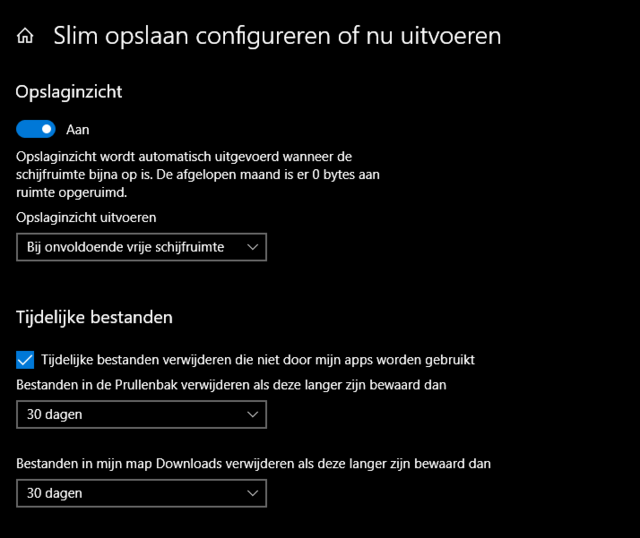
Without us realizing it, the folder downloads and the trash are space consumers. If you do not empty them regularly, they will contain a lot of useless files after a while. A file has really disappeared from the hard disk only after you have effectively emptied the recycle bin. Because people are simply forgetful, there is the discipline of Windows 10. Via Settings / System and then Storage you configure the function Save smartly. There you indicate that the system must automatically delete the files in the Recycle Bin and in the Downloads folder after a certain period (from 1 to 60 days).
Disable USB ports
Troubling stories are circulating about USB sticks that are given away as gifts, but that contain malware. Therefore, never simply insert a USB stick into your PC. A drastic solution to prevent housemates from doing this is to temporarily disable the USB ports in the register. Use the key combination for this Win + R around the window To carry out to see. In it you type regedit to open the registry editor.
In the left column you navigate to the USBSTOR folder. You get there via the path: HKEY_LOCAL_MACHINE SYSTEM CurrentControlSet Services USBSTOR. When you select that folder, you will see the file in the right-hand section Start. Double click on this. You will notice that the Value data are set to 3 . Change that setting to 4 and click OK to save the changes. Close the registry editor and restart the PC. You can re-enable access to the USB ports by resetting the value data to 3.
Reliability check
The tool that warns you of impending doom is not new, but often unknown. Type in the search box Reliability check. You will see the health index of your system in a scale of 1 to 10. This monitor is especially useful if you are looking for the culprit that makes your PC unstable.
You can select a period and in this way identify hardware or software problems. Pay particular attention to the red x buttons, which display critical events such as application and Windows errors. When you click on an icon, the monitor explains the relevant event. Below the column Action click on Technical details to read the error code. Sometimes there is a meaningful link in the Action column Looking for a solution.

.