
You walk around the house with your smartphone or settle in the garden with your laptop and expect a smooth internet connection. After all, that’s what you have that wireless router or access point for, right? But what if there is a kink in the (wireless) cable?
Toon van Daele
If your desktop computer suddenly no longer has a network connection, you may first check whether the Ethernet cable is properly plugged in on both sides. Of course, a mobile device does not have such a cable, so you have to look elsewhere for the cause of a problematic connection. Perhaps it is due to (the location of) your router or access point or there are interferences nearby, such as your neighbors’ network. Or does your mobile device remain stubbornly connected to the access point on a different floor than where you are now? In short, there are quite a few possible causes for a weak or unstable signal. We assume here that your router or access points are turned on and correctly connected to your modem. However, it does not hurt to switch these devices off and on again in case of connection problems.
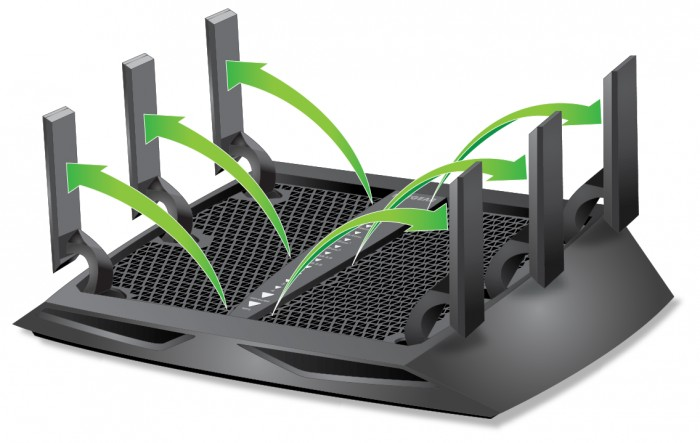 |
| The optimal antenna position is not always as straightforward as in this image (from Netgear) |
ANTENNAS
If you have good Wi-Fi reception in some areas and not others, it may help to reorient your router or access point’s antennas, assuming the device has external and directional antennas. Of course you read the manual of the device, but usually you prefer to aim the antennas as far away from each other as possible. If the device is hanging against the wall, you should preferably not place the antennas straight along the wall. If the antennas are easy to unscrew, you might consider exchanging the existing antennas for ones with a stronger transmission power (high gaine.g. with a gain of 5 dBi or higher). These can be omnidirectional antennas, useful when your router is in the middle of your home, but also directional antennas where the signal goes more in a certain direction. First check whether the antenna is suitable for your frequency band (see below, under ‘Channel overlap’). You can also connect a stronger antenna to your laptop. Normally you do this with a USB adapter to which you then connect an antenna via an rp-sma connector, possibly with a suitable extension cable.
 |
|
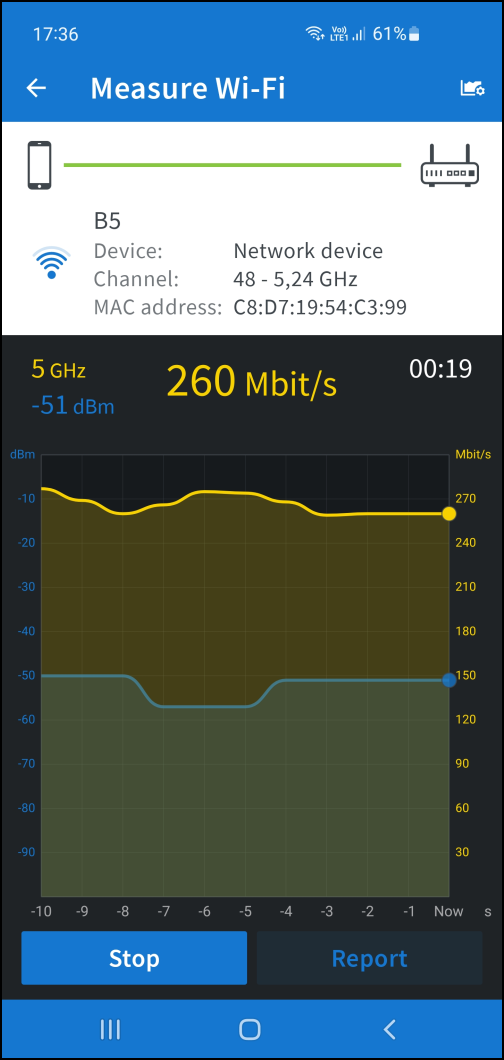
| A stable signal strength (preferably -50 dBm or better) for a reliable connection |
ROUTER POSITION
It may well be that not the position of the antennas, but of the router itself leads to weaker WiFi signals. In the box ‘Extra device’ you can read what you can possibly do about this hardware, but in your case it may be easy to solve by moving the router. To find the optimal position, you can download an app such as farproc WiFi Analyzer (for Android) or Fritz!App WLAN (en. avm.de/products) from the official app stores.
fritzapps/fritzapp-wlan; for both Android and iOS) on your smartphone. Let’s take the latter as an example (on an Android device). Launch the app and tap the hamburger icon at the top left. Choose Measure WiFi and keep a close eye on the signal strength graph as you walk to the different locations in your house (and yard?). Note the average strengths in each location – if necessary, tap after a while in each location Report and record the measured measurements. The signal strength is expressed in negative dBm (decibel-milliwatts), for example, where -30 dBm is fine, but -80 dBm is hardly usable. Then move the router or access point and repeat this procedure. This gives you a good idea of the optimal router position for the strongest signals in every place.
Additional deviceUnfortunately, giving the router a new place is not for every user. Unfortunately, giving the router a new place is not feasible for every user. Modem and router sometimes share the same housing and you may not be able to just remove it from, for example, your meter box. Please note that since January 28, 2022 you can exchange your provider’s modem/router with another model without any problems.
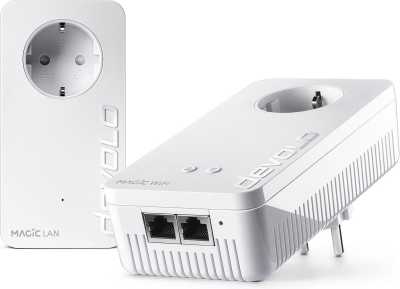
Expand your network via the socket Expand your network via the socket |
CHANNEL OVERLAP
The WiFi signals can use different so-called frequency bands, depending on the WiFi type. Initially that was only the 2.4 GHz band, but modern devices can also use the 5 GHz and recently even the 6 GHz band. Many routers are of the dual or tri-band type, which means that they can simultaneously address two or three frequency bands for your various devices.
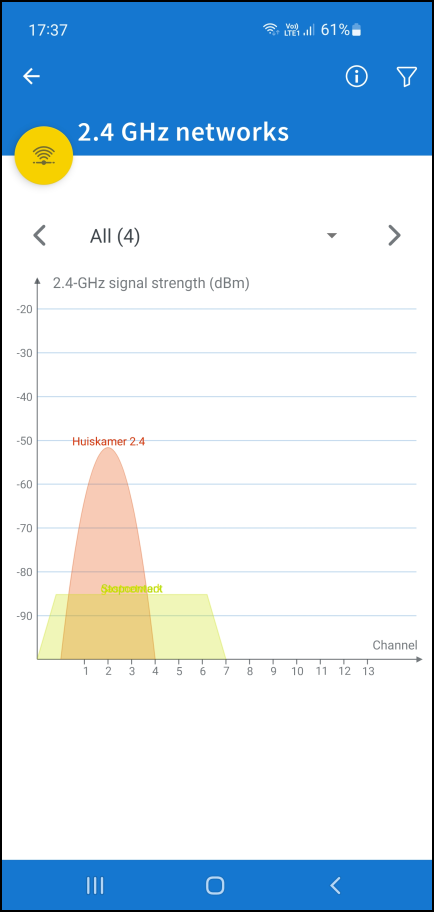 |
However, there are also many ‘smart’ devices that can only be controlled via the 2.4 GHz band, which is precisely the frequency with a limited number of channels. In practice, there are from 1 to 11. This can cause connection problems when other devices or neighboring networks are on the same or an adjacent channel. The mentioned app Fritz!App WLAN offers (unfortunately only on Android) a nice graphic overview of the used and possibly overlapping channels. Open the Location tab and choose Show all Wi-Fi networks (2.4 Ghz). Tap the yellow circle here to see usage within the 5GHz band as well. Ideally, within the 2.4GHz band, set your wireless router to a channel that is at least five numbers away from the strongest neighboring channel, such as 6 if your neighbor’s is 1 or 11. Many routers have the channel selection set to Automatic, but setting a specific channel number yourself often works better. Consult the manual for your router or access point for this and check the effect of your adjustment with a tool such as Fritz!App WLAN.
We would also like to refer to the article ‘Wi-Fi dictionary’ (under ‘Channel width’) in PC-Active.
Highly overlapping channels
(within the 2.4GHz band)
are bound to give problems
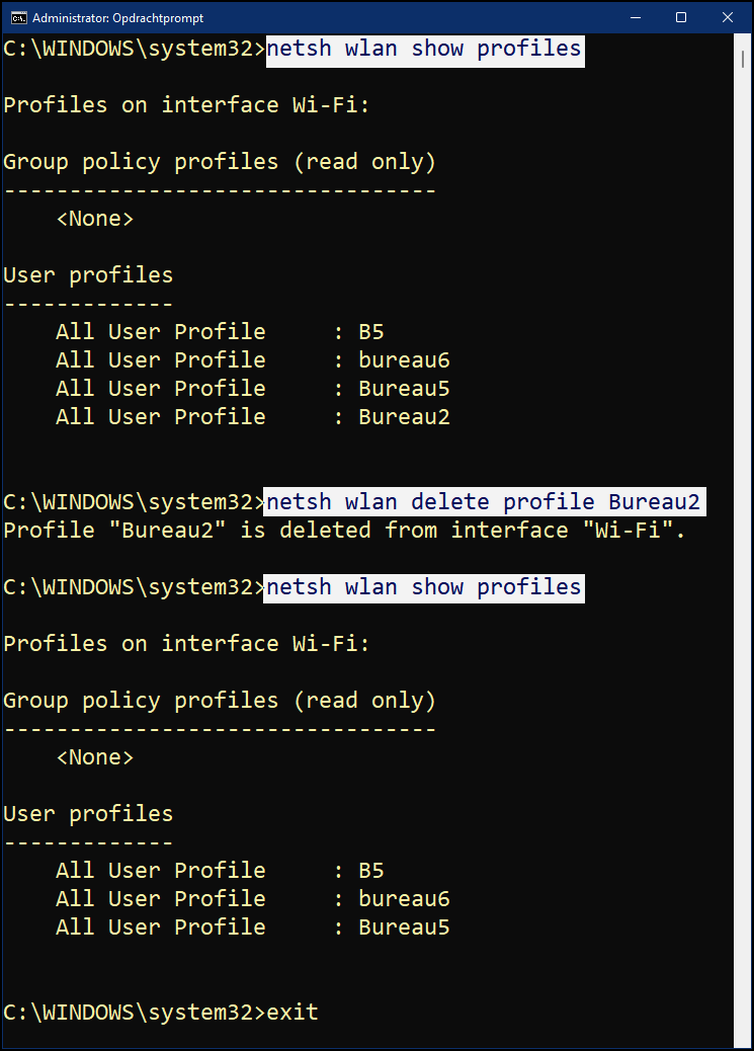 |
| It may happen that the Wi-Fi network profile in Windows is disturbed. This is easy to solve |
CONNECTION LOSS
Suppose you have always been able to connect to your wireless network with your laptop, but suddenly that no longer works. Then it could just be a simple detail. After all, many laptops have a physical button or a function key with which you allow or block the wireless signal. Be sure to check this.
Unfortunately, the problem can also be caused by a software corruption of the network profile. We spare you the theory and focus on a practical solution: open it Start menu in Windows, right click here Command Prompt and choose Run as administrator† Enter the command netsh wlan show profiles so that the names of the wireless network connections appear. Then you run the command netsh wlan delete profile <profielnaam> off, where you <profielnaam> replaces with the name of the problematic connection. Restart your computer, if all went well, the WiFi connection will now work again.
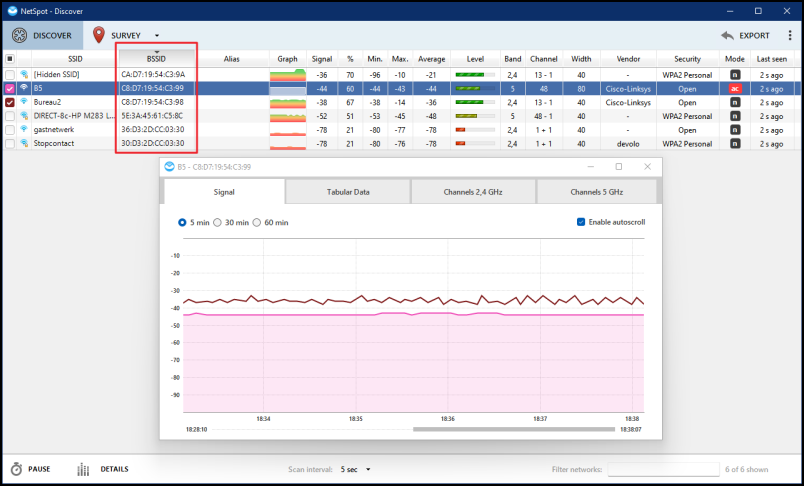 |
| NetSpot also displays the BSSID, which is unique to each wireless network adapter |
SUBSTANTIAL CONNECTIONS
It may happen that your wireless network, with a router and one or more access points, is configured so that all these devices have the same network name, or ‘ssid’. That in itself does not have to be a problem, certainly not when both use other channels. However, it may happen that your mobile device stubbornly continues to connect to a previously connected router or access point, which is now physically further away from your mobile device. If you check this with an app like the aforementioned Fritz!App WLAN or on your Windows laptop with an application like NetSpot FREE edition (netspotapp.com/download-win.html), the network name is of little use, of course, because that is always the same. To find out which access point your device is actually connected to, check the MAC address (go to Connect in the Fritz!App) or check the BSSID column (in NetSpot), as this is for every router or access point. be unique. Check in the manual of the device how you can read the mac address or bssid there.
In this way you find out which access point you are connected to at any time. Unfortunately, there isn’t much that can be done about this annoying ‘sticking phenomenon’, but in most cases it helps if you briefly switch off the WiFi on your mobile device and switch it back on close to the intended access point.