
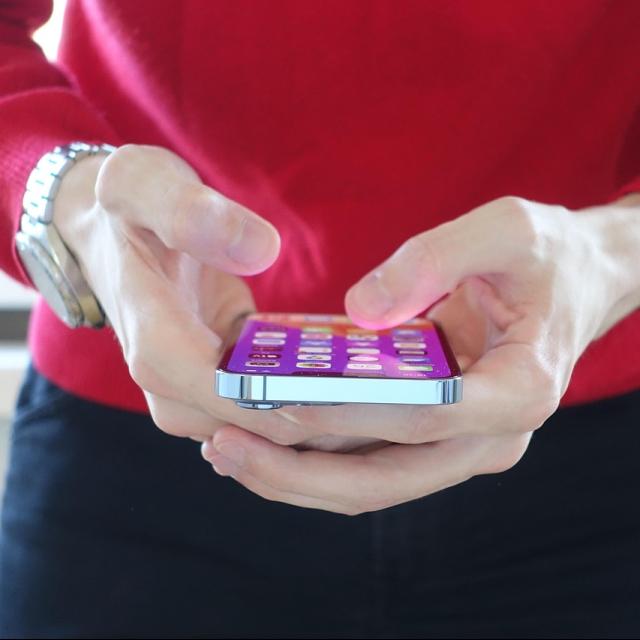
Sending files or photos from your phone to your laptop can sometimes be a hassle. Mail to yourself or endless searching for a cable that always seems to disappear? Fortunately, there are faster and easier ways to exchange data between your devices. Here are a few useful options.
What if I am going to buy a new phone?
Many people find it exciting to buy a new phone. They often think that transferring all data, such as photos and phone numbers, is a big job and they are lost everything if something goes wrong. Fortunately this is no longer the case nowadays and it is often arranged that way. Files are no longer only stored on the phone itself, but also in the cloud. That ensures that transferring actually happened. Where the switch from Samsung to Apple until years ago turned out to be a bit more difficult, this is really no longer the case. So do you want to buy a new iPhone SE from Apple and do you now have a Samsung? Then you can easily transfer this. If you can’t figure it out now, they will of course be happy to help you in the store.
Send files without hassle
A quick and easy way to transfer a few files is via Sharedrop. This simply works in your browser and you don’t need separate apps. Open the website, click on the plus sign and scan the QR code with your phone. Your devices are now connected and you can immediately drag and send files. Ideal if you don’t feel like working with cloud storage services.
Microsoft Edge has a smart trick
If you use Microsoft Edge, you can easily exchange files and notes with the drop function. Put drop via the settings and log in to both devices with the same Microsoft account. Everything you then send via drop appears automatically on your other devices. You can even share photos and documents with it. Handy right? Reason enough to delve into this, so that you can make it your own quickly.
Copy text from phone to laptop
Do you know that? You see an interesting article or a handy address on your phone and want to have it on your laptop quickly. With Windows 10 and 11 you can synchronize the clipboard. Turn this feature in the settings and install the Swiftkey Keyboard on your phone. Now you can cut and paste texts between your phone and laptop as if they were one device. Super handy for long texts or quickly switch between devices.
Telephone coupling for complete integration
Windows has a special app called telephone coupling with which you can link your Android phone or iPhone to your laptop. This allows you to view photos, messages and notifications directly on your laptop. This works best for Android users, but the support is also getting better for iPhones. Follow the instructions in the app and connect your devices via a QR code. As soon as the link is active, you can even have telephone conversations via your laptop.
This article was created in collaboration with Ben.