
Configure the iPhone’s accessibility options using a Shortcuts script to be able to activate the flash by tapping the back of the device two or three times.
Since iOS 14, iPhone users have had the ability to set up quick actions by tapping the back of their device. This option, very easily configurable, allows you to launch all kinds of actions very quickly, without having to enter the various menus of the device, or press any buttons. Learn how to set it to activate the iPhone flash by tapping it on the back two or three times.
1. Download Shortcuts
Start by downloading the Shortcuts app. This application offered by Apple allows you to create small automation scripts and will be essential for the rest of our manipulation.
Download Shortcuts for iPhone (Free)
Also see video:
2. Create a shortcut
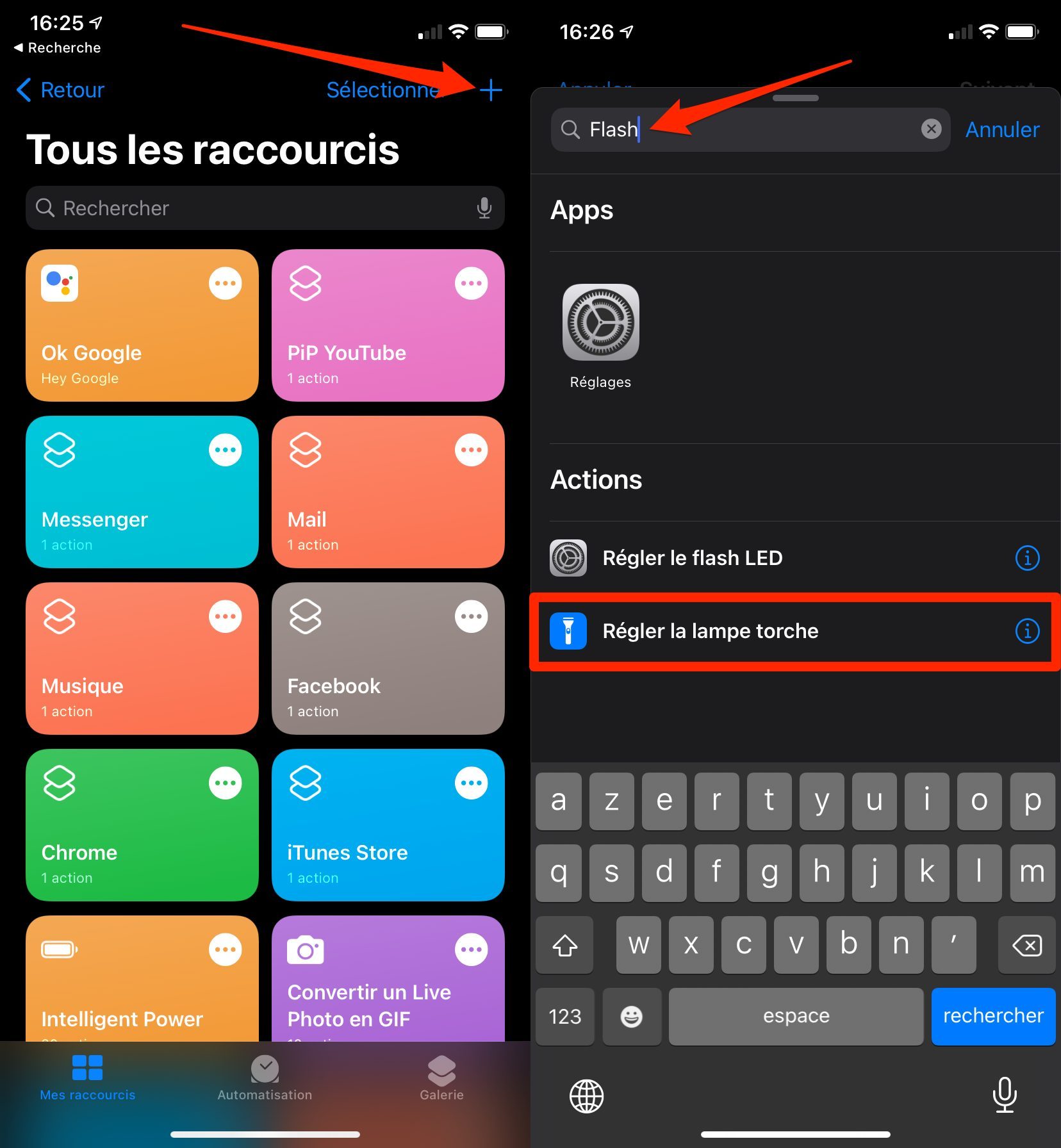
Open the Shortcuts app, then in the My Shortcuts section, tap the + button to create a new shortcut. In the search field, enter Flash, and tap the Set Flashlight action.
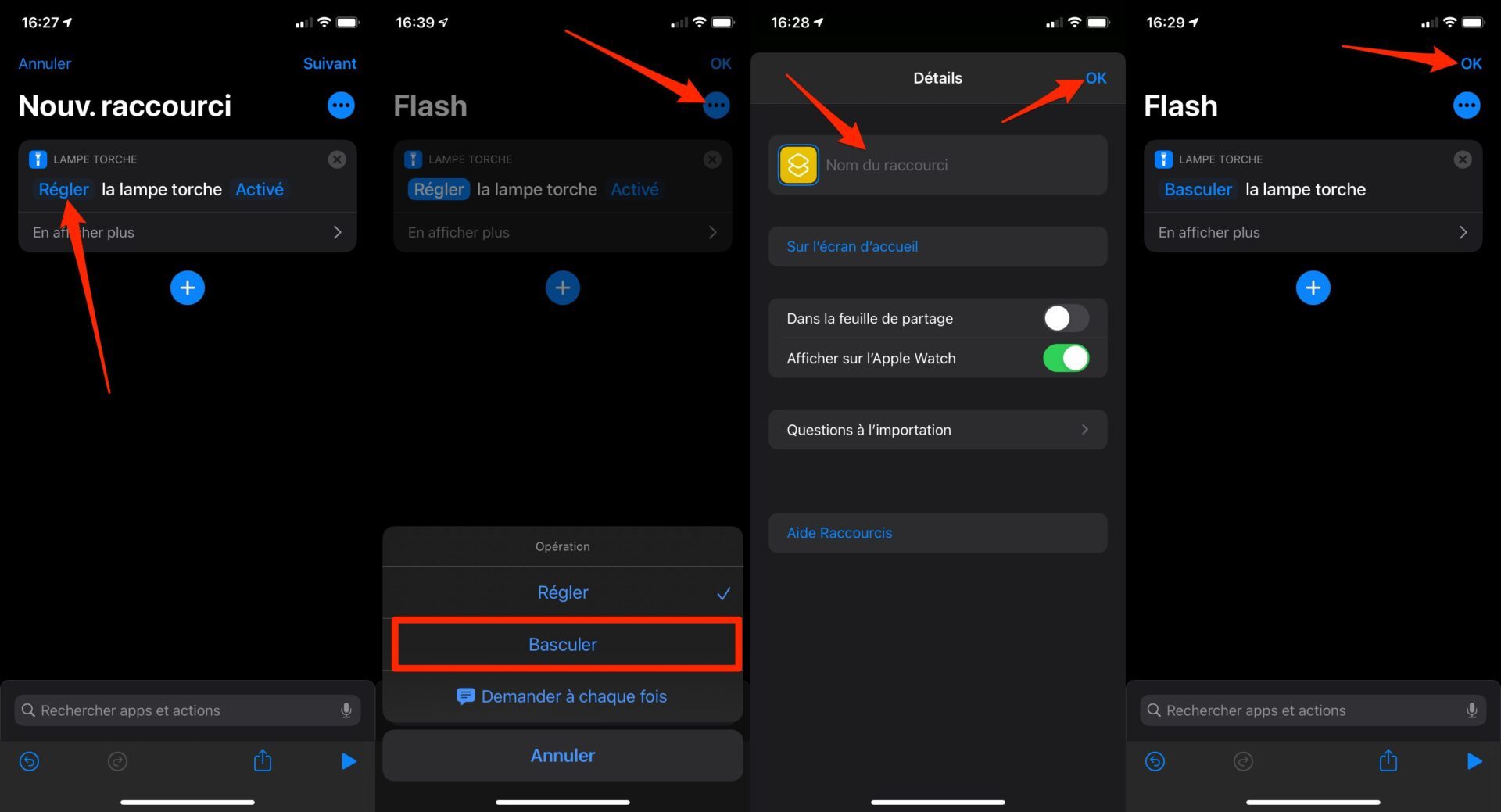
Now press Set and change this operation to Toggle.
Then press the option button represented by three small dots, and fill in the name of your shortcut, Flash, for example, and validate by pressing the OK button.
Then save your shortcut by pressing OK again and close the Shortcuts app.
3. Open Settings
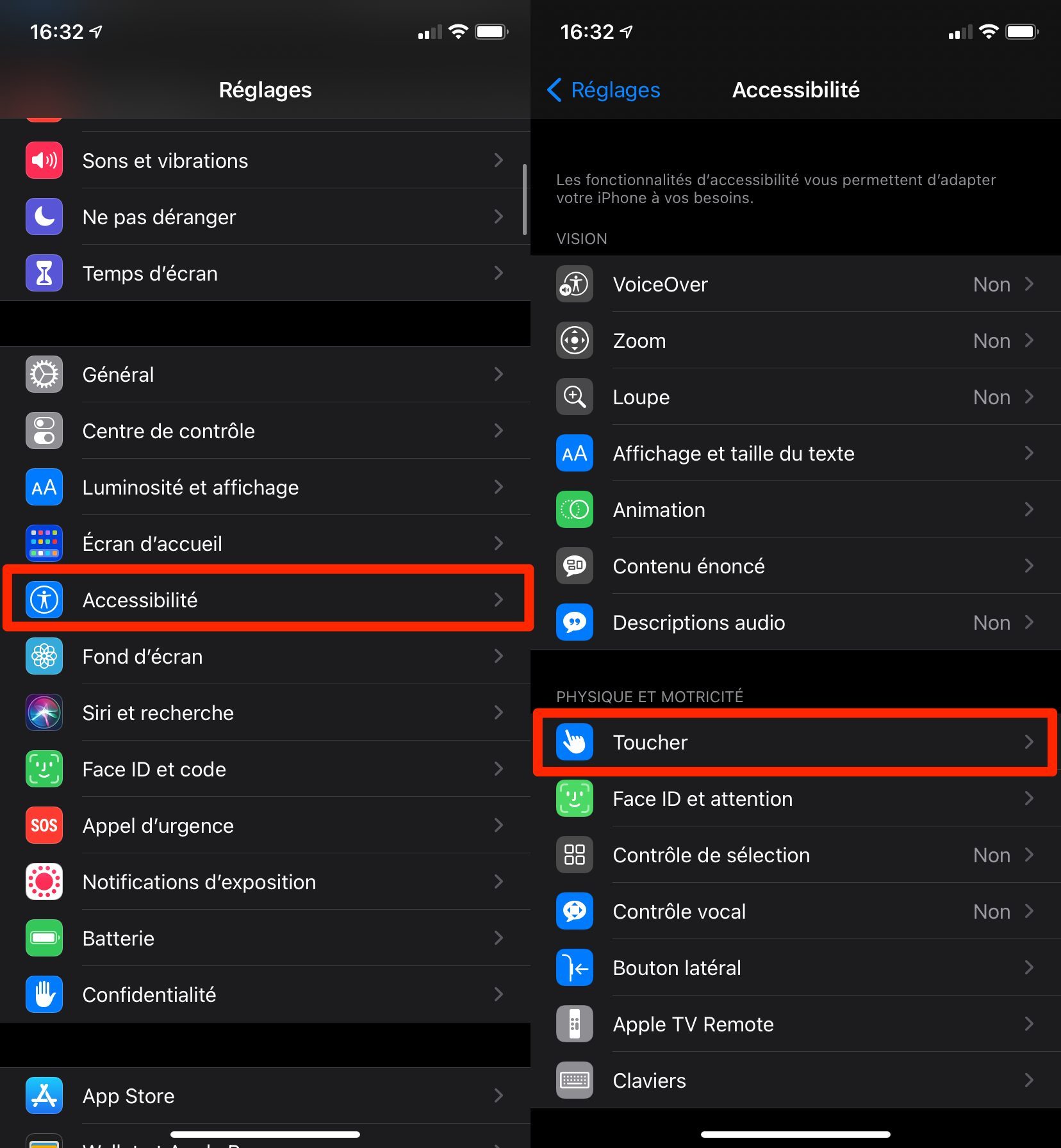
Now open iPhone Settings to go to the Accessibility menu. In the Physical & Motor section, tap Touch.
4. Enable the option Touch the back of the device
At the very bottom of the list, enter the menu Touch the back of the device. Depending on your preferences, enter Tap 2 times or Tap 3 times. This will correspond to the action to perform to activate the Flash. If you are worried about accidentally activating it, prefer the 3 times tap option.
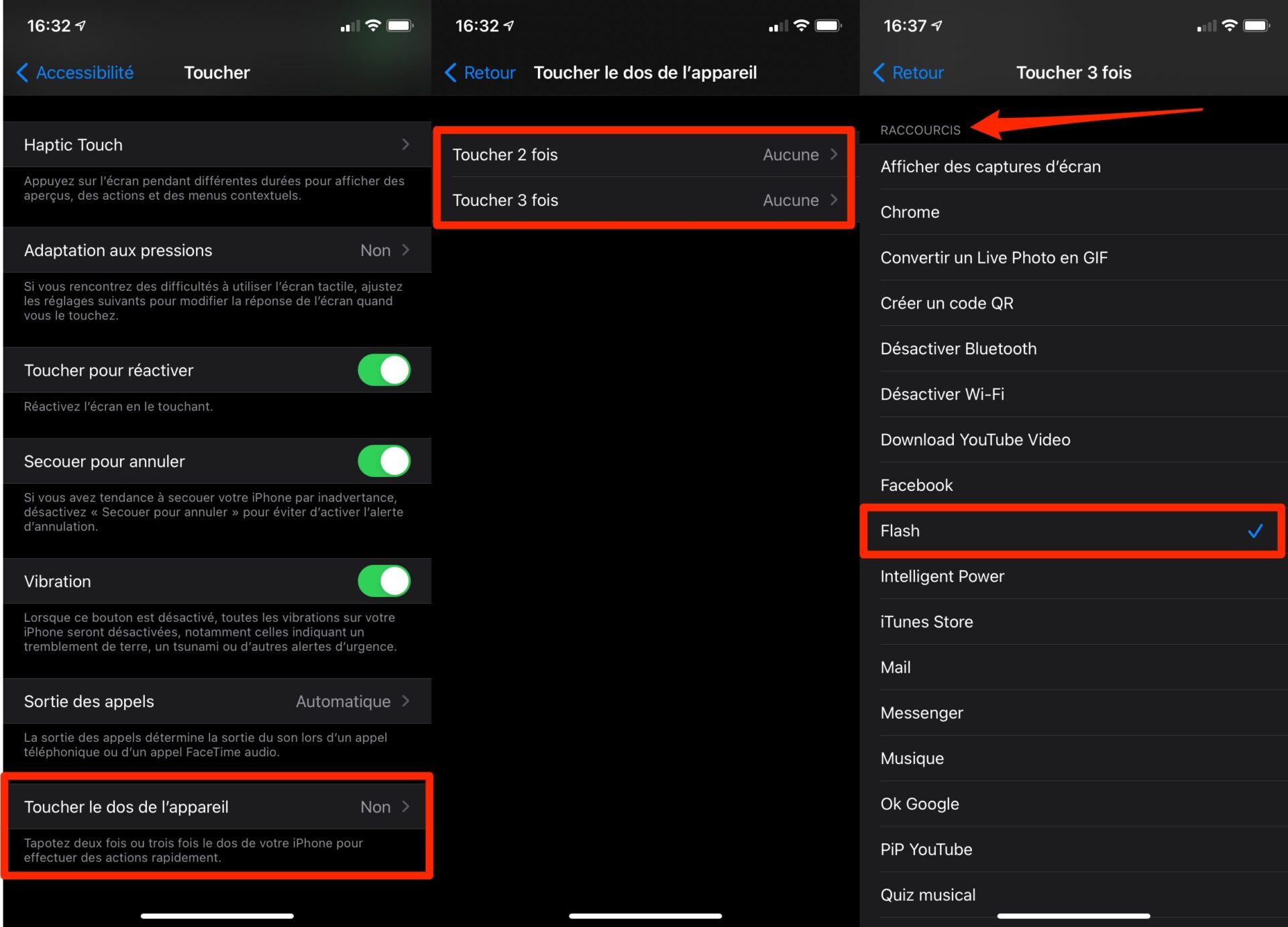
Scroll through the list of proposed actions until you reach the section containing your Shortcuts and select the Flash shortcut you just created.
Then close iPhone settings. Tap the back of your device two or three times (depending on the option selected). The iPhone flash should then turn on automatically. Tap the back of the device again to turn it off.