
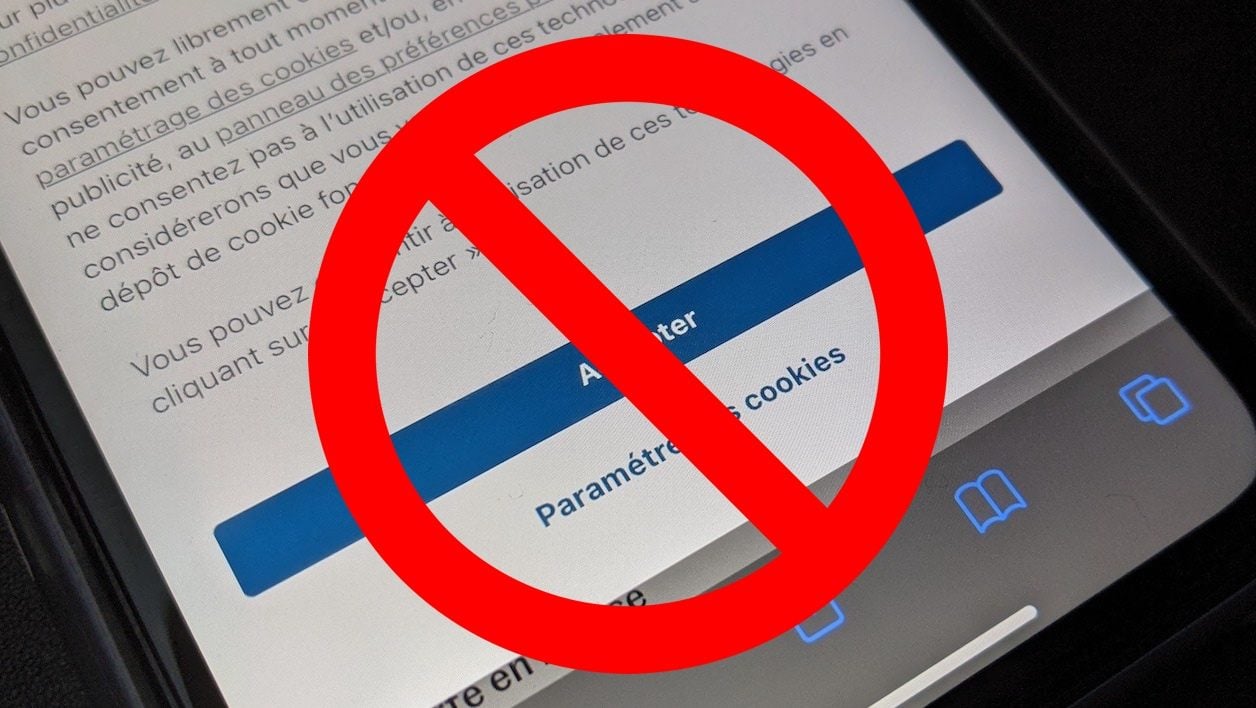
Automatically block banners that appear in your browser asking you to accept the use of cookies while browsing.
Since the implementation of the General Data Protection Regulation within the European Union, Internet users have seen banners popping up on the websites they consult on a daily basis asking for their consent to place cookies on their machine during their browsing.
And if there are several tricks to remove the display of GDPR banners without sacrificing your privacy, their implementation is not always easy, especially on mobile phones and very often, users accept them without batting an eyelid to simply close these famous banners.
But a utility capable of automatically blocking the display of these banners, without accepting cookies, has appeared. Hush, that’s its name, is a free open source utility (https://github.com/oblador/hush) taking the form of a content blocker but whose range of action is limited to blocking only the display of cookie banners. Compatible with iOS 14 and macOS 11, here’s how to deploy it on iPhone and Mac.
1. Download Hush
Start by downloading Hush on your iPhone or Mac. The utility, whose source code is available on Github, integrates directly into Safari but does not have access to the content displayed in the browser, nor to the data stored in it. Hush does not accept or refuse cookies. The utility simply blocks the script used to display the banner in the browser.
Download Hush for iPhone (Free)
Download Hush for macOS (Free)
2. Activate the extension on iPhone
Once the application is installed on iOS, open the iPhone Settings directly, go to the Safari settings, then within the General section, enter the Content Blockers menu and activate Hush.
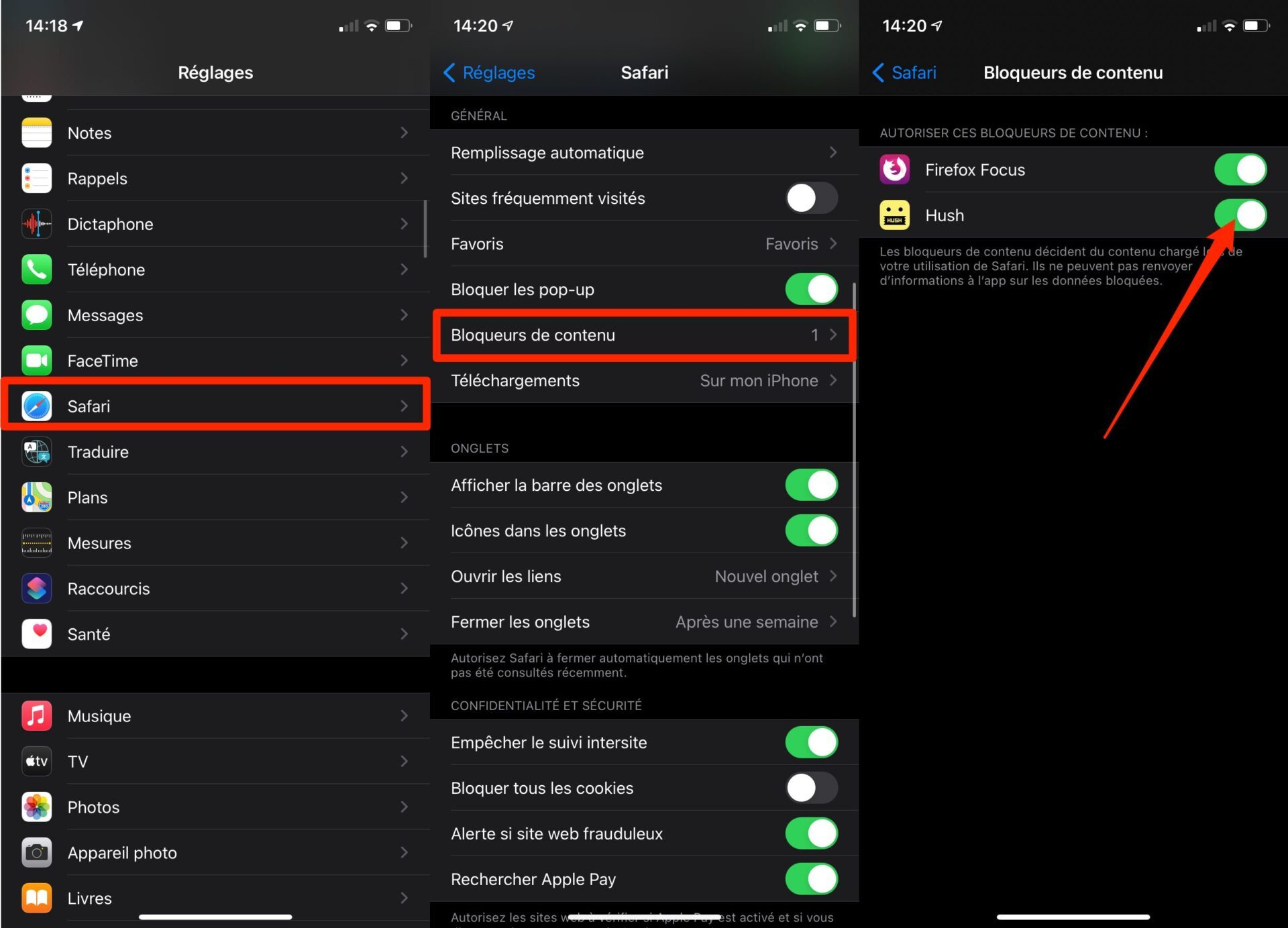
You should no longer see the GDPR banners, which often take up the whole screen, when you browse the web from Safari Mobile.
3. Enable Hush on macOS
On macOS, as soon as the Hush extension is installed, Safari displays a banner indicating its presence. You will then only have to click on the Activate extension button to activate Hush in Safari.
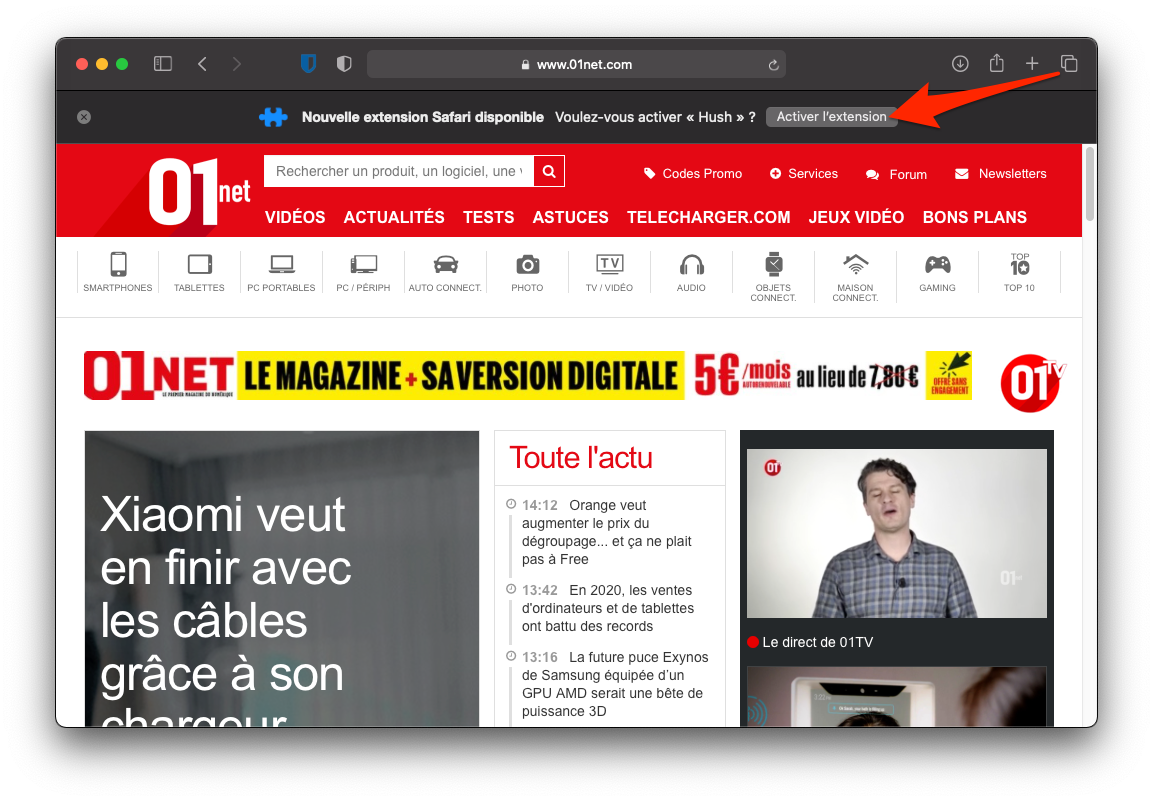
You can also enable/disable the extension by going to the Safari settings (Safari menu > Preferences or cmd+,) then activating Hush from the tab dedicated to Extensions.
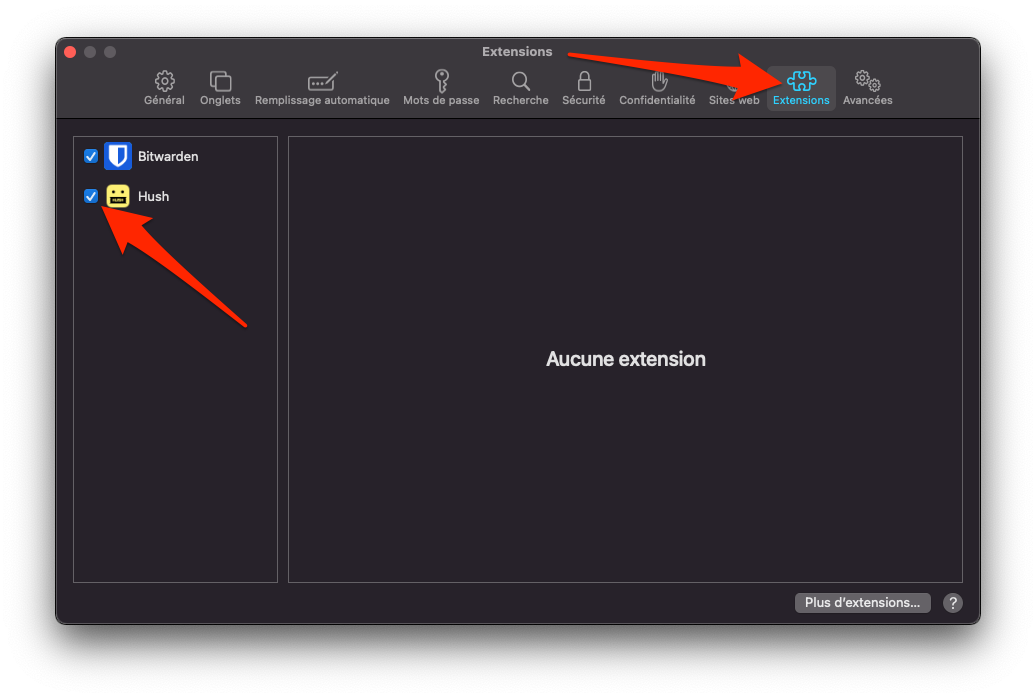
Once the extension is activated in Safari, you should be able to browse the web without having to display GDPR banners.