

01net.com –
The secure messaging application is, along with Signal, one of the credible alternatives to adopt as a replacement for WhatsApp. Here’s everything you need to know to get started on Telegram.
With the controversy created by the new conditions of use of WhatsApp, users of the instant messaging property of Facebook have been very numerous to migrate to alternative applications. So much so that Signal and Telegram have been propelled to the top of the most downloaded applications on the App Store and Play Store.
The Telegram application even announced that it had gained some 25 million new users in less than three days, an increase as fast as it was sudden than the application had ever seen.
Telegram is not just an instant messaging application. It contains many secrets and needs to be perfectly mastered to take full advantage of it.
Because if the application is known, for example, for its security thanks to its encryption system, the text conversations held in the application are not end-to-end encrypted by default. Few users know this, but those who wish to protect their discussions will have to take the process to manually activate encryption. In the following lines, you will discover everything you need to know to use Telegram like a pro.
1. Download Telegram
If you haven’t already, start by downloading the app to your smartphone. Like WhatsApp, Telegram is also available on Windows, macOS and Linux, to allow you to check your email and continue your discussions directly from your computer.
Download Telegram for Android (apk) (Free)
Download Telegram for iPhone (Free)
Download Telegram for Windows (Free)
Download Telegram for macOS (Free)
Download 32-bit Telegram for Linux (Free)
Download Telegram 64 bit for Linux (Free)
2. Sign up for Telegram
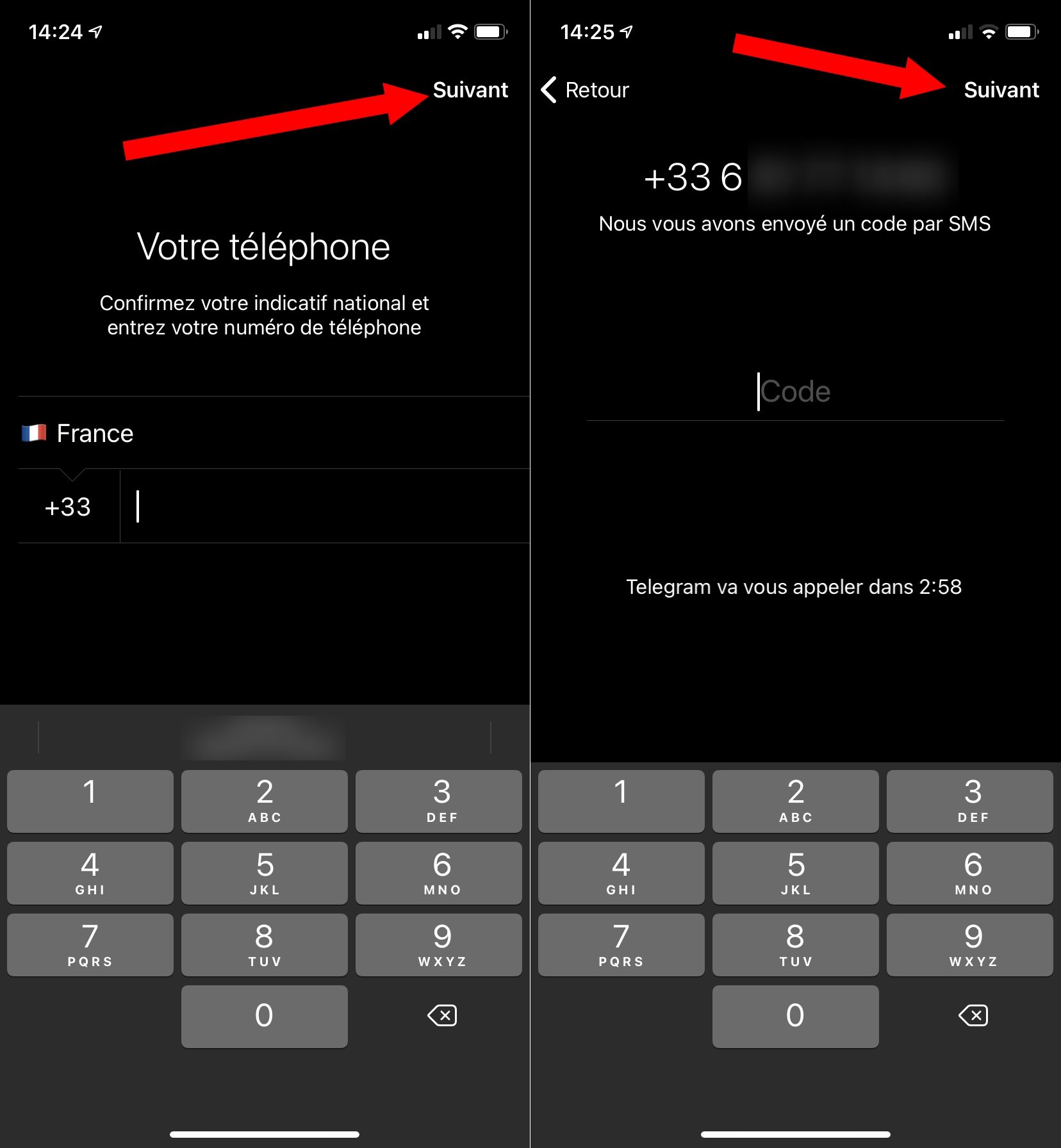
To register on Telegram, you will need to use your mobile number. Open the application on your smartphone and therefore enter your phone number on the page provided for this purpose and press Next.
You should receive a verification code via SMS. Enter it on the dedicated page to validate the creation of your account.
3. Discover the interface
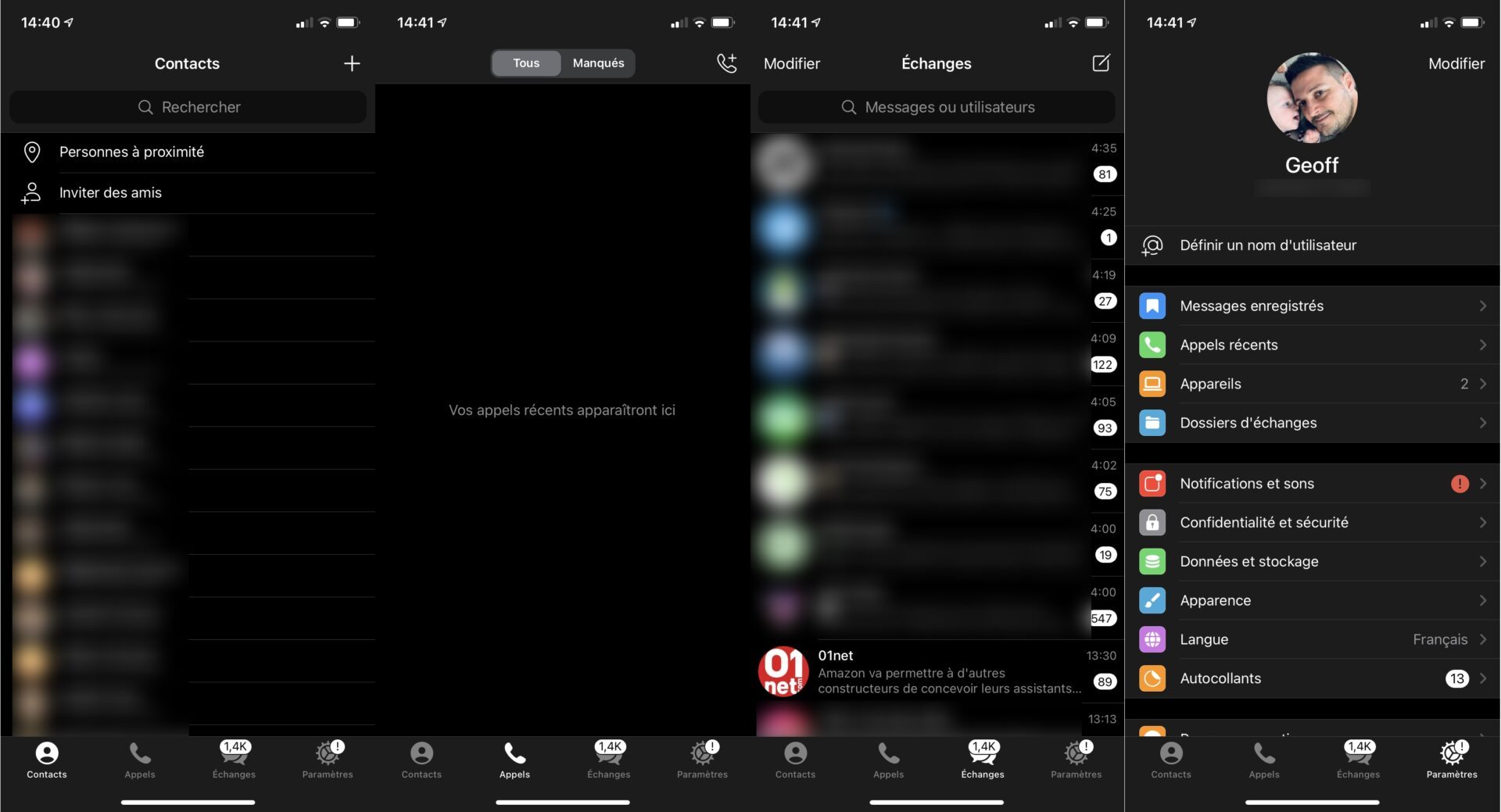
On iOS Telegram is structured around four sections:
- Contacts: These are your address book contacts on Signal. They are detected automatically by the application which, like WhatsApp, relies on a centralized directory. You will be able to find your contacts using their mobile number or by entering their username directly, if they have defined one. The search box can also be used to search for public chat groups on Telegram.
- Calls: this tab is none other than the history of incoming and outgoing calls, video calls and missed calls
- Exchanges: you will find in this section your conversations, but also the public Telegram channels to which you are subscribed. This is indeed the great specificity of Telegram. The application, in addition to allowing you to send messages like an SMS application, offers to subscribe to public channels that sometimes group together several hundred thousand people. These channels are quite similar to the forums you find on the web.
- Settings: This is where you can customize all of the app’s options. You can for example, if you wish, add a profile picture, or define a username so that members of Telegram can find you without knowing your mobile number.
On Android, the app interface is somewhat different. The main page brings together all the conversations and channels followed, as well as the search engine.
For the rest, the user must deploy a hamburger menu displayed at the top left of the interface. He can then create a new group, access his list of contacts present on Telegram, the Call log, search for a person nearby, consult the recorded messages and of course access all the Settings of the application.

4. Send a message
To send your first message on Telegram, go to the Exchanges tab on iOS, and on the main page of the application on Android, and press the dedicated button to initiate the writing of a new message.
Then tap the name of one of your Telegram contacts to open a chat window with them. You will only have to write your message as you usually do on other applications and then send it.

5. Enable end-to-end encryption of conversations
Telegram may promote its application by explaining that conversations are secure, end-to-end encryption is only active natively for audio and video calls.
For text conversations, this end-to-end encryption is not enabled by default. Since protection of personal data and respect for your privacy is probably the reason why you abandoned WhatsApp, you will have to activate it manually for each conversation started in Telegram.
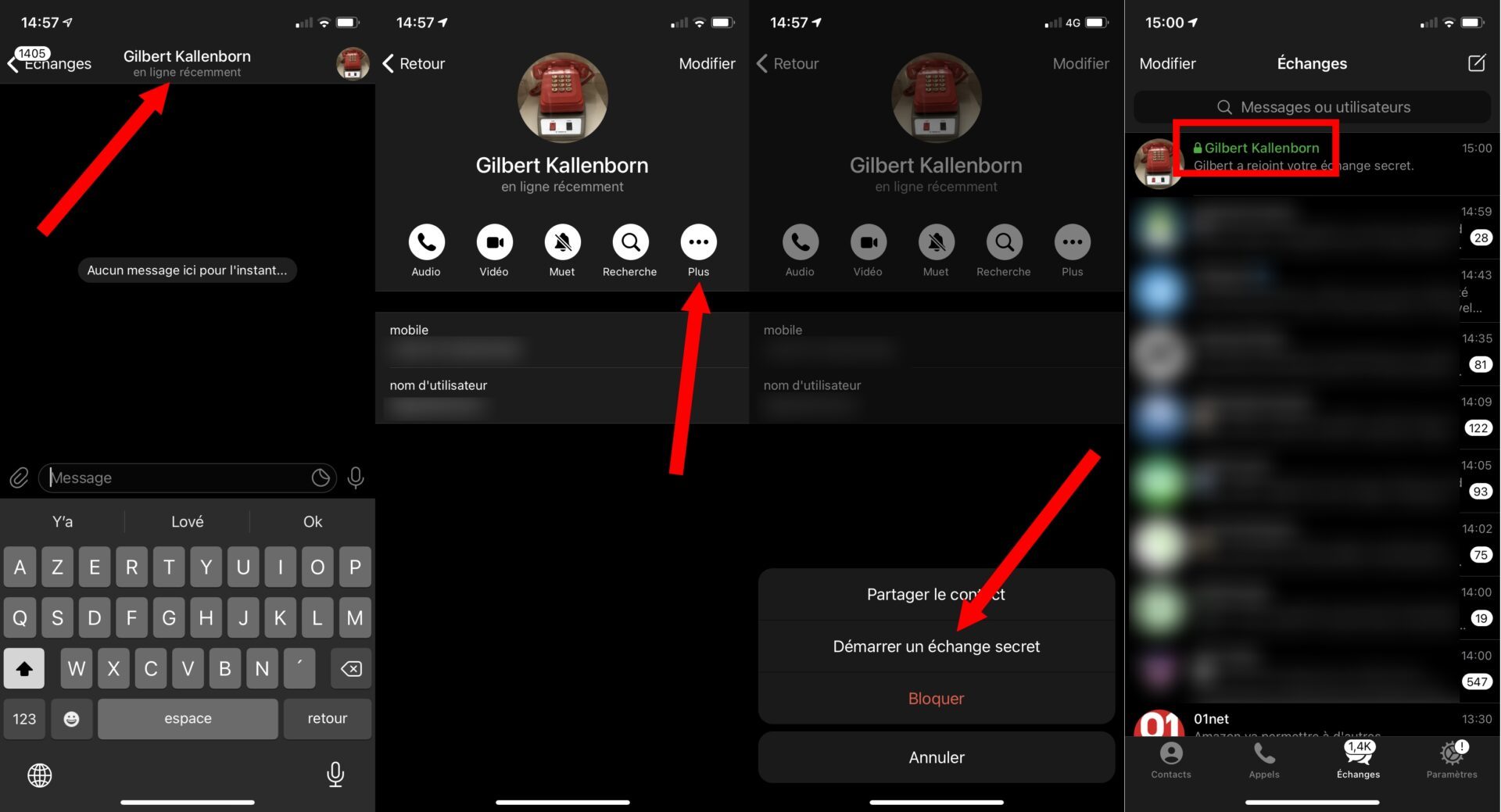
To do this, on iOS as on Android, press the name of the contact displayed at the top of the screen, and then press the button with three small dots to access the options for said conversation.
Then select the option Start a secret exchange and confirm your choice by pressing Start or Start.
When a chat is finally encrypted, it will appear green with a small padlock in the chat list.
6. Customize app preferences
Before throwing yourself headlong into using Telegram, it is better to take a moment to look at the Settings of the application to define your preferences there. Besides the option to complete your profile, start by going to the Privacy and security menu.
Start by looking at the Privacy options and review each of the options offered. You will be able to choose who can see Phone number, your Online presence, your Profile photo, who is authorized to call you, who is authorized to forward your messages, or who is authorized to add you to groups and communication channels. discussion.
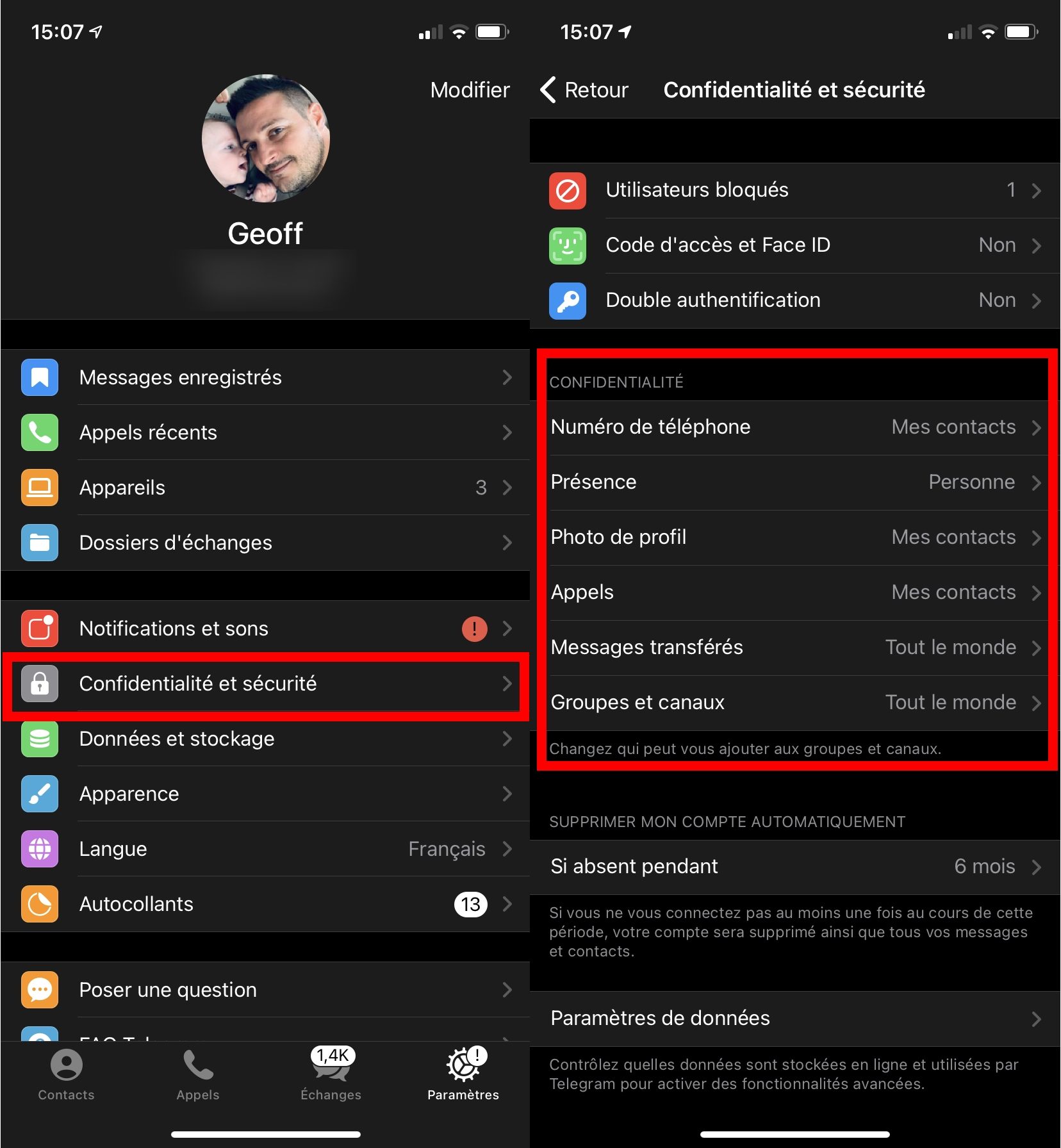
Take the time to modify these settings and do not take them lightly. Locking your profile on Telegram will prevent other users from accessing some of your data to “stalk” you, meaning being spied on without your knowledge, as is also possible on WhatsApp.
7. Connect Telegram on multiple devices
If Signal and WhatsApp allow, like Telegram, to use your account from a smartphone or a computer thanks to a dedicated application, Telegram goes further. The application allows you to connect your account on an unlimited number of devices. This means that you will be able to use your same Telegram account on several smartphones simultaneously, in addition to using it from a computer running Windows, macOS or Linux.
To connect your Telegram account on a computer, launch the application there, and scan the QR Code displayed using the Telegram application on your smartphone.
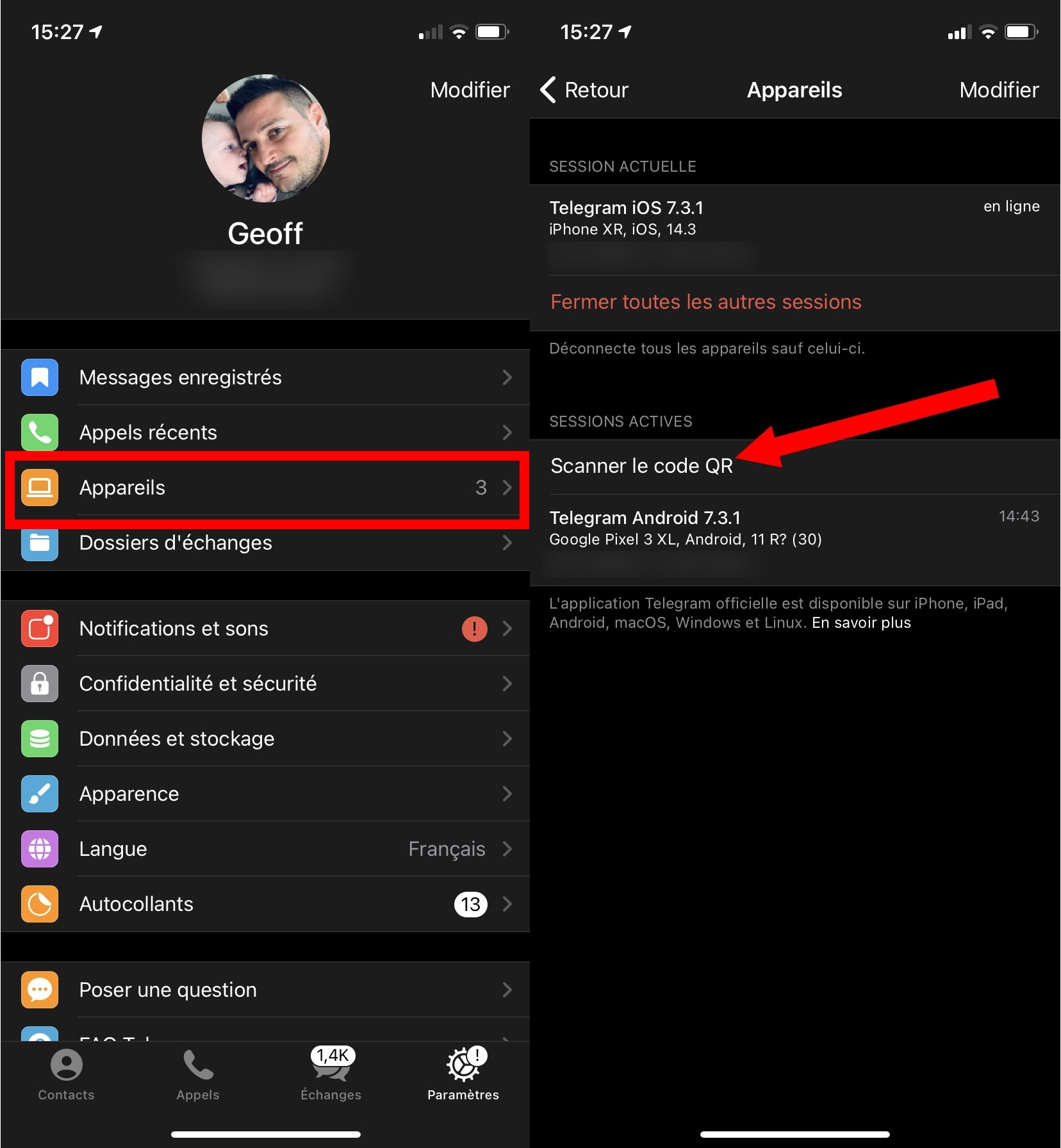
You will need to go to Settings to do this. Then, in the Devices menu, tap Scan QR code and point your smartphone camera at the QR Code displayed in the Telegram window on your computer.
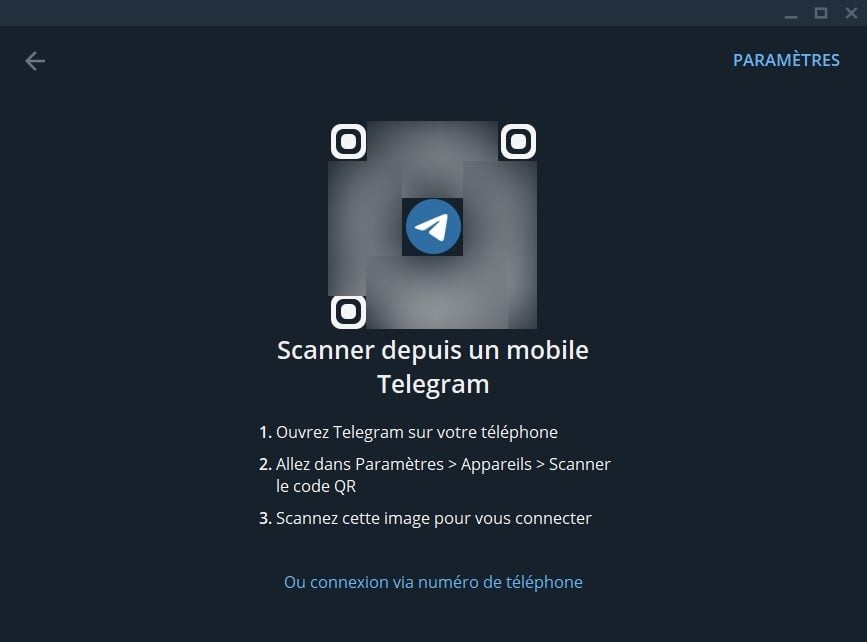
To connect your Telegram account on another smartphone, the procedure is similar to that of registration. You will need to enter your mobile number, which acts as an identifier, which you will also need to validate using a code. The only difference is that the validation code will not be sent by SMS to your mobile number this time, but in a Telegram message received on your first smartphone.