
The Telegram app has just been updated on iOS and now allows users to import their chat history directly from WhatsApp. Here’s how.
Since WhatsApp decided to impose new conditions of use for its application, users of instant messaging, owned by Facebook, have massively migrated to alternative solutions such as Olvid, Signal, or Telegram.
And, while all are updating and introducing new features to try to attract new users, the latest Telegram update on iOS should be enough to convince the last users who are still hesitant to switch.
Read also: 10 tips and hidden functions to master Telegram like a pro
Telegram is indeed inaugurating a new feature allowing you to simply import your WhatsApp conversation history. All the chats (and their content) that you may have had on WhatsApp can now be transferred in a few moments in Telegram. Find out how.
Download WhatsApp for iPhone (Free)
Download Telegram for iPhone (Free)
1. Export your conversations in WhatsApp
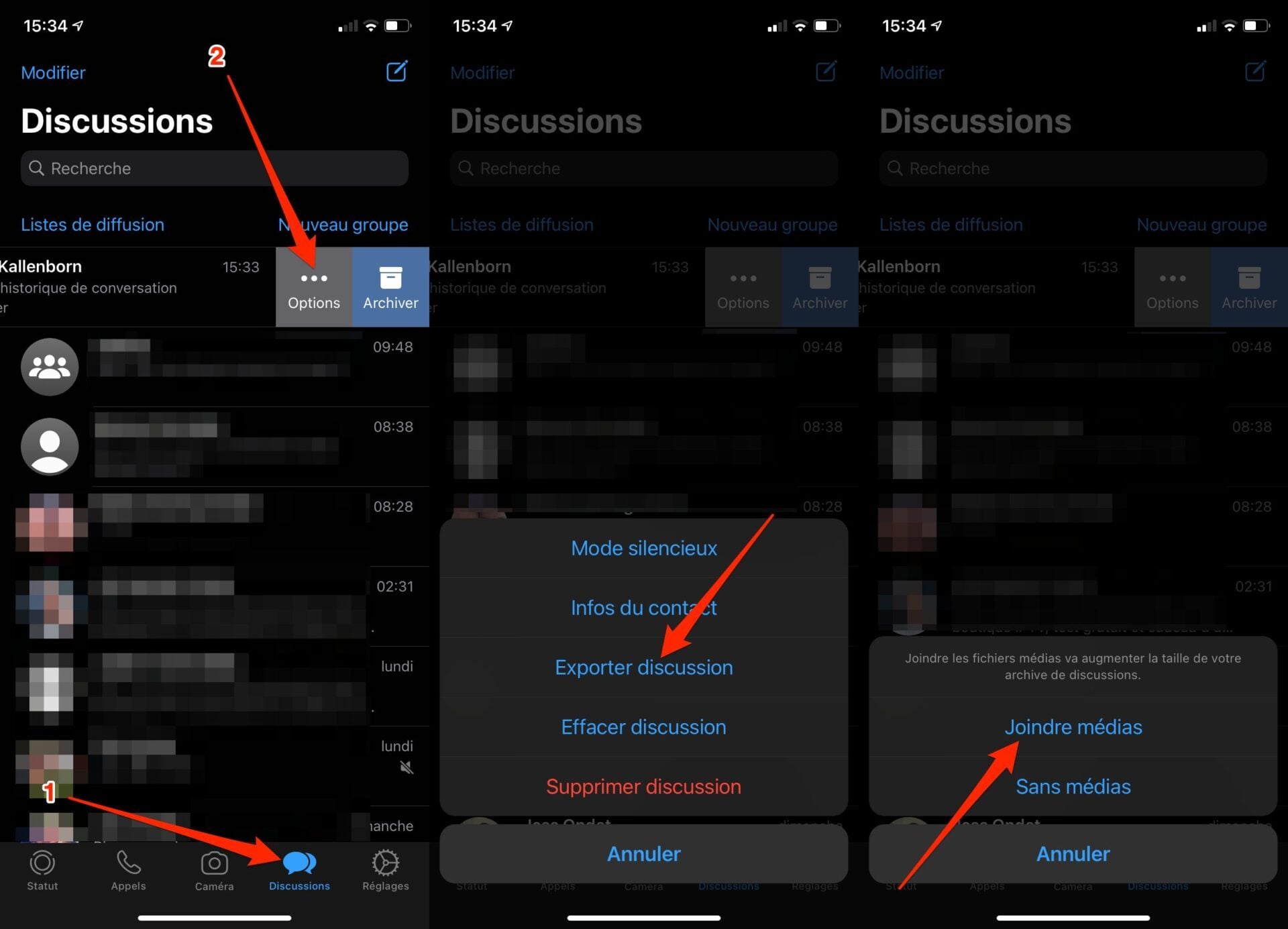
Start by opening WhatsApp on your iPhone, then in the Chats tab, select a conversation and swipe left on it.
Then press Options, then in the menu that appears, choose to Export chat and then indicate whether or not you want to Attach the media or on you want to export it Without media.
2. Import the conversation into Telegram
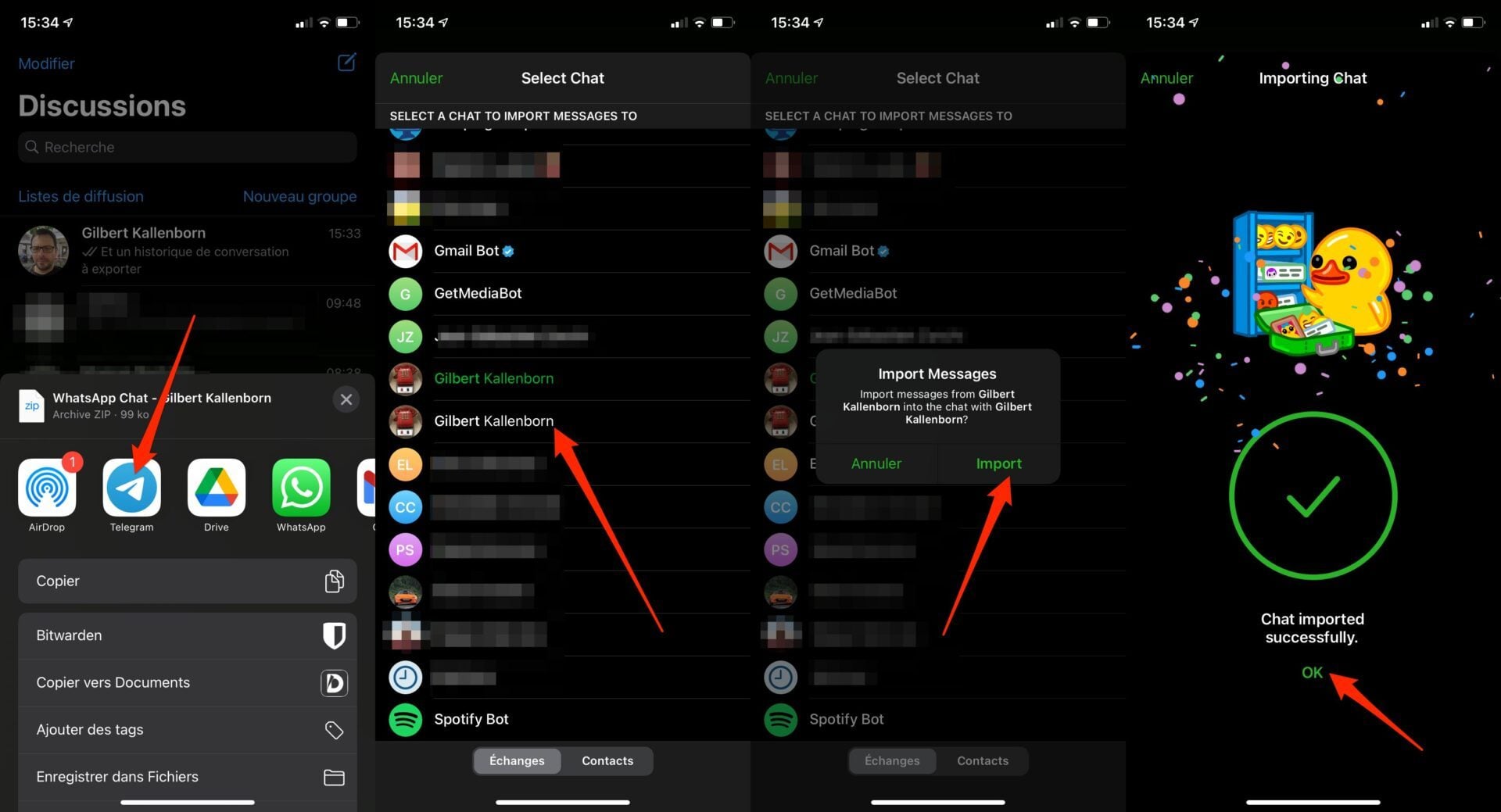
Depending on the size of the conversation and the number of media files in it, the export time may take longer or shorter. Once the export is ready, the iOS share sheet should appear.
Then press Telegram in the list of proposed applications (if Telegram does not appear, go to the end of the line, and press More to modify the Apps to be displayed in the iOS share sheet).
In the window that appears, select the Telegram conversation in which you want to import the messages and validate by pressing Import to start importing the WhatsApp discussion into Telegram.
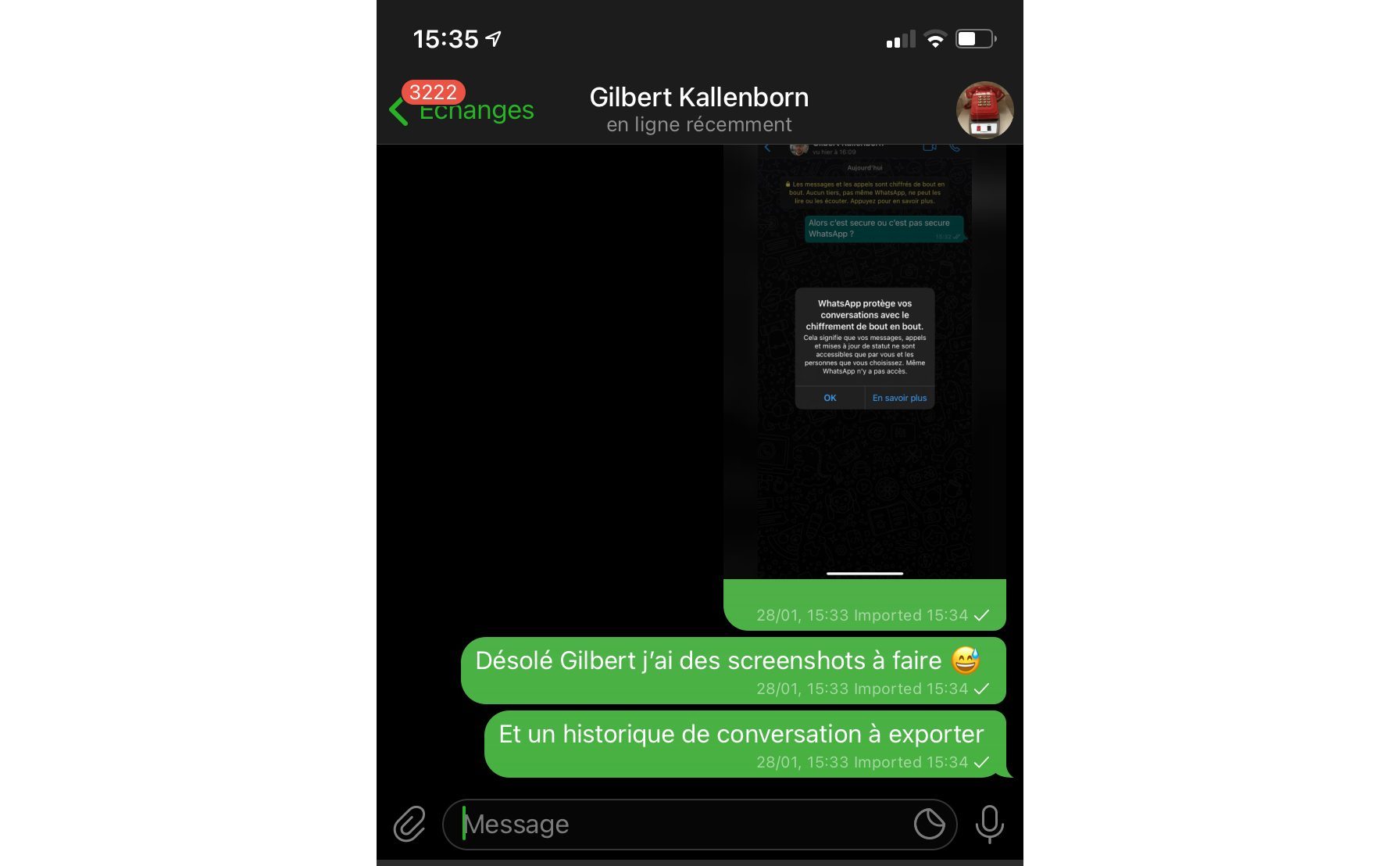
Once the import is complete, open the corresponding Telegram conversation. You should find all imported WhatsApp messages there. These can be identified by the mention “Imported” displayed under each message.
3. Retry the operation
You won’t be able to import all the conversations you have into WhatsApp at once. To find all your WhatsApp chats in Telegram, you will need to repeat the import process for each of them.
Some conversations, especially group conversations, being particularly large, especially if you decide to include multimedia files, the export time from WhatsApp may take several minutes.