
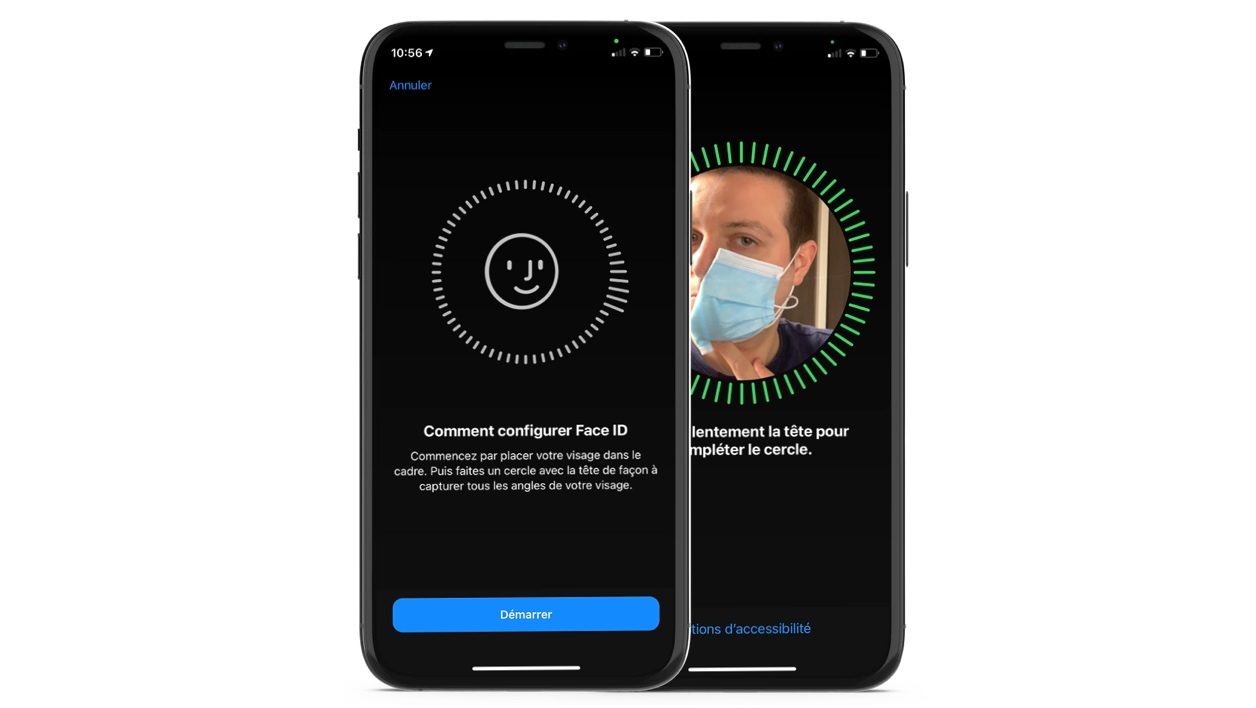
Reconfigure iPhone face recognition to use Face ID and unlock your device while wearing a mask.
Since the start of the covid-19 pandemic, iPhone users have faced a major problem in unlocking their device: Face ID, Apple’s facial recognition system, does not work when wearing a mask . For a year now, users have had no choice but to enter their code to unlock the iPhone screen or validate a payment with Apple Pay.
Officially, Apple has worked on a solution that should allow, from iOS 14.5, to unlock the iPhone with Face ID while wearing a mask. But the solution adopted by Apple requires owning an Apple Watch, which is far from being the case for all iPhone owners.
But for several months, some users have apparently found a workaround allowing them to configure Face ID so that the iPhone unlocks even when they wear a mask. Quite skeptical about the success of this hack, we tried our luck and managed to obtain a fairly stable functional unlock, however at the cost of several attempts. Learn how to set up Face ID with a mask.
1. Reset Face ID
Before you can set up your masked face in Face ID, you’ll need to reset the feature. Why ? Quite simply because you will have to configure a first appearance, then a second so that the facial recognition module recognizes your masked face.
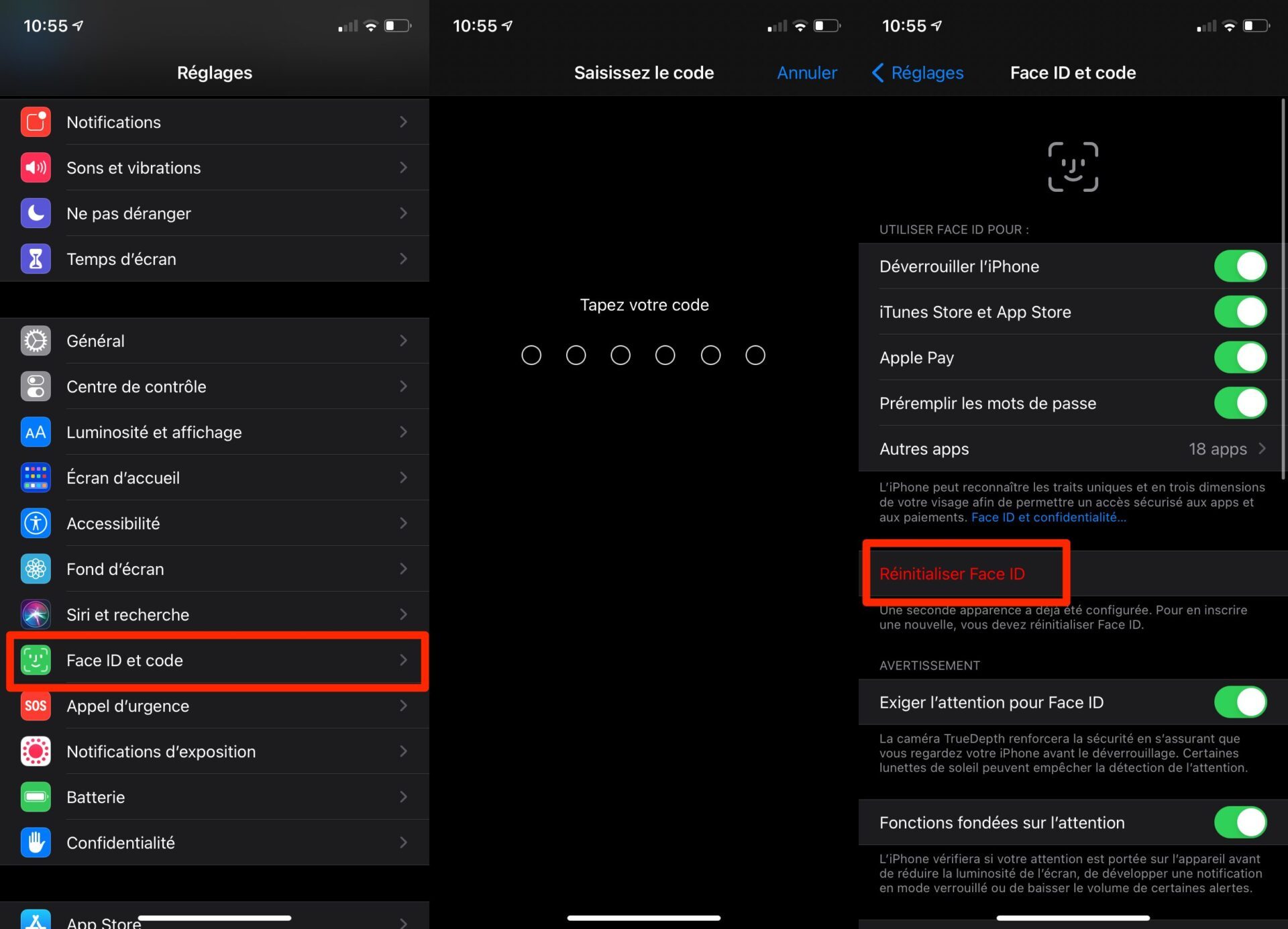
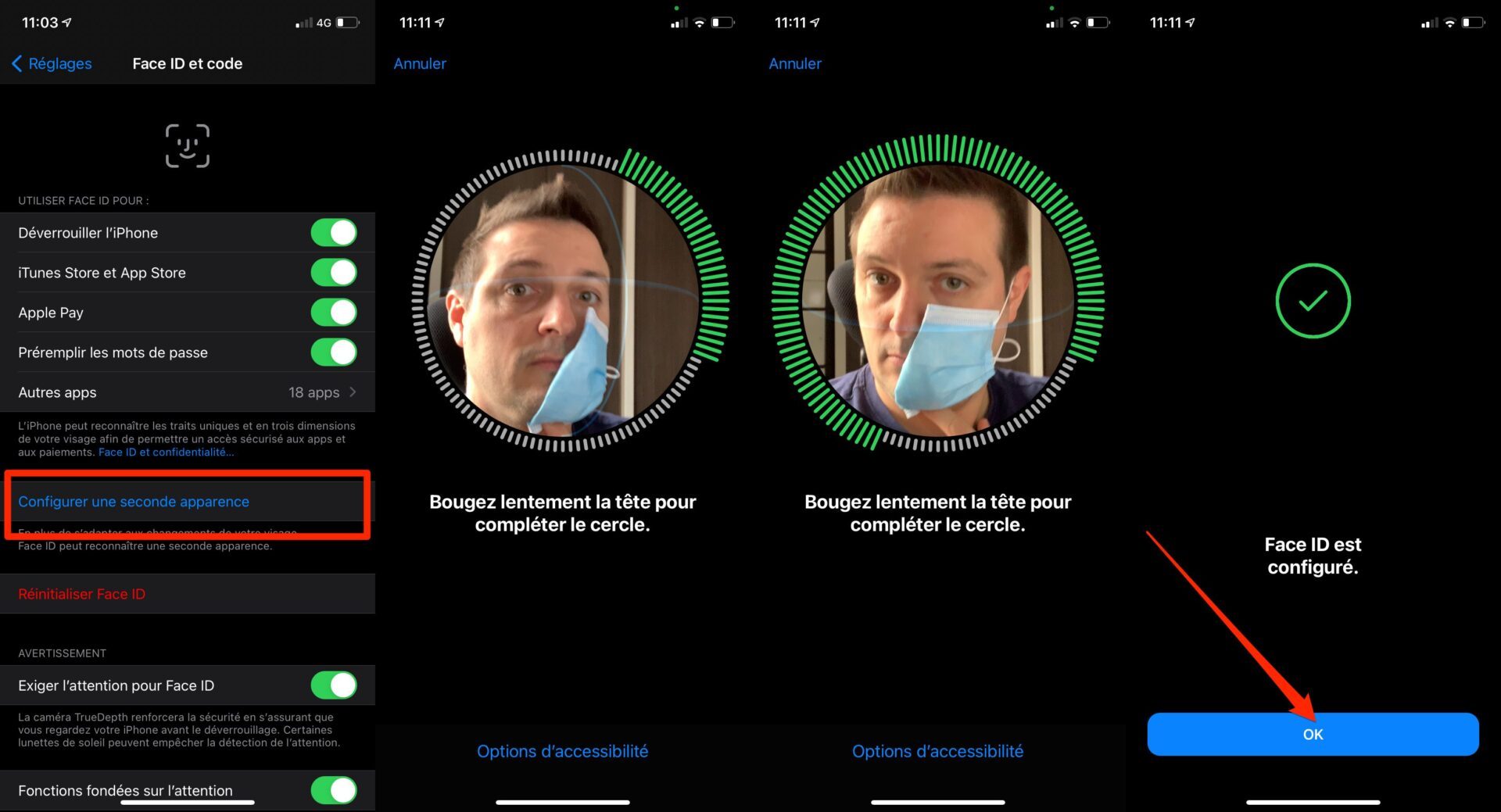
To reset Face ID, open Settings, go to Face ID & passcode, enter your passcode, and tap Reset Face ID.
2. Set up Face ID
Now that Face ID has been reset, it’s time to set it up again. Tap on Set up Face ID and then on the Start button to initiate capturing your masked face.
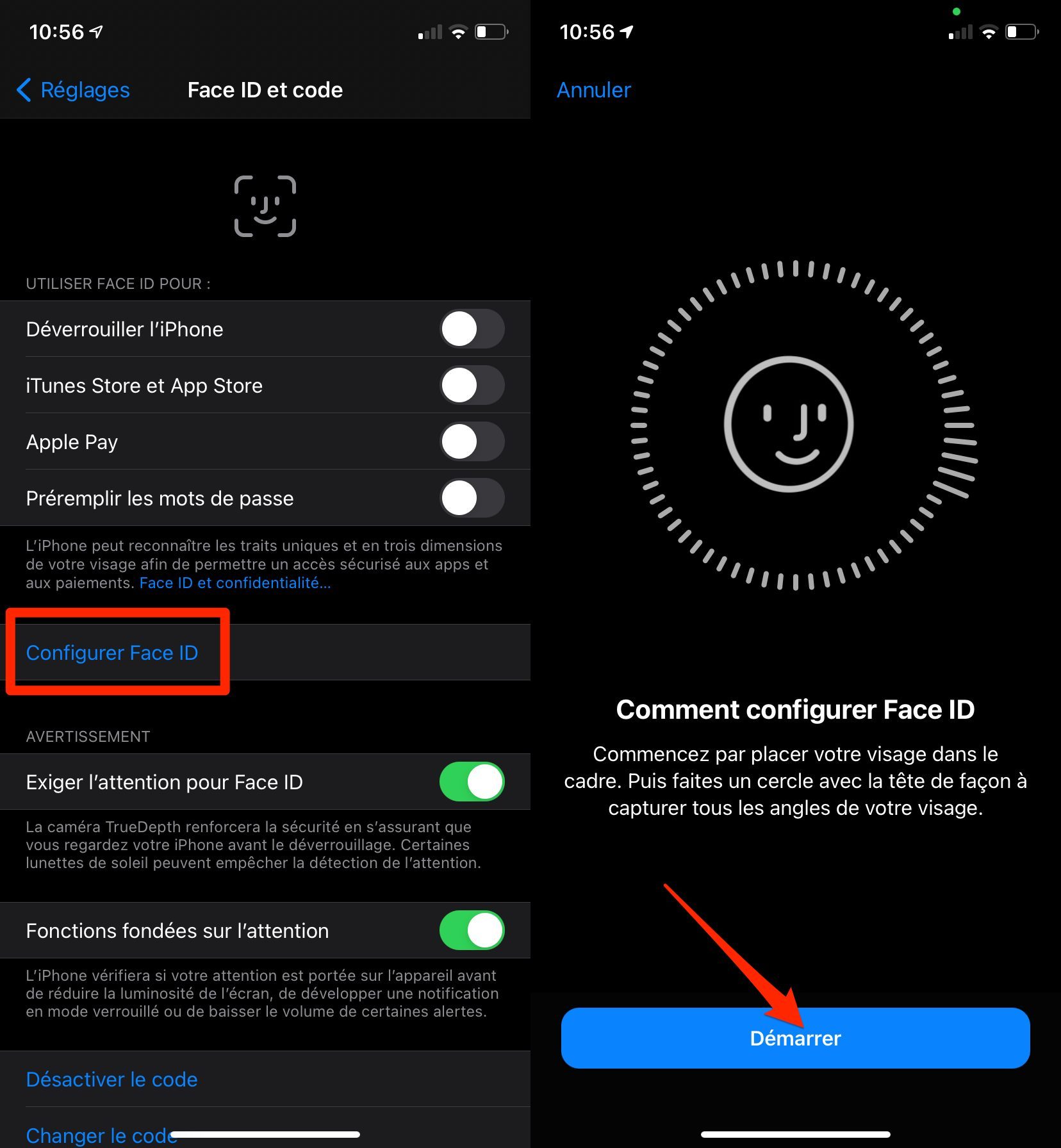
Take a mask and fold it in half with the outer side showing. For convenience, put the rubber band behind the ear on the side you are about to scan and, with your free hand, hold the mask over half of your face covering half of your mouth, but slightly leaving the tip of your nose visible, otherwise Face ID will detect that an object is obstructing your face. If this is the case, shift the mask slightly so that you no longer have an error. Try, as much as possible, to hold the mask underneath with a finger to limit the presence of your hand during the analysis.
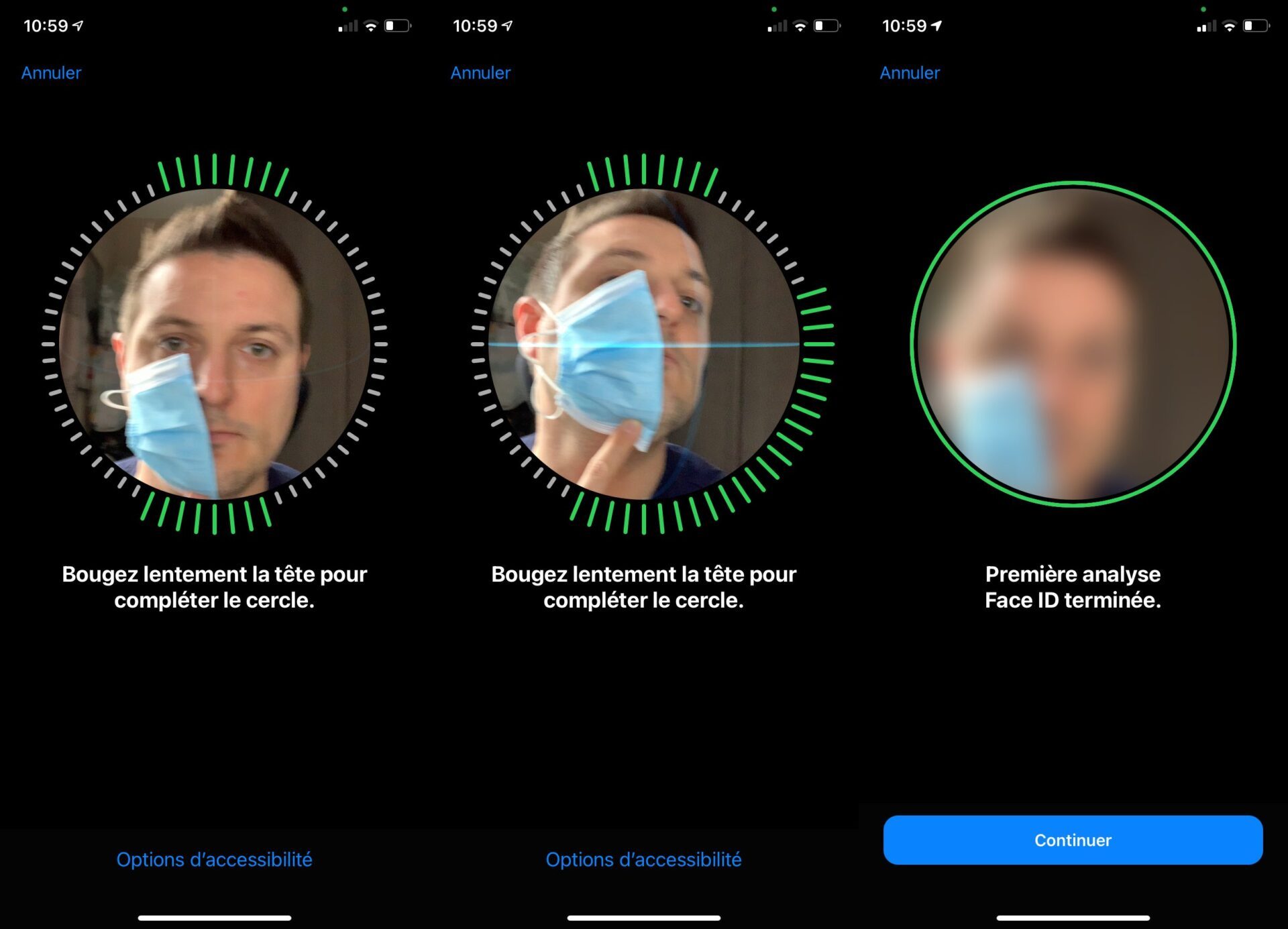
Slowly move your head in a circular motion to scan your face for the first scan, and repeat the operation for the second scan requested by Face ID until the message Face ID is configured appears.
3. Configure a second appearance
Back in the Face ID & passcode menu, tap Set up a second appearance. Repeat the operation of the previous step, but this time keeping your mask on the other half of your face, still covering half of your mouth, but leaving the tip of your nose visible. Validate the two analyzes and exit the settings.
If both scans were done correctly, you should be able to cover your face with your mask and unlock your iPhone without having to take it off. Since it’s not an exact science, unlocking with Face ID while hidden may not work on every attempt.
If that doesn’t work well or at all, reset Face ID and repeat the two steps of analyzing your face, shifting your mask position slightly to leave a bit more of your face visible. In our tests, we managed to get Face ID unlock with a fairly stable mask after at least three attempts to configure it, so do not hesitate to persevere during your tests.