
Apple has just introduced a tool that allows users to migrate photos and videos stored on iCloud to the Google Photos storage platform. Here’s how to use it.
Apple’s online tool for requesting a full copy of personal data is evolving. The Cupertino company has just integrated a new tool to ensure the portability of photos and videos stored on iCloud. And the first platform to be available is none other than Google Photos.
With this new tool, old iPhone users who would have switched to an Android smartphone no longer need to manually export all their photos and videos to transfer them to their new device. A simple connection to Apple’s dedicated platform allows them, in a few clicks, to start a complete migration of photos and videos saved on iCloud, to Google Photos.
1. Login to the platform
Open your favorite web browser, head to the Apple Data & Privacy page, and sign in to your iCloud account.
Go to Apple Data & Privacy (Free)
Created by the Cupertino company to allow users to obtain a copy of their personal data stored by the brand, this page now offers the possibility of initiating a migration of photos and videos stored on iCloud to other platforms.
Also see video:
2. Access the transfer tool
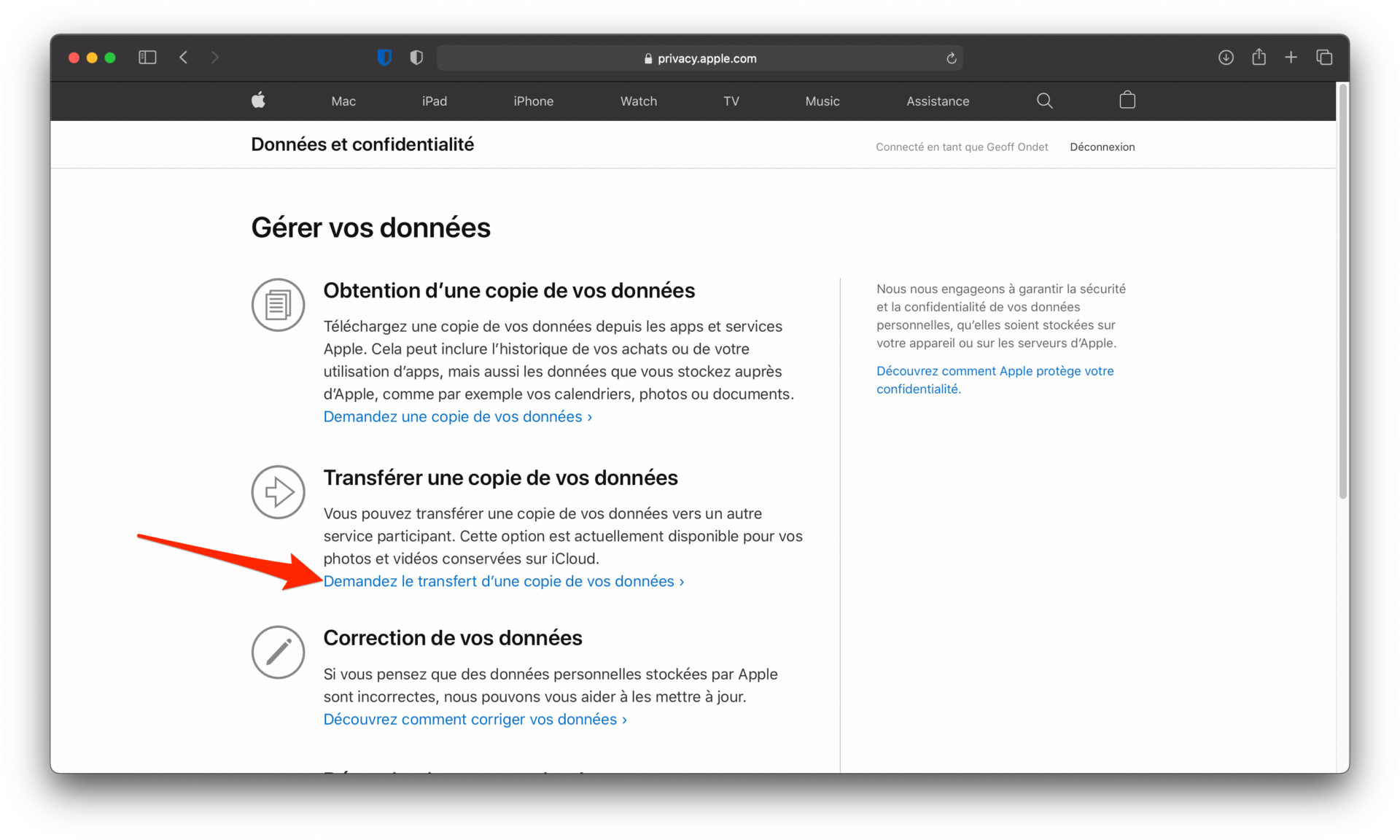
After logging in, click on the Request a transfer of a copy of your data menu within the Transfer a copy of your data section from the main page.
3. Select your data and start the migration
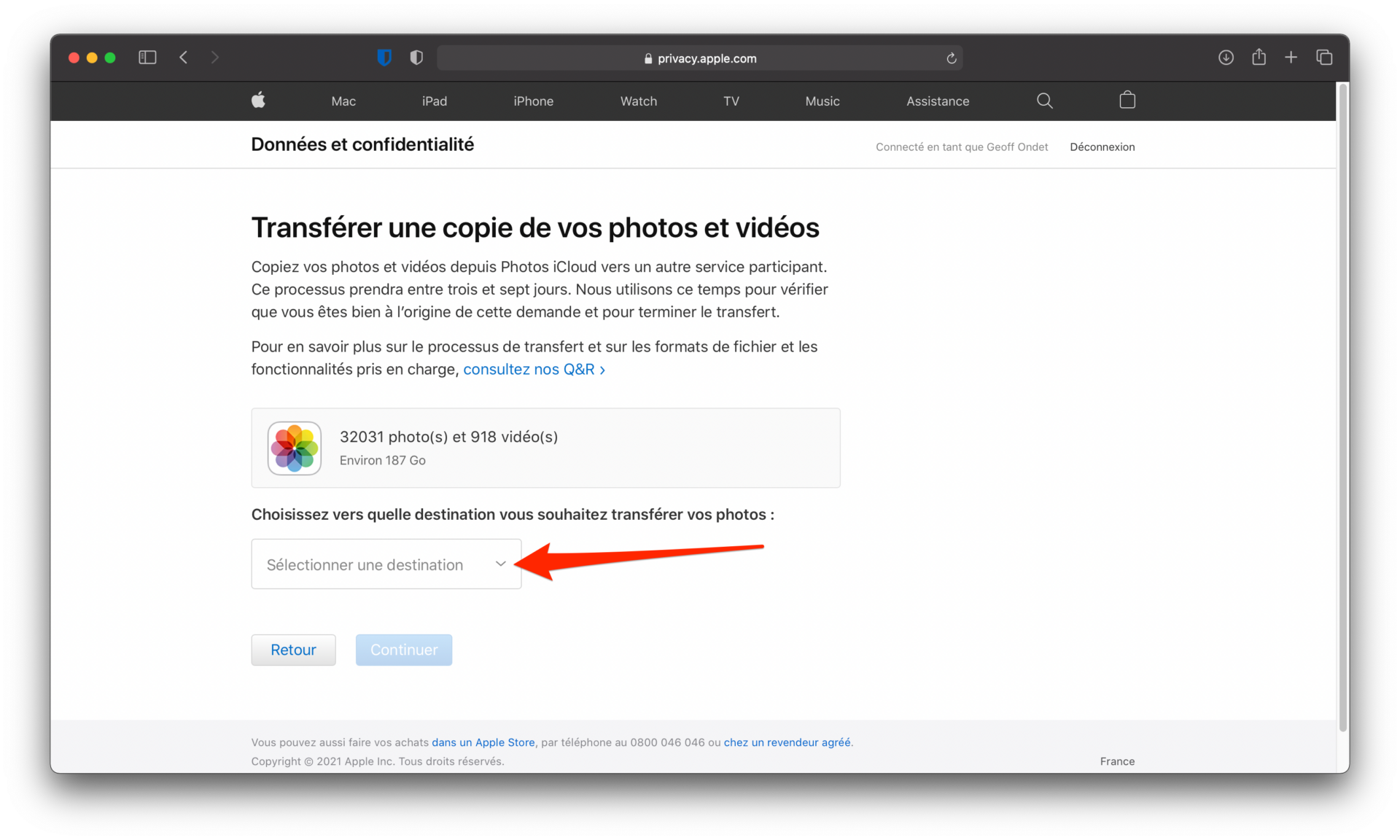
From the Transfer a copy of your photos and videos page, click the Select a destination drop-down menu to choose the service to which you will start migrating your data.
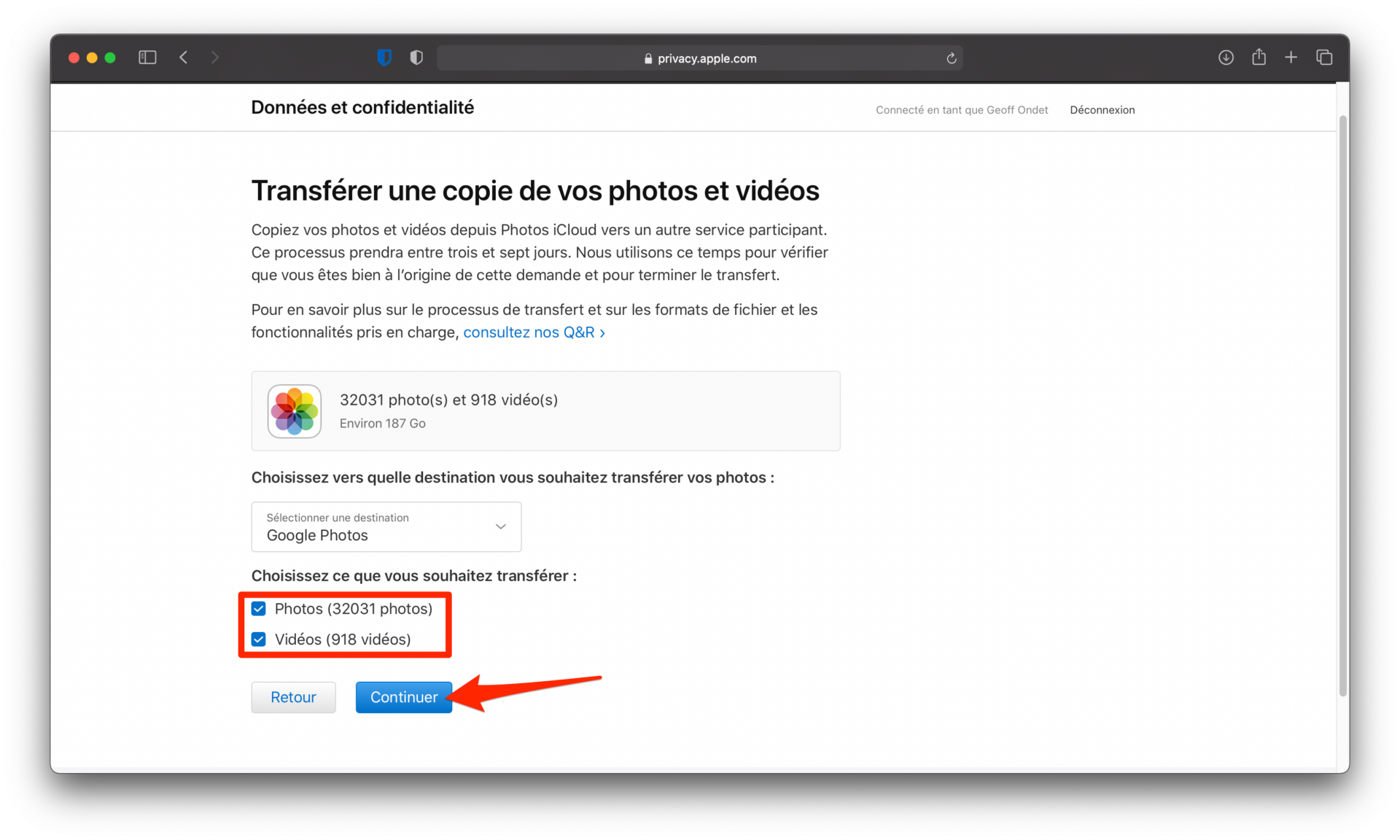
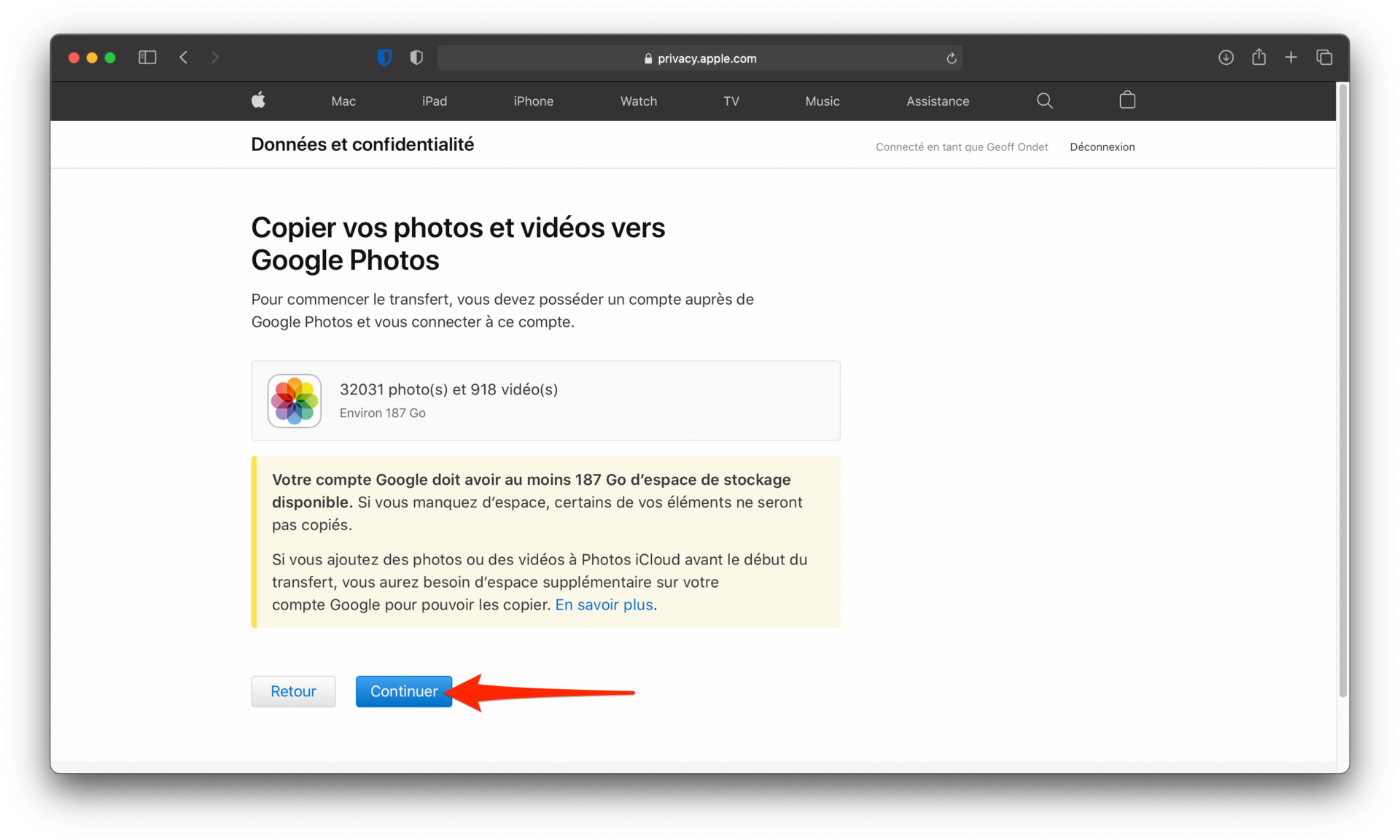
For now, only one option is available: Google Photos. Select it, then check the items (Photos and/or Videos) you want to transfer to Google Photos. Then click on the Continue button.
Apple should display an alert that Your Google Account must have at least X GB of available storage for the transfer to complete successfully.
Make sure you have enough space on your Google account (for example by subscribing to a Google One offer) and click on Continue.
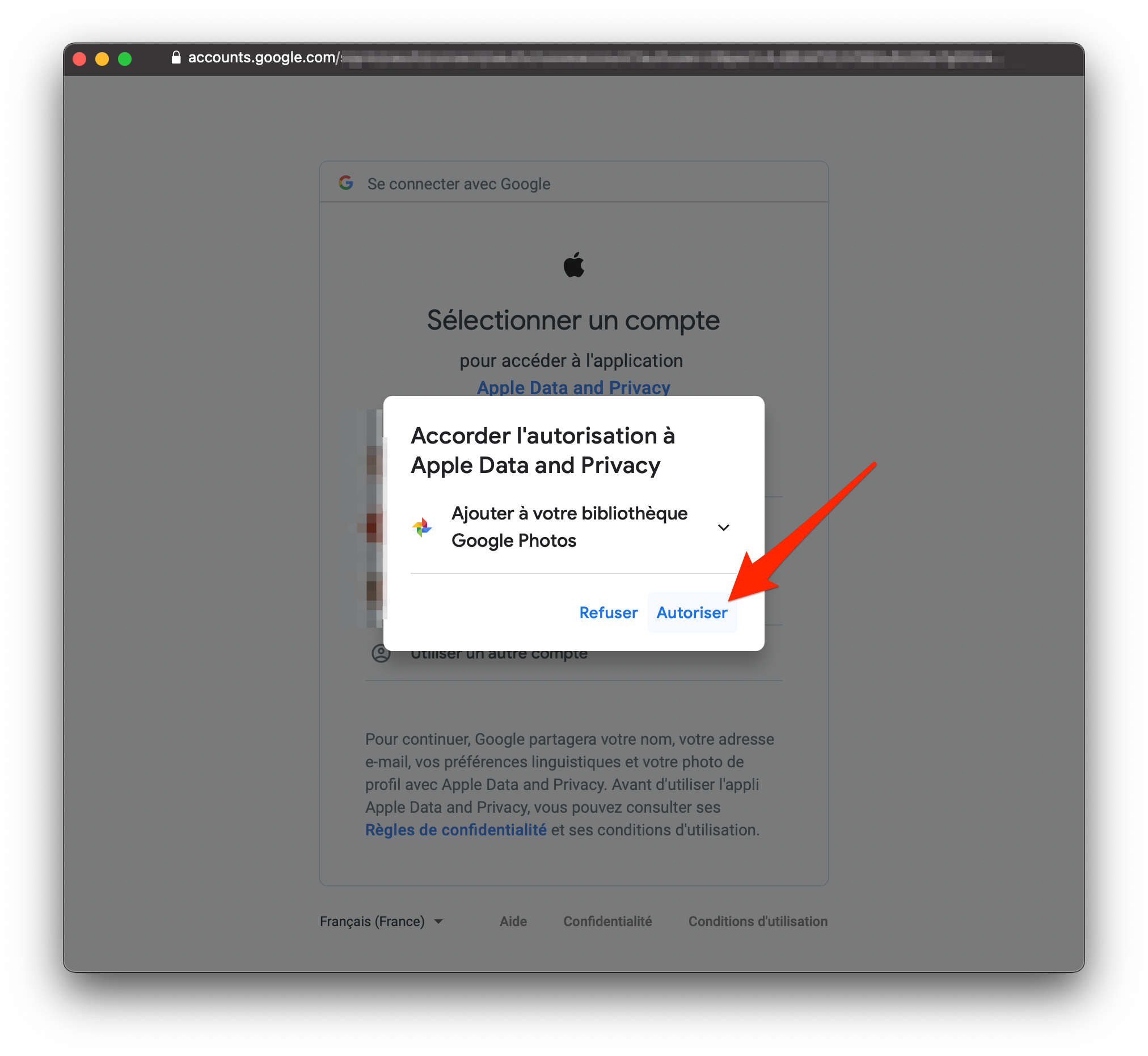
A window for logging in to your Google account opens. Sign in to your account and click Allow to Grant Apple Data and Privacy permission to add content to your Google Photos library.
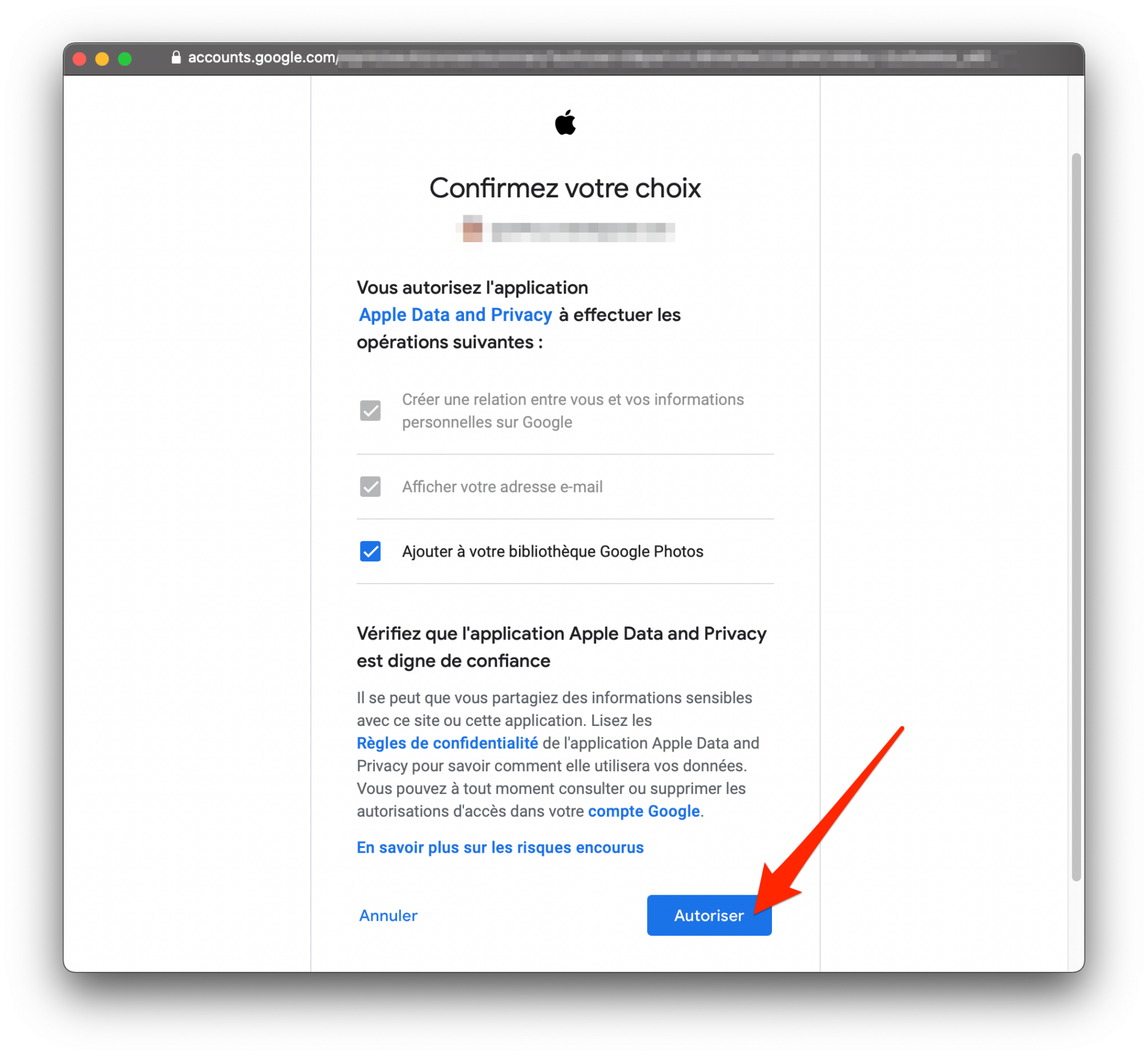
Then confirm your choice by clicking the Allow button again.
The transfer process begins and can take three to seven days to complete. Apple will send you an email to the email address associated with your Google Photos account to notify you when the migration is complete.