
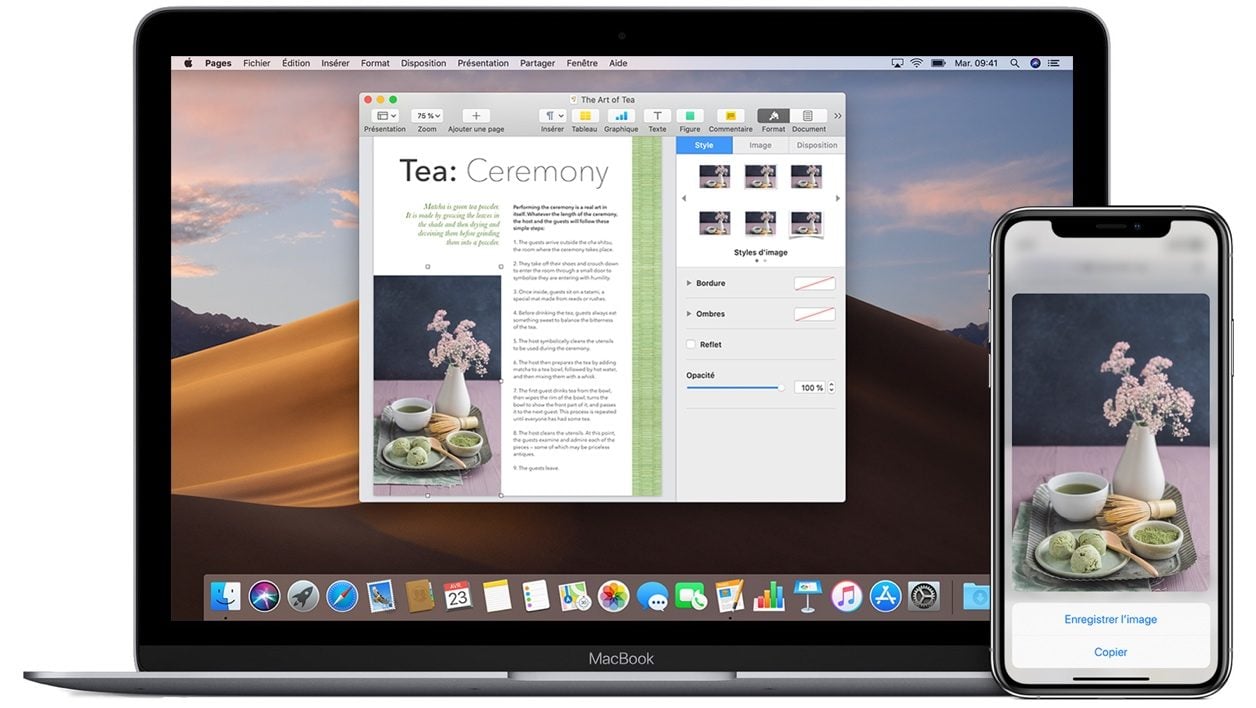
Apple offers a universal clipboard feature on its Macs, iPhones and iPads, allowing you to copy content on one device, paste it and use it on another. Here’s how to use it.
You may not know this, but if you have multiple Apple devices, you can copy text, images, photos, and videos from your iPhone to paste on your Mac and vice versa. To work, this universal clipboard available on iPhones running iOS 10 and later and Macs running macOS High Sierra and later, however, requires some prerequisites.
It will indeed be necessary that each device is connected to iCloud with the same Apple account, that they are close to each other, that Wi-Fi and Bluetooth are activated on each of them, and that the Handoff function is also enabled on affected iPhones and Macs. Learn how to use Universal Clipboard on your iPhone, iPad, and Mac.
1. Enable Handoff
As we have just explained, Apple’s universal clipboard requires several prerequisites, including the activation of the Handoff function.
To enable Handoff on macOS, click on the Apple menu and go to System Preferences.
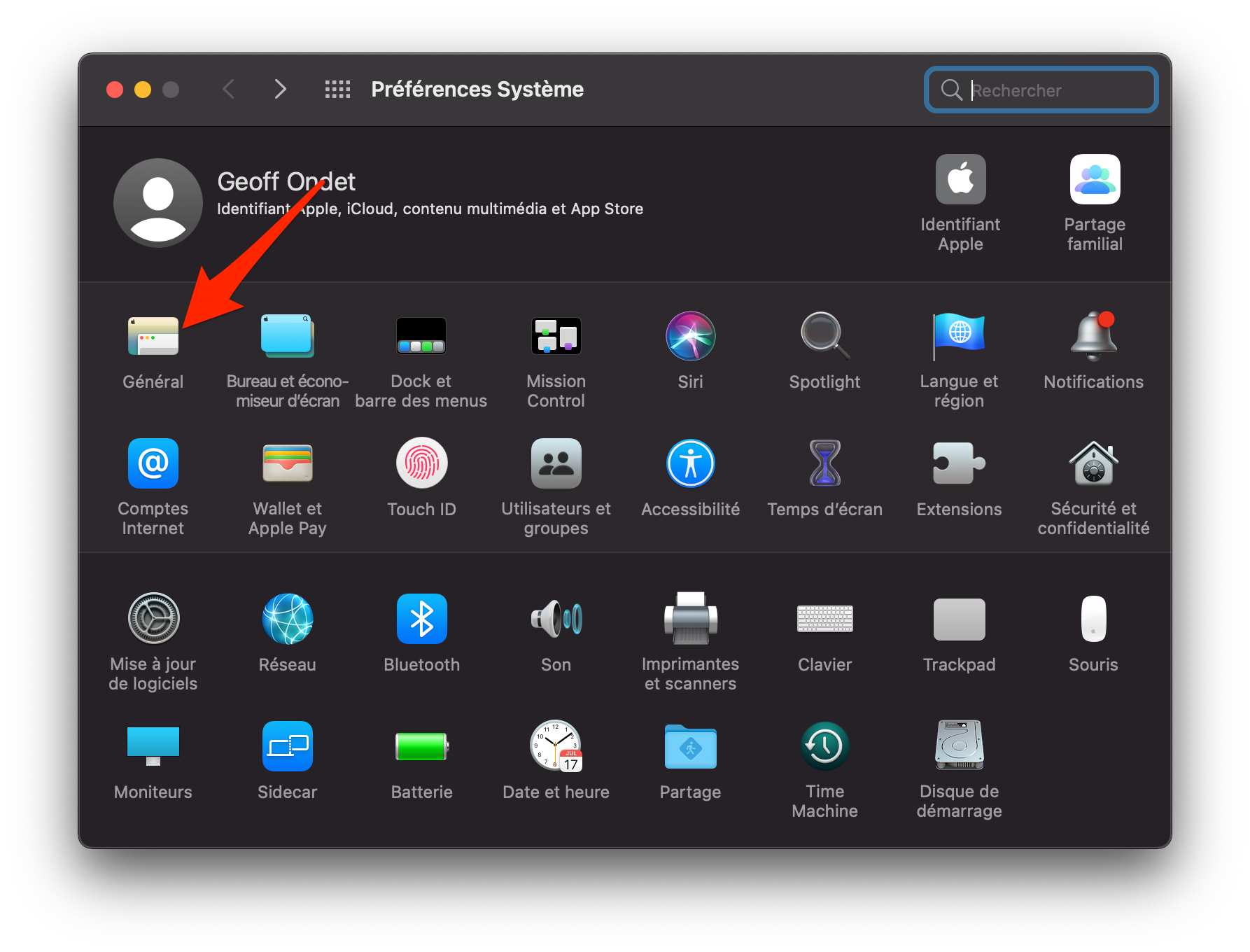
Then enter the General section, and make sure that the option Allow Handoff between this Mac and your iCloud devices is checked.
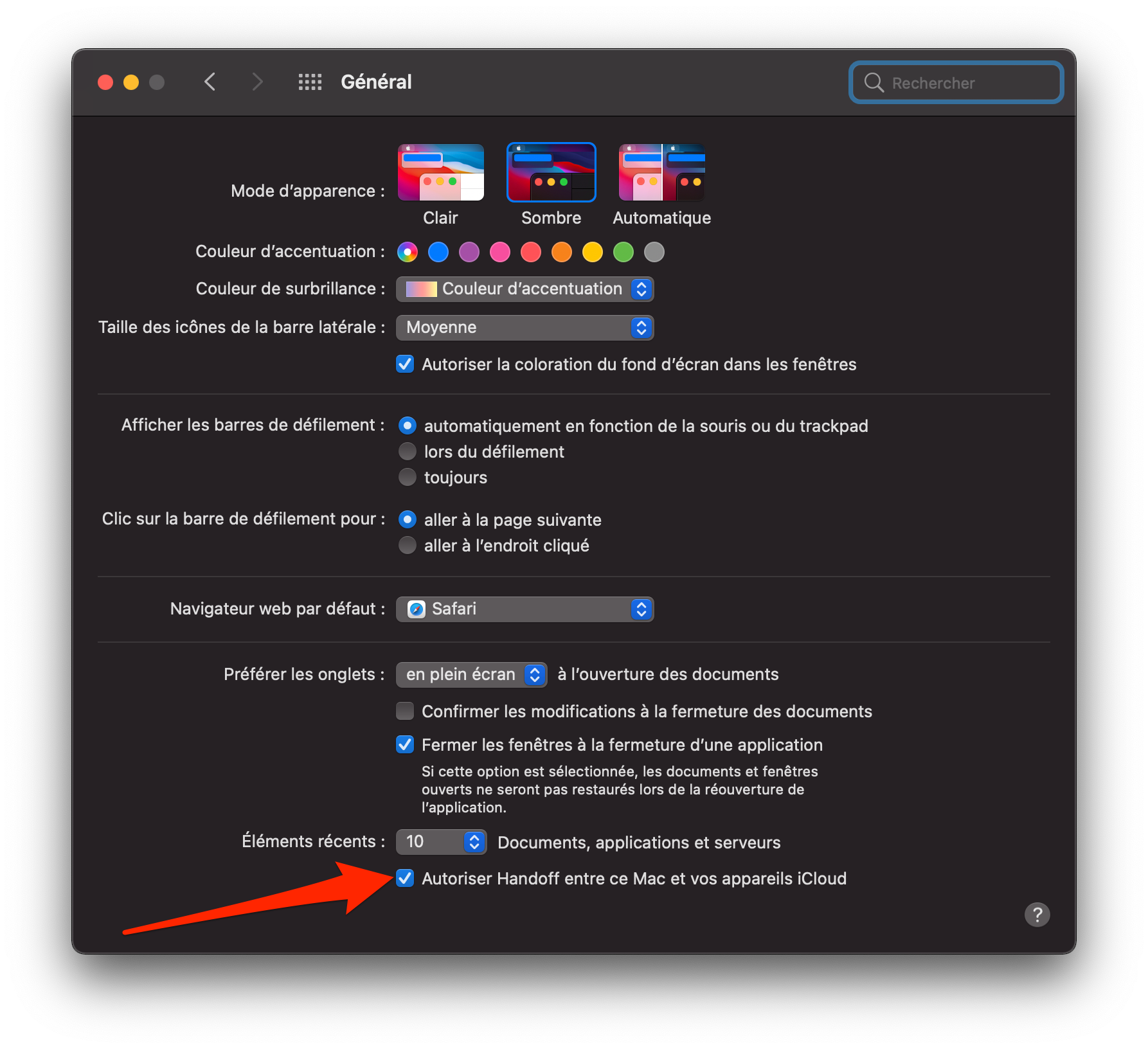
To activate Handoff on iOS, open the Settings, then in General enter the AirPlay and Handoff menu and make sure that the Handoff option is activated.
2. Copy content
Now grab your iPhone, iPad, or Mac, and copy content as you normally do. The content you just copied, stored in the device’s clipboard, and also immediately available in the clipboard of nearby devices.
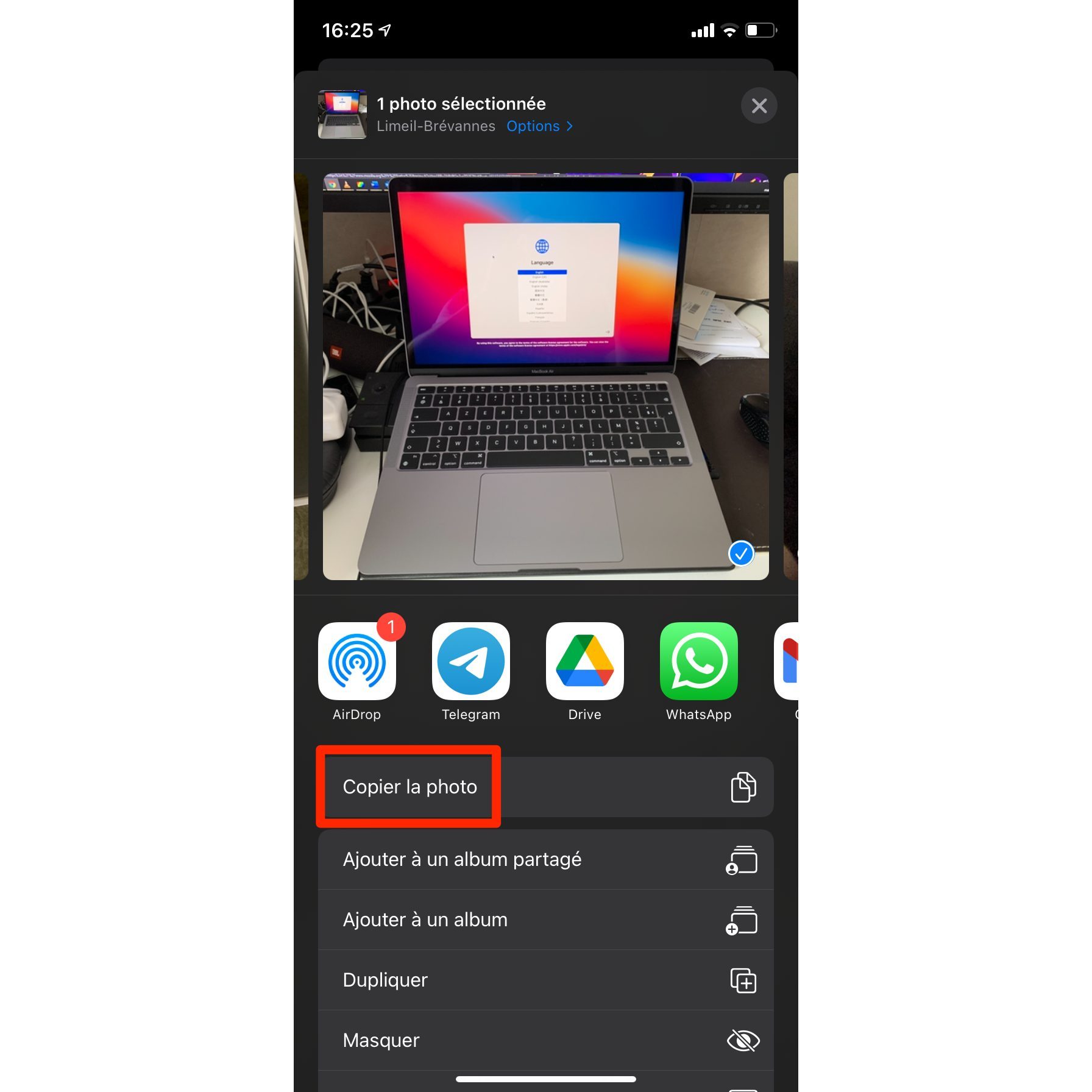
3. Paste the contents of the clipboard on another device
Now take another Apple device in your hands, and open the document, the text field, or the application in which you want to paste the contents of the clipboard. If everything went well, the contents of the clipboard you paste should be the one you just copied to the other device.
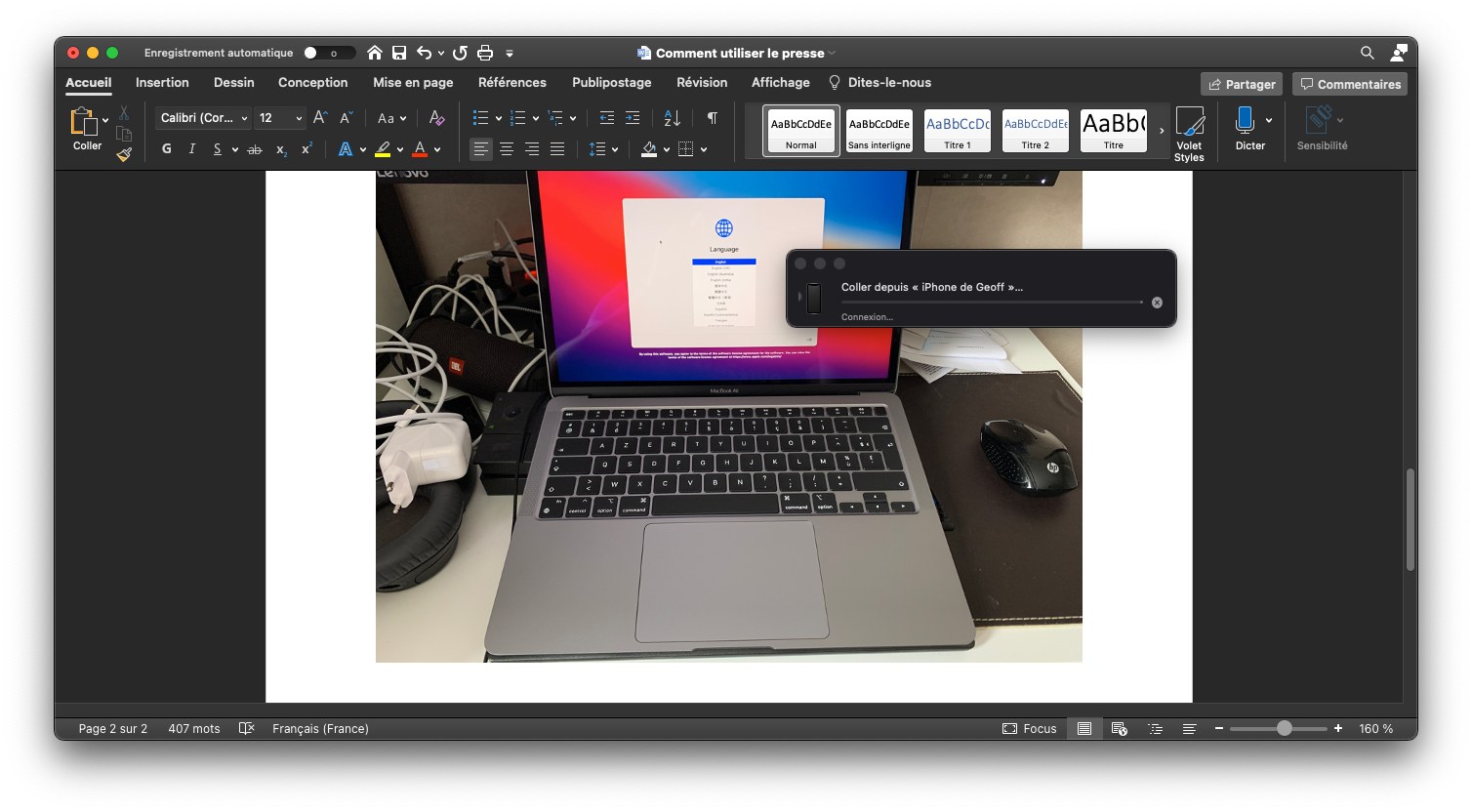
Whether you’re doing this on iOS or macOS, you should see an alert telling you to Paste from “MacBook from x” or Paste from “iPhone from x”.

If this universal clipboard function is very practical, we regret that Apple has not also integrated a clipboard history, as exists for example on Windows, to allow you to easily find several of the latest contents that you have copied.