
Are you ready for the switch? Then it’s time to install Windows 11. What steps does the installation process consist of? We guide you step by step through the Setup of Windows 11 and give you tips on how to best approach the installation.
Dennis Gandasoebrata
System requirementsMake sure that the computer meets the minimum system requirements for Windows 11. In the article “Computer suitable for Windows 11?” you can read all about the requirements of Windows 11. |
UPGRADE OR CLEAN?
Windows 11 is distributed as an upgrade to computers running Windows 10 that meet the minimum system requirements. Windows Update is used for this. As soon as Windows 11 is ready, you will be notified via a notification in the notification area of the taskbar (near the clock).
 |
| Windows 11 is offered to existing computers via Windows Update |
You can also clean install Windows 11 instead of an upgrade. This is useful if you want to start with a clean slate: a clean install only installs Windows and does not look at any existing installation of Windows that you can upgrade and where any existing files (such as your Office documents, photos and videos) are ‘taken’ to  the new environment. You can use the Update Assistant for Windows 11 for this, of which you can always find the latest version at microsoft.com/nl-nl/ software-download. You will download an ISO disk file with which you can start the computer and start the installation. You can think of an ISO file as the virtual variant of a hard drive (or DVD) with multiple files.
As a result, the computer can treat the ISO the same way it would when you plug in a disc or use a DVD. In this article we show you the steps for a complete installation of Windows 11. At the time of writing this article, the ISO has not yet been placed, but we expect this location to be used for this. If the Windows 11 ISO is not available here, please refer to Microsoft’s website. If you opt for an upgrade via Windows Update, the installation work will largely take place behind the scenes.
 |
CHOOSE TIME AND KEYBOARD
In the first window of Windows Setup, you will be asked in which language you want to install Windows 11. In addition, you can specify the desired time and currency here, as well as the keyboard layout. click on Next one and then the button Install now.
PRODUCT ACTIVATION
In the window above, enter the Windows product key. This is required to activate Windows 11. If you do not have the product key to hand or do not yet have it, you can skip this step. Choose I don’t have a product code. Keep in mind that the product key is still needed later, to be able to make full use of Windows 11. See also the box ‘Product activation’ in this article. WINDOWS EDITION
Choose the Windows edition you want to install. It is important to choose the edition for which you have a license. If you choose the ‘wrong’ edition in this window and only enter the product key later, you will not be able to activate Windows 11. Click Next. In the next window, read the license terms and choose if you agree I agree to the Microsoft Software License Terms. Then click Next one.
INSTALLATION TYPE
You can install Windows 11 in two ways. The first option – Upgrade – ensures that Windows 11 is installed and existing files, settings and programs are transferred to the new environment. The second option – Amended – only installs the operating system. Any files, programs and settings will not be transferred. INSTALLATION LOCATION
Specify the location where Windows 11 should be installed. This option is especially useful if you have multiple drives or partitions. Click on the desired disk. Basically that is your C: drive. In addition, here you have the option to create a new partition within Unallocated space on the disk: click New and specify the desired size of the partition. Confirm with a click on To apply. Then click on Next one. In the following screens, the installation files are prepared and the computer is restarted.
LOCATION DETAILS
After the computer has restarted, the graphical part of the installation will begin. In this screen, Windows 11 asks what region the computer is being used in. Check the selected region and click Yes if it is correct. In the next two screens, Windows will ask for the keyboard layout (again) and you can add a second keyboard layout. click on To skip if you don’t need this. SPECIFY COMPUTER NAME
During the installation of Windows 11 you can give the computer a name. This can be a maximum of 15 characters and must meet certain conditions, which you read in the installation screen. The computer name is used, among other things, for identification in a (home) network. You don’t have to enter the name now: Windows will choose its own name. You can always adjust these afterwards via the Windows settings window.
 INDICATE USE
Setup asks how you will use the computer: for personal use or for work or school. This setting determines the extent to which the computer can be managed by others, such as within a company. For home use, choose Set up for personal use. Then click on Next one.
SPECIFY MICROSOFT ACCOUNT
In this window, Windows 11 asks for your Microsoft account. You have this if you created it for Windows 10 at the time or use it for another Microsoft service, such as Office, Xbox or OneDrive. Are you installing Windows 11 Home? Then a Microsoft account is required. For other Windows 11 editions, you are not forced to use a Microsoft account, but you can still use a local account to sign in to Windows. In the next screen, Windows will ask you to create a PIN code, which you can use to unlock the computer.
ONEDRIVE BACKUP
If you have specified a Microsoft account, Windows 11 will check whether a OneDrive backup is available. This contains any user settings and files. If you do not need to restore that data, choose Set up as new device. If you do want to use the backup function, choose To recover. click on Next one.
PRIVACY SETTINGS I
A large portion of the Windows 11 installation is devoted to specifying privacy preferences. In the first screen you indicate whether Windows and the programs may request your location, for example to show location-specific information such as the weather forecast. Choose new if you don’t appreciate this. The second window asks if you want the function Find my device want to be able to use if the computer is lost. This, of course, requires the machine to share location data.
 PRIVACY SETTINGS II
In the third screen of the privacy questions you indicate whether diagnostic user data may be shared with Microsoft. The option Including optional shares most of the data with Microsoft. This option is also required if you want to participate in the Windows Insider program to access early testing versions of new Windows versions. If you prefer to share as little Windows 11 is available with existing computers via Windows Update and if you do not need to participate in Windows Insider, you can choose Required only. In the windows below you indicate whether data about your handwriting may be shared with Microsoft and/or whether any user data may be used to show advertisements. In the last window, Windows 11 asks whether apps can use a so-called advertising ID, with which they can show personalized advertisements. If you don’t need these ‘options’: choose anywhere new.
‘EXPERIENCES’?
Windows asks in this window for what purposes the computer will be used, for example entertainment, Family and Commercial. You can select multiple activities. Answering is not obligatory: although we have not yet encountered this in practice, these answers can be used for displaying advertising. Choose To skip if you don’t want to answer.
ACTIVATE BACKUPS
Do you use OneDrive or plan to do so? Then it is wise to choose Back up my files with OneDrive. This setting ensures that the contents of the desktop, but also of the folders Documents and Pictures is synchronized. That way you always have a backup on hand. click on Next one. In the window below, Windows shows an offer for Microsoft 365. If you already have a license that you want to use, then choose I have a product code. Do you not need the offer? Choose No thanks. COMPLETE
The finish line is in sight. In the final stage, any installation files are downloaded and extracted. A visual tour highlights the highlights of Windows 11: use the arrow keys to scroll between the different screens. In this phase, the computer is rebooted one more time.
CONFIGURE
After the machine restarts, the Windows 11 login screen will appear. Sign in with the user account. After this, the last user settings are configured. This process may take several minutes.
 READY
READY
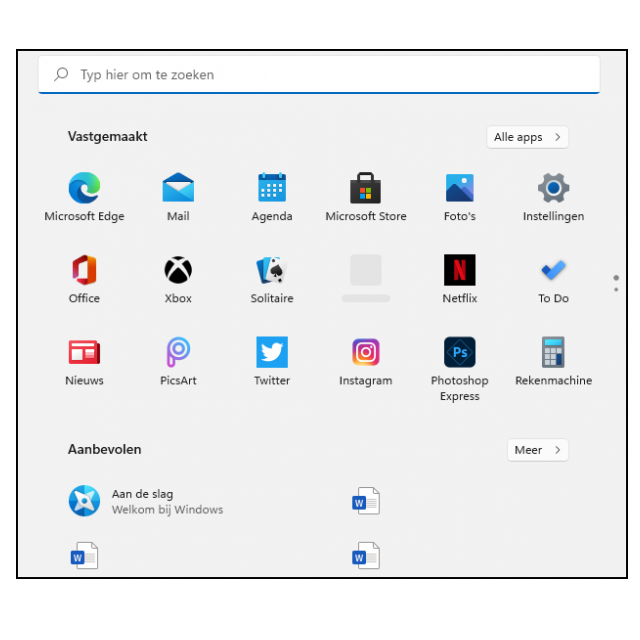
The installation is complete and the desktop and Start menu to show up. Any existing settings and programs are visible in the new environment. If you have chosen to start with a clean slate, you can now install programs and start putting personal documents in the right locations in Windows 11.