
This helper makes it easier to work with your computer and the connected screens.
Dennis Gandasoebrata
Nirsoft is known for useful, compact programs that give you more control over Windows. This also applies to MultiMonitorTool. This helper makes it easier to work with your computer and the connected screens
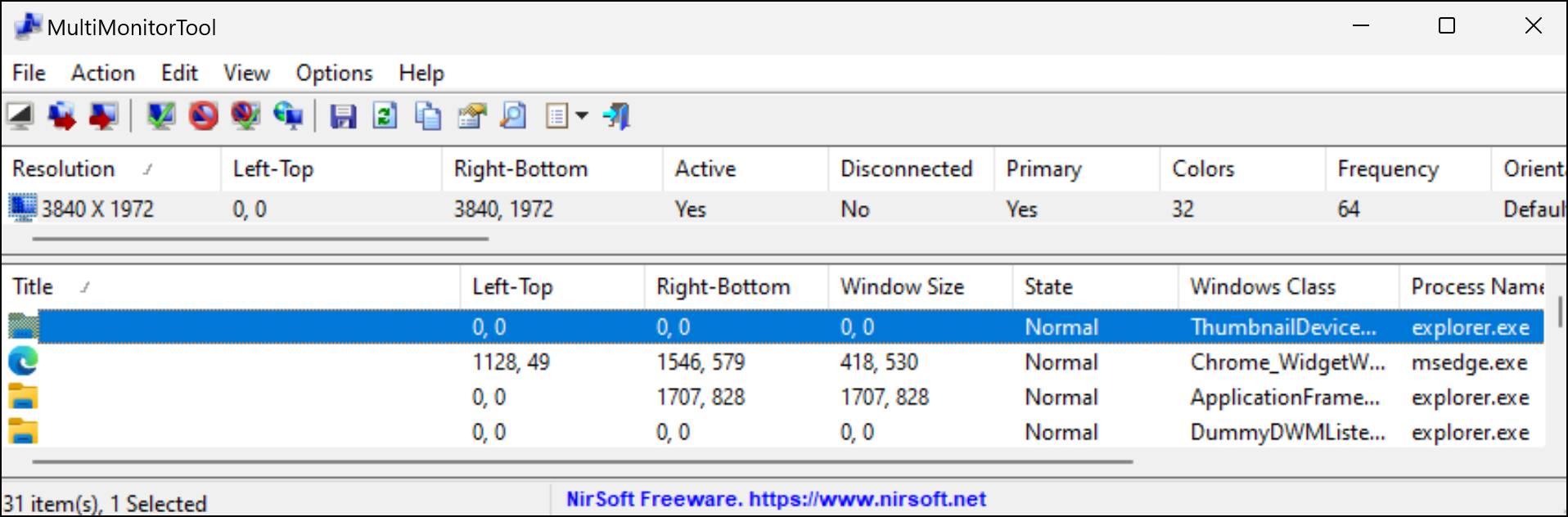
The program consists of two parts. In the top section you will find an overview of all screens connected to the computer. Select a screen to quickly see which windows are open on the screens in the bottom screen. Useful in environments where you work intensively with multiple screens and need an overview per screen. You can also select the windows in turn via the option Move window to primary monitor or Move window to next monitor move to the primary or subsequent display.
If you want to temporarily block a screen, you can select it from the list and use a keyboard shortcut (Ctrl + F6) temporarily disable. Additionally, you can select a screen and then activate it as the primary display. You can also use a keyboard shortcut for this (Ctrl + F9). There is also a preview window, where you can see the display of each screen, even if you have turned off the screen in question. If you have adjusted settings or preferences, you can save them in a profile. You can recall the configuration profile at a later time, including monitor position, resolution, color depth and other screen settings.
MultiMonitorTool (www.nirsoft.net/utils/multi_monitor_tool.html)

Price: free
System requirements: Windows 10, Windows 11
Language: English