
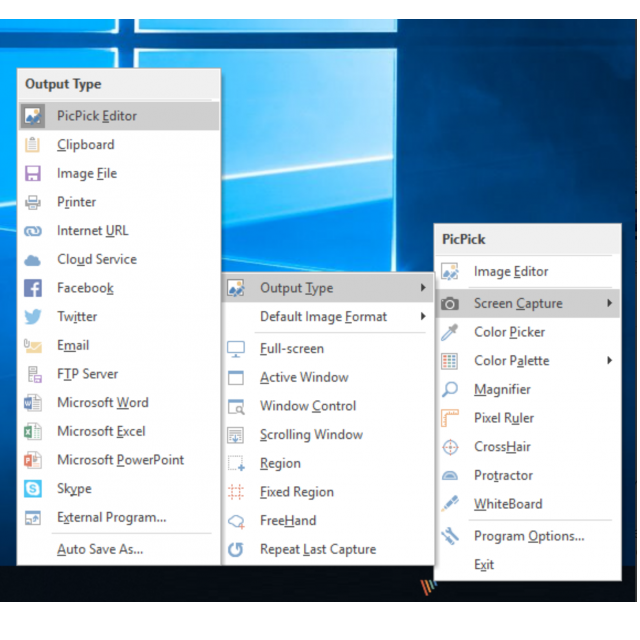
Tired of the standard functionality of Windows’ built-in Snipping Tool?
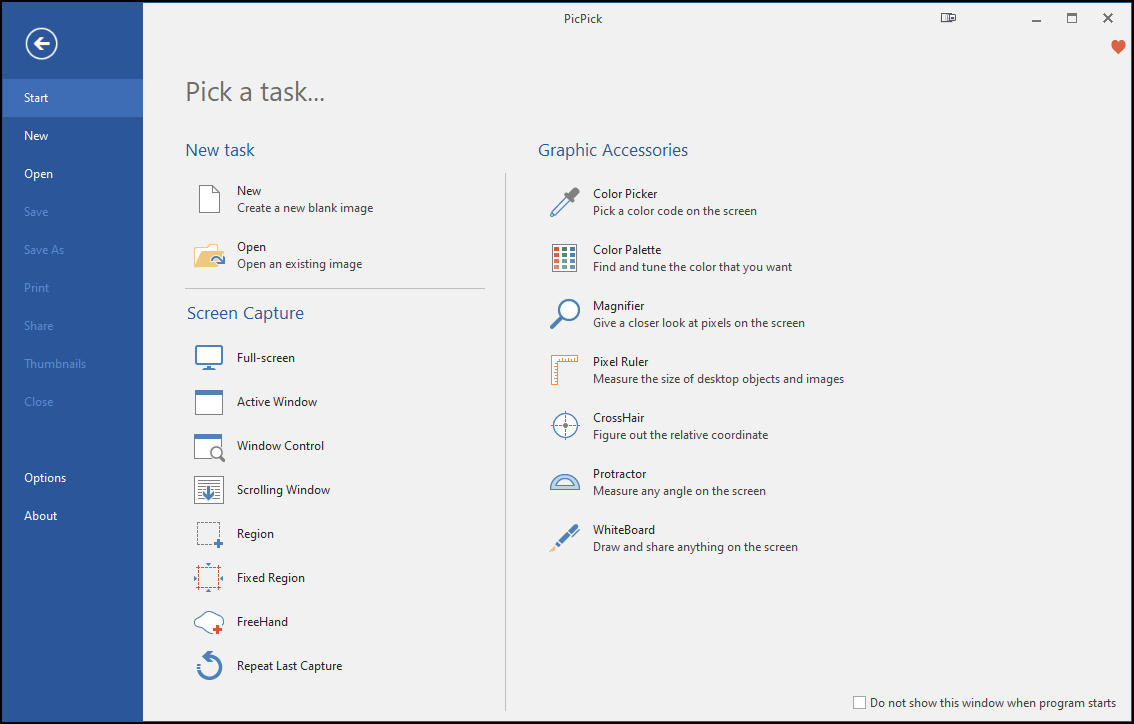
PicPick also lets you take screenshots and then perform more actions with them than offered by the built-in Windows counterpart. Once you’ve captured a screenshot, you can enhance it and apply effects to the image. For example, you can add a watermark, but also add shadows and frames. The difference lies mainly in the editing options: although PickPick does not offer the amount of editing functions as, for example, Photoshop, you can adjust the screenshots to a large extent.
Thus we find the option to adjust the color saturation of the images, change the color balance and ‘improve’ the image, for example by sharpening the content. The Graphic Accessories section contains a number of tools, including a digital ruler and a viewfinder that allows you to read the pixel coordinates within a screenshot. You can easily share screenshots and make notes via the whiteboard function.
When saving and sharing the image, you can choose from different channels. For example, you can share via online cloud services (such as OneDrive and Dropbox), but also publish directly on social media such as Facebook and Twitter. The makers have looked closely at Microsoft Office for the construction. If you are familiar with this, you will also find your way around PicPick relatively quickly. You can use the program for free for home use.
Product: PicPick, picpick.app

Pros:
* editing options
* share via different channels
* trusted (Office) user environment
Cons:
* ads in free version