

Mac computers are not necessarily known for their generous standard storage space and buying extra memory is expensive. Do you keep getting the threatening message ‘The disk is almost full’? Then it’s time for a major clean-up.
Edited by Arno Beuken
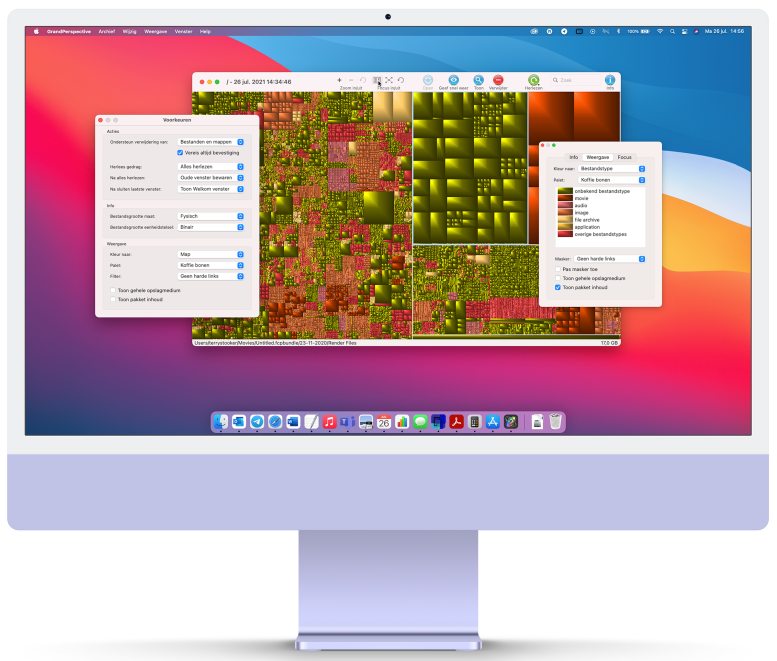
It’s never wrong to give your Mac a thorough sweep and delete unnecessary files. But where do you start? In Storage Management you can see which files take up the most space, but this doesn’t work very intuitively. Parts as System and Other take up a lot of space, which you cannot immediately do anything with. Fortunately, there are better alternatives, such as the Dutch-language GrandPerspective. This program may look a bit overwhelming at first glance, but follow the steps and you will quickly clean up your Mac.
DOWNLOAD AND INSTALL
If you want to download the app for free, go to pcactive.nl/grandperspective and click on Download now. On that same page, you’ll find a link to Apple’s App Store, where the program is available for purchase for $2.99. With this you support the Dutch developer.
Once downloaded, open the dmg file and drag the GrandPerspective icon into your Apps folder. Open the program, select Macintosh HD and click Read folder† After about a minute, your Mac will be scanned and the results will be displayed visually, see image 1. The larger the rectangle, the more space will be taken up. Move your cursor over a block to see exactly what kind of files are involved.

DIVIDE AND COLORS
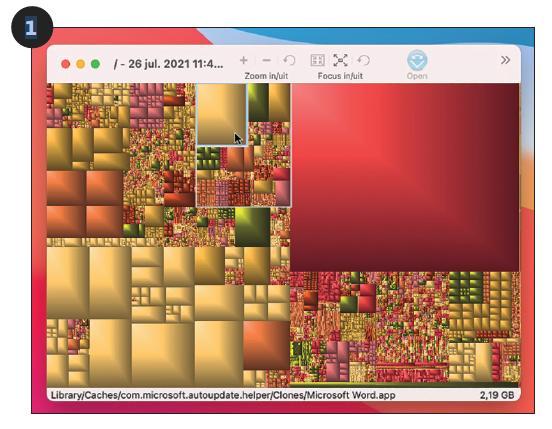
The large area that immediately catches our eye is, for example, the library of the video editing program Final Cut Pro. But to throw it away completely now… Click on Info and go to the tab Display† Click here option Show package content on (see Figure 2). The large area is now divided into smaller parts, because the library again consists of different parts. Bee Colour to we choose File typeso you can immediately see what kind of file is occupying the space.
 |
|
Member BenefitThis article is |
FOCUS
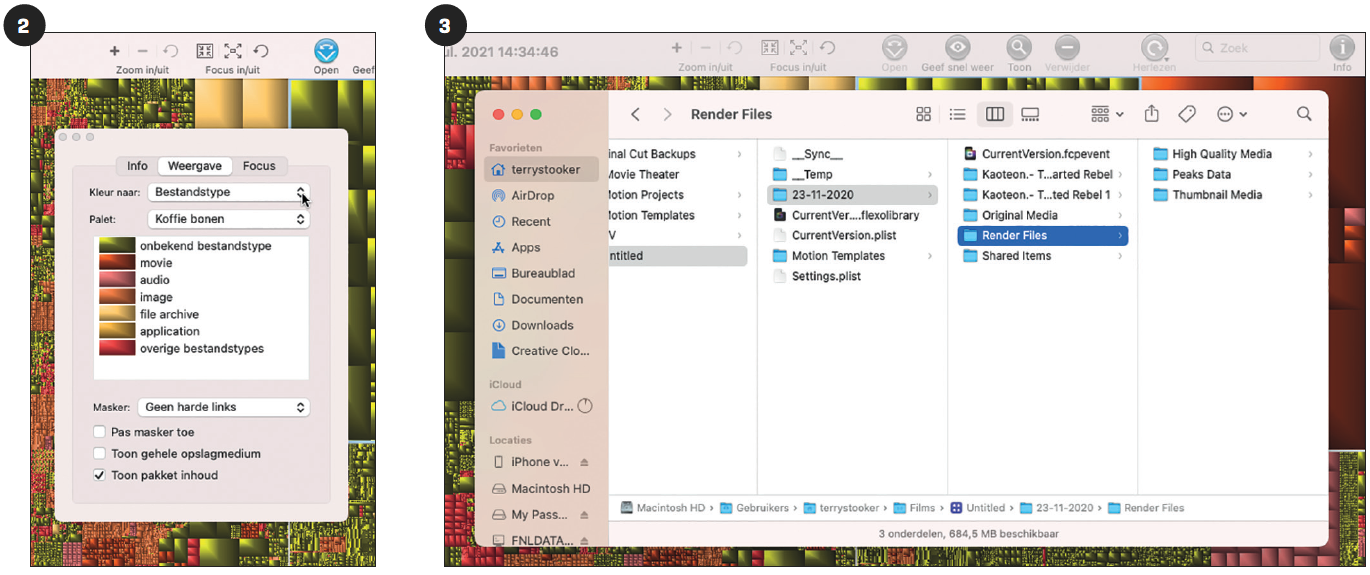
The Focus in/outbuttons are very important. The smallest focus allows you to select at the file level and thus select each individual box. Press the spacebar or Display soon for a quick view of your selection. Or click on Focus off to move the focus to the parent folder each time. For example, our Final Cut Pro library can ultimately be divided into Original Media (13.6GB) and Render Files (17GB).
Note: Sometimes programs do not save files under logical names. Use these buttons to find out what a file actually means: Display soon works as the quick view and via Show view the file in finder† This way you can immediately see what it belongs to and whether you want to throw it away.
To delete or not to delete?What you do and don’t remove is largely left up to the user by GrandPerspective. In general, only delete large files that you know for sure what they are or do. Although you can never delete really essential system files (just like that), another good rule of thumb is: if you have to enter your password to delete a file, double check whether you want to do this. |
REMOVE
Our Final Cut Pro video project was already finished and exported, so those render files should be gone. You do this manually by pressing Show clicking and the folder from finder (see image 3) to the Trash. But it’s just as useful to dispose of files through GrandPerspective itself. The Removebutton is gray by default. In the Preferences (test cmd + comma) of the app you set the option Support removal of on Files and Folders†