
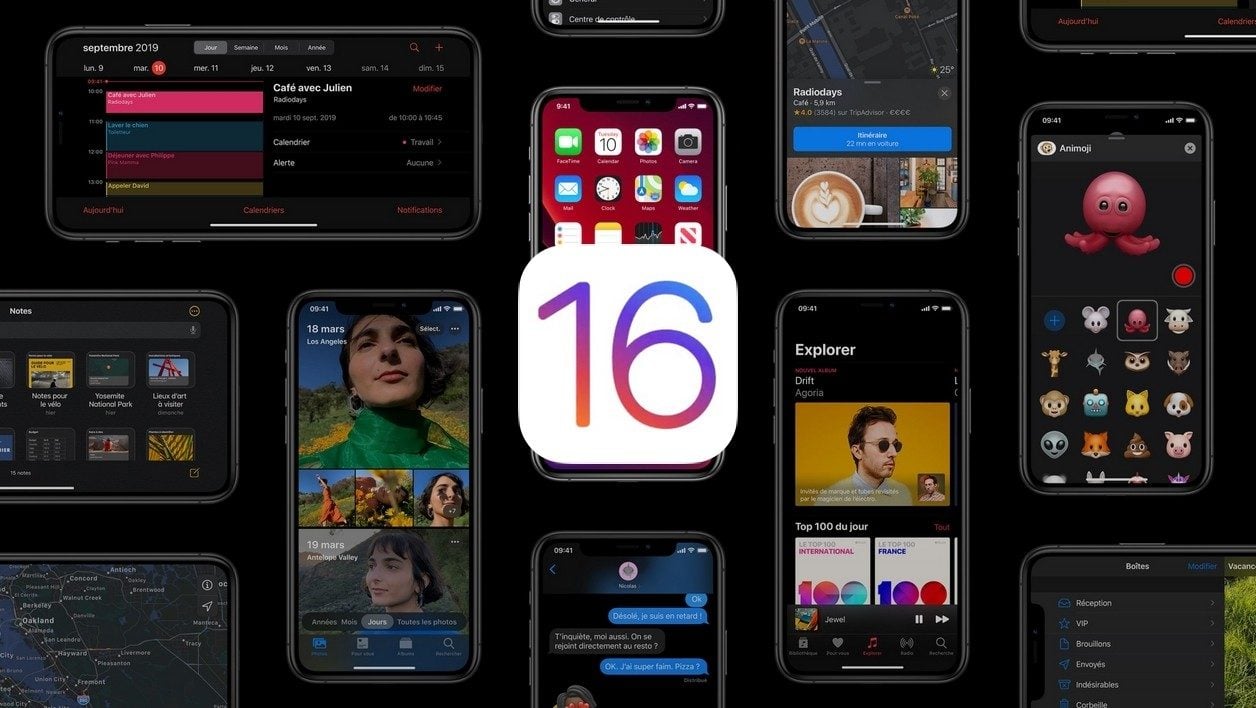
© Apple
Apple has just released the first public beta of the upcoming iPhone operating system. Find out how to install it today.
That’s it. After three betas of iOS reserved only for developers, Apple is opening the floodgates and offering the very first public beta of iOS 16 for download. The next iPhone OS, very rich in new features, should significantly improve the daily lives of users.
Among the most interesting new features, Apple has decided to free the locked screen by offering a multitude of customization options. Other interesting developments, such as the arrival of haptic feedback on the keyboard, the editing of messages, or the possibility of planning the sending of an e-mail, have also been integrated.
If these new features will only be officially available in a few months, when the stable version of iOS 16 is released, you can test them without further delay by installing the first public beta of iOS 16.
The process is simple since it only requires one thing: that you enroll in Apple’s beta software program. Keep in mind, however, that installing a pre-release version of iOS is not without risk. Since the operating system is still under development, it can still be subject to nasty bugs and also prevent some of your applications from working. Moreover, as before any installation of this kind, it is very strongly recommended to make a backup of all the data on your iPhone, using iCloud, for example.
If you are prepared to accept these risks, you will only need a handful of minutes to install it. Here’s how.
@01net.com How to install the iOS 16 public beta? #apple #iphone #ios16 #tutorial #beta #techtok #tiktokacademie
1. Join the Developer Program
Open Safari on your iPhone and go to the dedicated page of the Apple Beta Software Program. Tap the Sign Up button and sign in using your Apple ID.
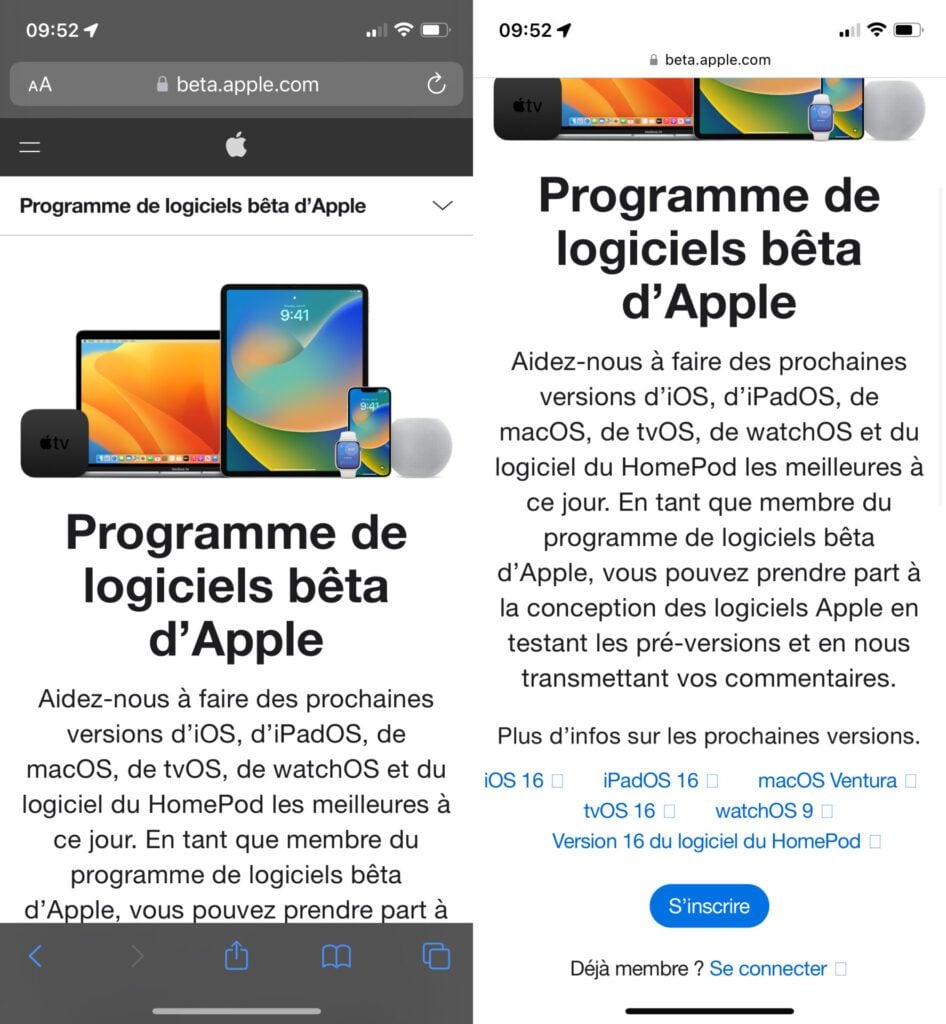
2. Enroll your device
After logging into the iOS 16 Beta Portal, on the Guide for Public Betas page, scroll down the page and tap Enroll your iOS device.
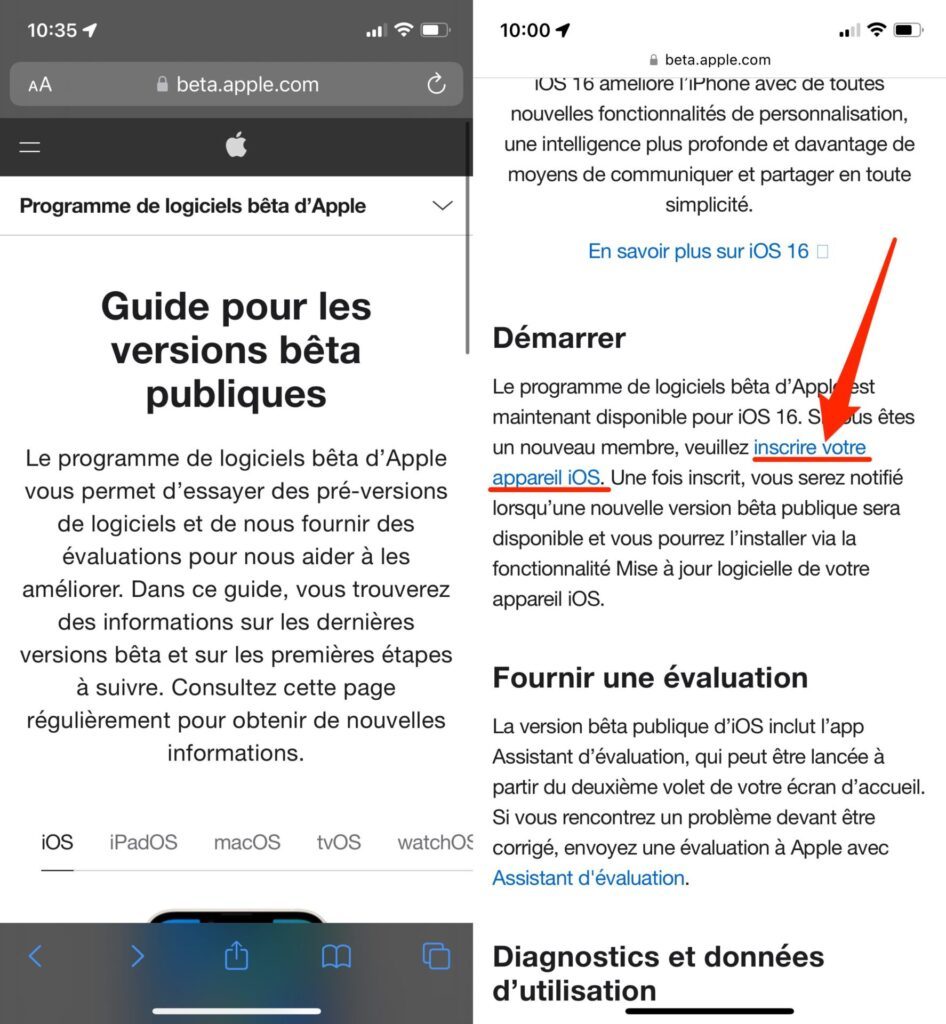
3. Download the installation profile
Now scroll down the information on the Enroll your devices page to the Install profile line and press the Download profile button. Then tap Allow on the pop-up warning you that the website is trying to download a configuration profile, then choose to Close the pop-up.
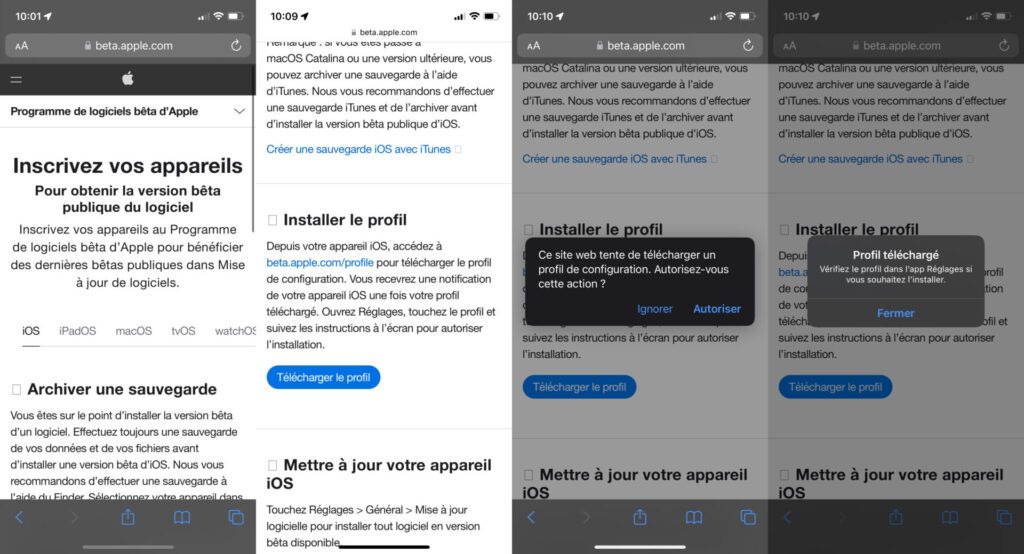
4. Install the configuration profile
On your iPhone, open iOS Settings. Enter the Downloaded Profile menu, and in the iOS 16 Profile page, tap Install. Then validate the installation of the profile by entering the unlock code for your device. Read Apple’s Terms of Service, tap Install in the top right, then tap Install again in the pop-up displayed at the bottom of the screen.
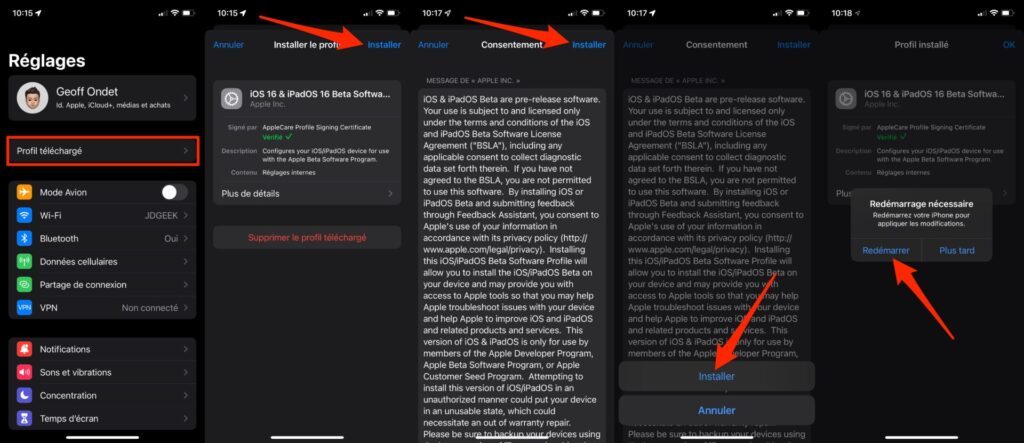
Your iPhone must restart to be able to support the configuration profile you just installed. Press the Restart button.
5. Download and install iOS 16
After your iPhone restarts, open iOS Settings, then in General, enter the Software Update menu. The iOS 16 Public Beta update should then be offered to you.
Press Download and Install and confirm by entering your iPhone unlock code. Be patient now. Downloading and preparing the iOS 16 update can take several tens of minutes.
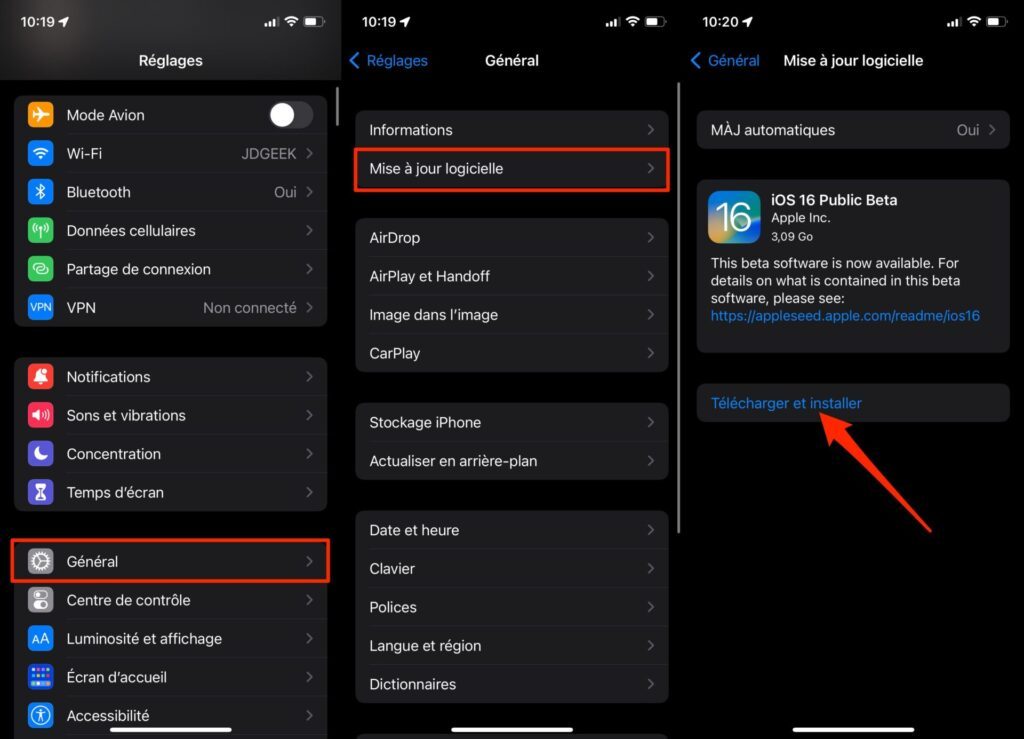
When the process is about to complete, your iPhone should automatically restart to complete the update installation. Once restarted, your iPhone will run on iOS 16.