
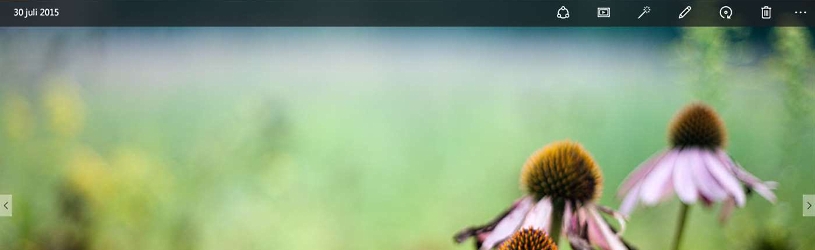
Windows 10 comes with the free Photos app by default. Not only can your photo collection be managed with it. A large number of photo operations can also be performed with it. So that your collection looks tip-top.
Article and course
In this article, we’ll show you all facets of the Photos app in Windows 10. If necessary, also take the online course ‘Managing and editing photos (Windows 10)’.
Launch Photos app
Launch the Photos app via Start > photos. If you are going to use the app a lot, create a shortcut to the app in the Start menu.
Place the app in the Start menu as follows:
- click on Start.
- Right click on photos.
- Then click Pin to Start.
Import photos from a camera or USB stick
Before you can get started with your photos, the images must of course be on your computer. Transfer photos from a camera or USB stick as follows:
- Connect the camera or USB stick to the computer as usual.
- Launch the Photos app.
- Click on the top right Import
 .
. - click on From a USB device.
- The available photos are displayed. Click on the photos you want to import. If you want to import everything, click on Select all.
- If you want to import a selection of photos, click Deselect all. Then click on the photos you want to save.
- click on Import selection.
When all photos have been transferred, you will receive a notification at the top of the screen.
Import photos from another folder
Do you already have photos on your computer but want to make them visible in the Photos app? Then do this:
- Launch the Photos app.
- Click at the top Import.
- click on From a folder.
- Select the desired folder and click Add this folder to Pictures.
- The folder will appear under ‘Resources’. Click on the arrow at the top left to return to the overview window.
The photos from the added folder are now visible. If the added folder itself contains folders that contain photos, they will also be visible in the Photos app.
Upload photos automatically
The Photos app works well with OneDrive, which is also from Microsoft. OneDrive is part of Windows 10, but can also be installed as a separate app on Android devices, the iPad and iPhone and on Mac computers. Put the photos that are on OneDrive in the Photos app like this:
- Launch the Photos app.
- Make sure you are signed in with your Microsoft account. To do this, click on the icon of a doll at the top.
- click on Email address, phone number or Skype name.
- Enter your email address and click Next one.
- Enter your password and click To register.
- Click the three dots icon at the top right.
- click on Institutions.
- Set the slider under ‘Microsoft OneDrive’ to ‘On’ by clicking from.
- Under ‘Photos contains OneDrive content from’, select All folders.
- Click on the arrow at the top left
 to return to the overview window.
It may take some time for the photos from OneDrive to be visible.
Collection, Folders and Albums
When you open the Photos app, your entire photo collection appears. By default, the images are organized by date. Do you want to quickly go to a date in the past? At the top are the most recent photos with the month and year in which they were taken in blue above. For example, “October 2017.” Click on that and all photos will become invisible. You only see months with years in blue. Click on such a period and the photos will be visible again with the selected period in view.
So the collection is the home screen of the Photos app. In addition, you can choose ‘Albums’ and ‘Folders’ at the top. The difference between the two is very simple: folders are existing folders on the computer that you can also find in Windows Explorer, for example. You create albums yourself in the Photos app and do not exist outside of it. It is possible to save an album in OneDrive (which Microsoft calls uploading) after which it also becomes a folder.
Create an album
Bundle photos of, for example, a vacation in an album. That’s how it works:
- Launch the Photos app.
- Click on at the top Albums.
- click on New album.
- Click on the photos you want to add to the new album.
- Click on the top right To make.
- Give the album a title by clicking Album and type the title.
- Click on the top right Ready.
Options for a photo
You can do all kinds of things with the photos in the Photos app. You can enhance, edit, rotate or, for example, share them. To do this, select a photo (by clicking on it). Some icons are now visible in the horizontal bar at the top:
- Magnifying glass
To make the image bigger or smaller - Garbage can
This will delete the photo from your computer. Gone is really gone. - Favorites
Select the photo as favorite. - To spin
Rotates the photo 90 degrees clockwise. - crop
Crops a photo. Read here how that works. - Edit and create
This opens a range of editing options. We’ll discuss them later in this article. - To share
This allows the photo to be emailed to friends or acquaintances, among other things. - To print
Allows you to print the photo. - The three horizontal dots provide more options, including to play a slideshow of all photos in the folder or album.
Edit photo: easy enhancement
Are you not completely satisfied with a photo? The image is still editable. Select a photo (by clicking on it) and click Edit and create > To process. There are three options at the top:
- Crop and rotate
Click on this option, then grab one of the white dots that have appeared in the corners and drag to the desired size. - Filters
With a filter you can quickly create a certain effect over a photo. The program can also improve the photo by clicking Improve your photo. If necessary, adjust the result further. Click on the slider under ‘Enhance your photo’ and hold down the mouse button. Move the slider left or right. Release the mouse button. - Modifications
click on To adjust to other options to enhance your photo:- light
Makes a photo lighter or darker. - Colour
Adds more or less color. - Brightness
Gives the entire photo more or less contrast. - Vignetting
Darkens or lightens the edges of the photo slightly to give more emphasis to the center of the photo. - spot fix
With this option, small spots and disturbing elements in the photo can be removed. - Red eyes
Flash can cause the well-known red-eye effect. Remove them with this option.
- light