
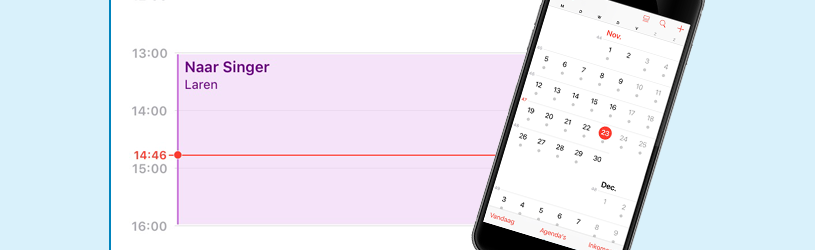
Use the Calendar app on the iPhone and organize your appointments clearly. So you always have them at hand.
Calendar app for iPad
In this article, we’ll discuss the Calendar app for iPhone. The app has the same functions on the iPad, but looks slightly different on the larger screen.
Different calendars
In the Calendar app, people can manage multiple calendars. Think of a calendar that is linked to an account from iCloud, Gmail or Outlook.com or a calendar that is only on the device itself.
Calendar linked to an existing account
With an iPhone, you also have an Apple ID. This allows you to use various services from Apple. Think of downloading apps from the App Store. This account also allows you to use the iCloud calendar. You can also see this calendar on other devices where you sign in with your Apple ID.
You can also have an email address with an associated calendar function. For example, a Google calendar with a Gmail address. If you have linked the Gmail address to the iPhone, you can enable the calendar so that it is also visible on the iPhone. If you have not yet linked an e-mail address but would like to, read the article ‘Setting up e-mail on the tablet and smartphone’.
Make sure that the calendar of an existing account can be used in the app:
- Tap on Institutions.
- From iOS 14, tap agenda > Accounts. If you have iOS 13 or earlier, tap Passwords and Accounts.
- Under ‘Accounts’ are the accounts associated with the device. For example Gmail or iCloud. Tap the account whose calendar you want to manage.
- If the ‘Calendars’ option is on the screen, then the account has a calendar function.
- If the slider behind it is green, the calendar is enabled. If not, tap the slider.
Calendar on the device itself
Do you have no accounts linked to the iPhone or have you disabled the calendar function for a reason (the slide behind ‘Calendars’ in the steps described above will be gray)? Then use the calendar on the device itself. This is enabled by default.
Year, month or day view
We dive into the agenda.
- Tap the app agenda.
- You will see a year view, a month view, or a day view. Switch between these views by tapping . at the bottom left Today, and tapping the month or year in the top left.
- The current day is circled in red.
- View from which accounts the calendar has been added. Tap at the bottom Calendars.
- Tap on Ready to close this window.
Add new appointment
To add a new activity:
- Tap the day the event takes place.
- Tap the plus sign at the top right.
- From top to bottom, determine all the attributes of the new activity. Type the name of the activity.
- Tap the “Location or video call” field (until iOS 14 “Location”).
- Type the location of the appointment. This can simply be ‘At Marie’s home’, but also a specific address. Optionally, select the correct location from the suggestions or tap . on the keyboard Ready. Or choose FaceTime when it comes to a video call.
- Indicate whether it concerns all day (tap the slider behind ‘All day’) or tap Get started to select the start time.
- In iOS 15, tap the time first. Move the time by swiping over the hours and minutes.
- You can also change the day here.
- Tap on End to set the end time.
- Does the activity come back weekly or monthly? Tap on Repeat and tap the desired frequency.
- Should travel time be taken into account? Tap on Travel time and then on the slider behind ‘Travel time’ to indicate the travel time.
- If you have just set the travel time, tap at the top left Previous to go back a step.
- Tap on Notification to receive a reminder about the appointment.
- Tap at the desired time to receive the reminder. For example, choose 1 hour before travel time.
- It is possible to set a notification at another time. To do that, tap 2e notification.
- Optionally, add a web address or note. To do that, tap URL or Notes.
- The event base is now populated. Tap on add.
The activity is in your calendar. In the following paragraphs we will discuss additional options when making the appointment.
Tip: it is very easy to put birthdays in the agenda by using the ‘All day’ option in combination with an annual repetition.
In which agenda is the appointment?
When multiple accounts and calendars are associated with the device, you have additional options when making an appointment. For example, indicate which account the activity belongs to.
- When creating the appointment, tap agenda.
- In iCloud, you can select Work, Home, or Family. The appointment will then have a different color in the agenda. But if you use a calendar that belongs to Gmail, for example, you can also tap that calendar. Make your choice.
Invite someone for an appointment
Contacts are often also added to an account. Invite these contacts for an appointment like this:
- When creating the appointment, tap Invitees.
- Type the contact’s name.
- Suggestions appear as you type. Tap the correct contact.
- Tap on Ready.
Change or delete appointment
Edit or delete an existing activity.
- In the agenda, go to the day on which the activity is listed.
- Tap the appointment.
- To change an appointment, tap Change.
- Adjust the desired options for the activity.
- Tap on Ready.
- To delete an appointment, tap Delete activity. Do that again to confirm.