
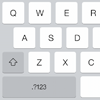
When the keyboard opens on the iPad, you’ll see the letters of the alphabet. But where can you find the at sign, for example?
keyboard facts
We will review the options of the iPad’s keyboard. Thus, the iPad keyboard has no more secrets for you. Here’s all keyboard facts in a row:
- You can type a capital letter by first tapping a Shift key. That’s the key with the arrow up
.png "Shift Key Using iPad") .
. - Do you want to type several capital letters in succession? Then double tap the Shift key. Then the Shift key looks like this
77.png "Shift Double Click Icon iPad") .
. - You can delete text by using the cross at the top right of the keyboard. You then go back one step at a time and delete the text in this way.
- The key with an arrow that makes a turn is the Enter key
 . Moves to the next line. Sometimes this key also contains the word ‘Search’. For example, if you typed in the Google search box. It also sometimes says ‘Go’, if for example you have typed a web address in the browser. This Enter key can be either gray or blue. Different versions may have ‘Return’ on this button.
- The key marked ‘.?123’ takes you to the numbers and most commonly used symbols, such as the at sign (@). But with the QuickType keyboard (on iPads since iOS 11), many of the symbols are also faster to type. Each key contains an extra number or character. This is above the primary letter. For example, the at sign is above the letter A. Swipe the key from top to bottom to activate the secondary number or character. As soon as you release the screen, the number or character will appear where you are typing.
- The arrow keys at the top left of the keyboard undo the last thing you did.
 With the arrow to the right you can restore this. You go back and forward in time, as it were. Don’t see these arrows? First tap on the circle with an arrow in it.
- Tap the key where the hash sign is in front and you will see the other symbols, such as the dollar sign.
- There is also a dictation function on the keyboard. Tap the microphone icon
 . Speak the message you want to convert to text and return to the keyboard by tapping the keyboard.
If you do not see the dictation function, you can enable it via Institutions > General > Keyboard. Tap the slider behind “Turn On Dictation” so it turns green. Tap on Enable Dictation and possibly again Enable Dictation. - Since iPadOS 13, there are also suggestions of words you may be typing. Tap on such a suggestion if you want to use it. Don’t want any suggestions? Then tap Institutions > General > Keyboard. Tap the slider behind “Suggestions” so it turns gray.