

The web browser created by the former Opera founder is a serious alternative for anyone looking for advanced customization options. Here’s everything you need to know to get started with Vivaldi.
Changing browsers and opting for a different solution is undoubtedly a decision that many users refuse to make for fear of not finding their marks or certain tools that they are used to using.
Vivaldi, a web browser created by one of Opera’s former historical founders, is however a very serious complete alternative. The application goes against everything that is done by the competition, which tends to simplify its interfaces. Thus, it has multiplied the new features in recent months. The browser, which has built a solid reputation among technophiles, is undoubtedly the one that offers the most customization options.
Its goal is to try to please everyone by giving users all the keys to configuring a web browser that looks like them and meets their needs. You will discover in the following lines, everything you need to know to get started with the basic functions and get started with Vivaldi.
Download Vivaldi for Windows (Free)
Download Vivaldi for macOS (Free)
Download Vivaldi for Linux (Free)
1. Get started with Vivaldi
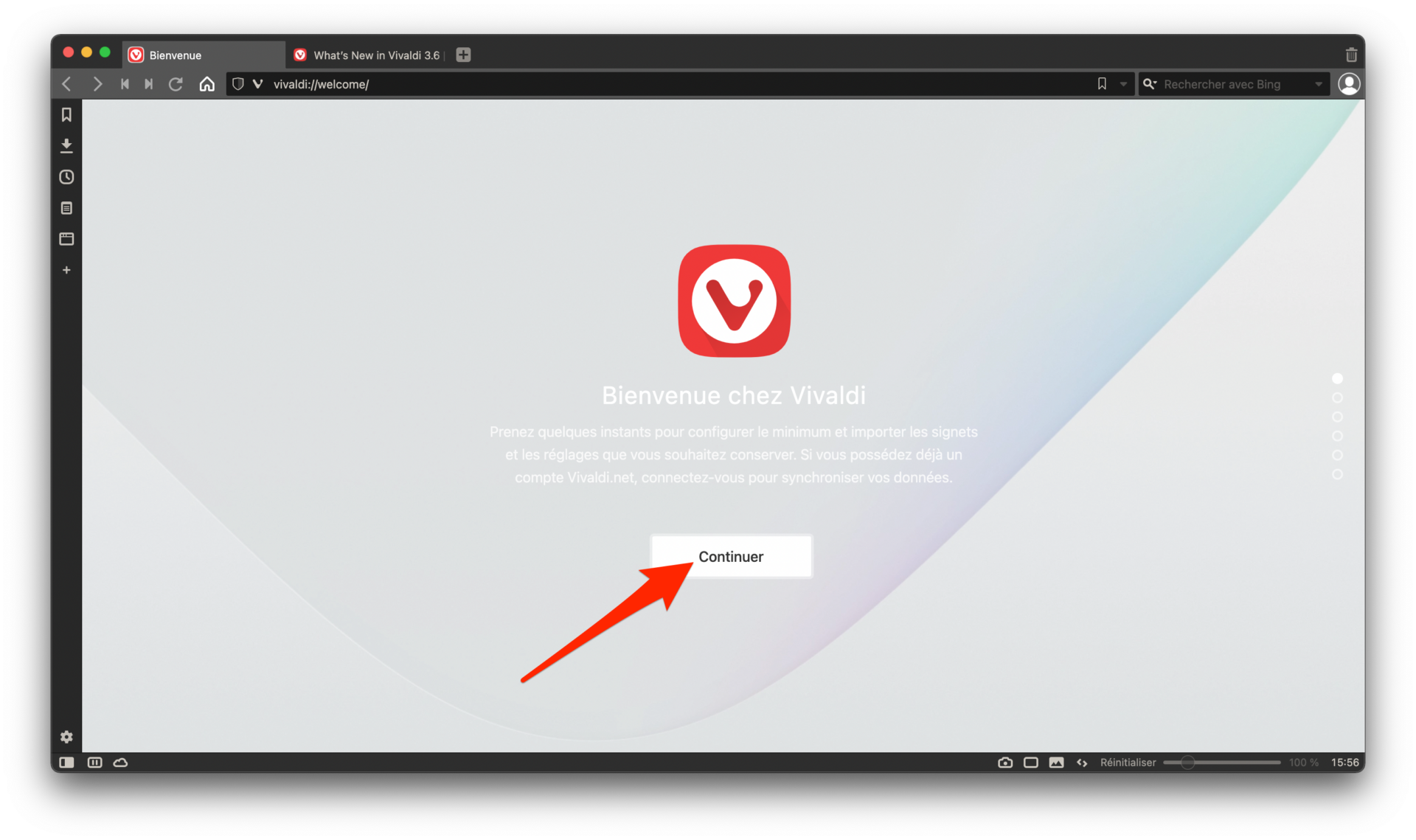
When first opened on your machine, the web browser should offer you a startup wizard to help you quickly configure your preferences. Click Continue.
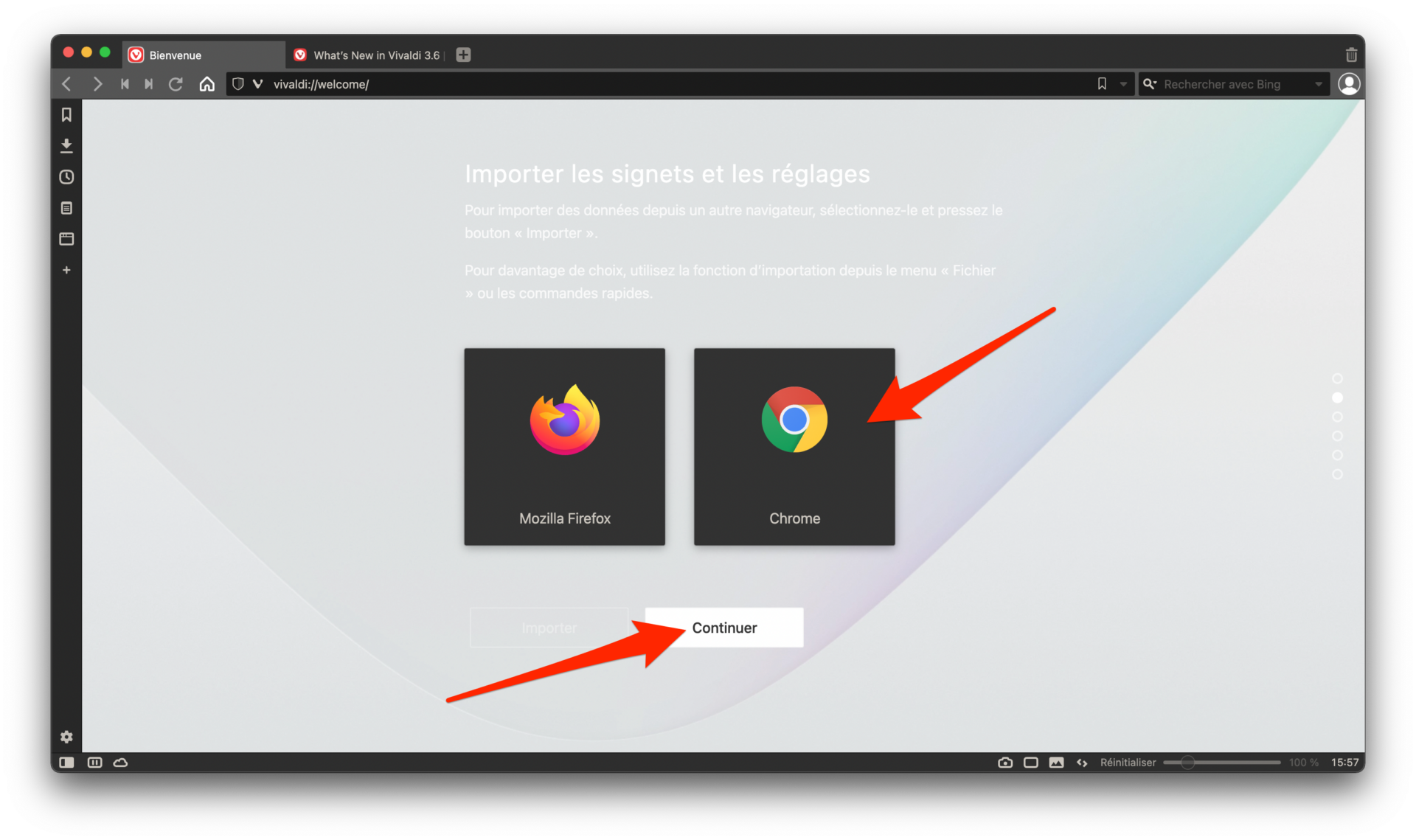
If you want to import bookmarks and settings from a browser you already use, Vivaldi should automatically detect them. All you have to do is select the one for which you want to import the data and click on Continue.
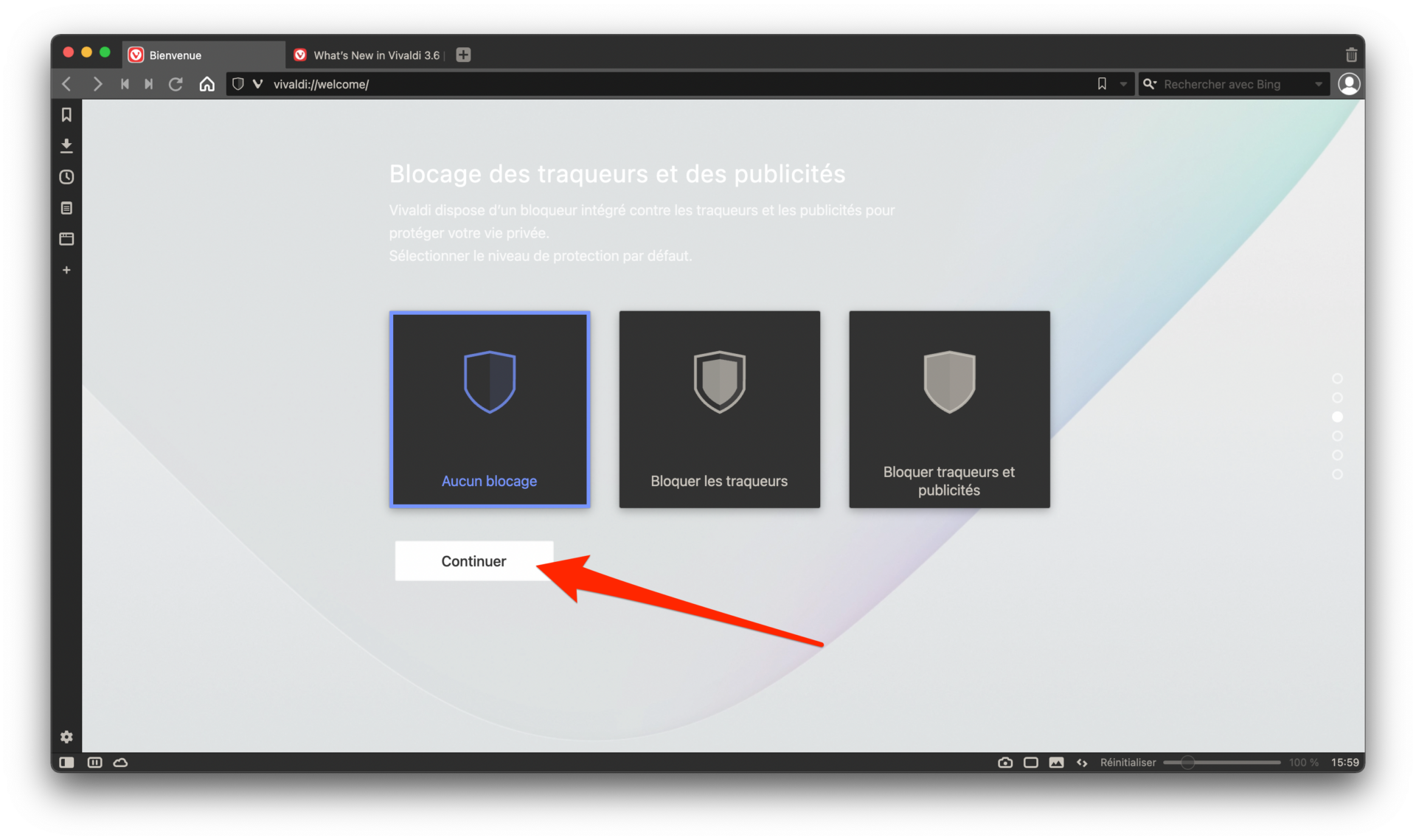
The next page offers you to configure the Blocking system for trackers and advertisements. Select the level of protection that suits you best. You can always set exceptions or change these settings later.
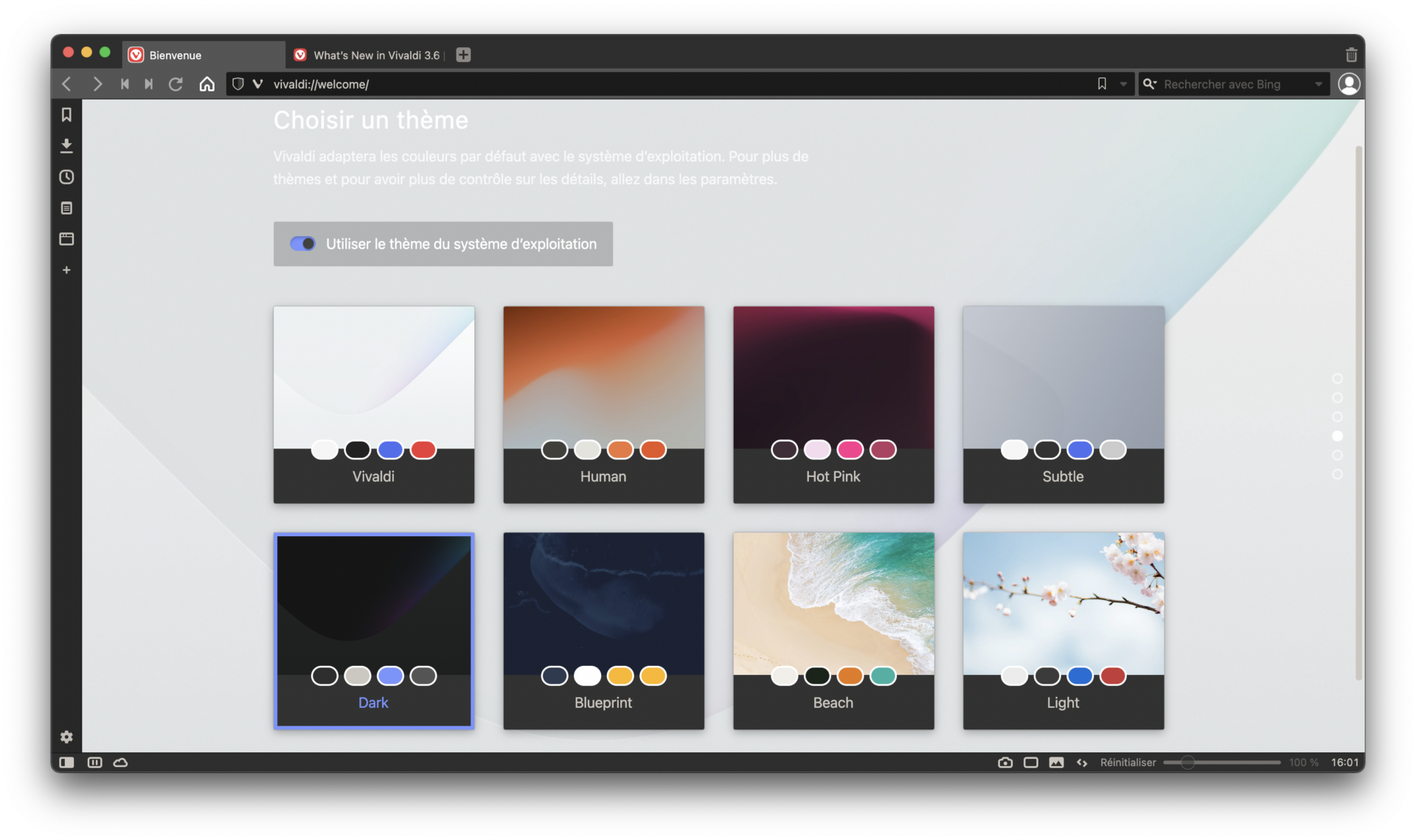
Vivaldi, which has built its reputation on its ability to meet the needs of all users by offering very advanced customization options, offers you to select a theme to modify the colors of the interface. By default, the browser uses the theme of the operating system. Then click Continue.
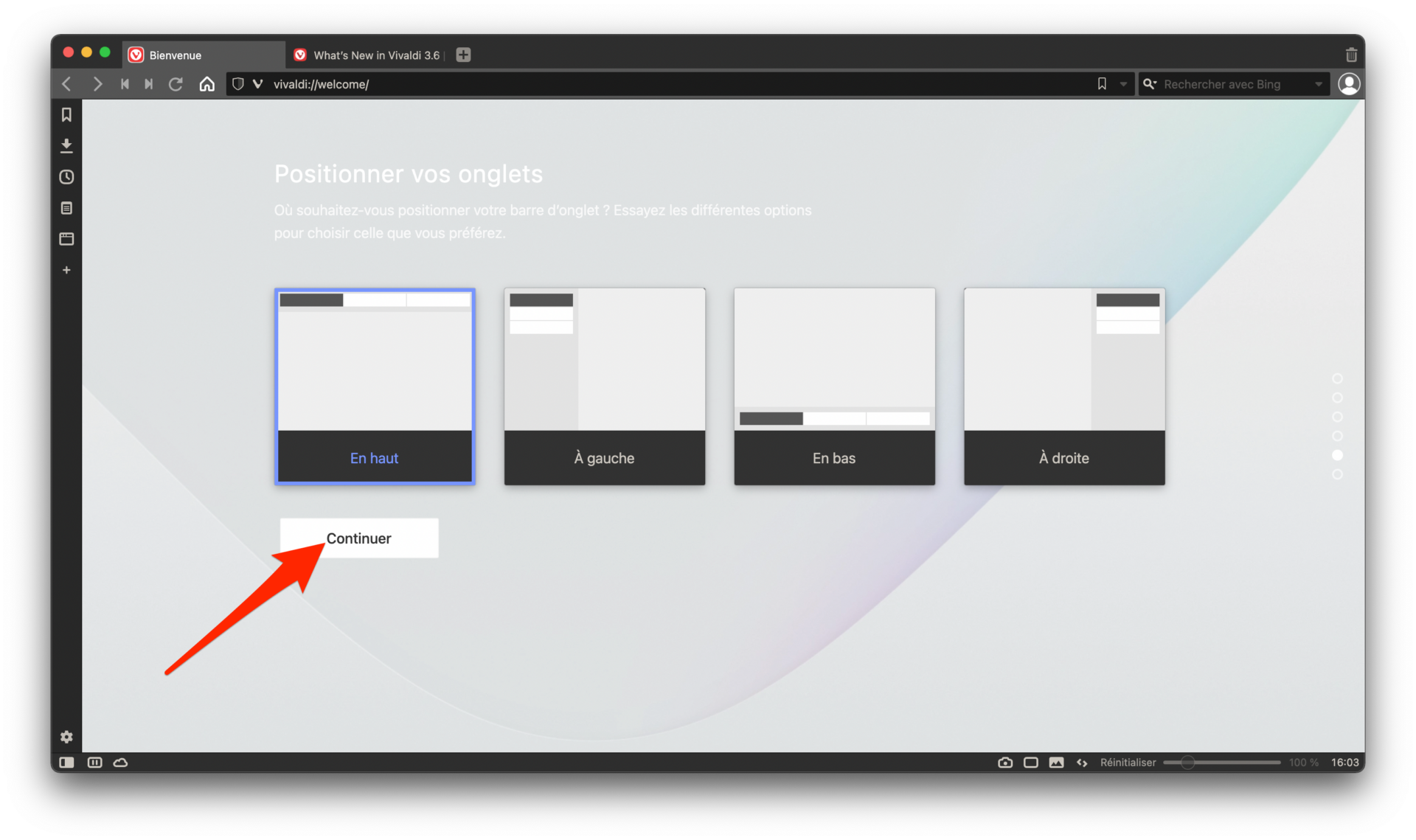
Unlike competing browsers, Vivaldi leaves you free to choose the positioning of tabs in the browser window. You can thus choose to find them at the top, left, bottom or right of the navigation window. The configuration is now coming to an end, click Finish to validate your changes.
Note that, if you have a site in this tab without completing this assisted configuration, you can resume it at any time by entering vivaldi://welcome/ in the address bar.
2. Change search engine
By default, Vivaldi uses Microsoft’s search engine, Bing. Not really renowned for its effectiveness, it is preferable at the first start of the browser to choose an alternative search engine.
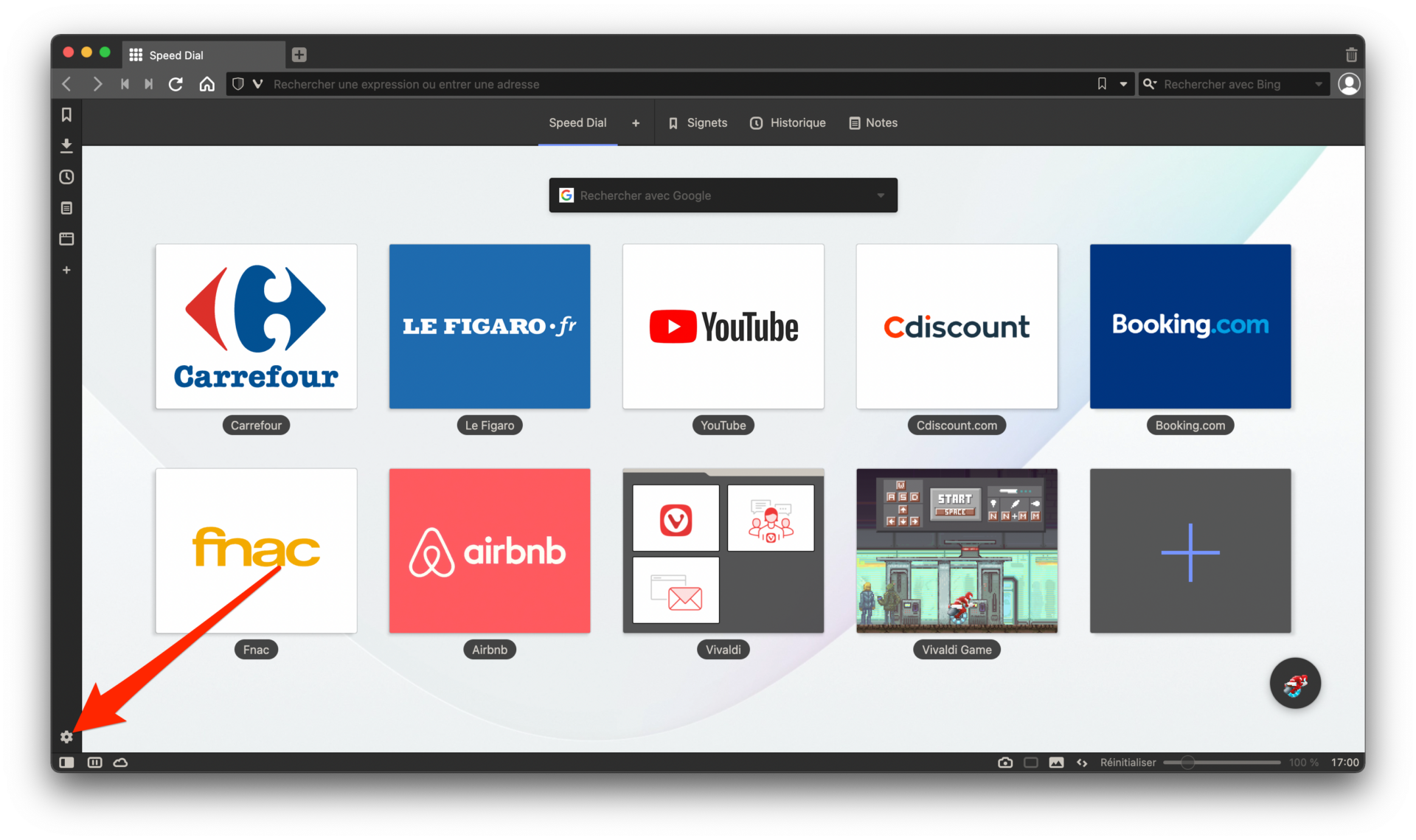
To do this, click on the button with a toothed wheel at the bottom left of the window to enter Vivaldi’s Settings.
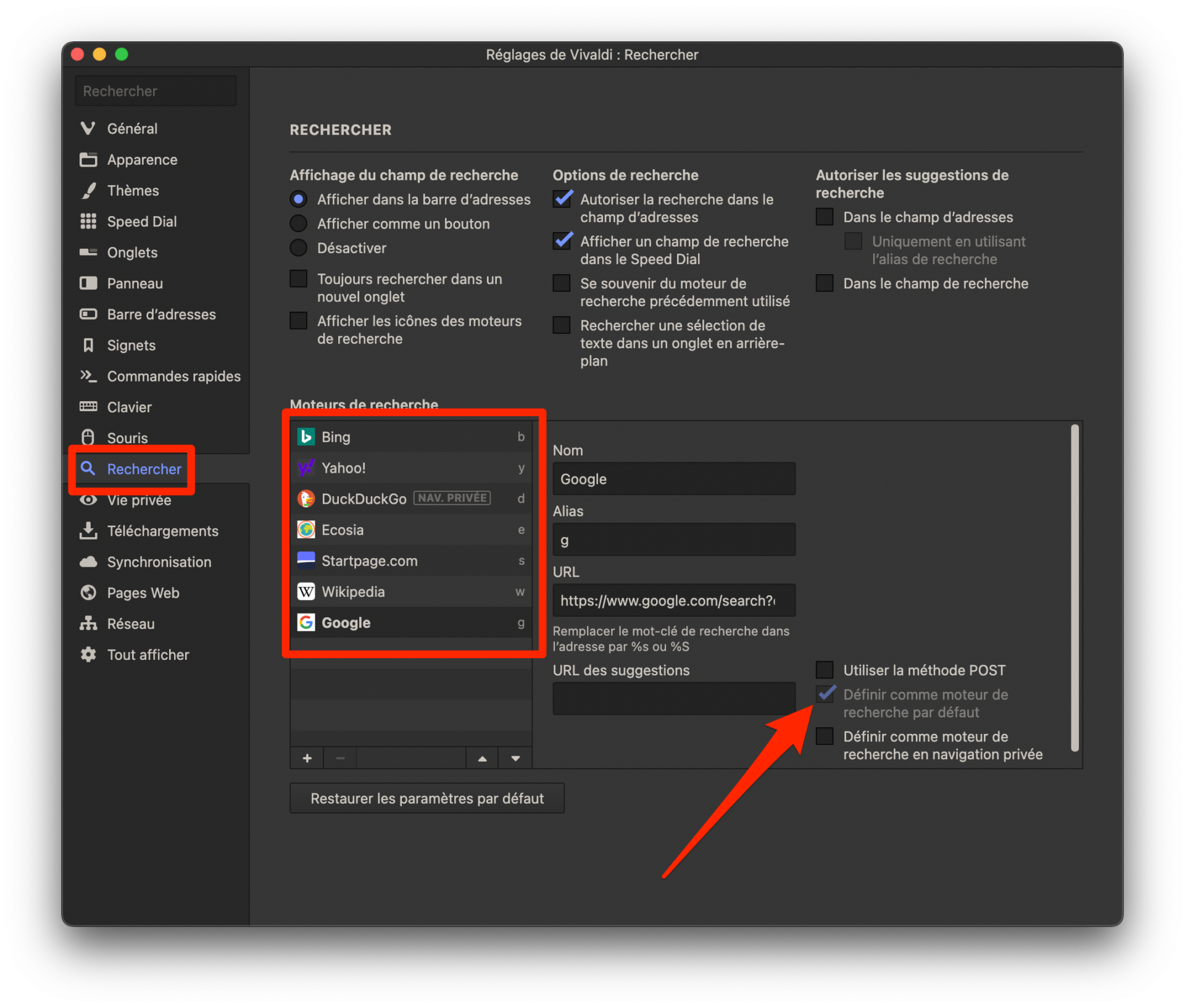
Then go to the Search section, then in the panel dedicated to Search engines, select your favorite, and check the box, Set as default search engine.
3. Master the interface
If the majority of browsers are content to offer a relatively uncluttered interface, Vivaldi goes against this practice and displays a number of buttons giving access to as many features.
At the top of the window in the center, under the address bar, you will find quick access buttons to Bookmarks, History and Notes that you can write during your online travels.

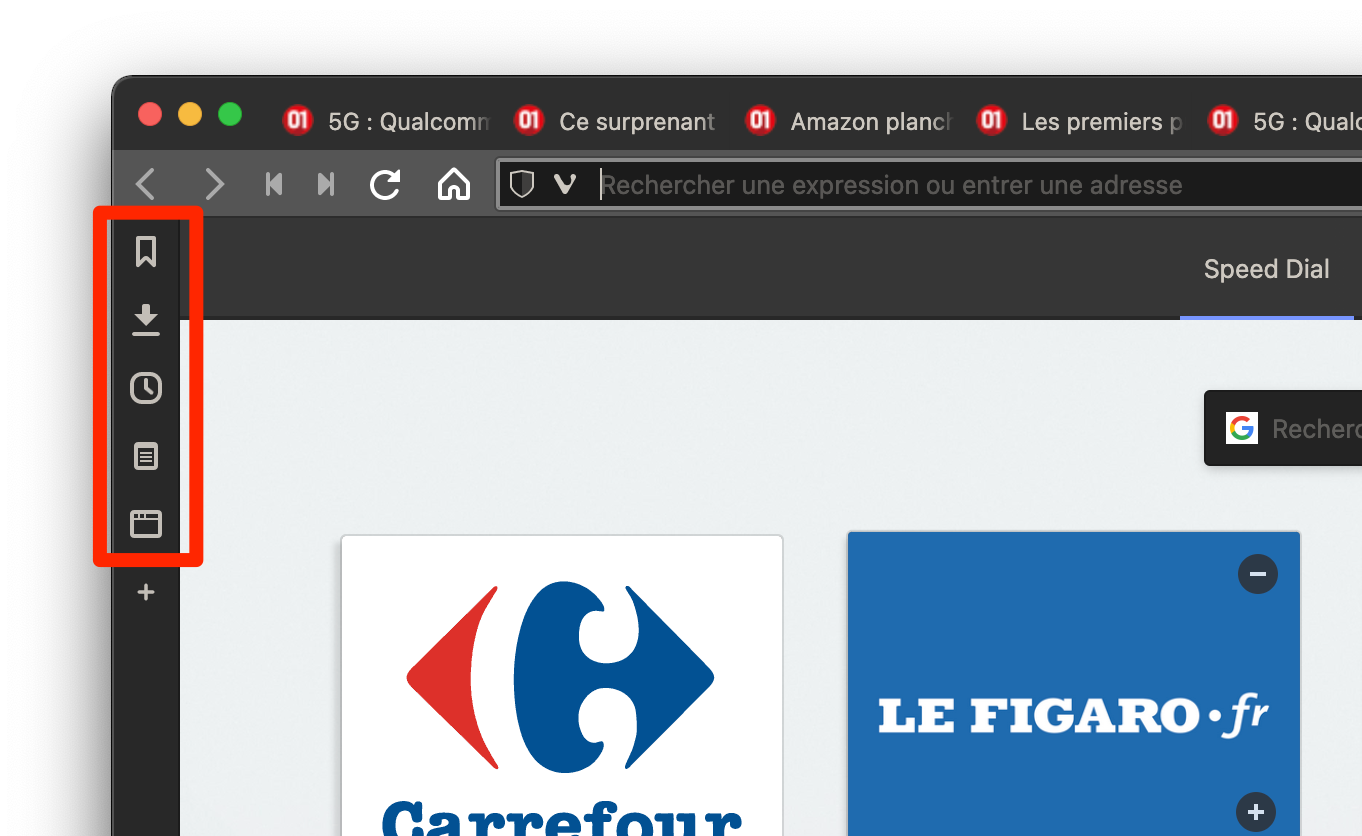
To the left of the window, you’ll find quick access to Bookmarks, Downloads, Browsing History, Notes, and a window manager.
Finally, at the bottom of the Vivaldi window, you will find the button to access the Settings of the browser, as well as several buttons corresponding to various functions of Vivaldi, present in the lower toolbar.

From left to right you will be able to show/hide the side toolbar, pause the browser, check the synchronization status of your data in Vivaldi, take a screenshot, juxtapose tabs, Show or deactivate the loading images, accessing tools to perform actions on the page (for developers), modifying the zoom level, and finally, accessing the clock (with the possibility of programming a timer, an alarm, etc.) .
4. Create shortcuts to your favorite sites
By clicking on the + button on the sidebar of Vivaldi, you will be able to configure a Web Panel. It is a shortcut to your favorite web pages allowing you to access them with one click.
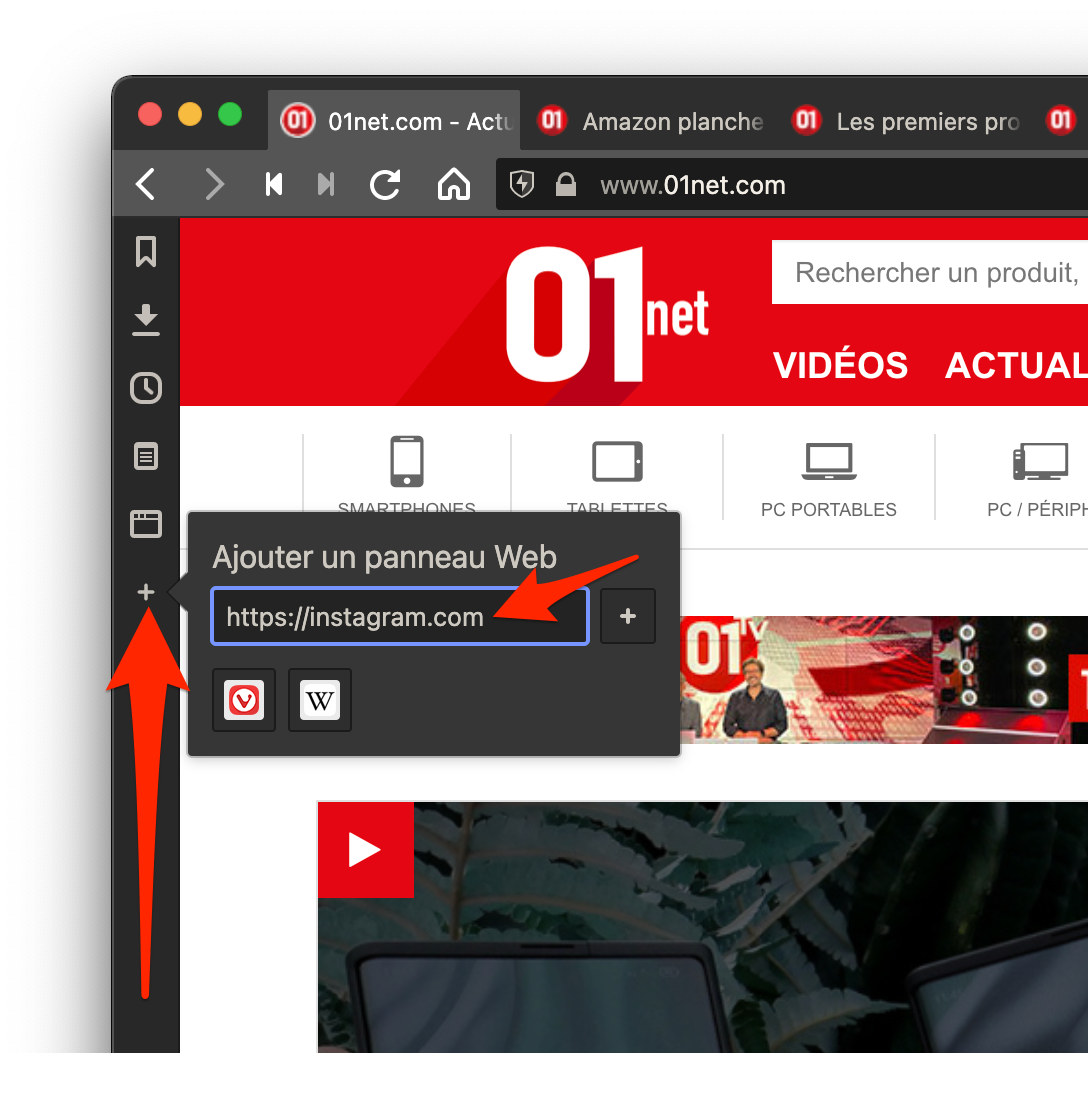
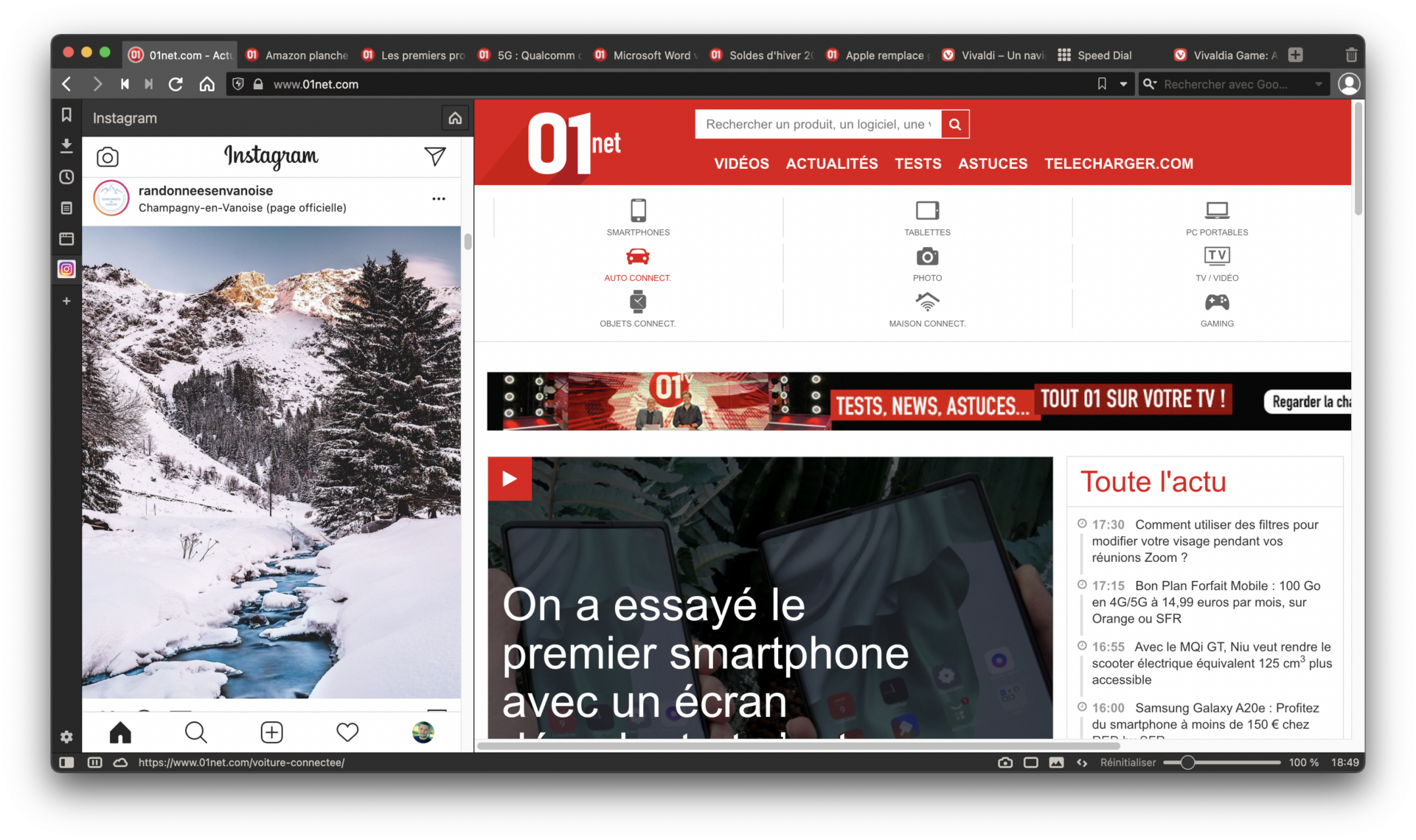
In addition, the sites added within a Web Panel will open on top of the displayed tab, within an independent pane that you can resize.
This function will be particularly practical for keeping your Facebook, Twitter or Instagram account close at hand.
5. Stack tabs by domain name
Among the many options offered by Vivaldi, there is one that should be particularly useful if you are used to having multiple open tabs. The browser offers an option to Stack tabs by domain name.
To do this, open several tabs of the same domain, right-click on one of them, and click on the option Stack tabs by domain name.
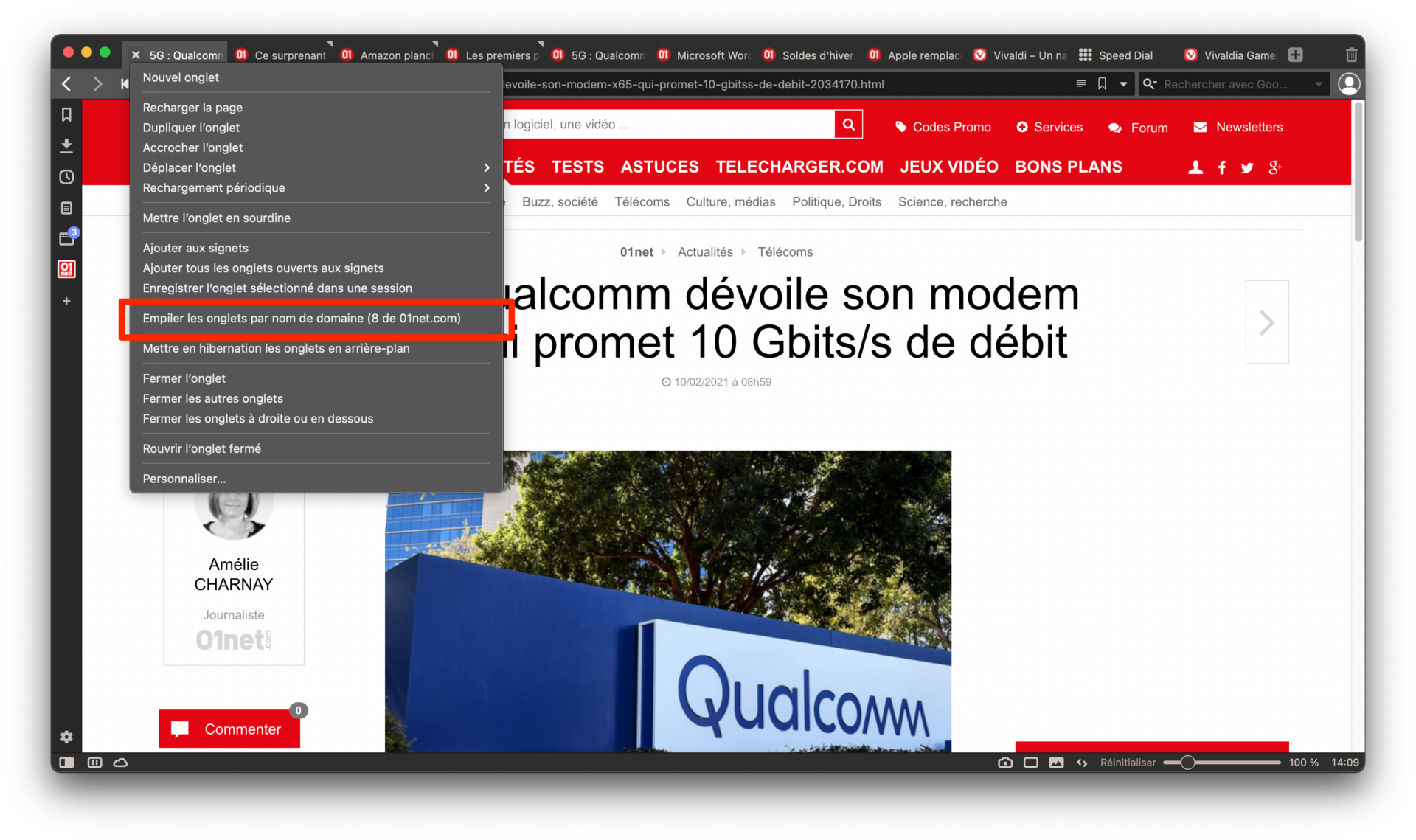
All the tabs of the same website will then be grouped together in a second row of tabs, the main row displaying only a general tab on which you will have to click to “drop down” the list of open tabs.

6. Play the built-in game
Just like Google Chrome or Microsoft Edge, Vivaldi embeds a video game. To play it, open a new tab and click directly on the dedicated button displayed at the bottom right of the window.
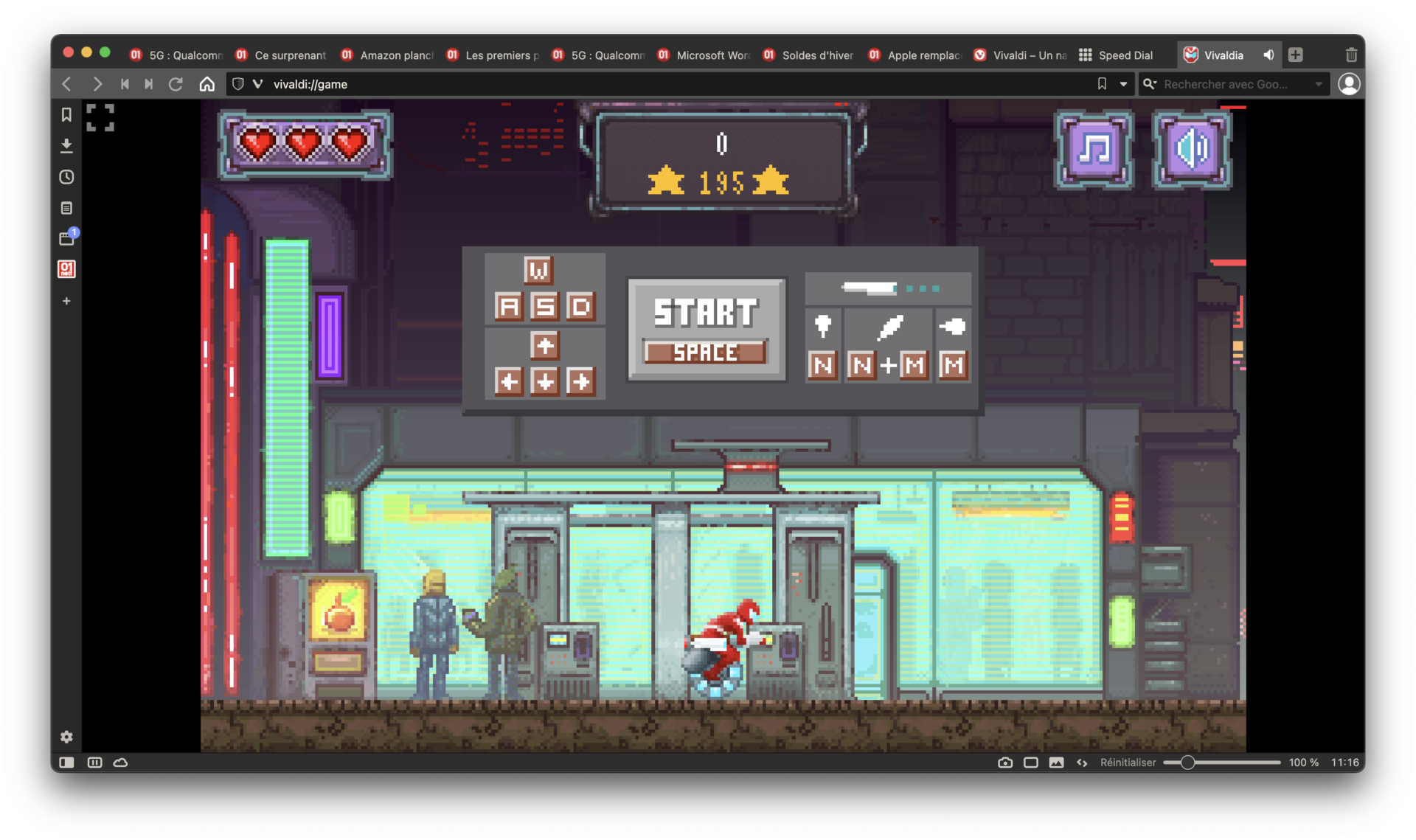
You can also access it directly by typing vivaldi://game in the address bar. Vivaldia, that’s the name of the game, is an arcade game in which you will have to ride your CycloPunk, a unicycle to roam the streets of your city at the hands of infamous machines that you will have to fight.