

The Microsoft operating system includes a function to suppress the blue light emitted by your computer screen. Essential for use in the evening, it is possible to program its activation automatically.
Working late at night on your computer before going to bed is not the best idea. Your computer screen, which emits blue light, tends to tire your eyes, but above all to prevent you from falling asleep. To avoid this phenomenon, Windows 10 offers, like Android and iOS, a “night lighting” mode which modifies the display of the screen. This displays a warmer light that is much less aggressive for your eyes.
Learn how to configure Windows 10 settings to automatically turn on night light after dark
1. Go to Windows Settings
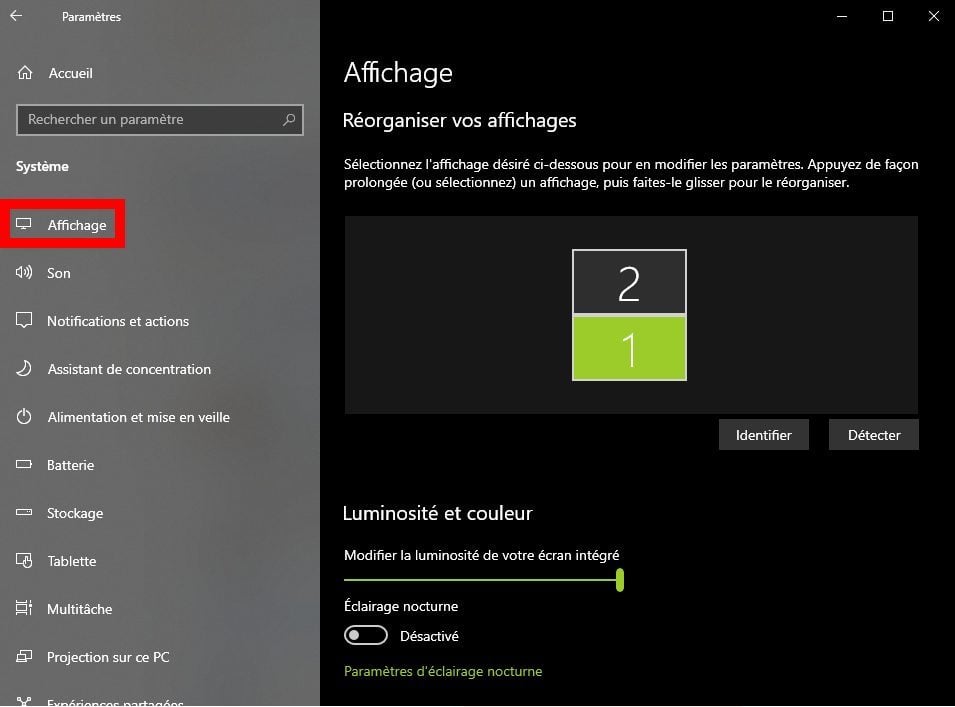
Click on the Start menu and go to Windows 10 Settings. Then enter the System menu and then in the left column make sure you are in the Display section.
2. Enter Night Light Settings
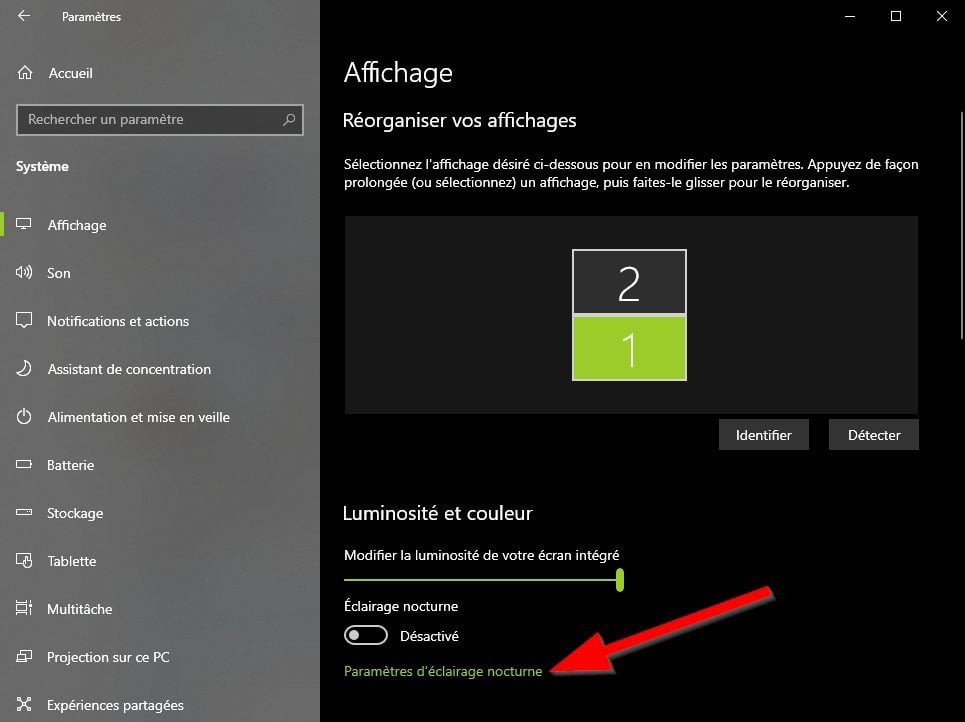
Under the Brightness & Color heading, locate the Night Light Settings menu and navigate to it.
You can, if you wish, choose to Activate it now. You can then increase or decrease the intensity of the night lighting using the slider provided for this purpose.
3. Plan the activation of night lighting
More practical, it is also possible to Schedule the night lighting so that it activates automatically.
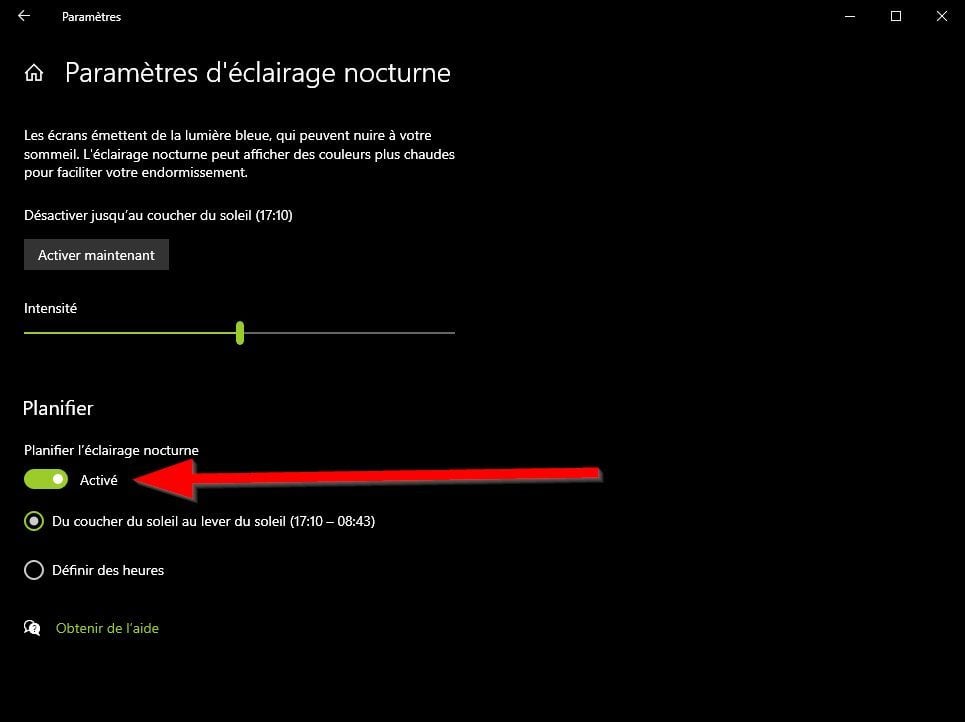
If you have location services enabled in Windows 10, you will be able to let the operating system enable this Sunset to Sunrise mode. You will also have the option to Set times manually that better suit your needs.