
Create a Windows 10 desktop shortcut to quickly open the operating system settings window.
If you happen to have to frequently open the Windows 10 Settings panel, know that it is possible to quickly access it without having to click on the Start menu. You can indeed create a quick access shortcut directly on your desktop that will allow you to open the settings window more quickly. Here’s how.
1. Create a shortcut
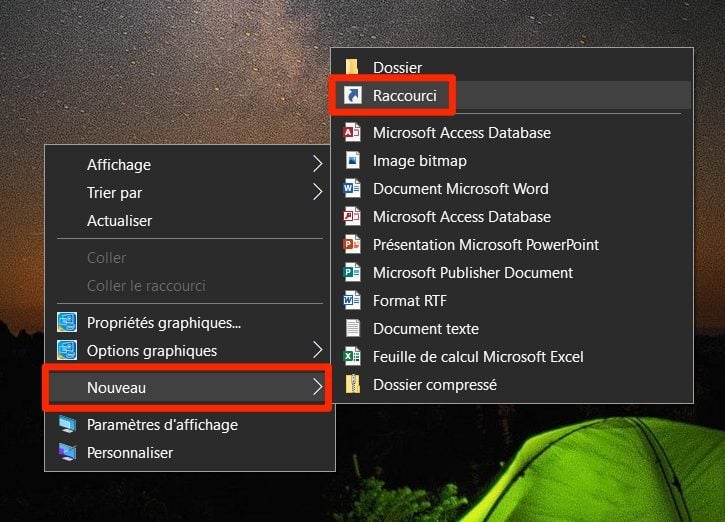
Go to the Windows desktop, right-click and choose to create a New Shortcut.
2. Enter the location of the item
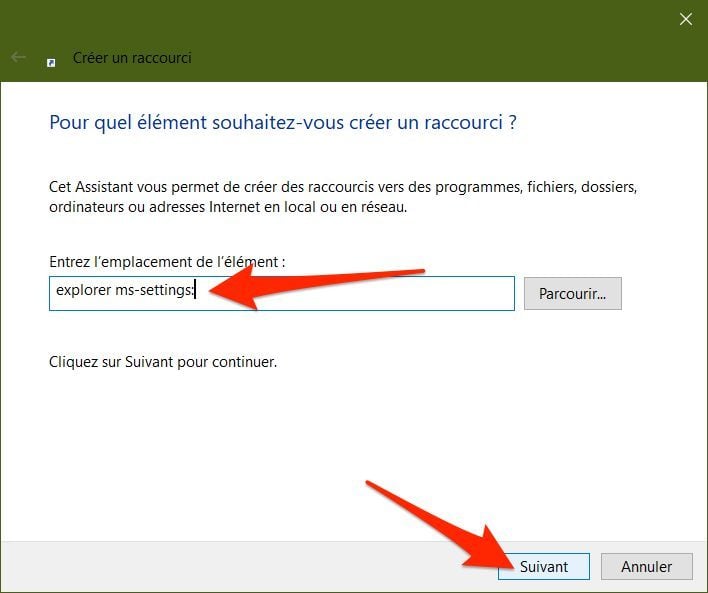
In the window that appears, type explorer ms-settings: in the text field, then click Next.
3. Choose a name
Then enter a name for your shortcut, Parameters for example, and click on the Finish button to validate the creation of the shortcut.

4. Pin your shortcut
The Windows 10 Settings shortcut should now be on your desktop. A double click on it will directly open the Settings window of the operating system.

Note that it is also possible to pin the Windows Settings window directly to the taskbar. Once opened, right-click on the icon present in the Windows taskbar, and choose to Pin it to the taskbar.

You can then open Windows Settings directly with just one click.