
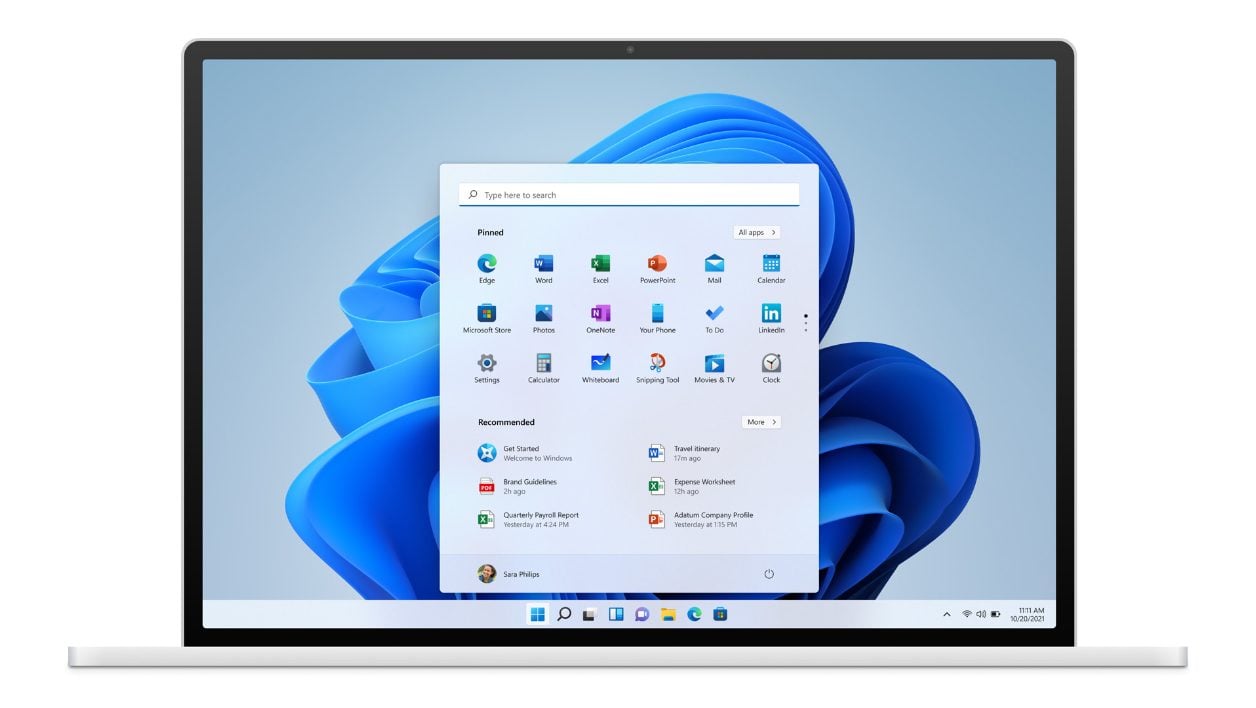
© Microsoft
Install Windows 11 easily on an officially unsupported computer using a modified installation USB drive.
Just a year ago, Microsoft officially unveiled Windows 11, the new version of its operating system. At the time, the new features of Windows 11 had something to seduce. Microsoft’s new operating system offered a completely redesigned interface and incorporated new tools designed to improve productivity. This new version of Windows was also presented as tailor-made to offer a better experience to gamers. Microsoft had also created a surprise by announcing the arrival of a more open Microsoft Store, and above all by offering native support for Android applications (which are still expected in the stable version of the OS).
Unfortunately, Microsoft had quickly drawn the wrath of users. To install Windows 11, the Redmond firm required a minimum configuration leaving a bunch of computers, however still valiant, on the sidelines. Little by little, hackers have looked into the matter and managed to circumvent these restrictions to install Windows 11 on machines that do not meet the criteria set by Microsoft. The manipulation to get there, however, was not within the reach of the first comer.
Other, much simpler solutions then began to emerge. The publisher of Rufus, a tool for creating USB OS installation keys, has integrated them directly into its software. The utility is now able to create modified installation media capable of overriding Microsoft’s requirements to install Windows 11
1. Download Rufus
Start by downloading the excellent Rufus utility. This free and open source software is a reference for creating operating system installation USB keys. The latest 3.19 update includes several options for creating Windows 11 installation media capable of bypassing Microsoft’s prerequisites. Rufus allows you to install Windows 11 on machines that do not have Secure Boot or a TPM 2.0 chip, all without a Microsoft account.
Download Rufus for Windows (Free)
Download Rufus Portable for Windows (Free)
2. Download Windows ISO Image
To create your installation media, you will need the Windows 11 installation image in .ISO format. It is this image that you will use in Rufus to create your Windows 11 installation USB key. Microsoft allows the Windows 11 installation image to be downloaded for free from its website.
Download Windows 11 ISO (Free)
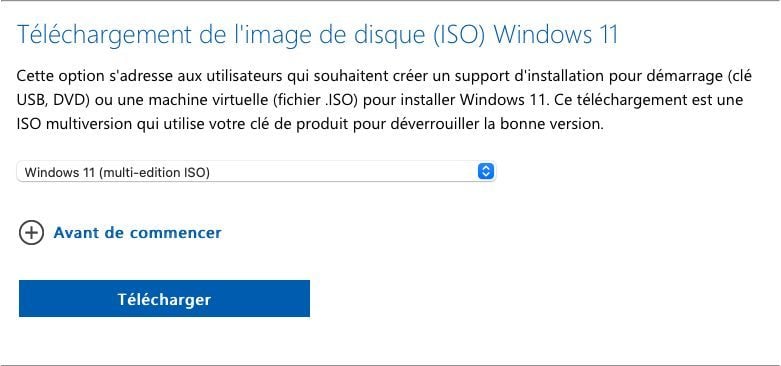
Once on the download page, locate the Windows 11 Disc Image (ISO) Download line, choose the Windows version from the drop-down menu, and click the Download button.
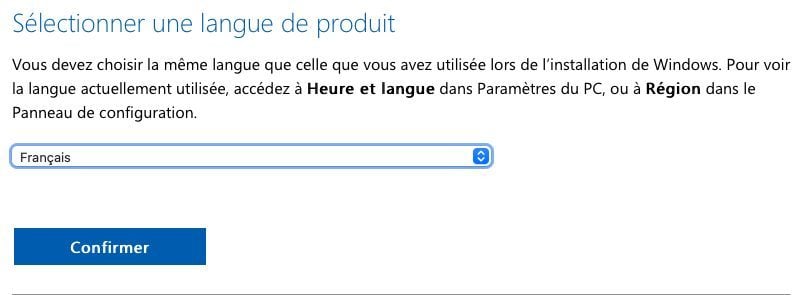
Then select the language of the Windows 11 disc image to download and click Confirm.
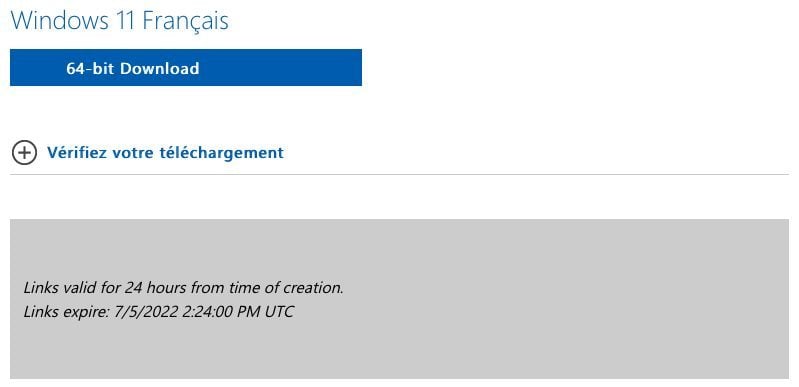
Microsoft should then generate a unique download link for Windows 11 French. Click the 64-bit Download button to download the file.
3. Configure Rufus
Connect your USB key to your computer and open Rufus. Normally, the utility automatically selects the USB key you just inserted from the Device drop-down menu.
Now click on the SELECT button and then choose the Windows 11 ISO format disk image that you have just downloaded on your PC.
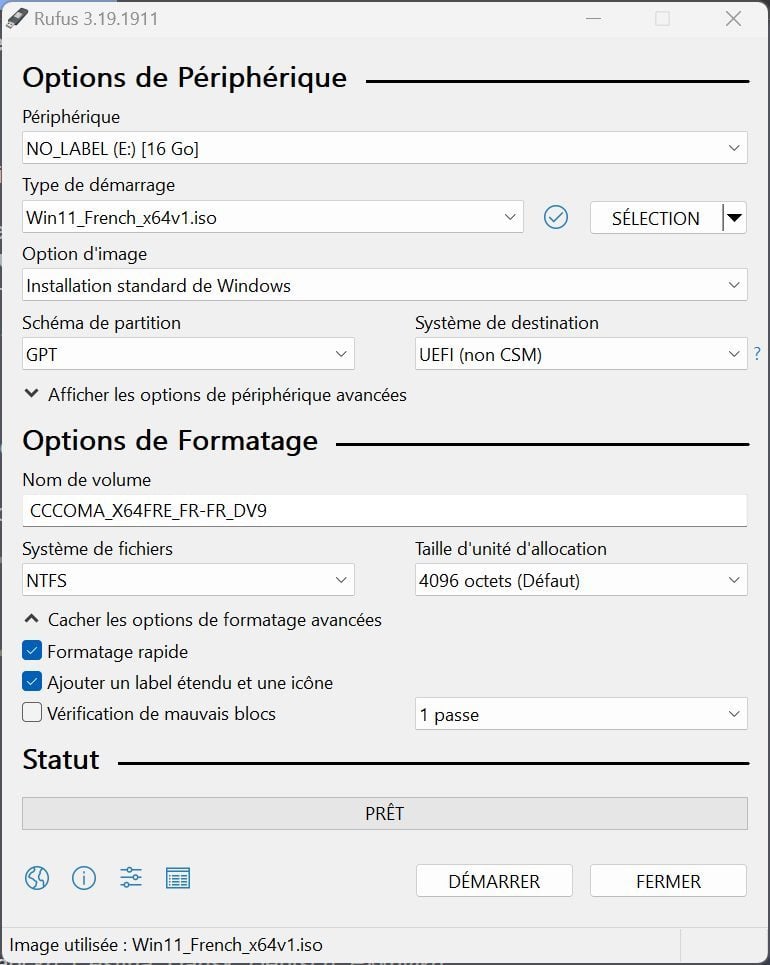
4. Create the USB stick
Now click on the START button. An alert pop-up displaying several options should then appear.
Make sure that the Remove the need for Secure Boot and TPM 2.0 option is correctly checked. If your computer does not have at least 4 GB of RAM and 64 GB of disk space, check the second option as well.
Finally, if you want to be able to install Windows 11 on your PC without having to sign in with a Microsoft account, check the last option, Remove the need to use a Microsoft account online.
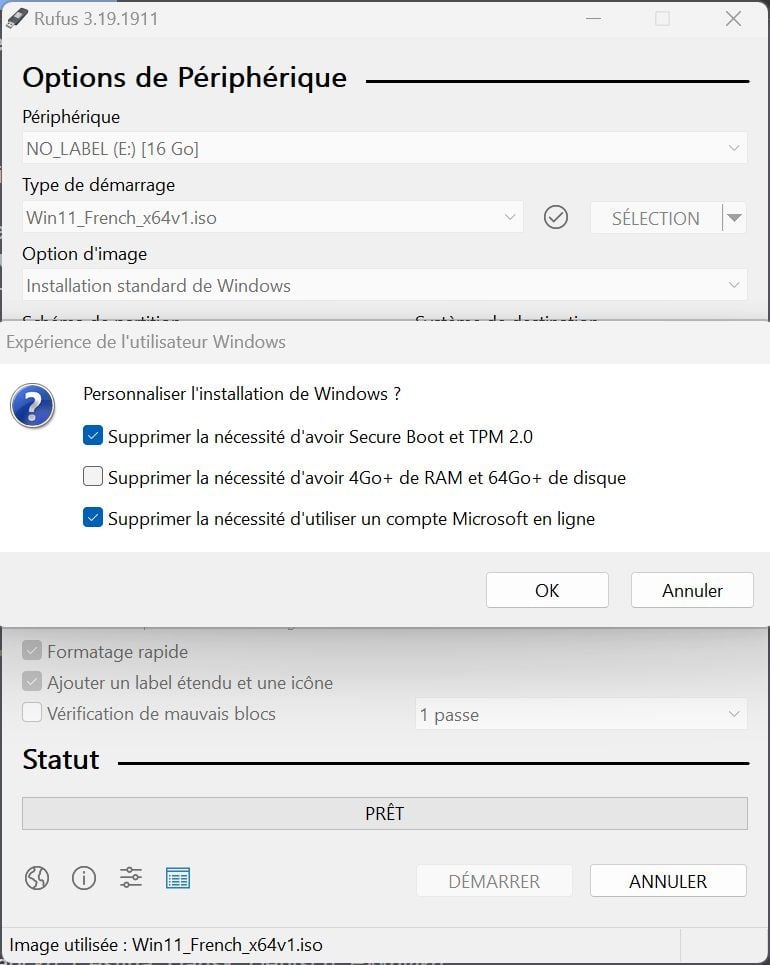
Finally, click OK to start creating your Windows 11 installation device, then click OK again in the pop-up alert indicating that all the data contained on the USB key will be erased.
When the process is complete, Rufus will indicate that the Windows 11 installation USB drive is ready. You will then only have to start the computer on this bootable device to install Windows 11 bypassing Microsoft’s restrictions.